
How to Configure Filters in a CRM: Guide Series #
GudHub offers four elements for filtering records. Each helps you find the data you need, but each provides a different way to work with filter conditions. In this series, we’ll walk through how to configure and use each element with practical examples.
- How to Configure Table Filter in a CRM
- How to Configure Filter Advanced in a CRM
- How to Configure Filter Tabs in a CRM
- How to Configure Nested Filter in a CRM
GudHub CRM lets you filter records by specific field values using the Table Filter element. It opens in a separate dialog and allows you to add conditions and combine them according to your needs.
This is the first article in our series on configuring filters in a CRM.
You can find all the articles in the series here.
Step-by-Step Guide to Configuring Table Filter #
For this example, we’ll use an app containing a table of records with a title and a status. Table Filter is included in the standard apps shown in the video and can be accessed by clicking the “Filter” button.
Step 1. Open the Filter Settings #
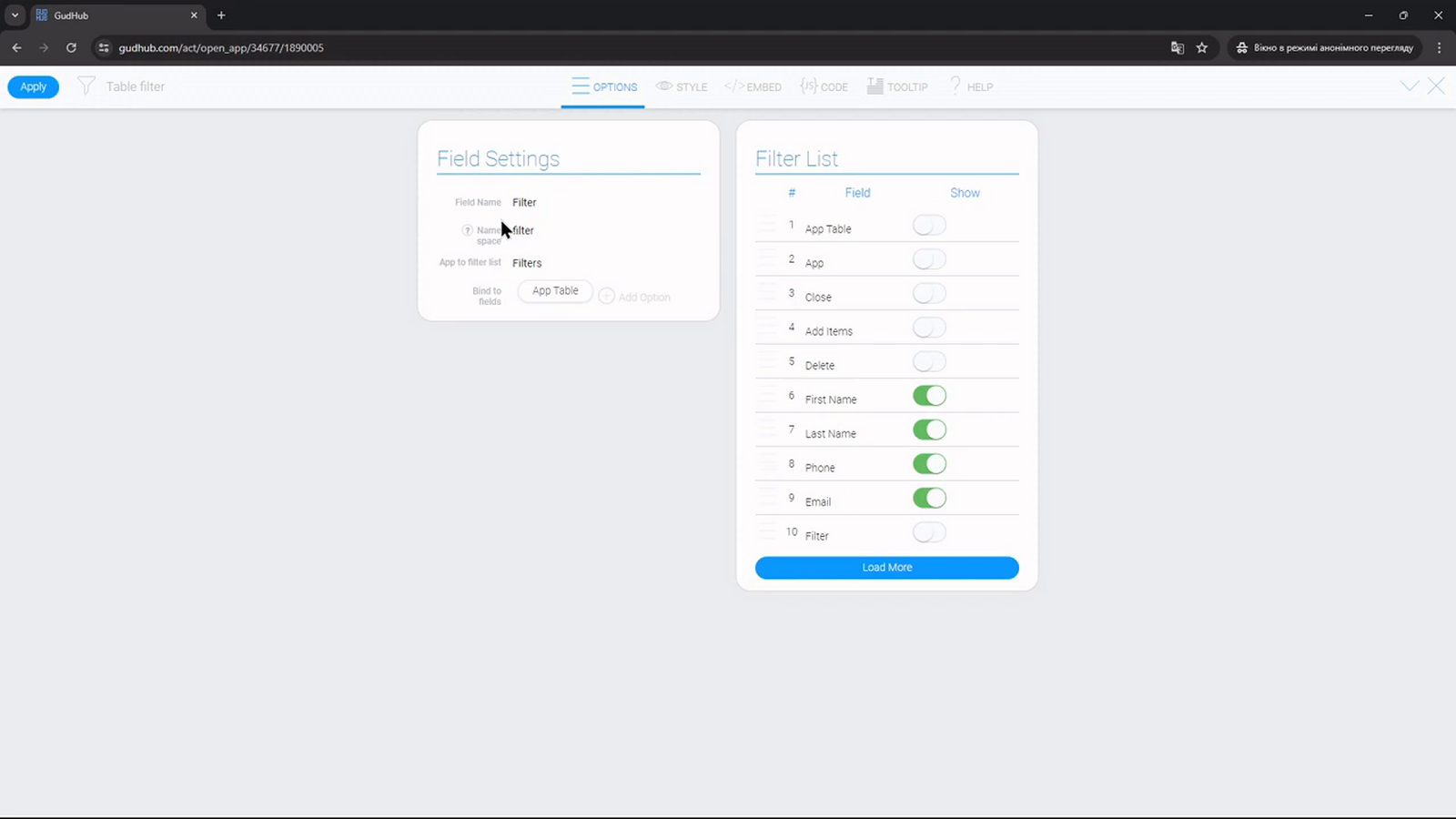
Open "Edit Field" for the Table Filter element. First, you need to specify the data source and choose which elements the filter should apply to.
Step 2. Select the App Containing the Records #
Under “App to Filter List”, select the app whose records you want to filter.
This doesn’t have to be the app containing the filter button. For example, if a table displays data from another app, you should select that data source here.
Step 3. Link the Filter to a Table or Cards Element #
Under “Bind to Field”, select the Table or Cards element that the filter should affect. This list contains the elements in the current app where the Table Filter itself is located.
A single Table Filter can be linked to multiple elements at once. For example, you can connect it to both a table and a Cards element displaying the same records.
Note that all linked elements must use the same data source. This is the app you need to select under “App to Filter List”.
Step 4. Choose Which Fields Are Available for Filtering #
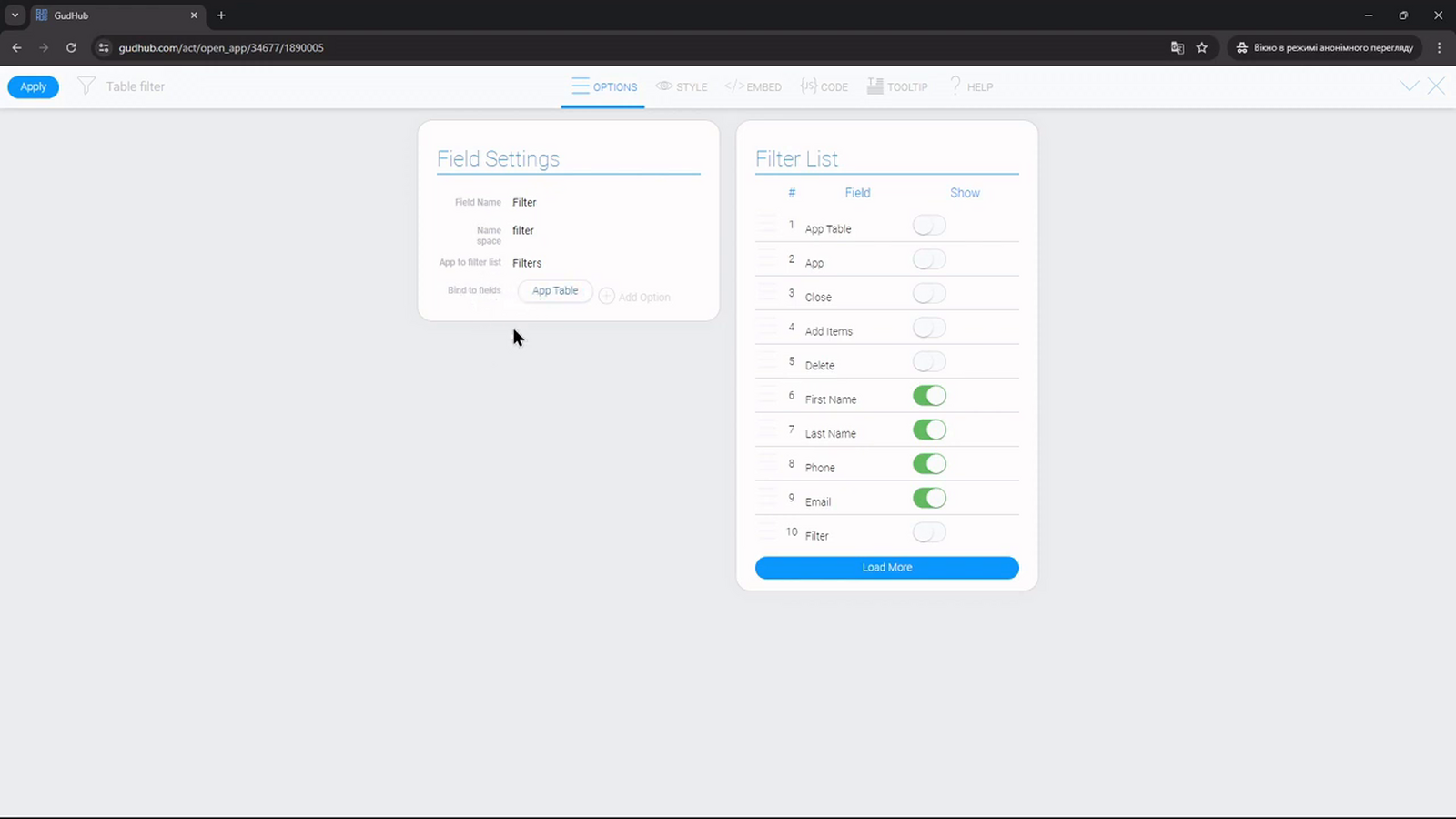
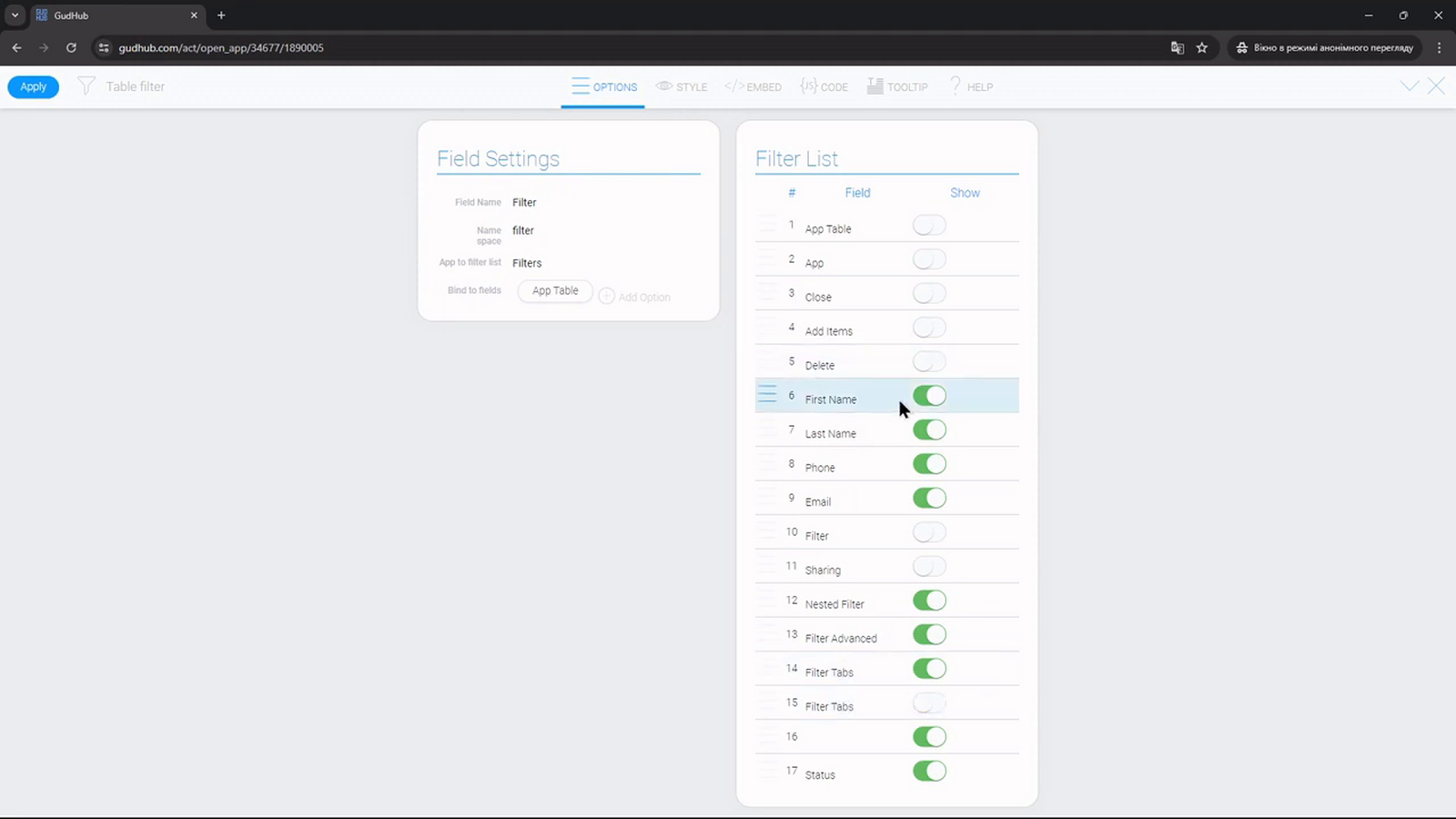
In the field list, enable the toggles next to the fields users should be able to filter by. For example, we’ll make the record title and status available.
Fields with their toggles turned off won’t appear in the filter field selection list. This lets you remove unnecessary options and keep only the fields users need to search.
You can also change the order of the fields in the settings. They will appear to users in the same order.
Step 5. Test the Filter #
Return to the app, click “Filter”, and then select “Add filter”. Choose a field and specify a condition.
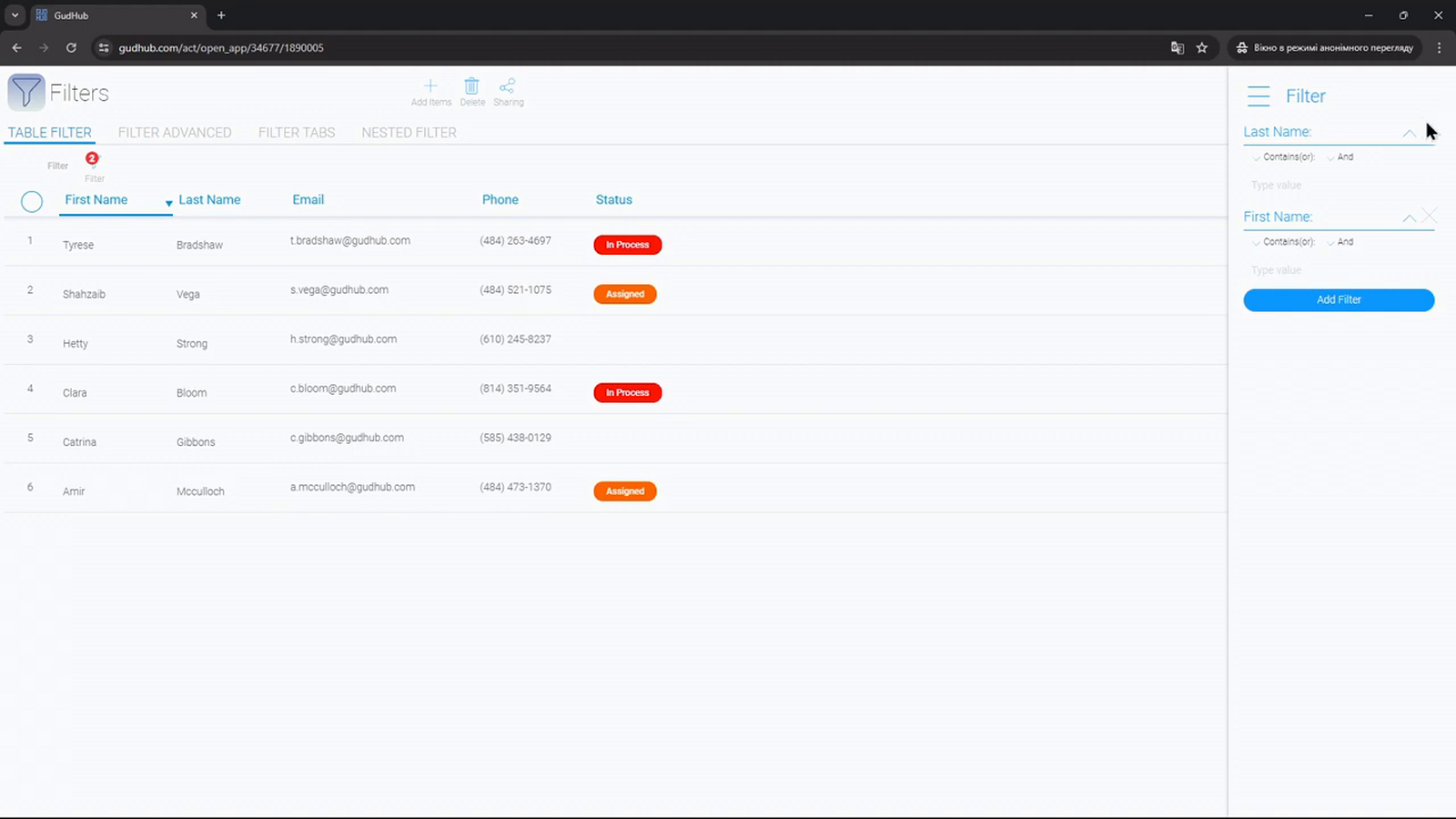
For this example, we’ll select the status field and set the condition to “In Process”. The linked Table or Cards element will then display only records with this status.
You can add more conditions as needed. Table Filter supports multiple filters, allowing users to refine their results without changing the element’s settings.
When combining conditions, keep the selected logic in mind: “And” requires all conditions to be met, while “Or” requires at least one of them to be met.
Table Filter is useful when search criteria change frequently and users need to create their own filtered views.
The next article in this series covers Filter Advanced, which lets you place frequently used filters directly on an app page.