How to Configure Filters in a CRM: Guide Series #
GudHub offers four elements for filtering records. Each helps you find the data you need, but each provides a different way to work with filter conditions. In this series, we’ll walk through how to configure and use each element with practical examples.
- How to Configure Table Filter in a CRM
- How to Configure Filter Advanced in a CRM
- How to Configure Filter Tabs in a CRM
- How to Configure Nested Filter in a CRM
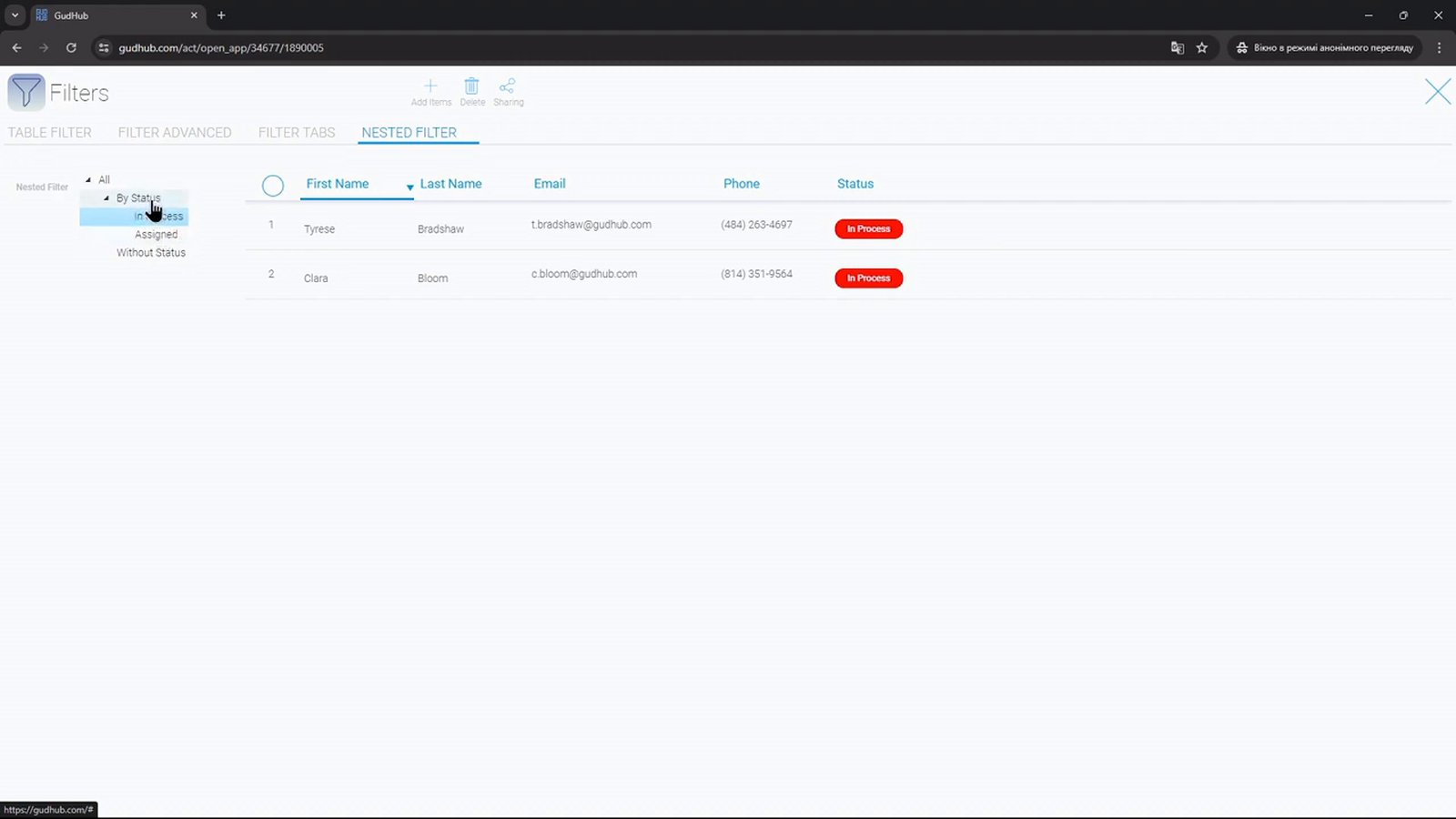
The Nested Filter element lets you organize filters into a hierarchical list. Users can move from a general category to a more specific one, narrowing down the set of matching records at each level.
This is the fourth and final article in our series on configuring filters in a CRM.
You can find all the articles in the series here.
Step-by-Step Guide to Configuring Nested Filter #
For this example, we’ll create a top-level item called “All”, with a “By Status” item nested inside it to show records with a populated status field. One level further down, we’ll add “In Process” to display records currently being processed.
Step 1. Select the Data Source and the Element to Filter #
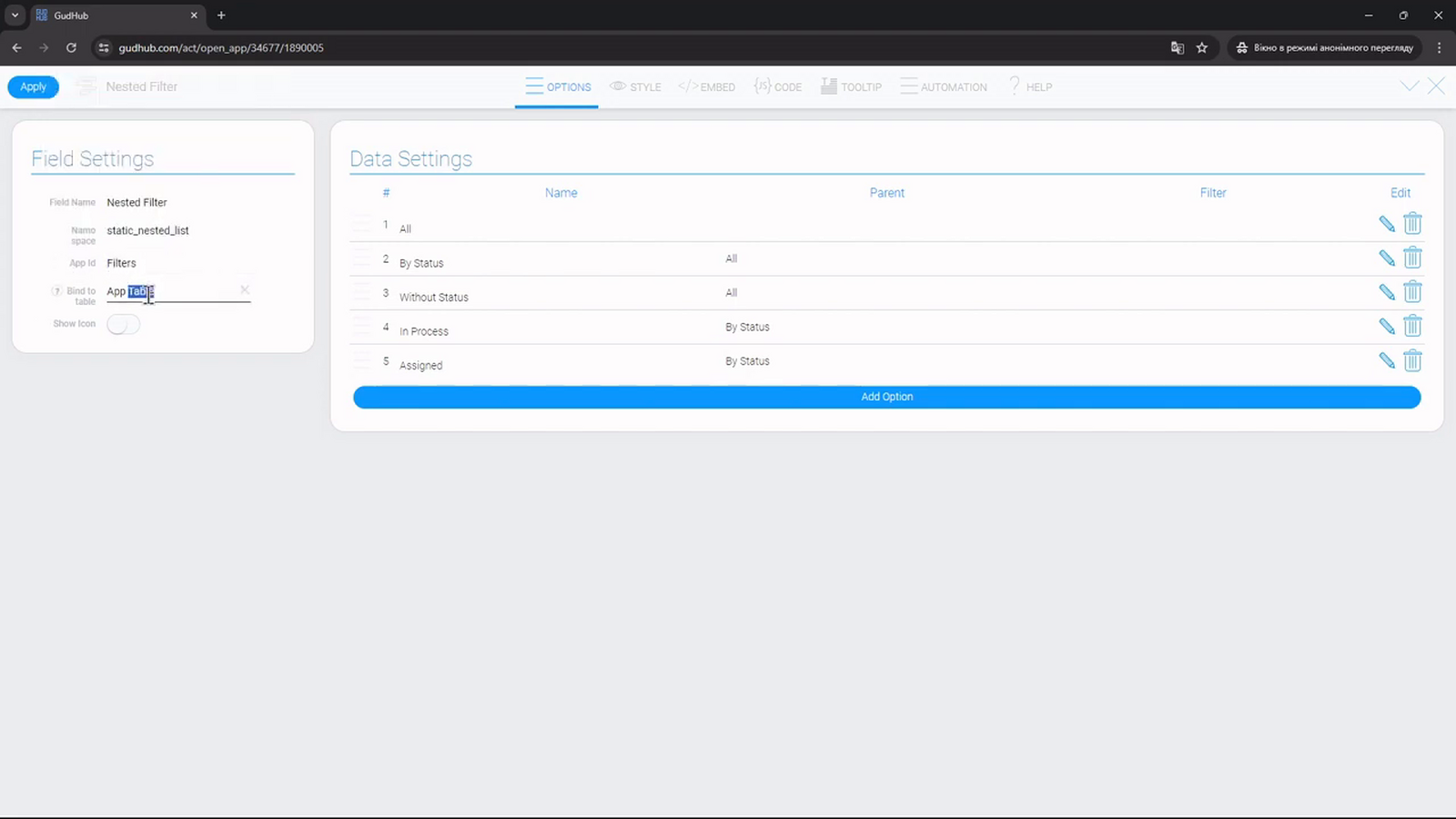
Open “Edit Field” for the Nested Filter element.
Under “App to Filter List”, select the app containing the records. Under “Bind to Field”, select the Table or Cards element in the current app.
Nested Filter can be linked to only one element. As with the other filters in this series, the data source can be the current app or another app you have access to.
Step 2. Set Up the Top-Level Item #
In the filter list, keep the top-level "All" item without any filter conditions or a parent item. It will serve as the starting point of our hierarchy and let users return to the full list.
Save this item first so you can select it as the parent of the next level.
Step 3. Add a Category for Records with a Status #
Create an item called “By Status”. In the parent item field, select “All”.
Configure a filter for this item that displays only records with a populated status field. Once saved, “By Status” will appear nested under “All”.
You can use the same approach to create a separate branch for records without a status. This branch should also be placed under “All”, rather than under “By Status”, because the two categories have opposite conditions.
Step 4. Add a Nested Filter #
Create an item called “In Process” and select “By Status” as its parent. In the filter settings, set the condition so that the status equals “In Process”.
When this item is selected, the conditions from both levels will apply: the status field must be populated and its value must be “In Process”.
Note that a nested item inherits the conditions of all its parent items. When configuring a filter, you therefore need to consider the entire branch, not just the conditions of the last item. If the conditions contradict one another, no records will match.
Step 5. Check the Hierarchy #
Make sure each item has the correct parent. In our example, the hierarchy is “All” – “By Status” – “In Process”.
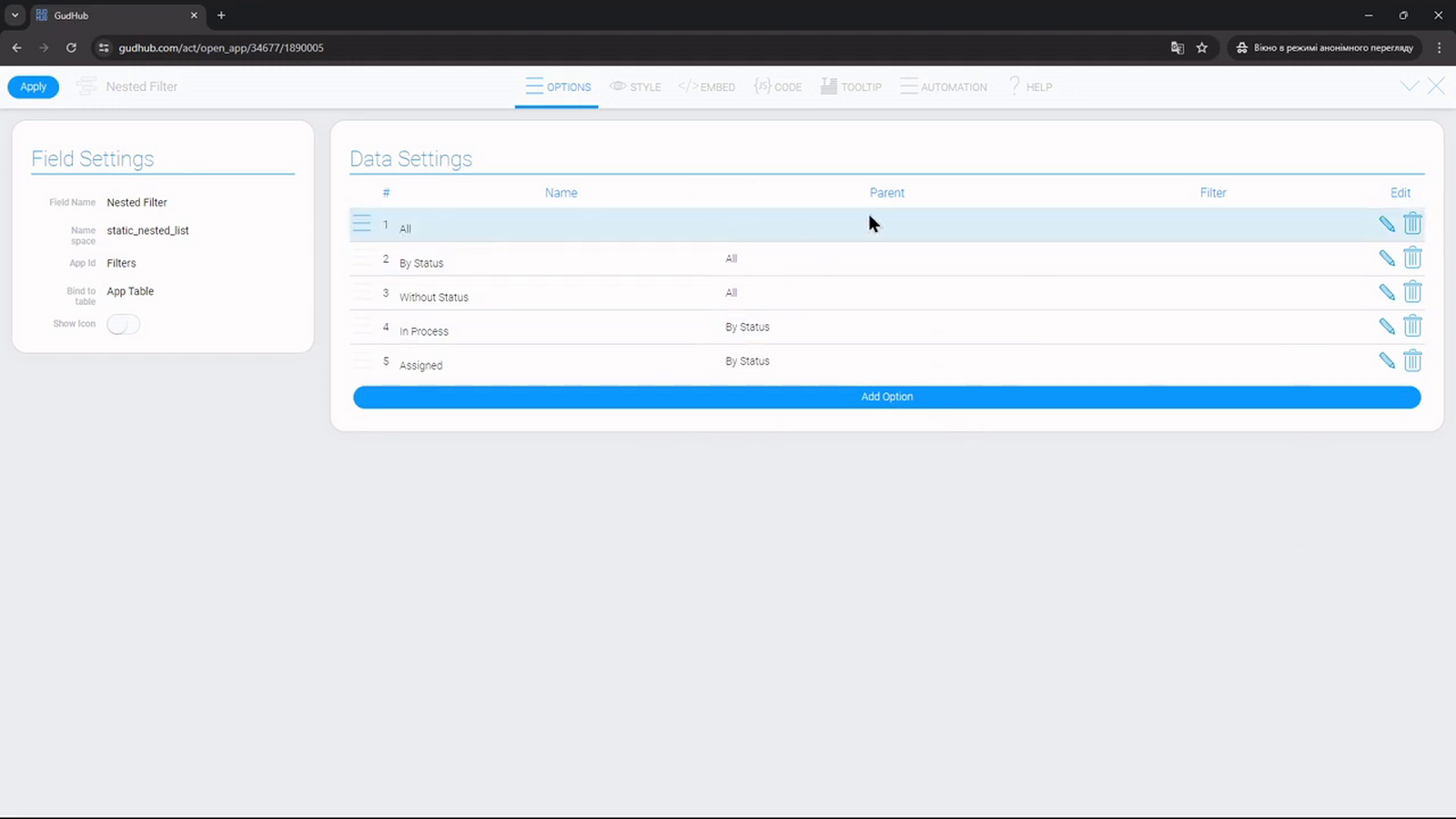
Use the pencil icon to edit items, the checkmark to save changes, and the "X" to cancel. You can delete an item you no longer need using the trash icon.
Step 6. Configure the Icons #
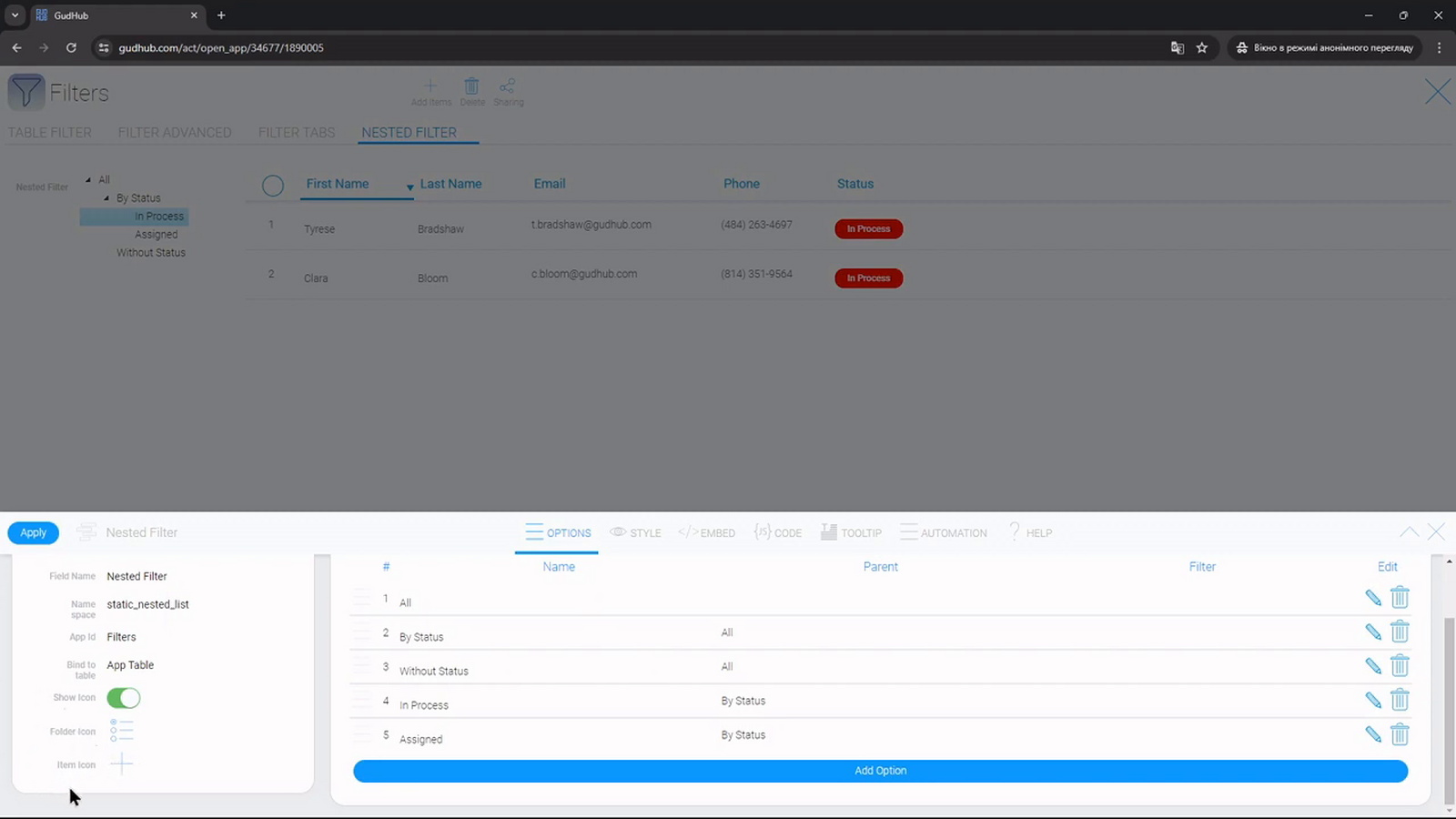
If needed, enable icons. In Nested Filter, icons are configured separately for two types of items: folders and leaf items.
An item automatically becomes a folder if it contains nested items. If it has no nested items, it is displayed as a leaf item.
The selected folder icon will be used for all folders, while the leaf icon will be used for all items without nested items.
Step 7. Test the Nested Filters #
Return to the app and select “All”, “By Status”, and “In Process” in sequence.
At the first level, you’ll see the full list of records. At the second level, you’ll see records with a populated status field. At the third level, only records with the “In Process” status will remain. Other filters applied to the app may further narrow down the results.