
Configuring Tabs in a CRM System #
GudHub CRM lets you organize information across tabs, making it easy for users to switch between different sections of data. For example, you can place a customer form and a table of records on separate tabs.
Two tools are available for this: Container Tabs and View Tabs. The first organizes content within a single view, while the second switches between separate views using View Container.
In this guide, we'll walk through how to configure both options and explain when each one is useful.
Configuring Container Tabs #
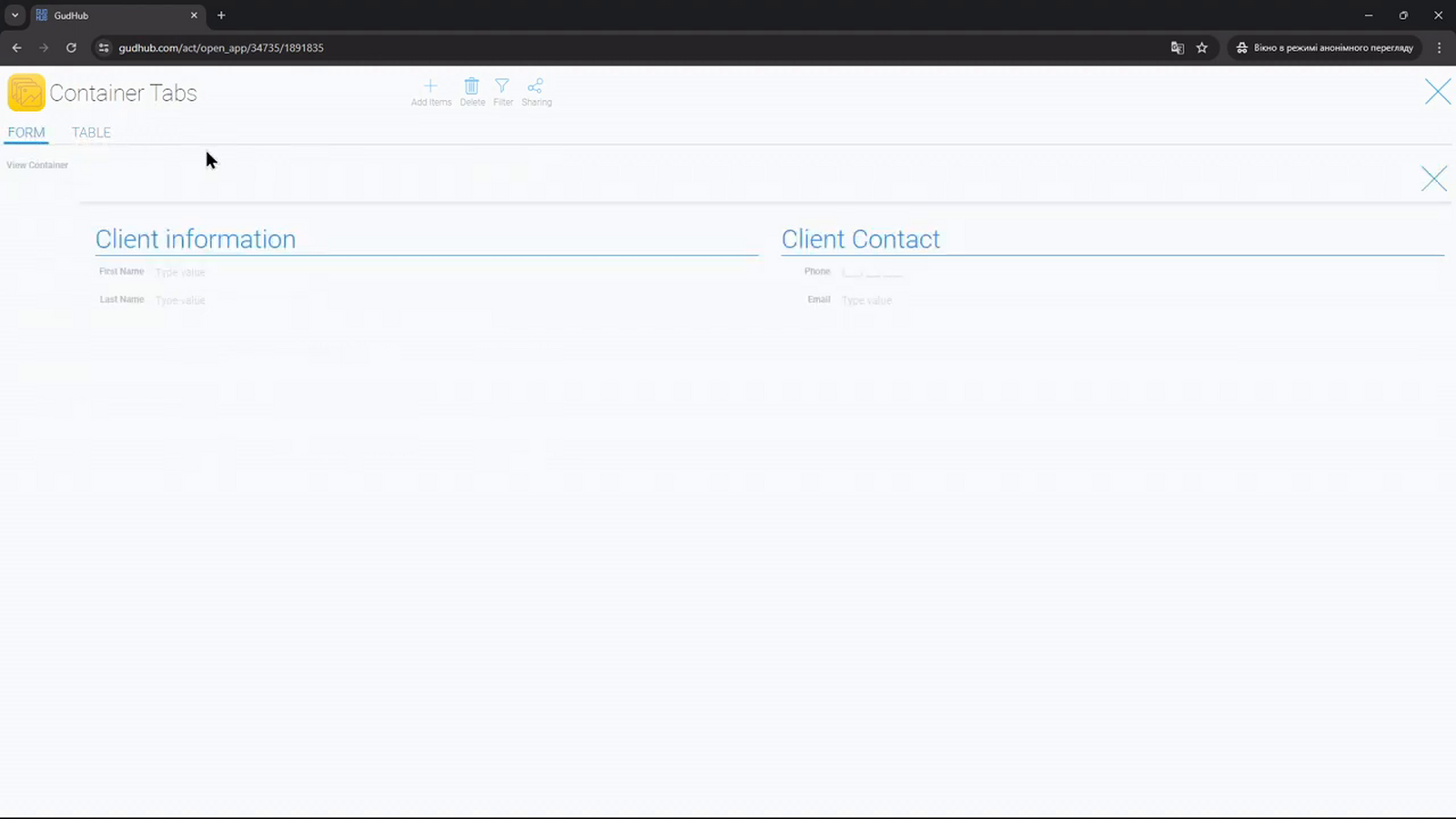
Container Tabs is a tabbed container that you add directly in the template editor. All its tabs belong to the same view, and each tab can contain fields, tables, and other containers.
For this example, we'll create two tabs, “Form” and “Table”. The first will contain a form, while the second will display a table.
Step 1. Add a Tabbed Container #
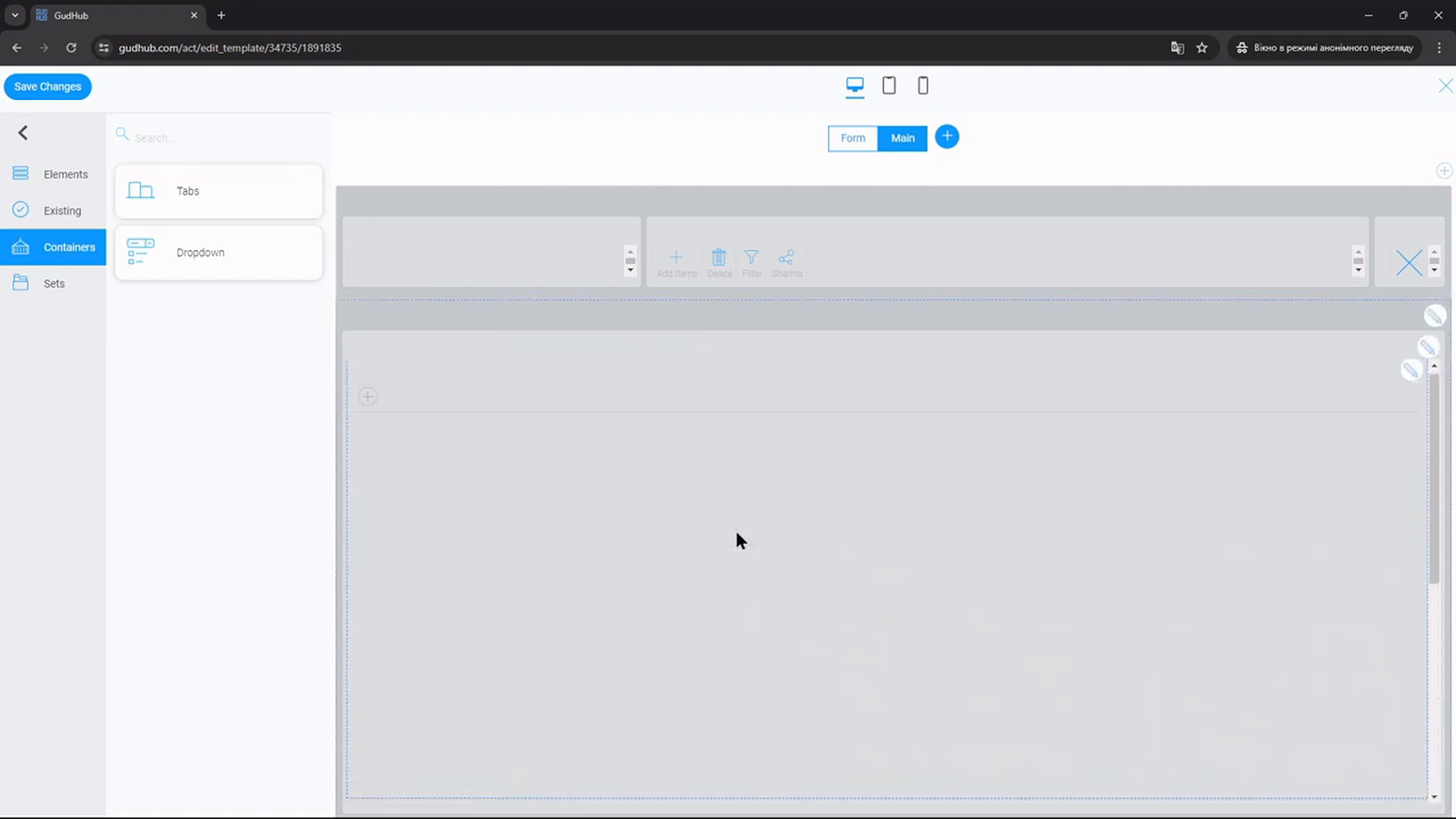
Open the required view in “Edit Template” mode. In the left-hand panel, go to “Containers” and find “Tabs”.
Drag the container to the desired location on the page. Once added, it will be empty, so you'll need to create the first tab separately.
Step 2. Create Tabs and Set Their Names #
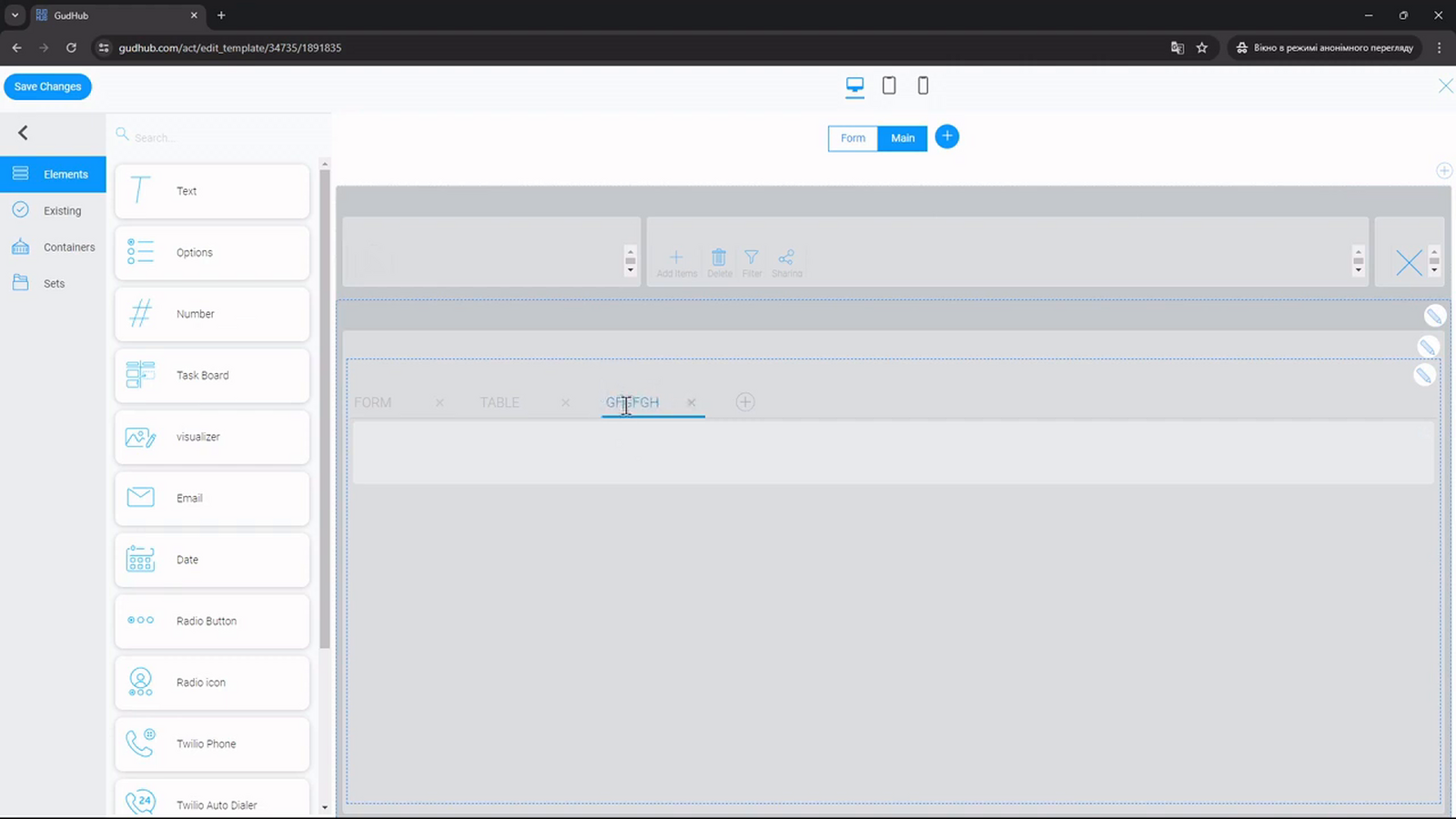
Click the plus icon inside the container to add a tab. Click its name and enter the desired text. Repeat the process to add another tab.
For this example, we'll name them “Form” and “Table”. Tab names in Container Tabs are displayed in uppercase, regardless of how you enter them.
Step 3. Add Content to the Tabs #
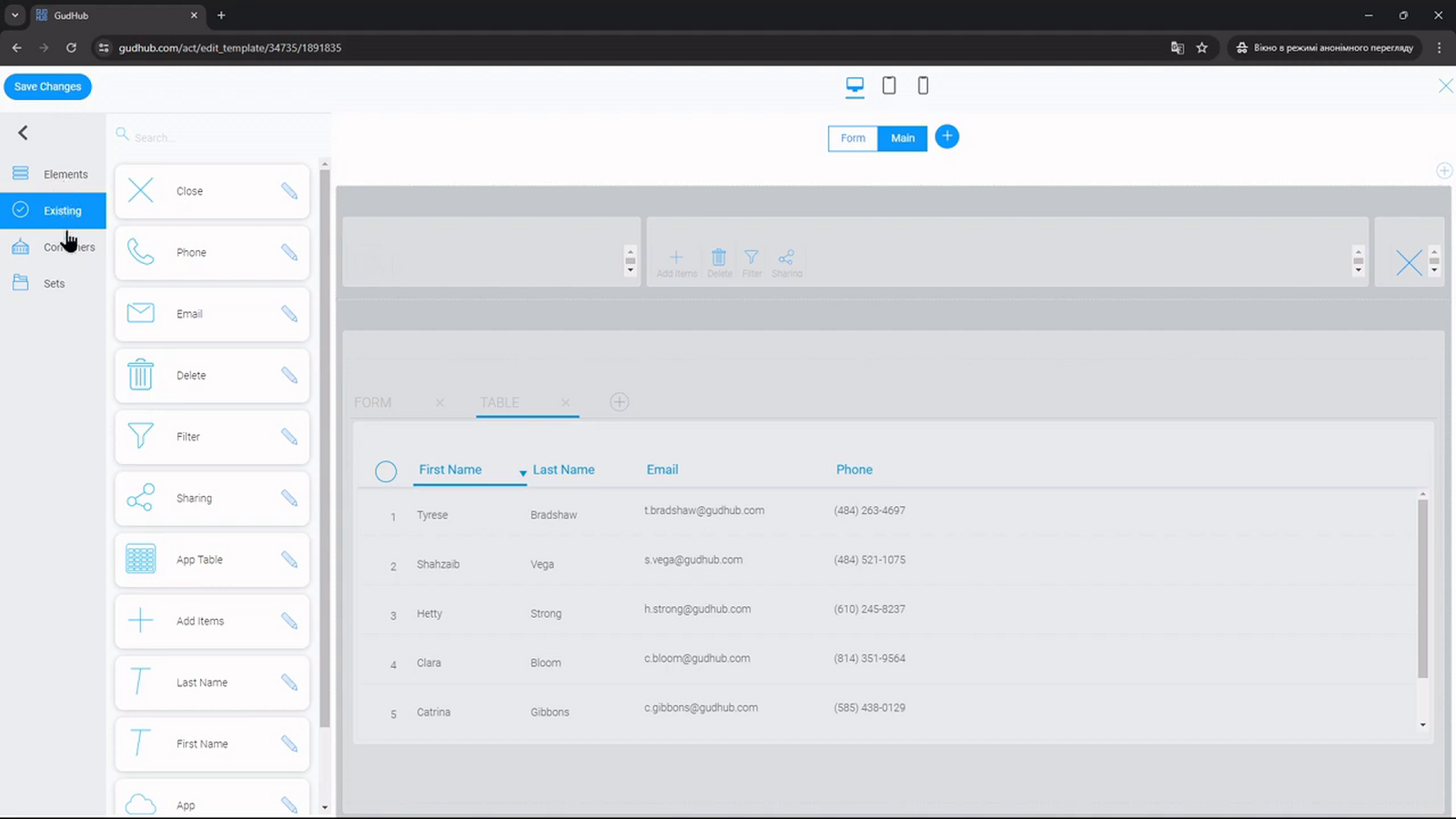
Select a tab and add the required fields and elements. For example, add a form containing customer information to “Form” and a table of records to “Table”.
You can also create separate containers inside each tab and arrange the content just as you would in a regular view.
Step 4. Configure the Container and Save Your Changes #
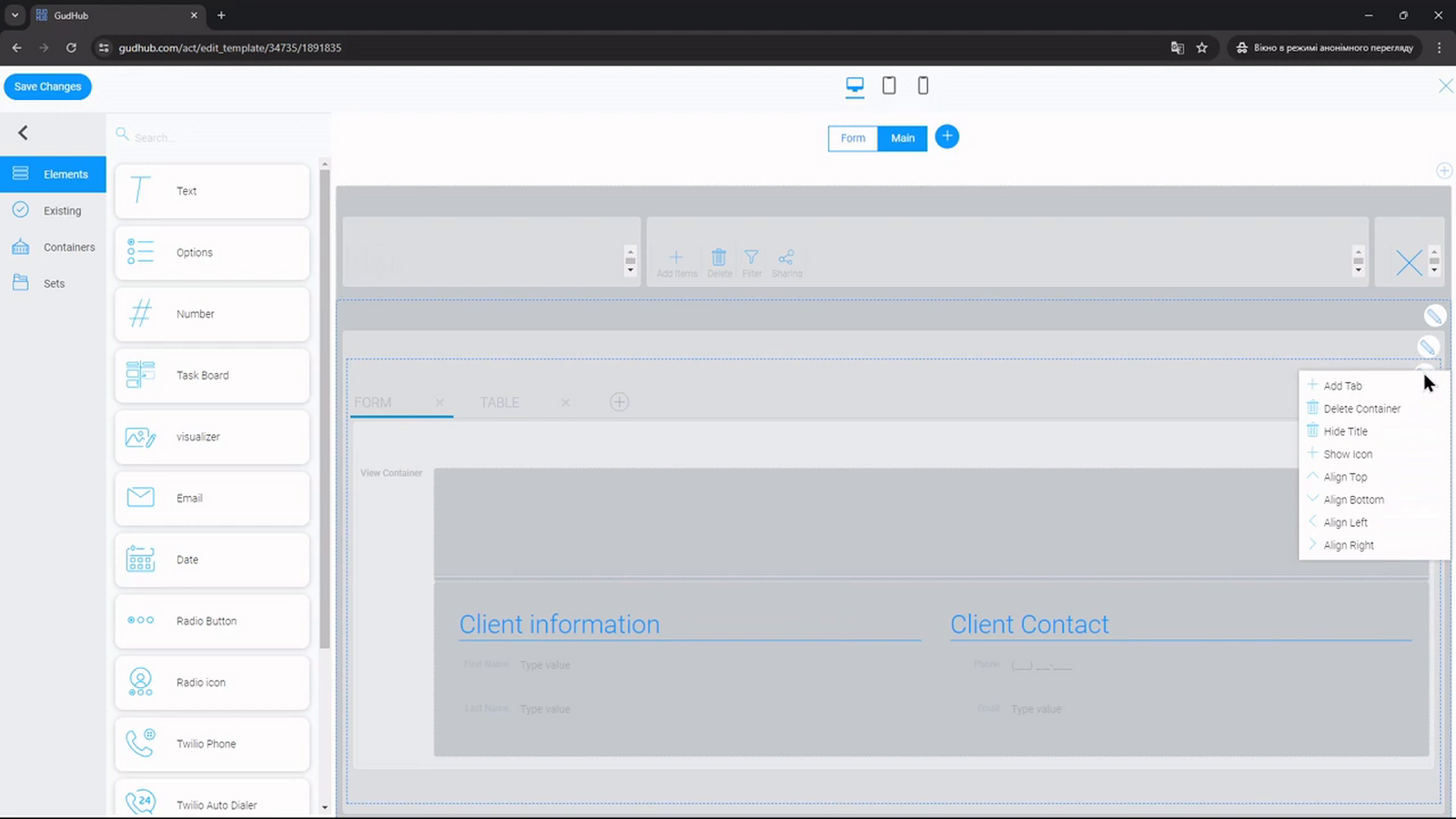
In the container menu, you can change the tab alignment, add a title, or hide it. To remove a tab, click the cross next to its name in the editor.
Configuring View Tabs #
View Tabs is a separate element that works together with View Container. Each tab points to a specific view and, when clicked, sends a message to the container indicating which view to display.
This option lets you reorder tabs, use uppercase and lowercase letters in their names, add icons, and choose icon colors.
For this example, we'll configure switching between the “Form” and “Table” views.
Step 1. Prepare the Views and Elements #
Create a separate view for each tab in the application. In this example, we'll use “Form”, which contains a form, and “Table”, which contains a table.
In the main view, add View Tabs and View Container. The tabs will control which view is displayed, while the container will show the selected view's content.
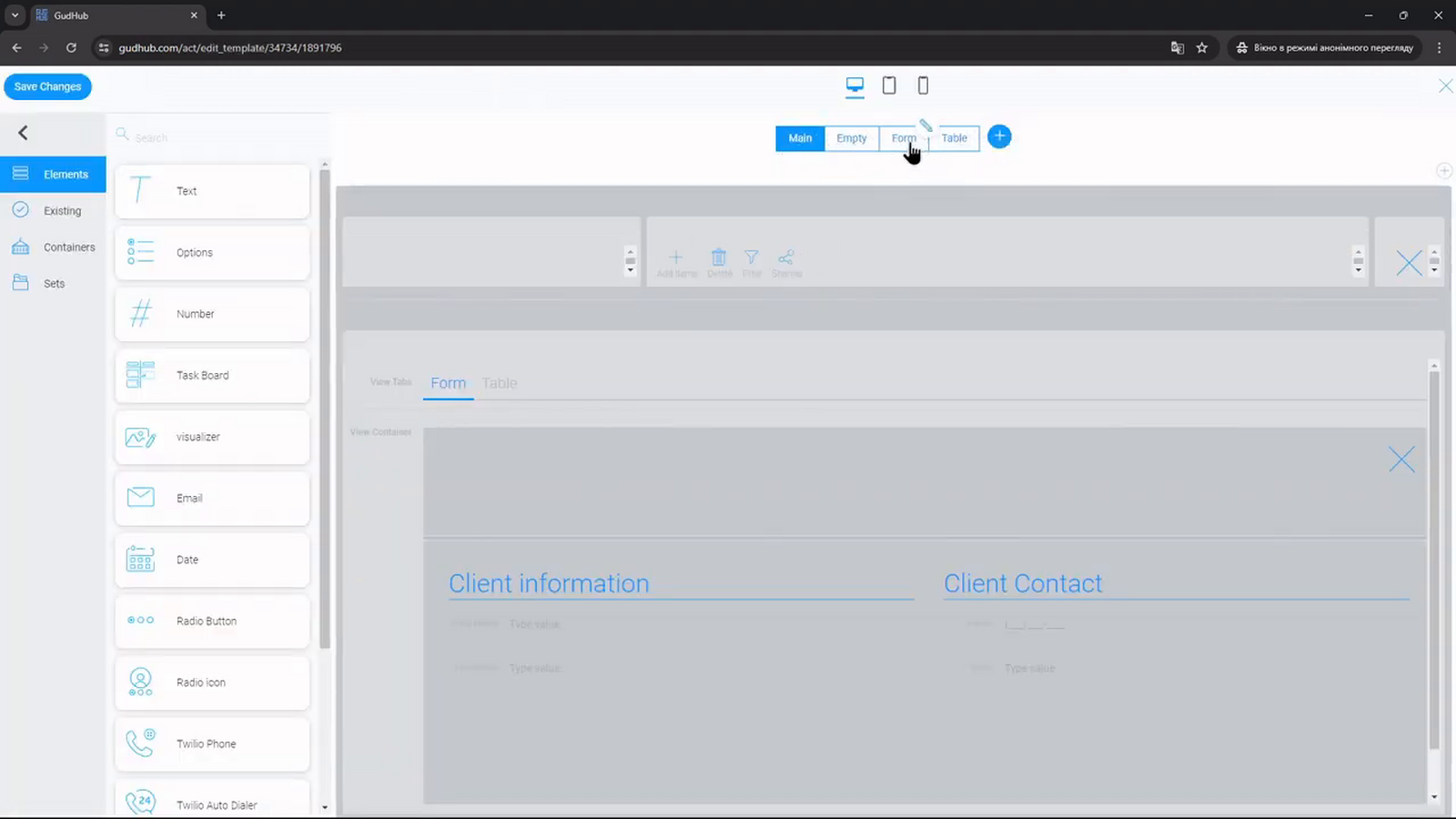
Step 2. Configure View Container #
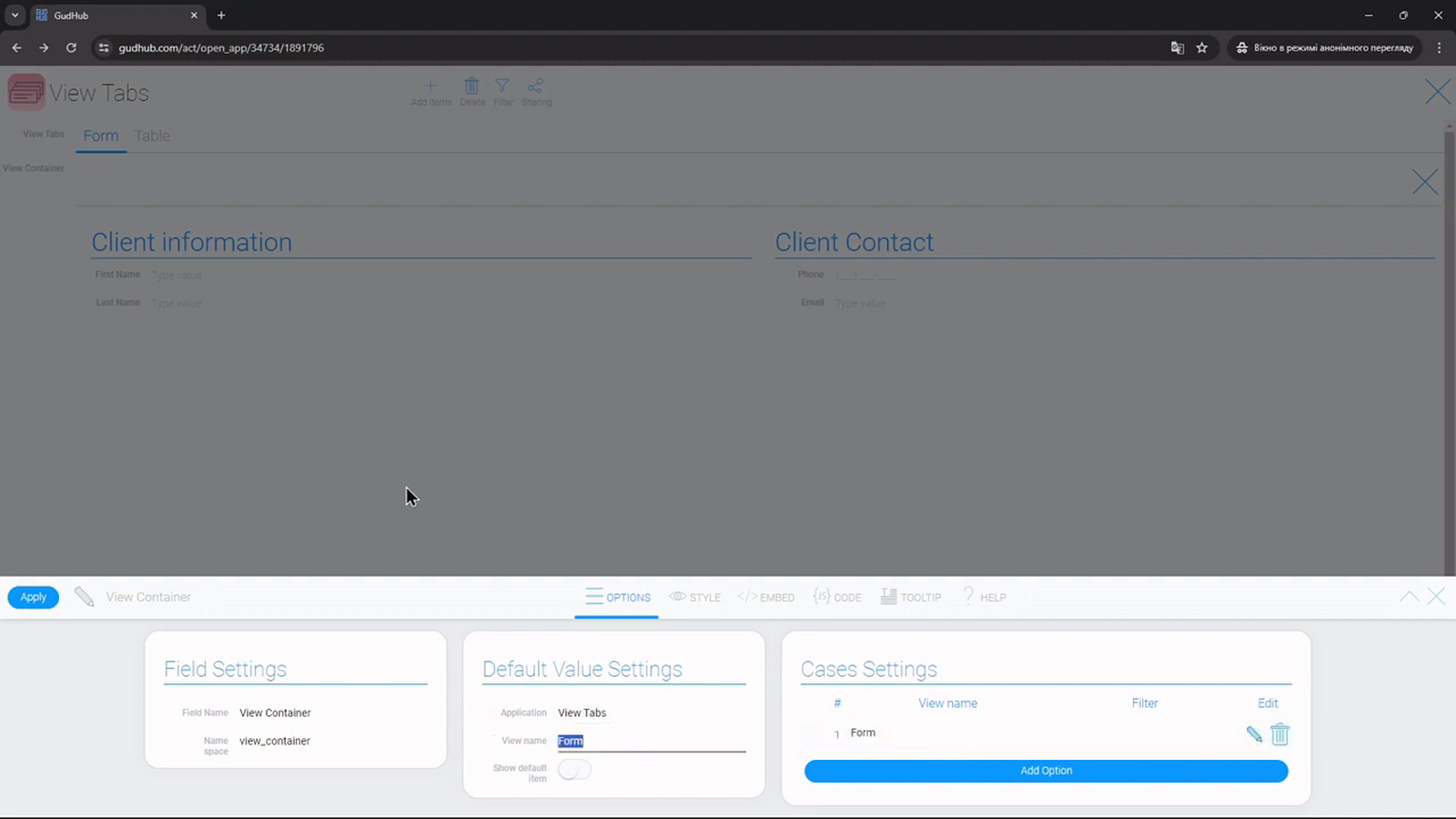
Open the View Container settings. Under “Default Value Settings”, select an application in the “Application” field and choose the initial view under “View name”.
In the video, “Empty” is used as the default view. Create an empty view like this if you don't want the container to display any content before a tab is selected, or choose a view from your own application.
Step 3. Connect View Tabs to the Container #
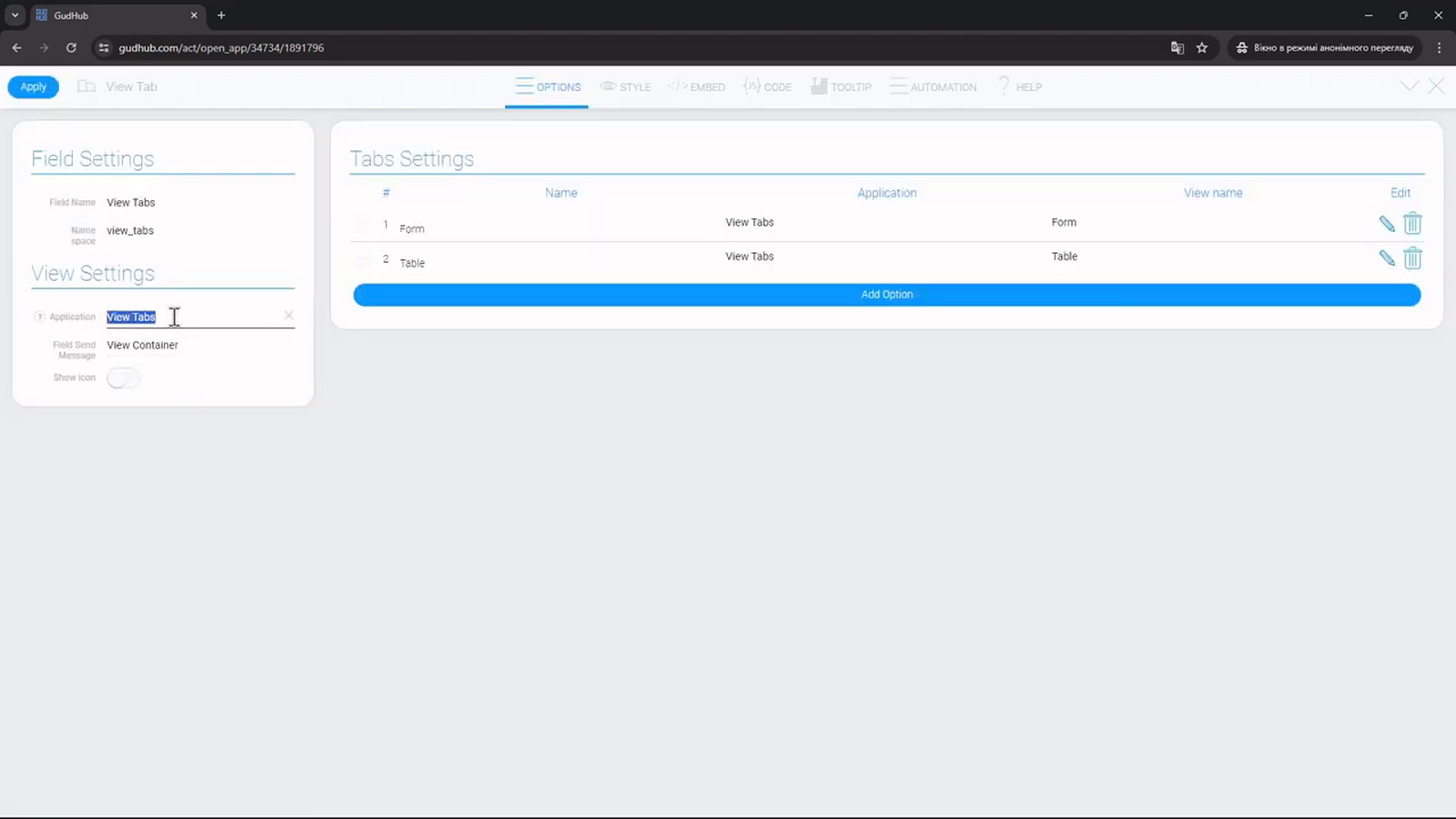
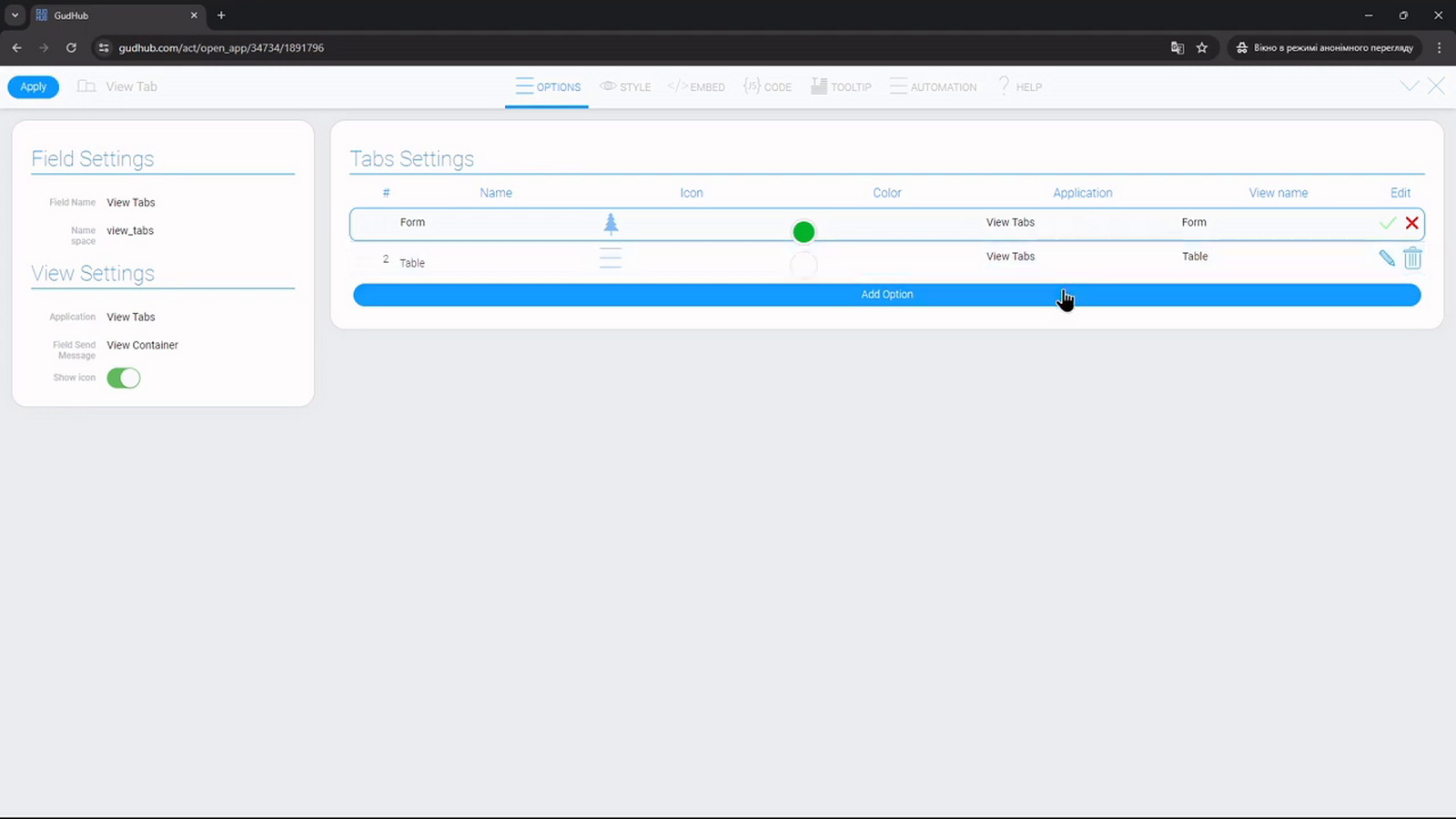
Open “Edit Field” for the View Tabs element. Under “View Settings”, use the “Application” field to select the application containing the required View Container.
Under “Field Send Message”, select the View Container element itself. This specifies which container will receive messages when the user switches tabs.
Step 4. Add Tabs and Select Views #
Under “Tabs Settings”, click “Add Option” to add a tab. In the “Name” column, enter the label that users will see.
For each row, select an application in the “Application” column and the required view under “View name”. In this example, the “Form” tab opens the “Form” view, while the “Table” tab opens the “Table” view.
You can enter any tab name you like; it doesn't have to match the name of the view. For example, you could use a more descriptive label such as “Customer Information”.
In the version shown in the video, View Container displays views from a single application. Make sure to select the same application for each tab as the one configured as the container's data source.
Step 5. Configure Icons and Tab Order #
Enable “Show icon” if you want to display icons. You can then select an icon for each tab in the “Icon” column and choose its color under “Color”.
Step 6. Test Tab Switching #
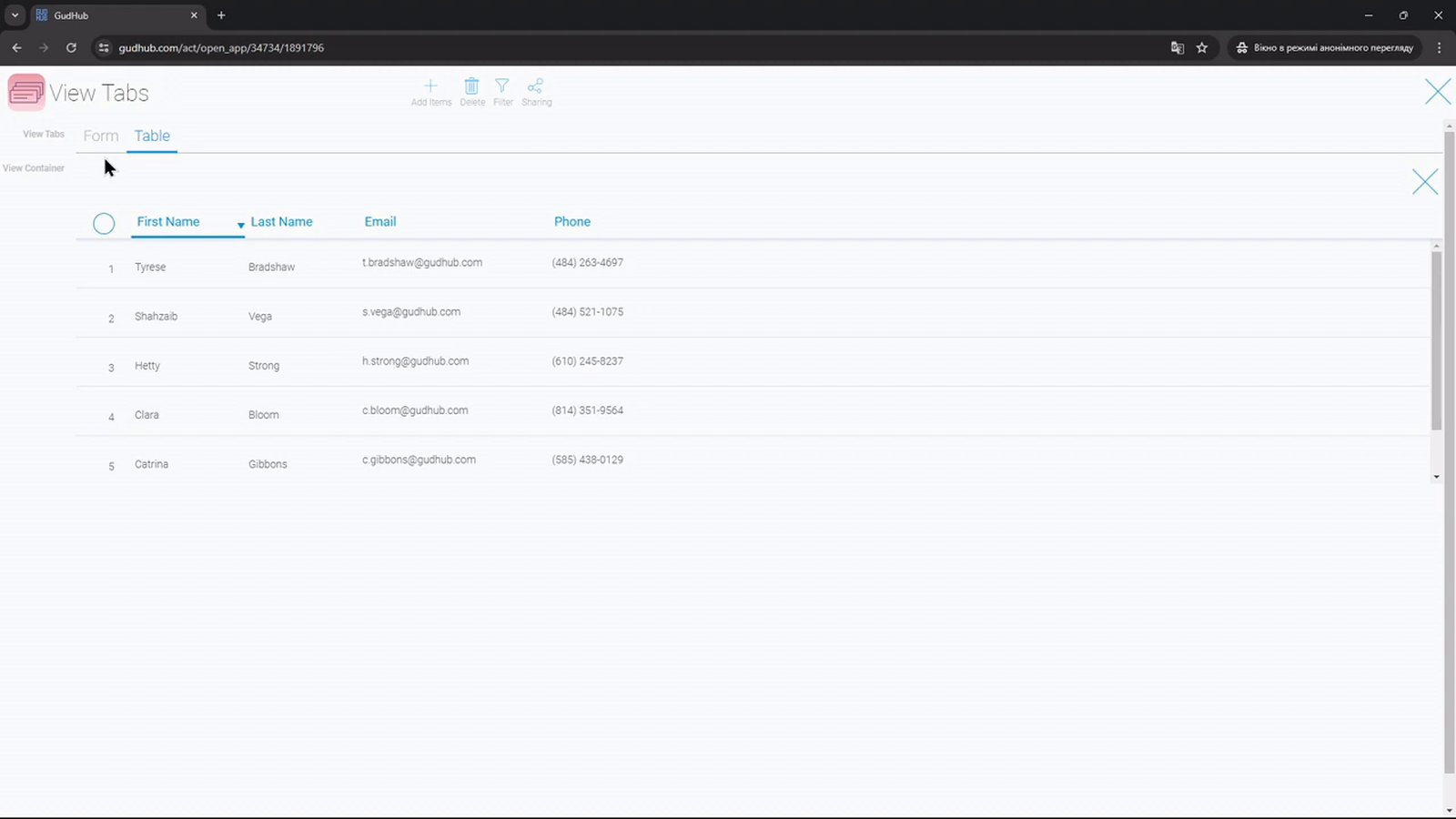
Return to the application and click “Form”, then “Table”. The form and table should appear in View Container in turn.
Tab Placement and Scrolling #
Container Tabs keeps the tab bar at the top while you scroll through its content. With View Tabs, this behavior depends on where the element is placed in the template.
To keep View Tabs visible while scrolling through the content, place it in a separate Wrap container, apart from the area containing View Container. This helps keep the tab bar in view.
Which Type of Tabs Should You Choose #
Container Tabs is a good option when you want to quickly divide a single view into several tabs. You can configure all the content directly in the template editor.
View Tabs is useful when you've already created separate views or need custom tab names, icons, and a flexible tab order. You can prepare a new view separately and then add it to the tab list.
You can also combine both approaches. For example, you can place View Container inside one of the Container Tabs tabs. This lets you organize your workspace around your company's data structure and workflows.