
How to Configure References in GudHub CRM: Guide Series #
GudHub provides three References elements for working with relationships between records and fields.
Item Reference stores a link to a record, Data Reference retrieves data from it, and Element Reference lets you reuse field settings.
In this series, we'll walk through how to configure each element with practical examples.
- How to Configure Item Reference – Creating Links to Records
- How to Configure Data Reference – Retrieving Data from Related Records
- How to Configure Element Reference – Reusing Shared Field Settings
Item Reference lets you select a record from a list and store a link to it. For example, you can link the current record to a contact and then open that contact's record with a single click.
The field displays a value that makes the record easy to identify, such as a name. The list itself is populated with records from the application specified in the settings.
This is the first part of the series on configuring References in GudHub.
You can find all the guides in the series here.
Step-by-Step Guide to Configuring Item Reference #
For this example, we'll configure contact selection by name and allow users to create new records directly from the list.
Step 1. Select the Record Source #
Open the Item Reference settings. Under “Reference Settings”, add a new source row or edit an existing one.
In the “Application” column, select the application from which you want to retrieve records. In the “Field” column, specify the field whose value will be displayed in the list. In the example, the “First Name” field is used.
Under “View”, select the view that should open when the link is clicked. This determines not only which records are available, but also how users will view them.
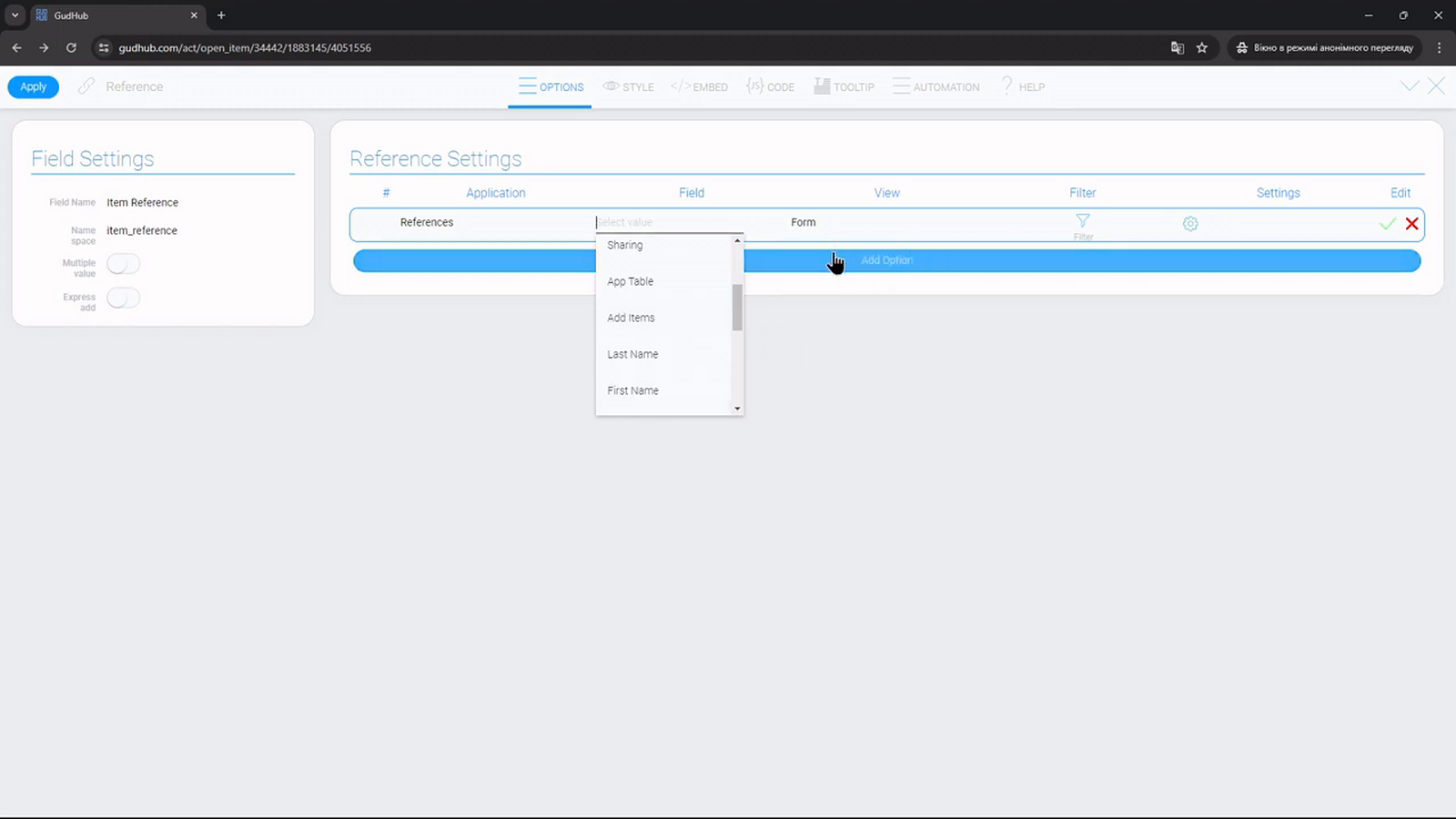
Confirm the changes by clicking the green checkmark and apply the settings. If needed, add more sources using “Add Option”. A single Item Reference field can work with records from multiple applications.
Step 2. Select One or More Records #
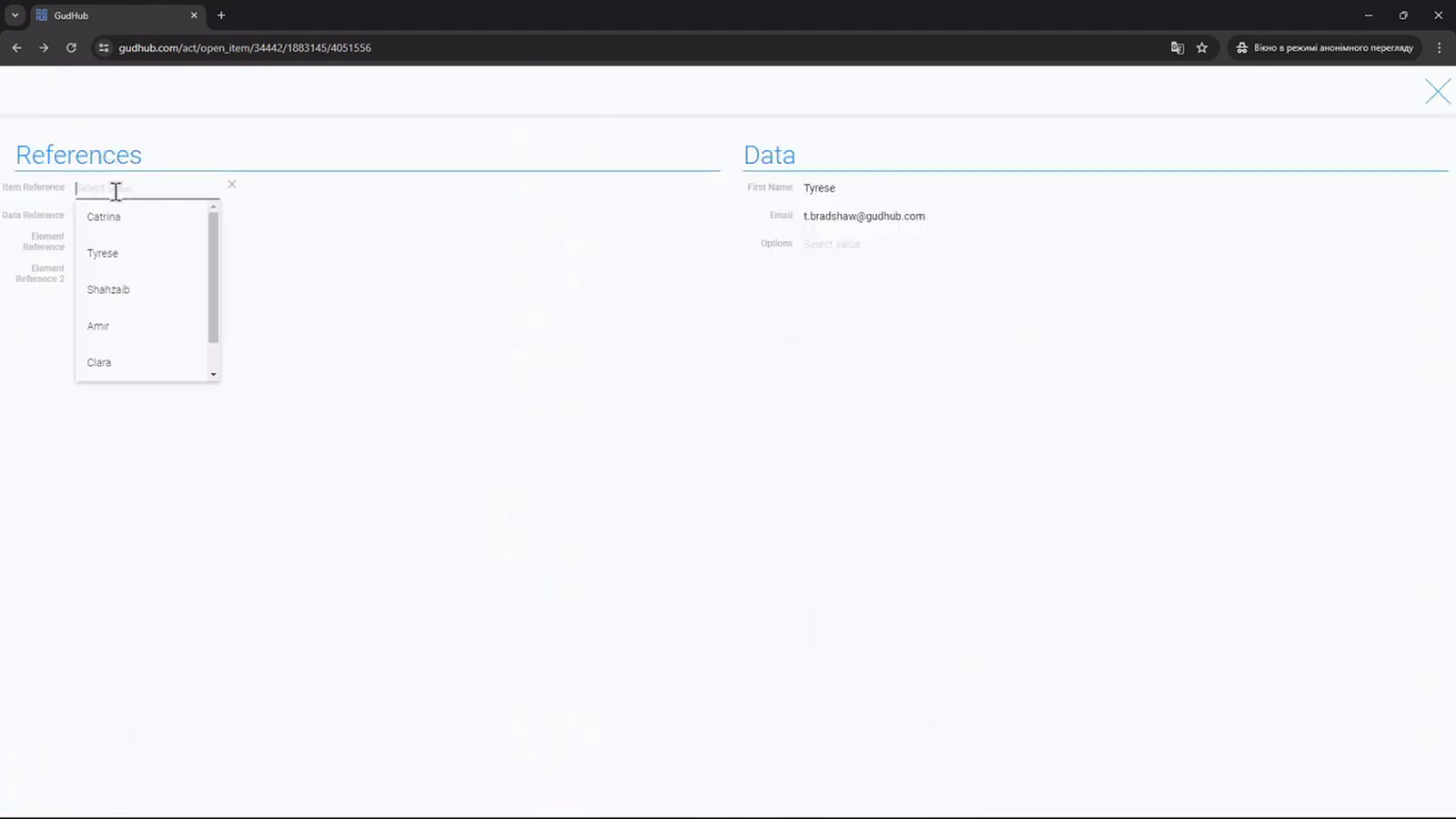
Return to the form and open the Item Reference list. Select the required record. Its name will become a link that opens the specified view.
To add multiple links to the same field, enable “Multiple value” under “Field Settings”. You can then select several records one after another.
Step 3. Allow Records to Be Created from the List #
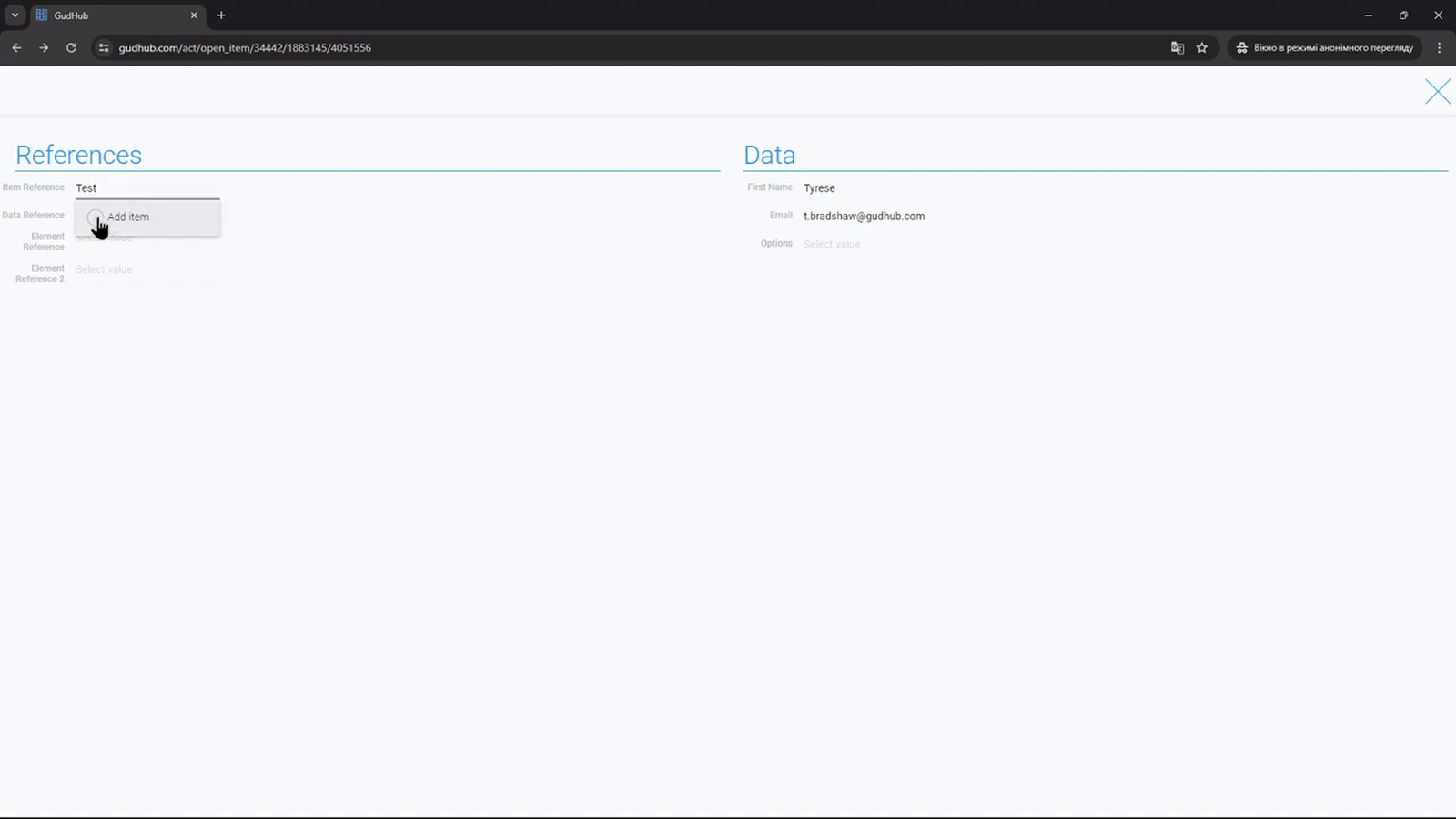
If the required record doesn't exist yet, you can create it directly from Item Reference. To do this, enable “Express add” in the field settings.
Return to the form, enter a name in the search field, and select “Express Add”. In the video example, this creates a record named “Test”.
Step 4. Configure New Record Values #
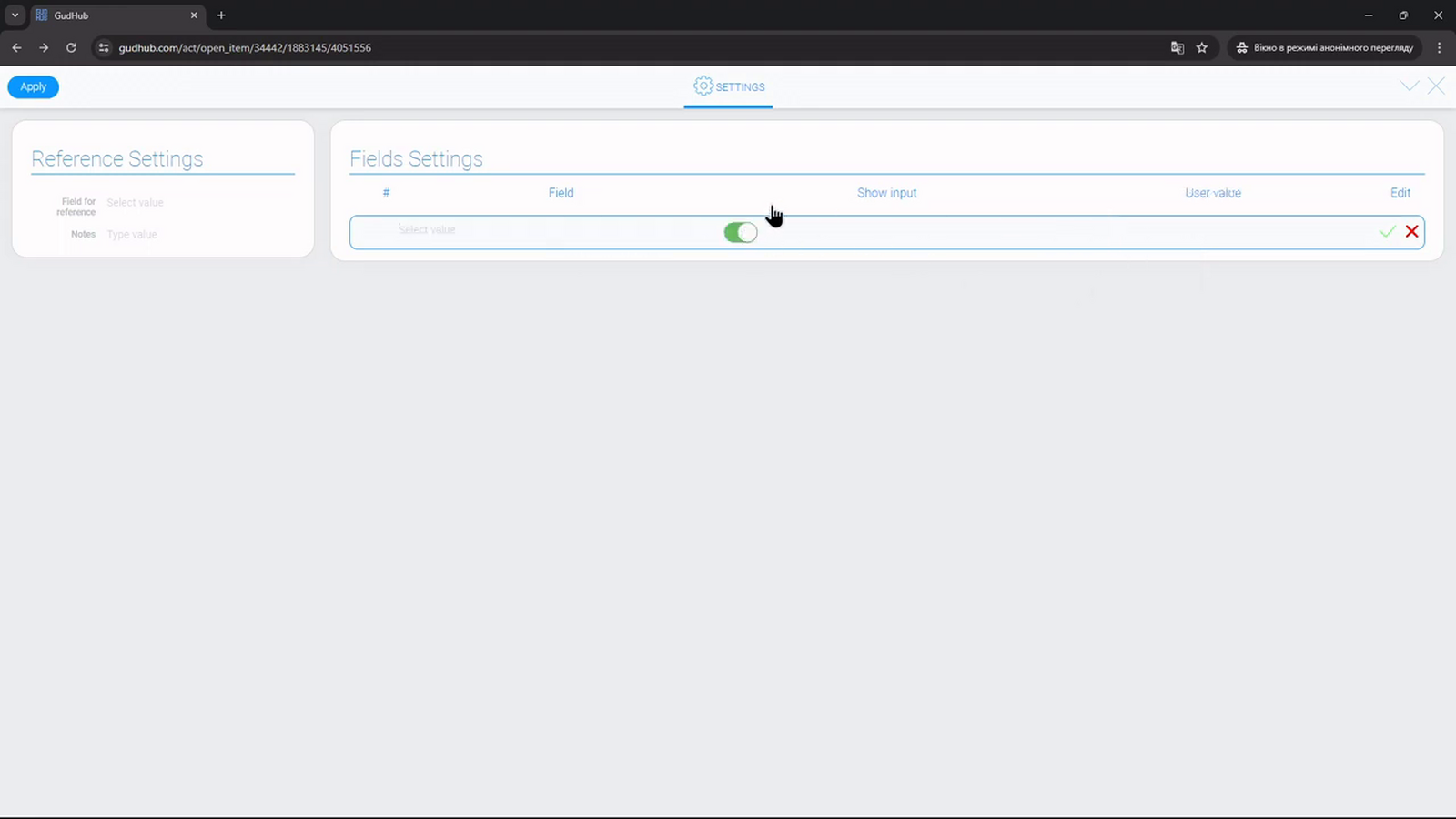
Open “Settings” for the source row by clicking the gear icon. These settings determine which data will be added to a record created through Express Add.
Under “Field for reference”, you can specify a field in the new record where a link to the current record should be stored. This creates a relationship in the opposite direction. The “Notes” field can be used to describe the setting.
Under “Fields Settings”, select the field you want to populate. Then specify the source field for the value, or enable “Show input” and enter a fixed value under “User value”.
Item Reference is useful when you need to link records and quickly navigate between them. When necessary, Express Add lets you create missing records on the spot and populate their fields.
Next in the series – configuring Data Reference to retrieve data from a selected record.