
Sharing Apps Using the Invite Feature #
GudHub CRM lets you grant other users access to your apps using the Invite feature. It allows you to invite new users to the system and add them to the appropriate group, making it easier to collaborate and manage access to the apps they need.
How to Invite a User to GudHub CRM #
Step 1 #
On the system’s home screen, click “Invite”.

Step 2 #
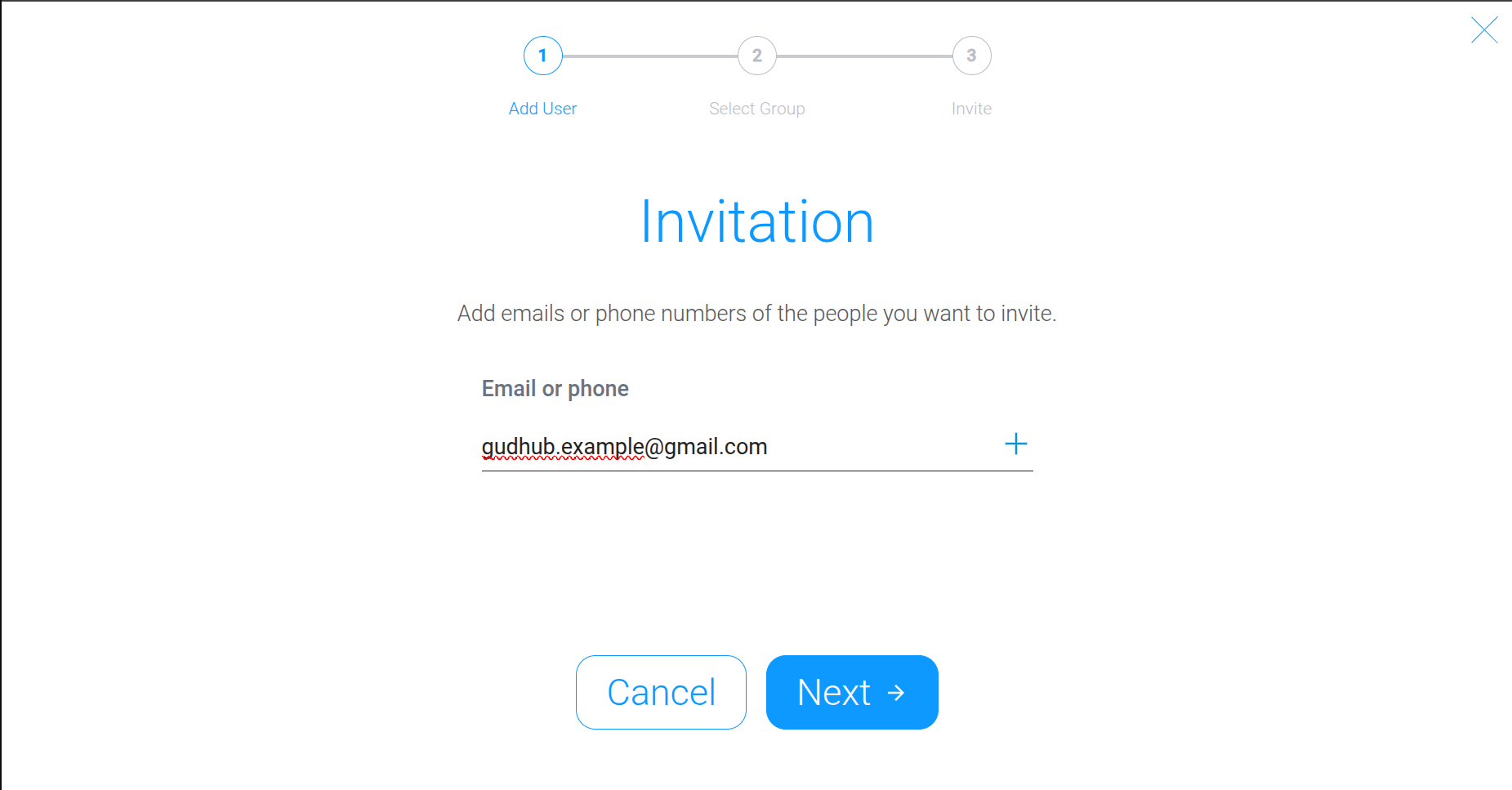
In the window that opens, enter the phone number or email address of the person you want to invite to the system.
Step 3 #
Select the group you want to add the user to.
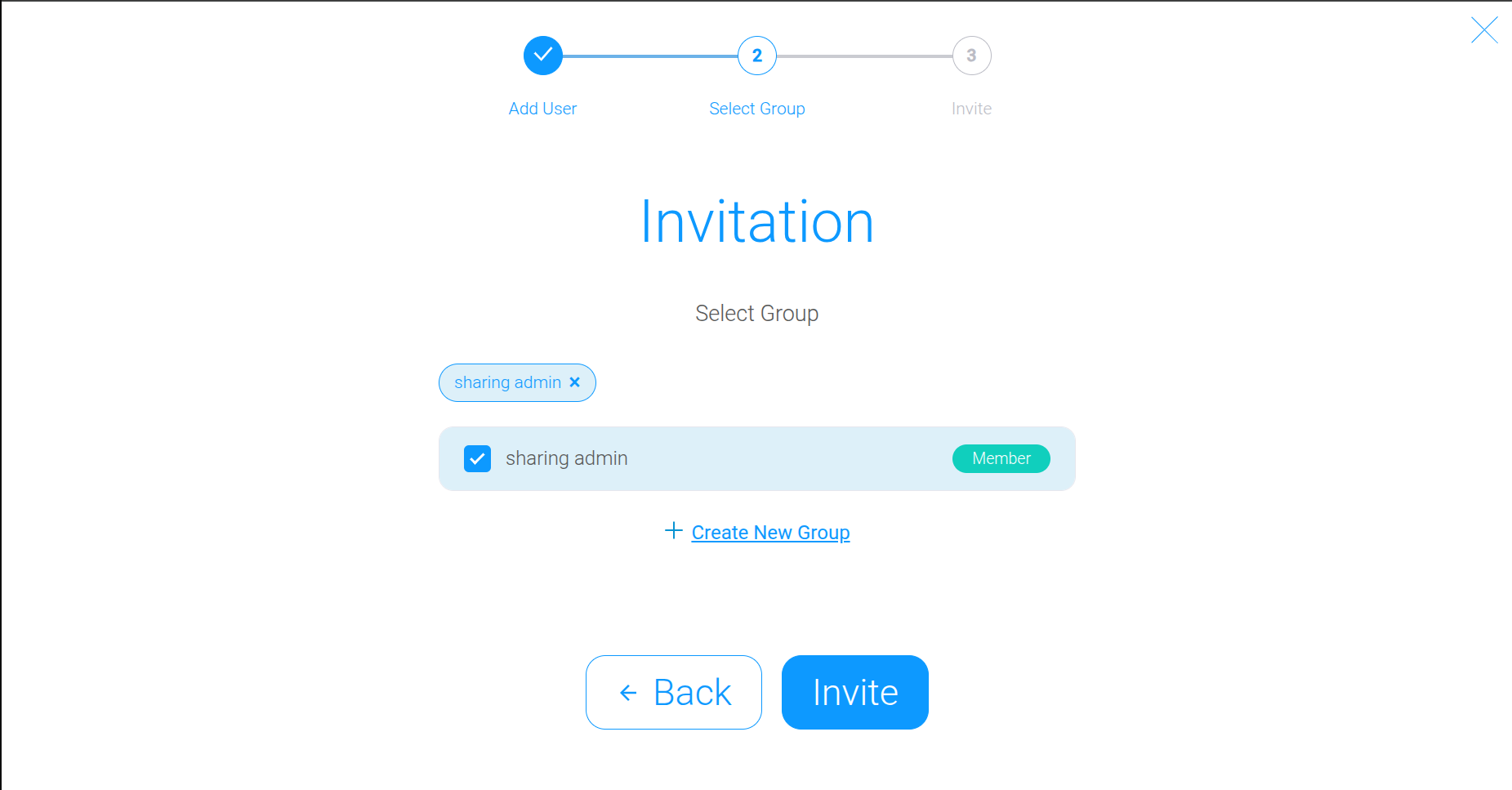
When you invite a user through the “Invite” feature, they are automatically assigned the “Member” access level in the selected group. Members cannot add apps to the group themselves; this permission is reserved for users with the “Admin” status.
If you haven’t created any groups yet, see our separate guide on how to create groups and grant users access to apps in GudHub CRM.
Step 4 #
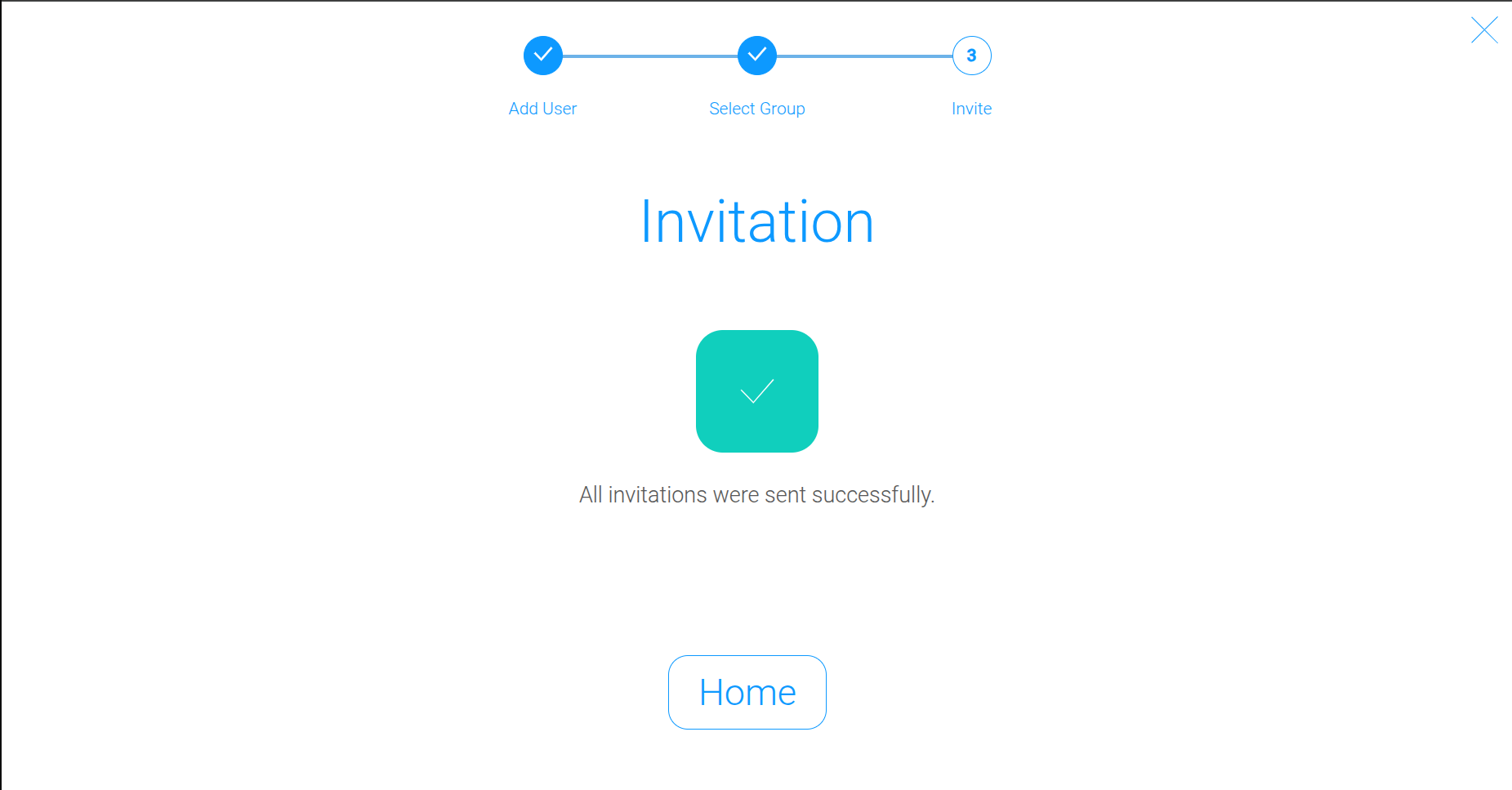
Confirm the invitation and wait for a confirmation message indicating that the process was successful.
Invite Users and Simplify Team Collaboration #
The “Invite” feature makes it easy to add new users to GudHub CRM. You can invite someone using their phone number or email address and assign them to a group right away. This helps keep users organized and makes it easier to manage access to apps.