
Configuring the Cards Element #
GudHub CRM lets you display app records as individual cards using the Cards element. Each card can contain images, text, links, coordinates, and other information relevant to your workflow.
The appearance of the cards depends on the selected view. This allows you to customize how information is arranged and display anything from a brief record summary to more detailed information.
In this guide, we’ll cover the main Cards settings, how to open records, and how to sort and filter cards.
Step-by-Step Guide to Configuring Cards in GudHub CRM #
For this example, we’ll use an app where records are displayed as cards with images and titles. We’ll customize their appearance and configure what happens when a card is clicked.
Step 1. Open the Element Settings #
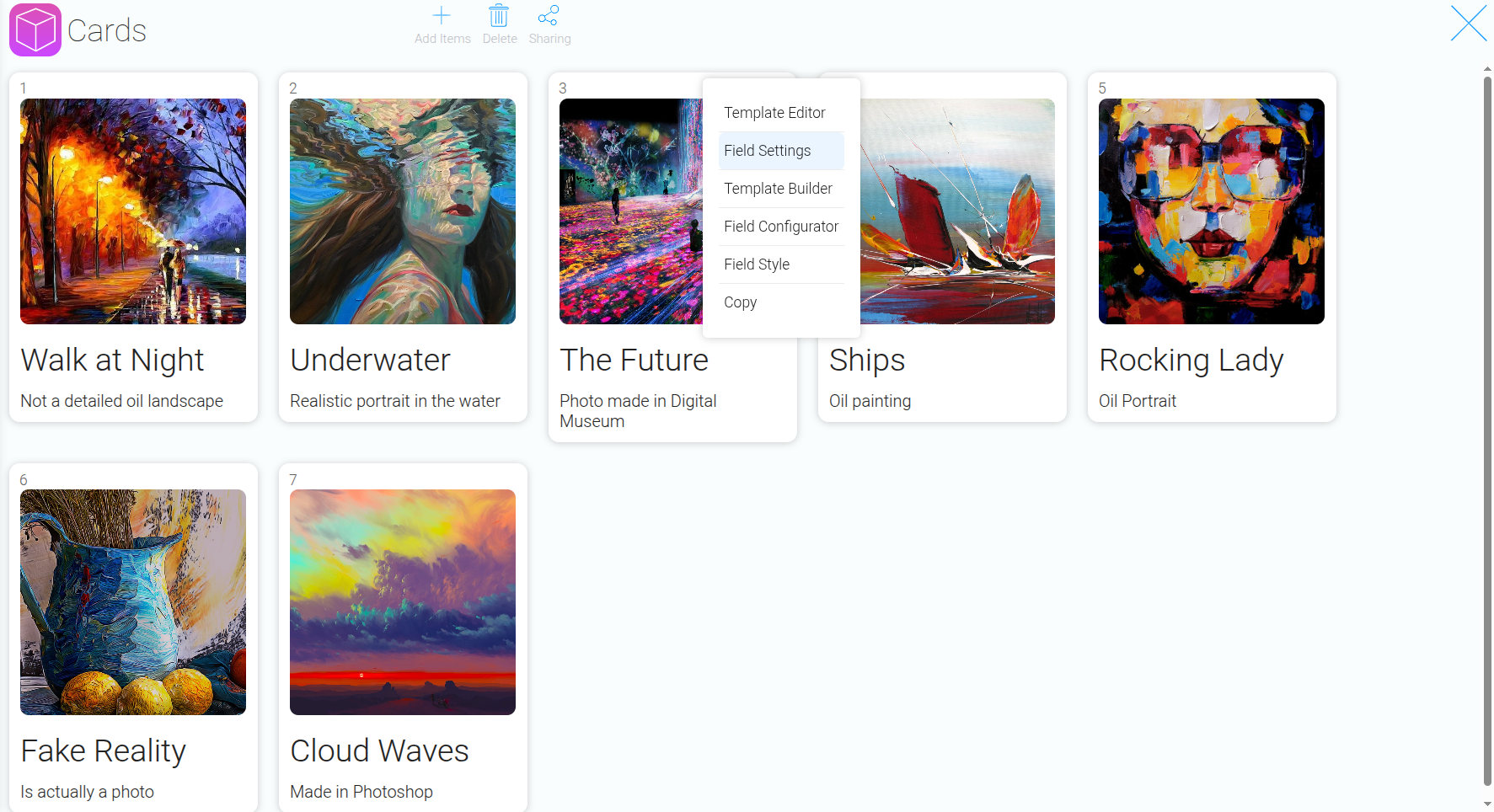
Open the app containing the cards and navigate to “Field Settings” for the Cards element. Here, you can select the data source and view, adjust the dimensions, and configure other display options.
Step 2. Select the App That Contains the Data #
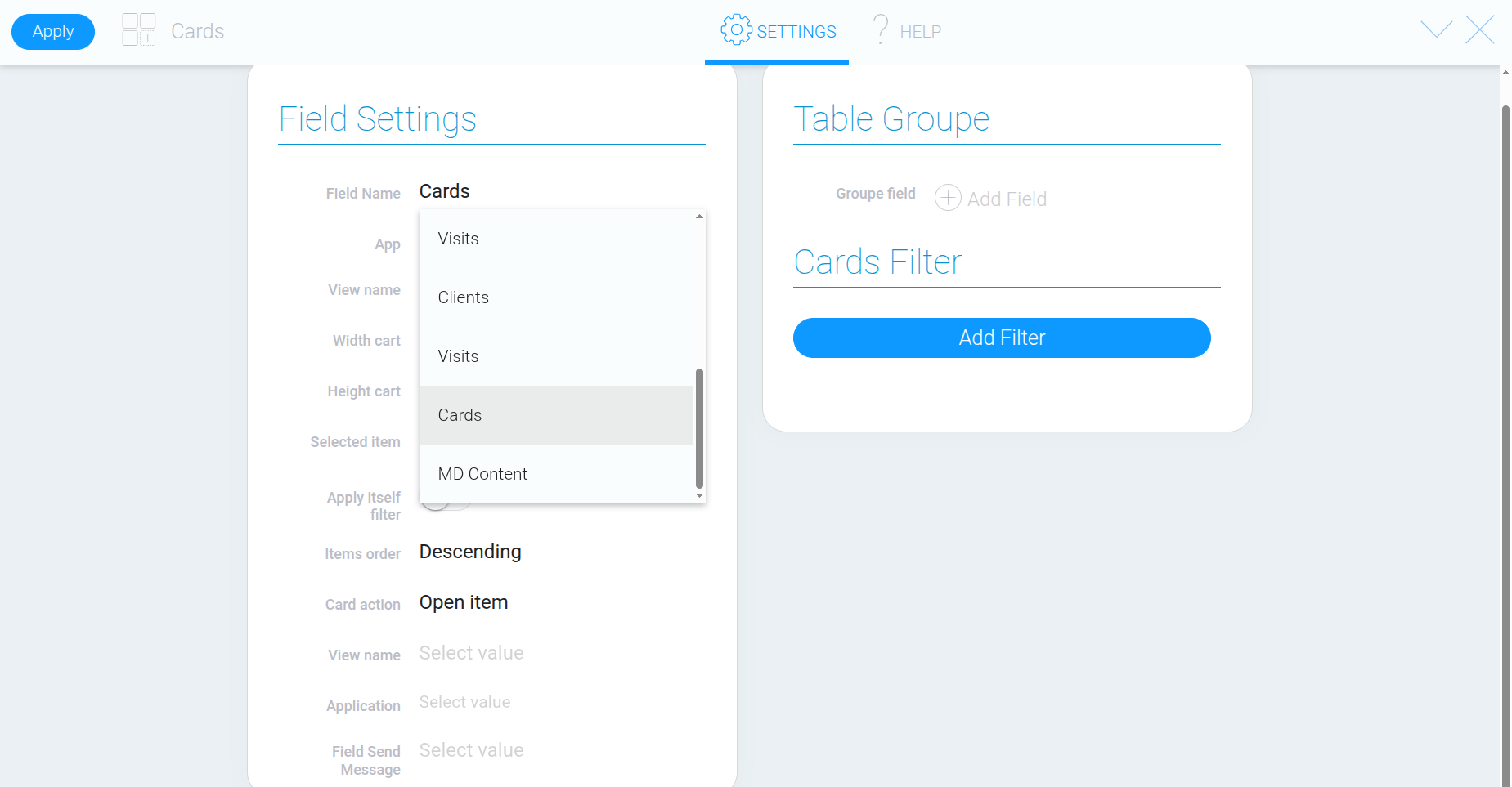
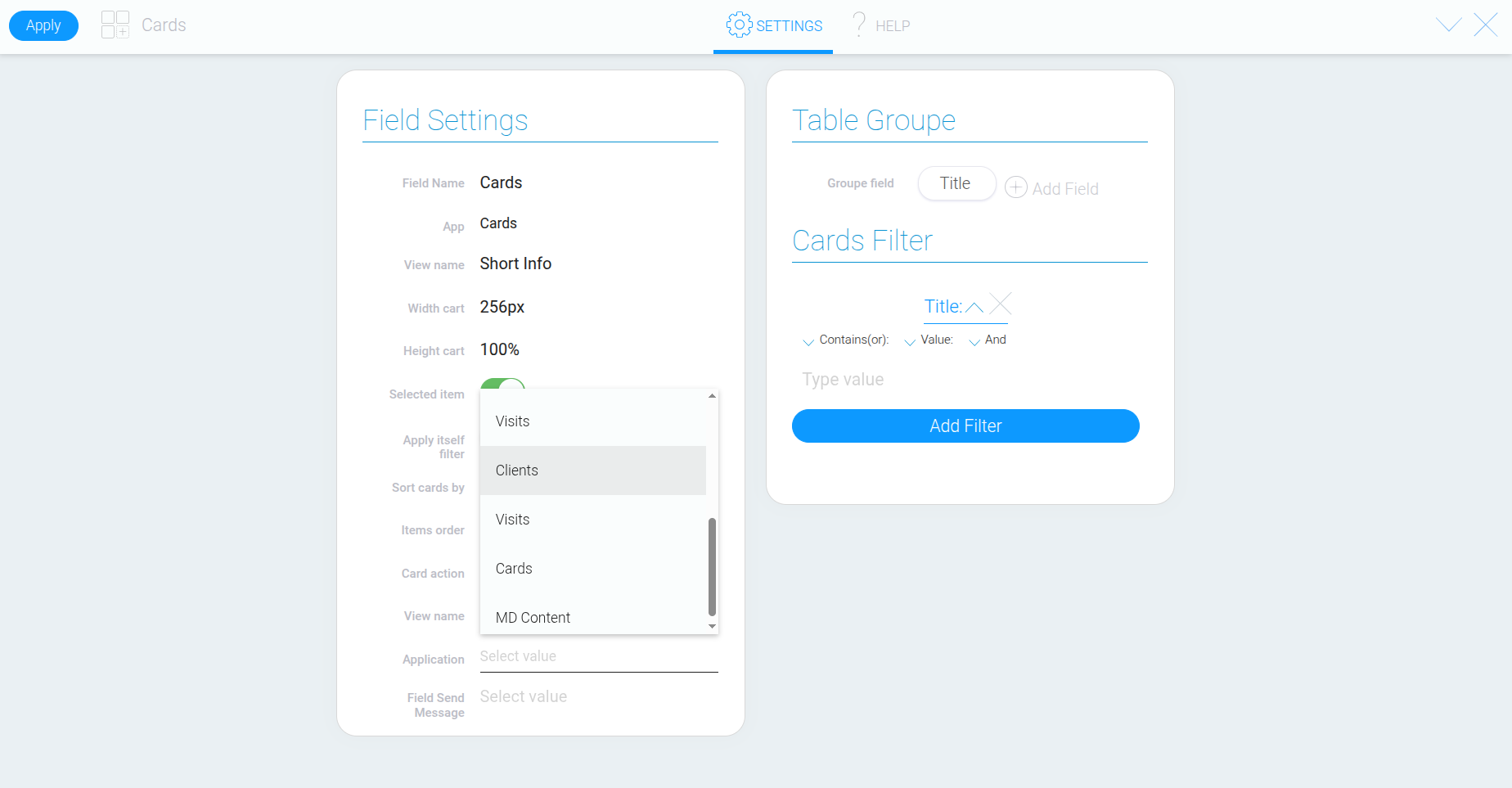
In the app selection field (“App”), specify which app the records should come from. This can be the current app or another app you have access to.
Step 3. Choose the Card Layout #
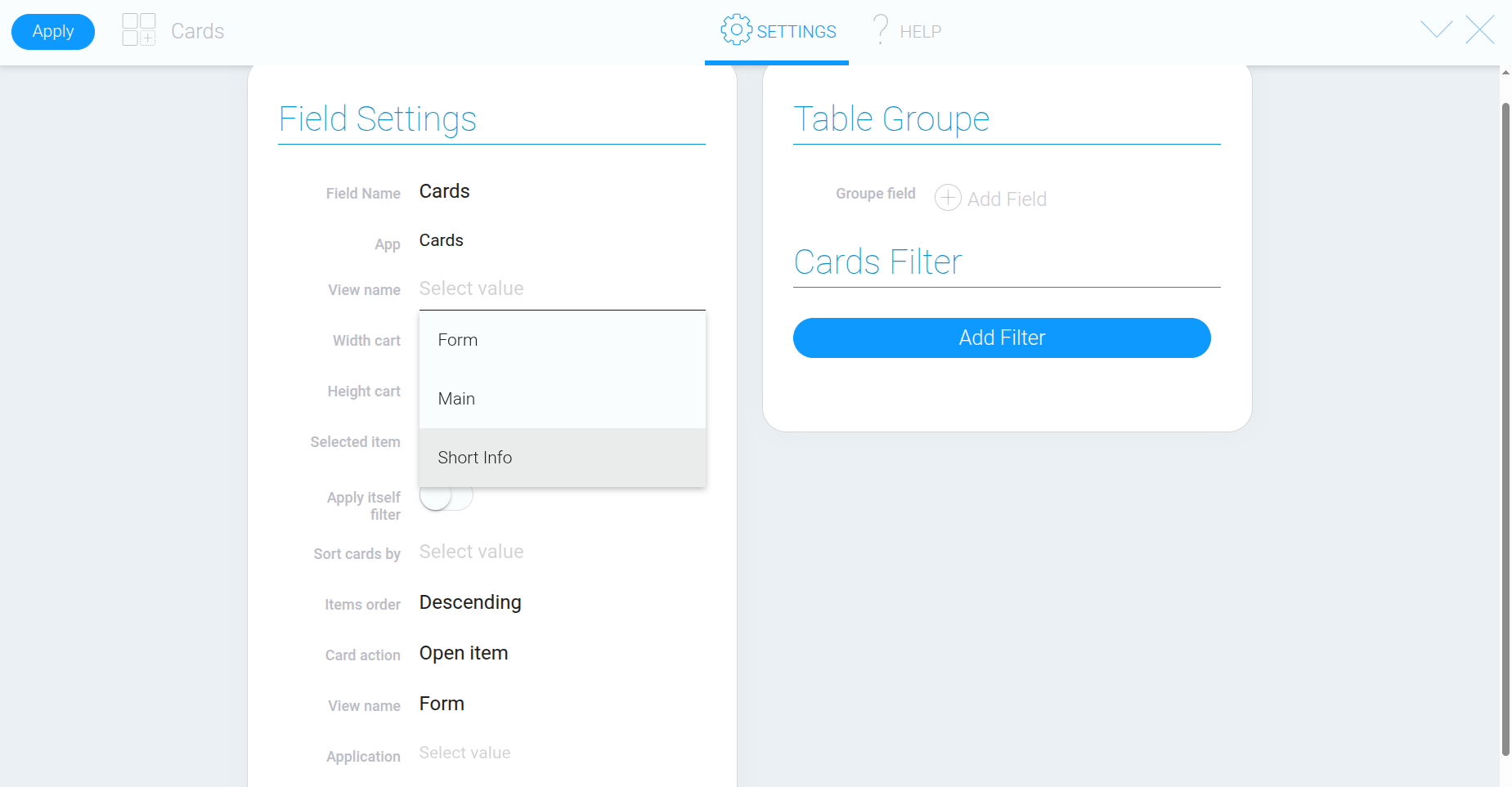
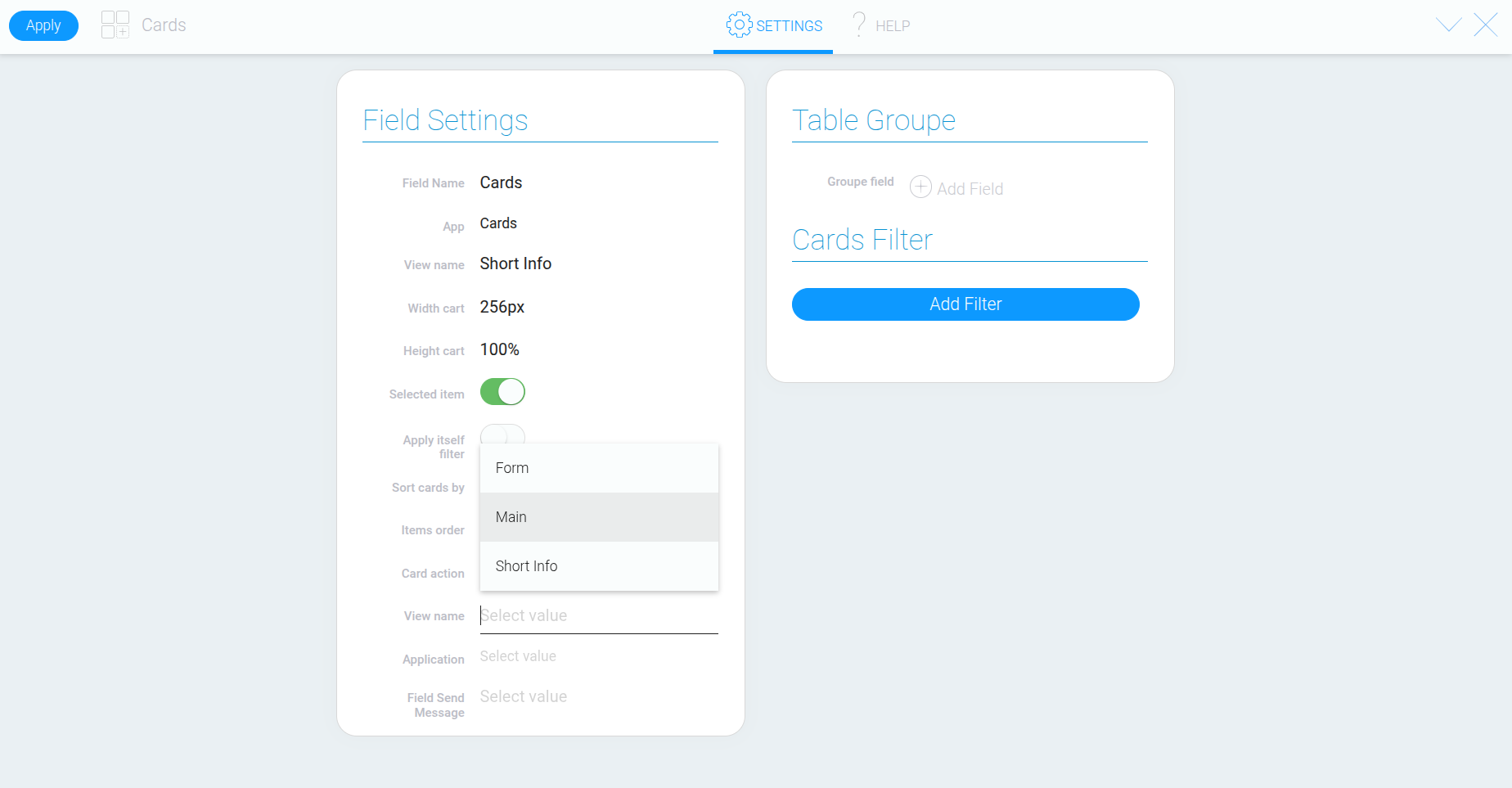
In the first view selection field, specify which record view should appear inside each card.
We recommend selecting “Short info” for the most suitable card layout.
Step 4. Set the Card Width #
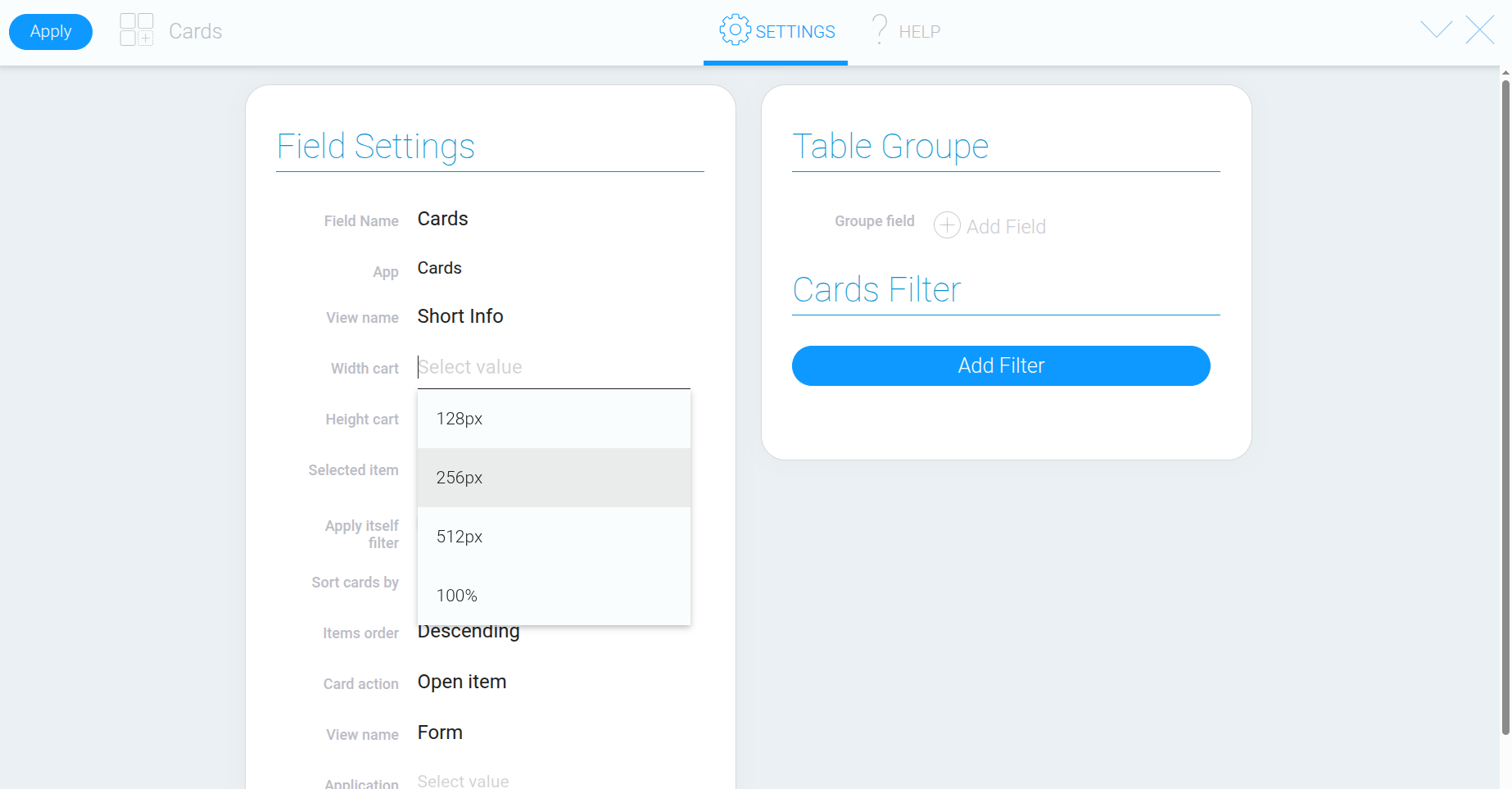
Choose a width from the available options. The width should suit the content of the card: a compact layout is sufficient for a short summary, while a form with several fields may require more space.
If you select “100%”, each card will take up the full available width of the container holding the Cards element. The cards will automatically adjust when the container’s width changes.
For this example, we’ll choose a width that makes the images and titles easy to view while allowing several cards to fit side by side.
Step 5. Set the Height of the Cards Area #
The next setting controls the height of the entire Cards element. It determines how much vertical space the cards area occupies on the page.
If you choose a smaller value, only part of the content may be visible, and you’ll need to scroll to see the rest. Selecting “100%” allows the element to fill the available height of its container.
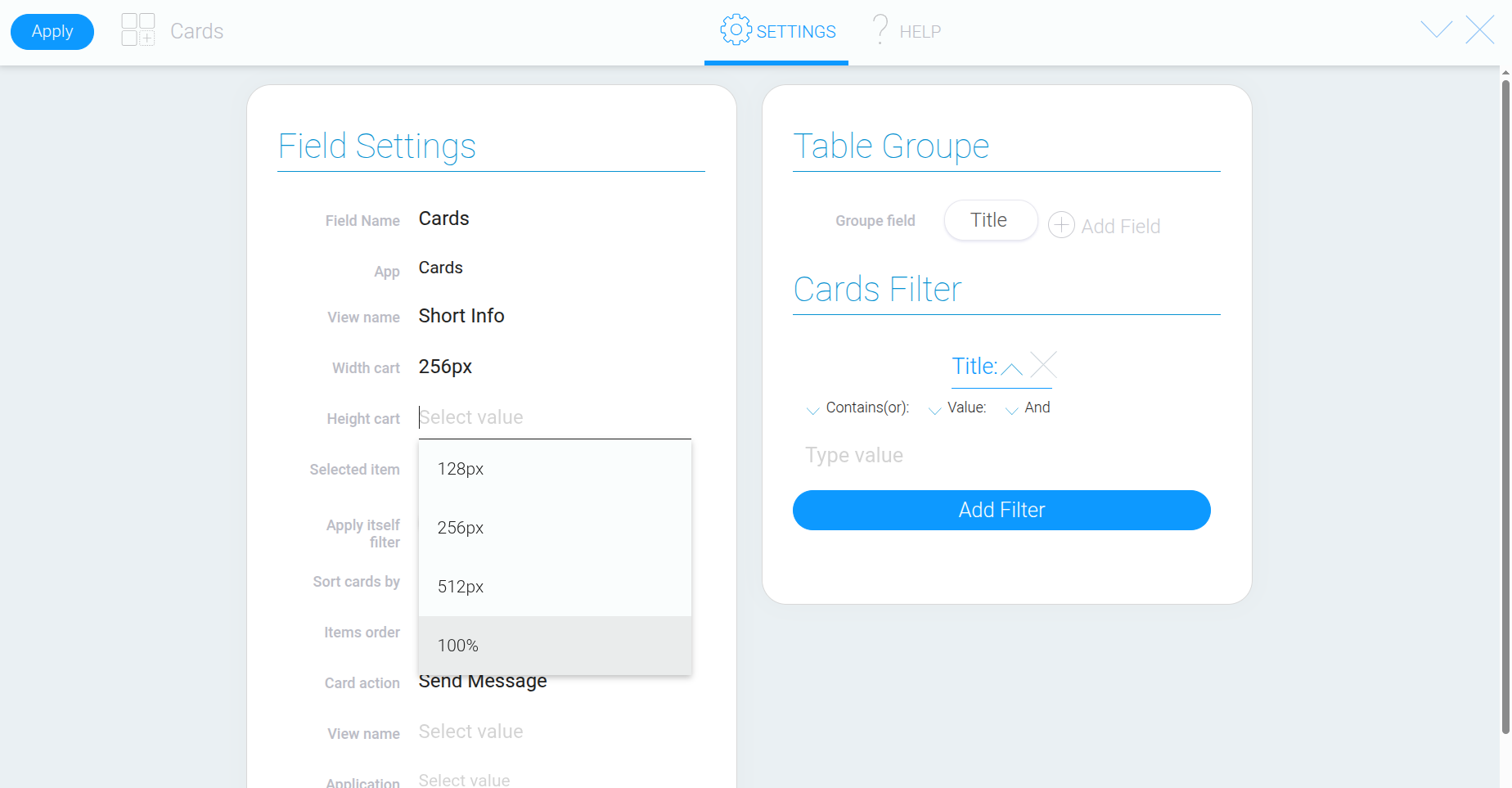
Step 6. Configure Record Selection #
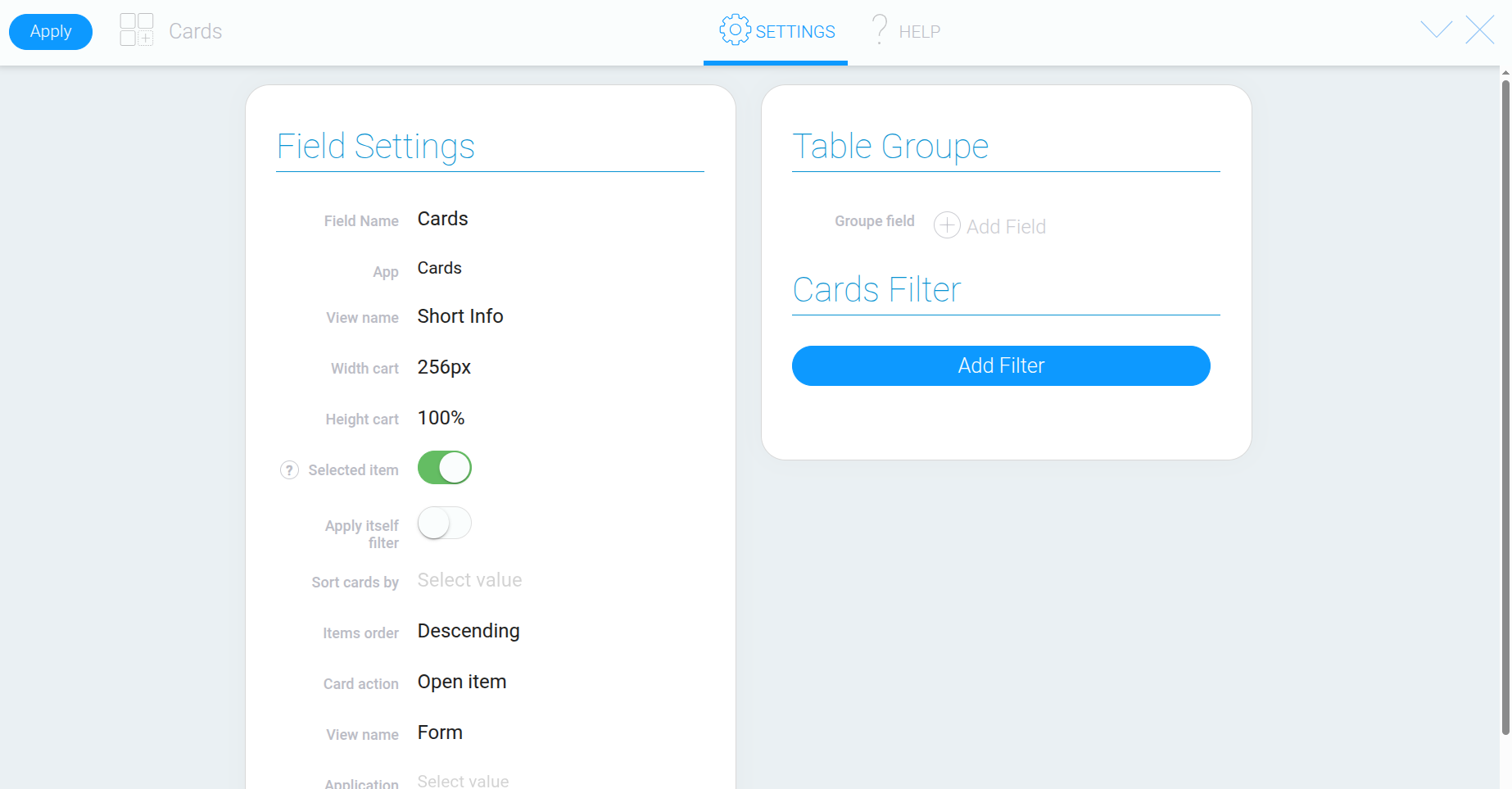
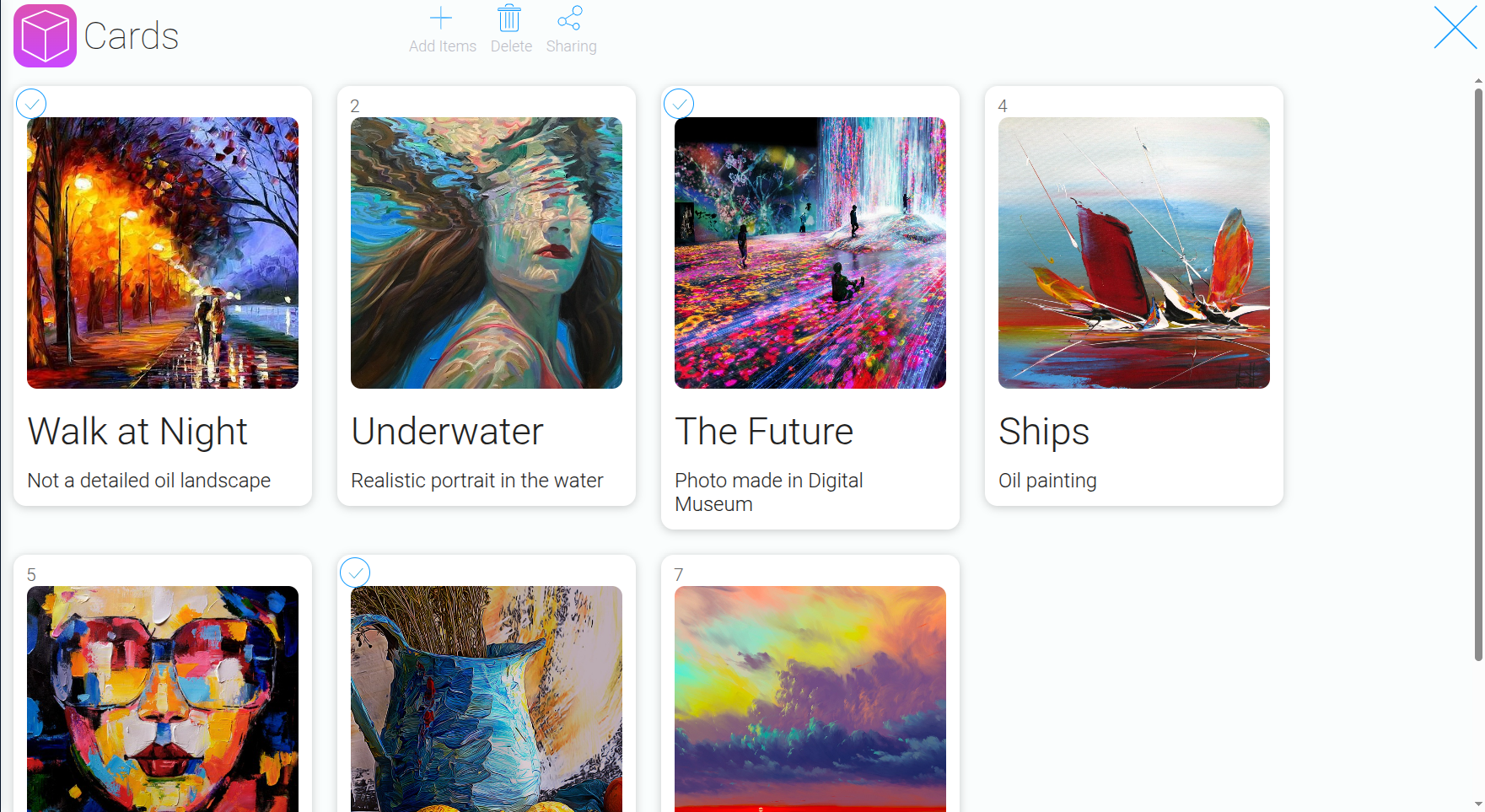
Enable “Selected Items” if you need to select cards, for example, to delete records later.
Once enabled, a number will appear next to each card. Click the number to select the corresponding record.
Step 7. Set the Sorting Order #
Under “Sort Cards”, select the field you want to use to sort the cards. For this example, we’ll use the record title field (“Title”).
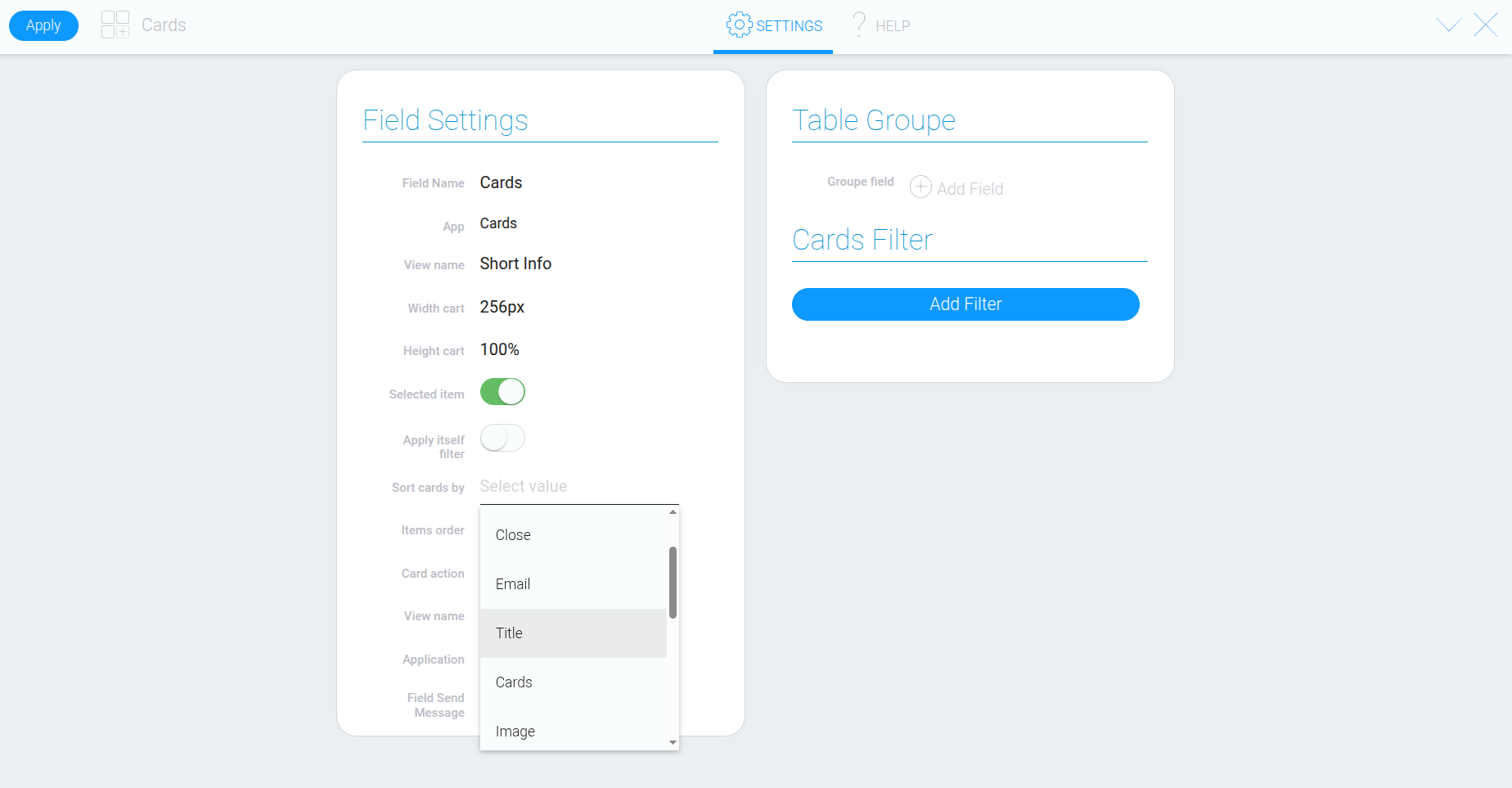
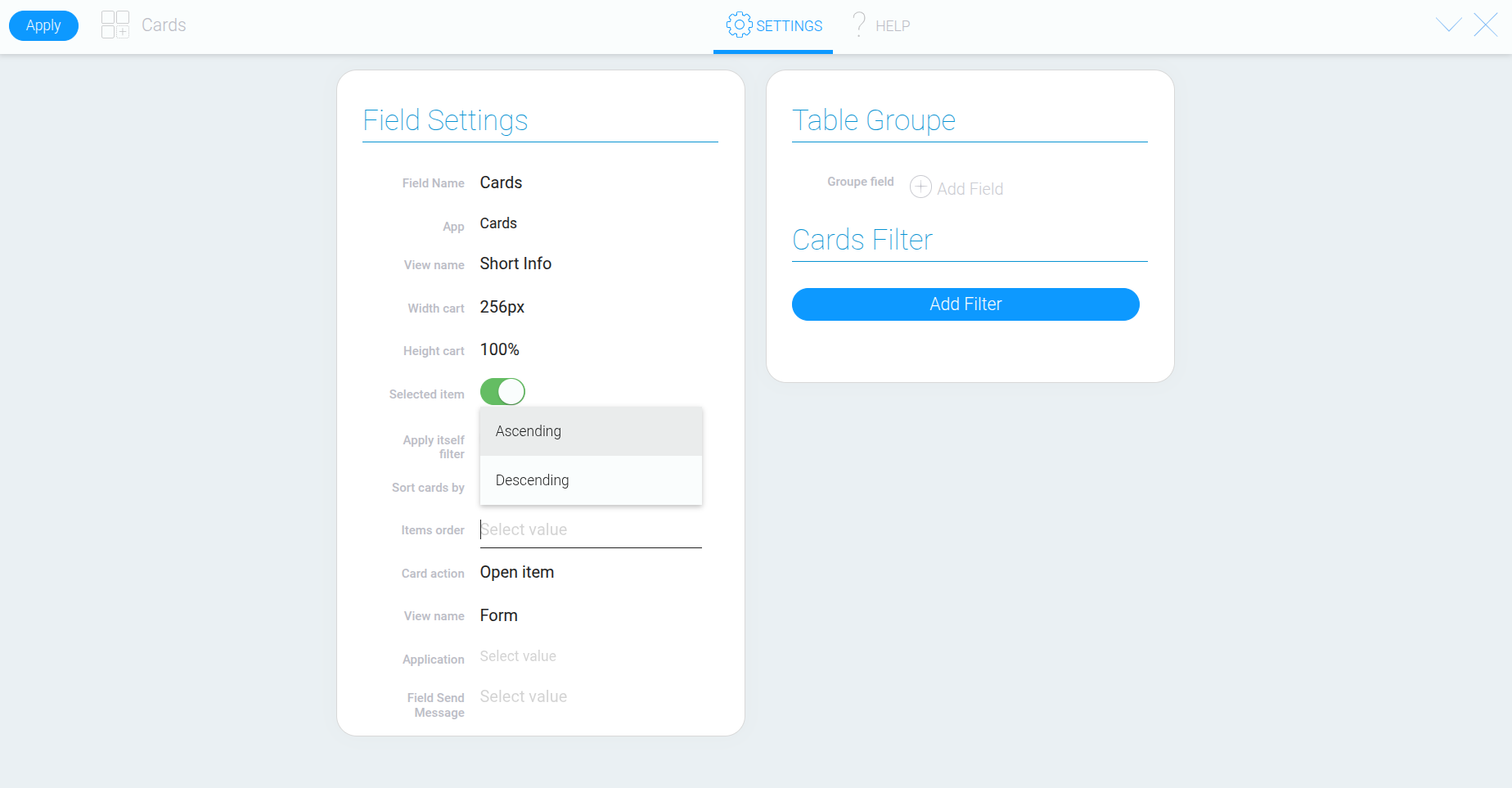
“Ascending” sorts values from lowest to highest, while “Descending” sorts them from highest to lowest. For titles, this means alphabetical or reverse-alphabetical order.
Choose the desired direction and check the order of the cards. Sorting changes their order but does not hide any records.
Configuring What Happens When a Card Is Clicked #
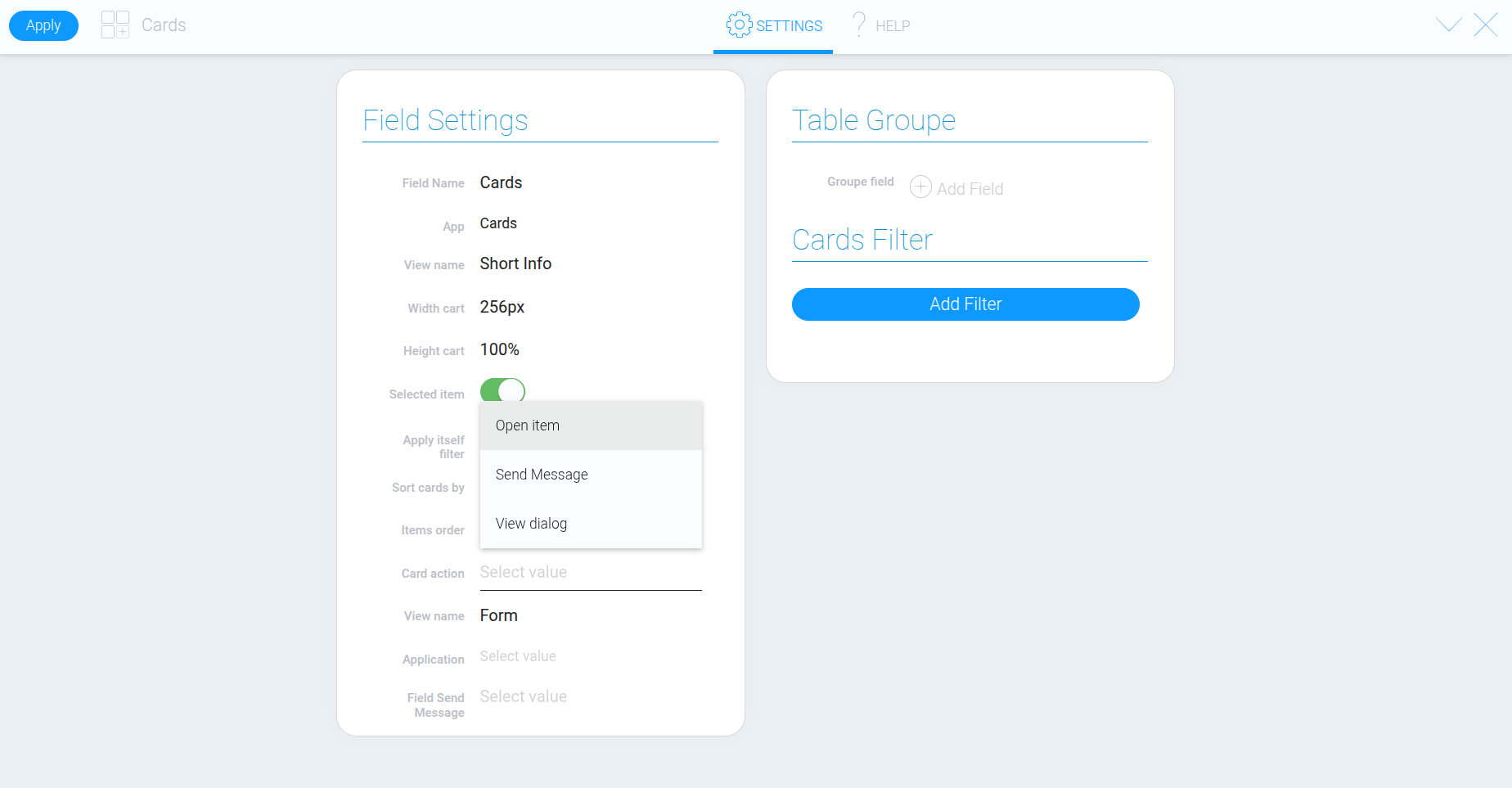
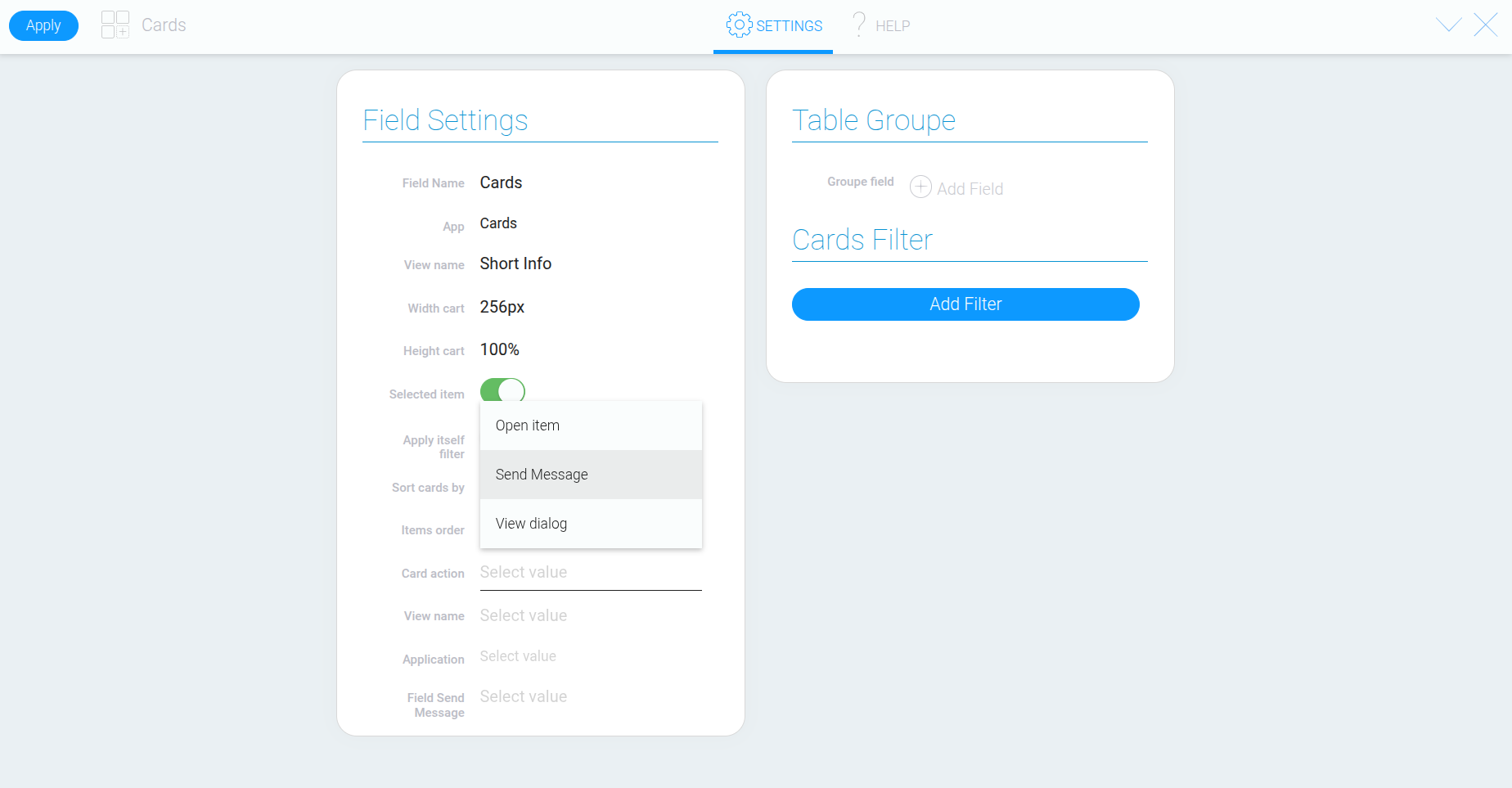
The Cards element lets you choose what happens when a user clicks a card. Depending on how you want to work with the data, you can open a record, display it in a dialog, or send a message to another element.
Opening a Record #
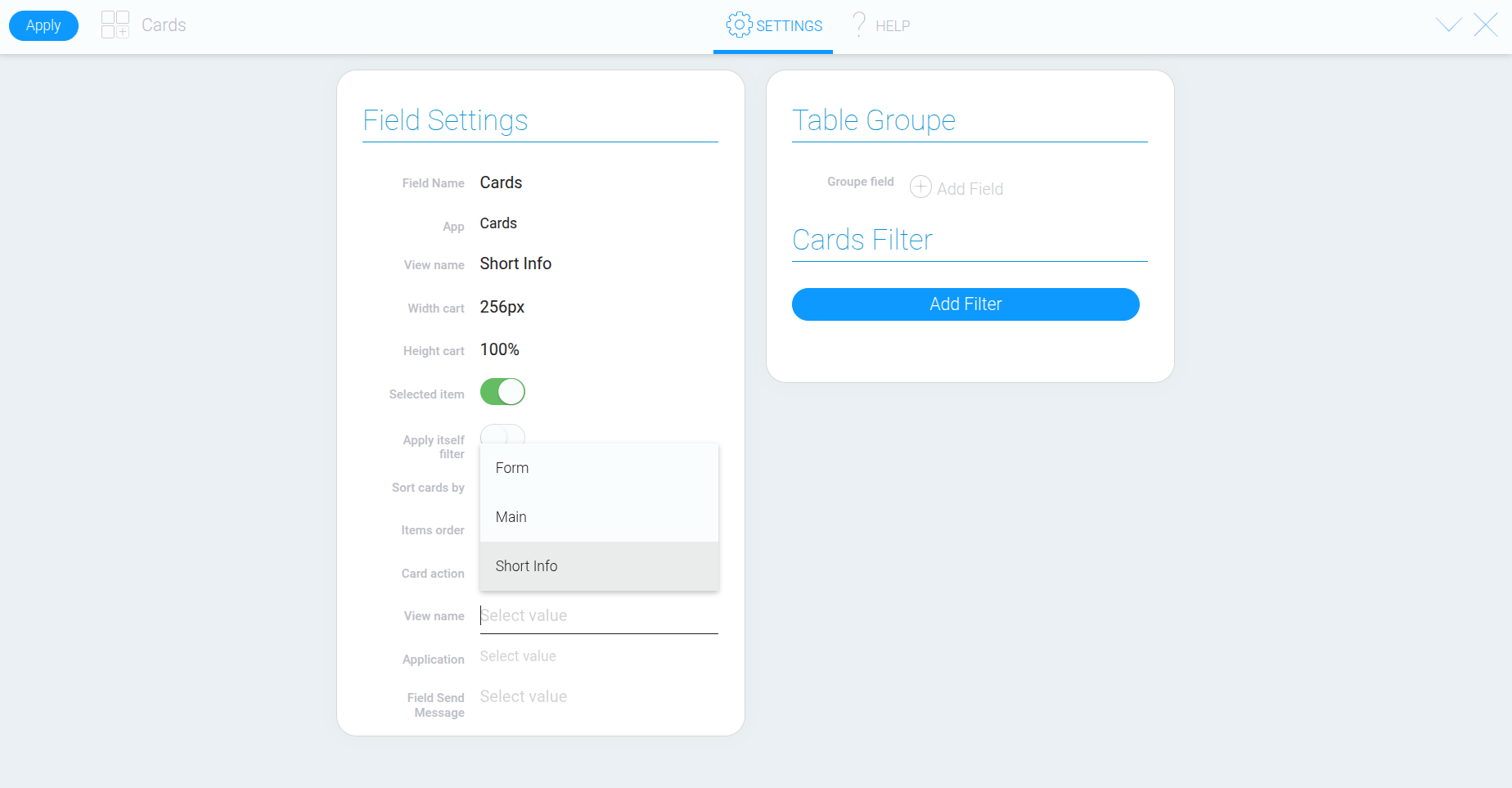
Select “Open Item”. Then, under “View Name”, specify the view you want to open.
Opening a Record in a Dialog #
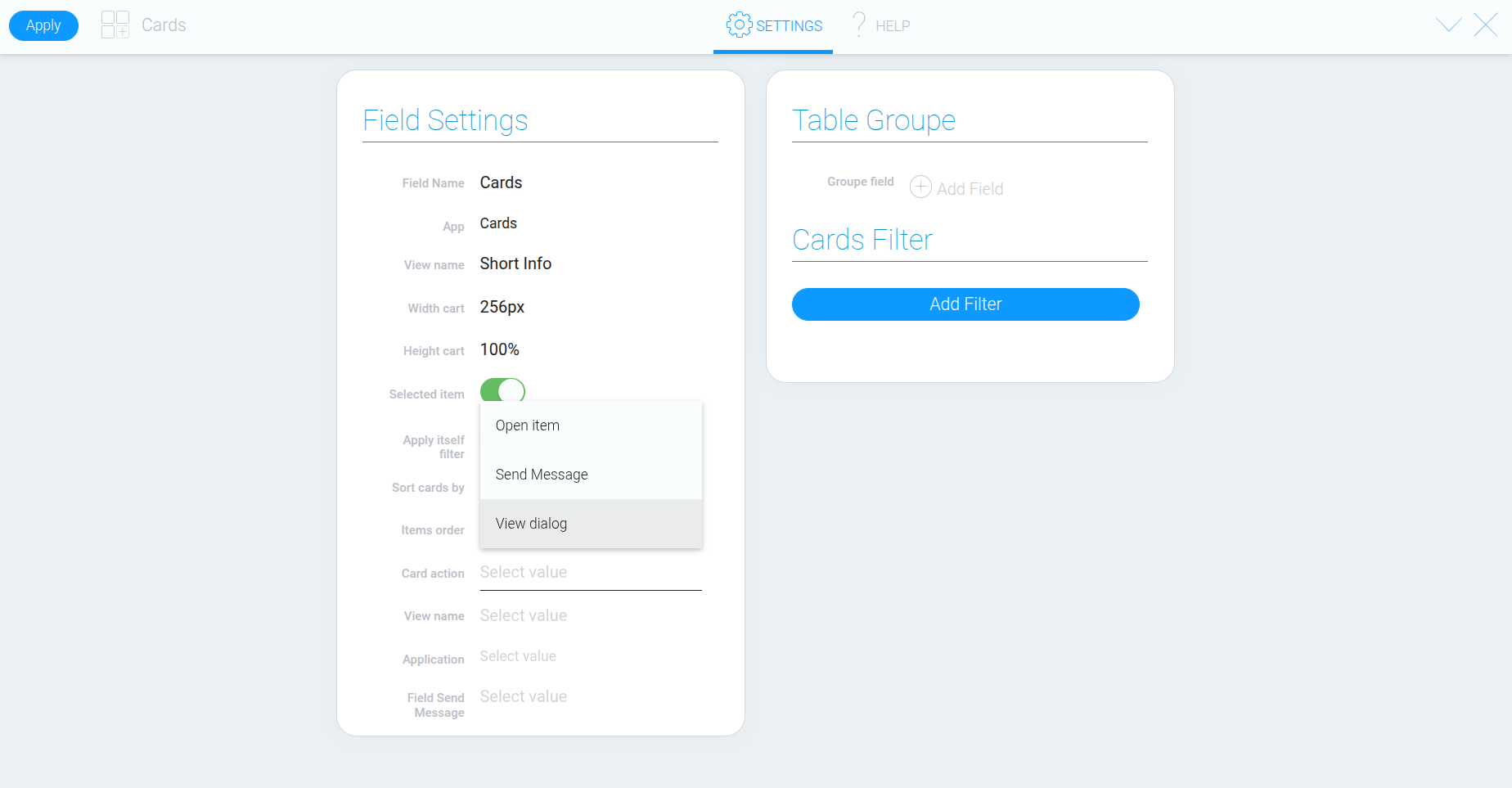
If you want to view a record in a pop-up window, select “View Dialog”. You’ll also need to specify the view under “View Name”.
Sending a Message to Another Element #
The “Send Message” option allows the Cards element to interact with other elements, such as View Container.
Grouping Cards #
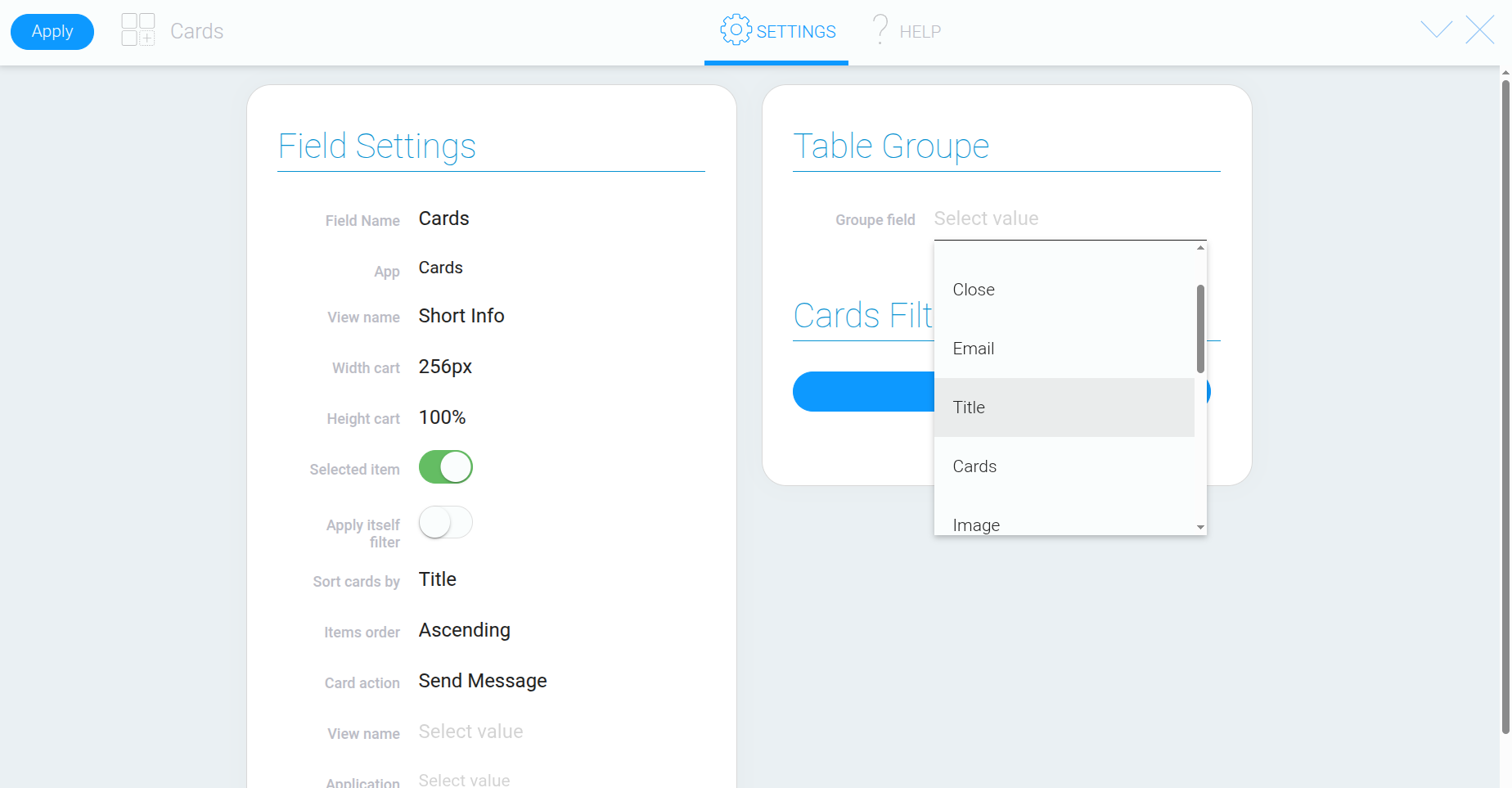
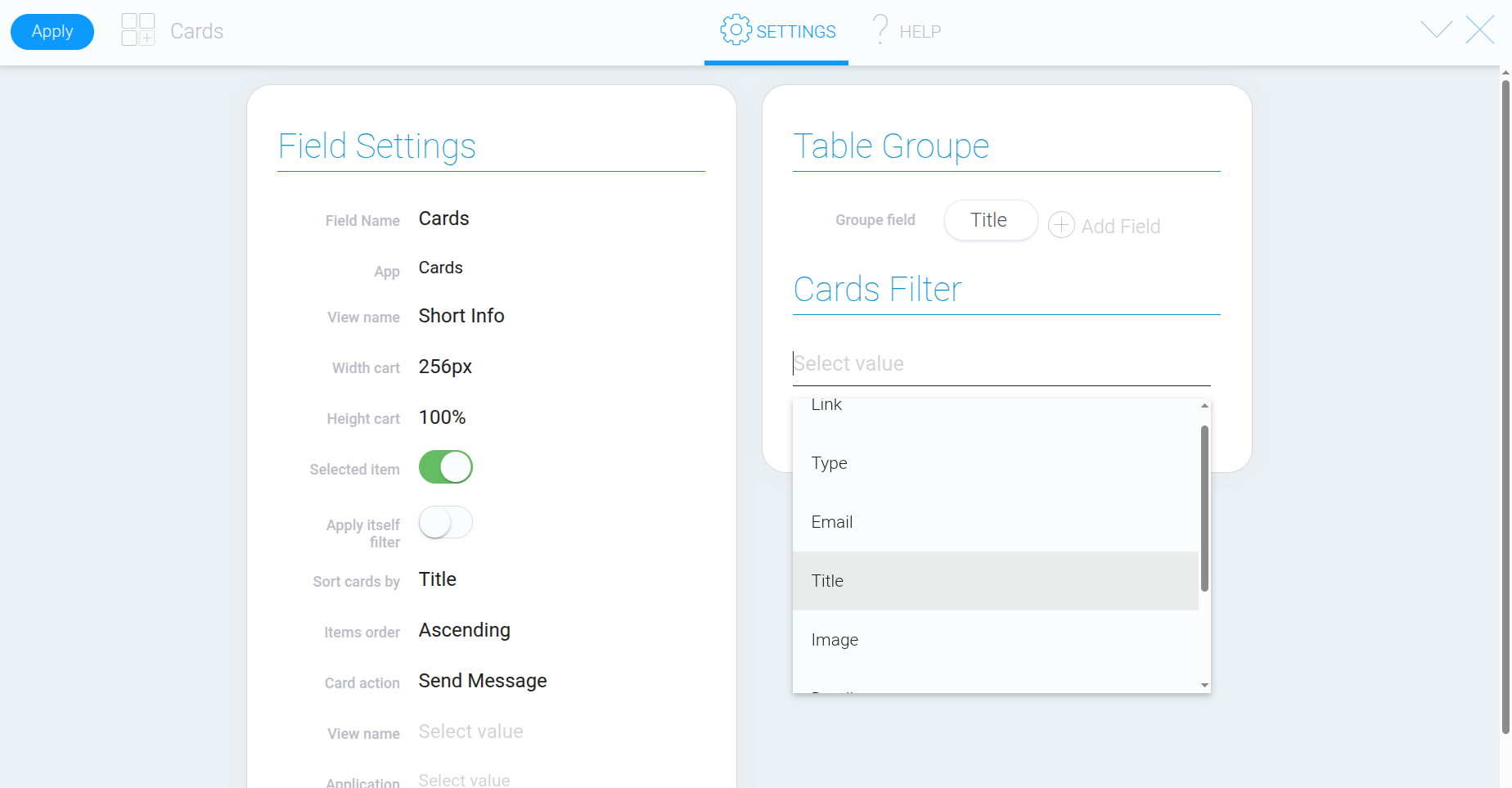
Under “Table Group”, you can select a field to group records by. Despite its name, this setting applies to cards when used with the Cards element.
For this example, we’ll select the title field. If two records have the same title, they will appear as a single grouped card.
Filtering Cards #
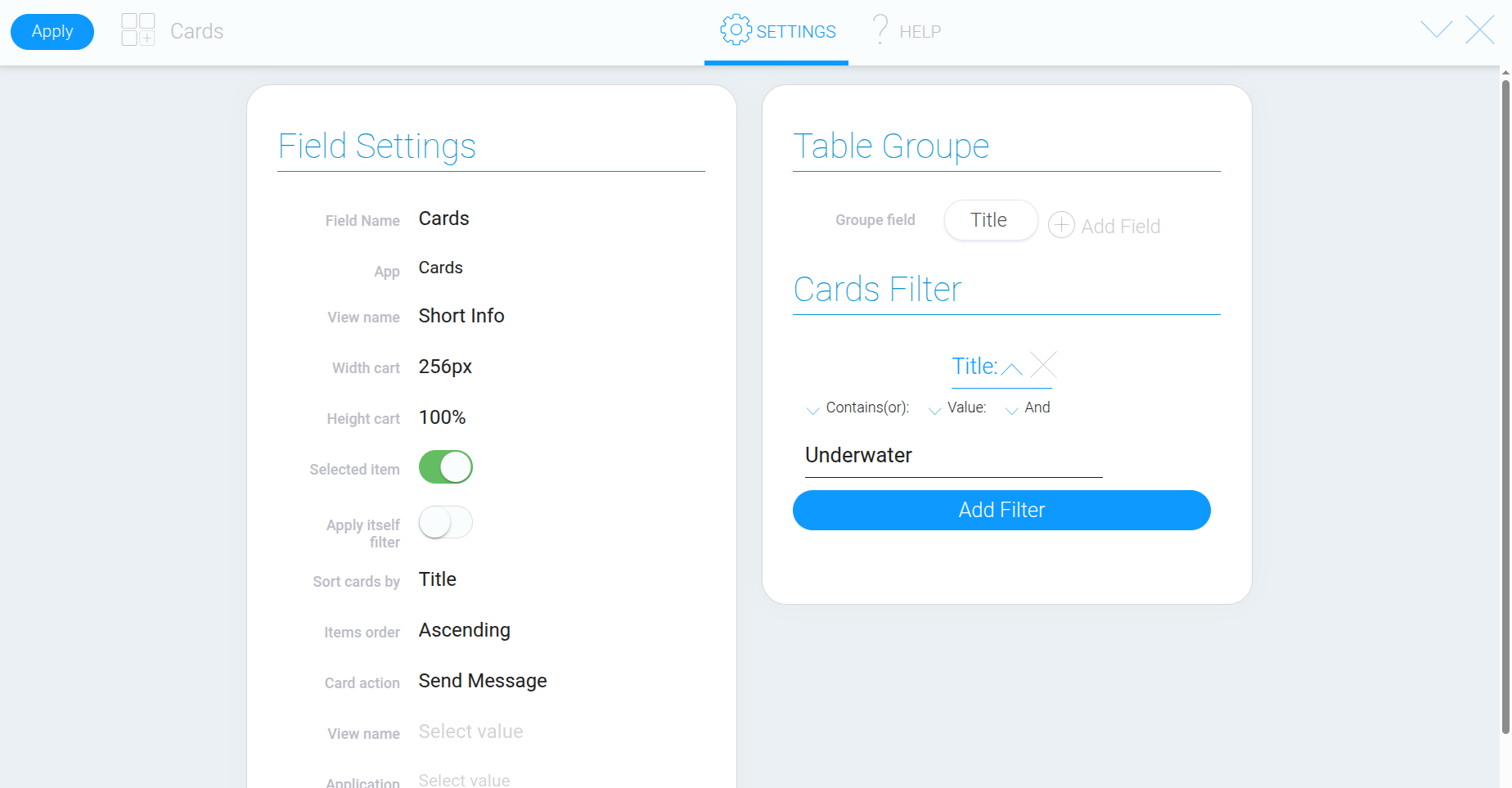
Filters let you display only records that meet specific conditions. The configuration process is the same as for the Table element.
In the filters section, select the field you want to filter by and specify a condition. For example, you can use the title field and enter “Underwater” as the value.
Configured cards provide a convenient visual way to browse records and quickly access detailed information. You can adjust their appearance, dimensions, sorting, and filters at any time to suit your company’s workflows.