
How to Configure View Container in a CRM System #
GudHub CRM allows you to display one view inside another using the View Container element. For example, you can place a customer table and a form displaying the selected customer's information on the same page.
View Container also lets you switch between records using cards and display different views based on field values.
In this guide, we'll walk through the element's main settings, how it works with Table and Cards, and how to configure conditional view selection.
Step-by-Step Guide to Configuring View Container #
Before getting started, it's important to understand the difference between a view and an item. A view defines the layout of fields, elements, and containers. Its appearance is configured in “Edit Template”. An item contains the data displayed in those fields.
If you select only a view in View Container, the form may appear without any data. To work with a specific item, you need to configure the default item selection or pass an item from another element.
For this example, we'll use a form containing a customer's basic and contact information.
Step 1. Select the Application and View #
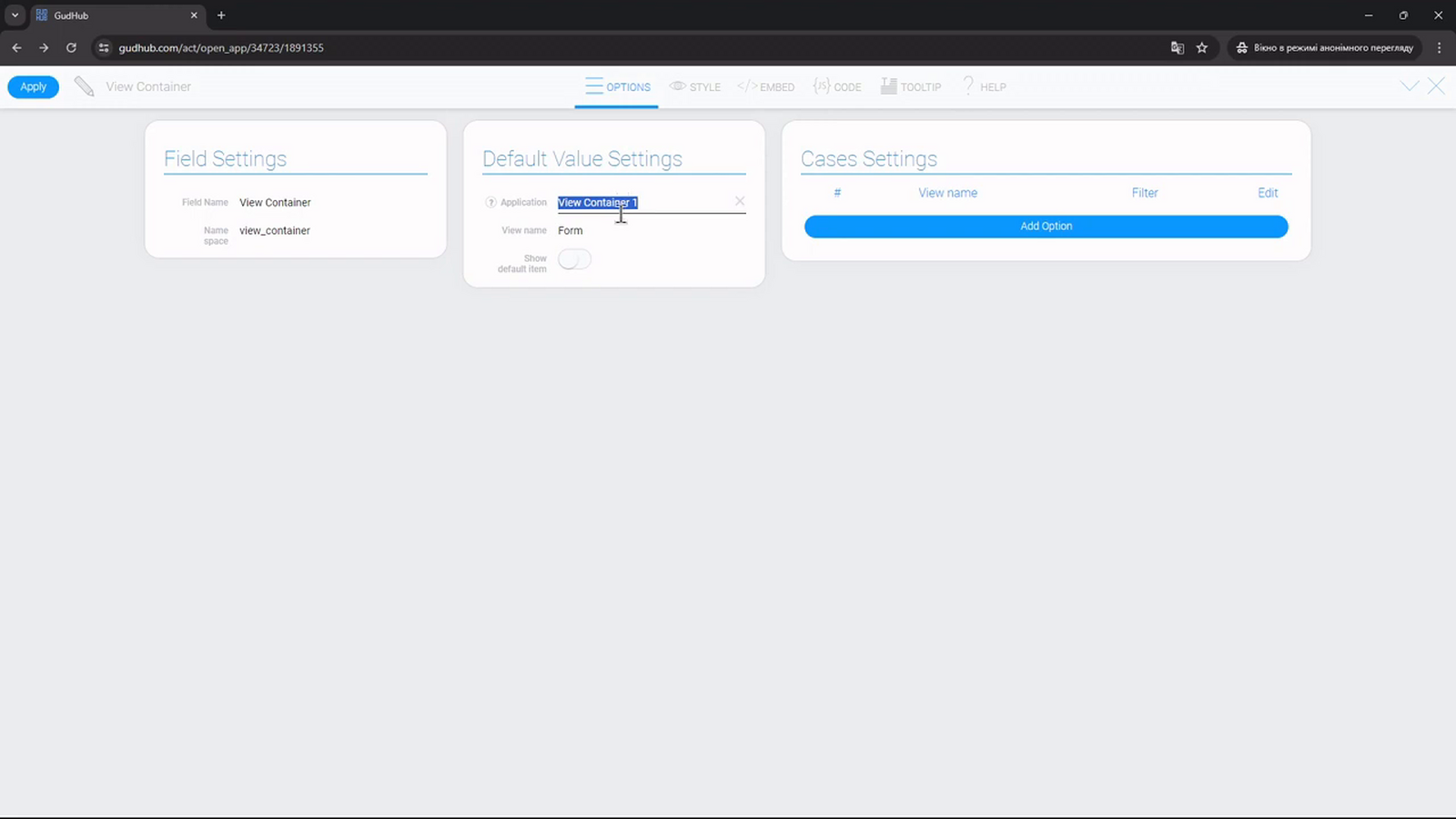
Open “Edit Field” for the View Container element. Under “Default Value Settings”, find the “Application” setting and select the application from which you want to retrieve views and items.
Then, under “View name”, specify the view to display by default. In this example, we'll use “Form” from the “View Container 1” application.
Step 2. Enable the Default Item #
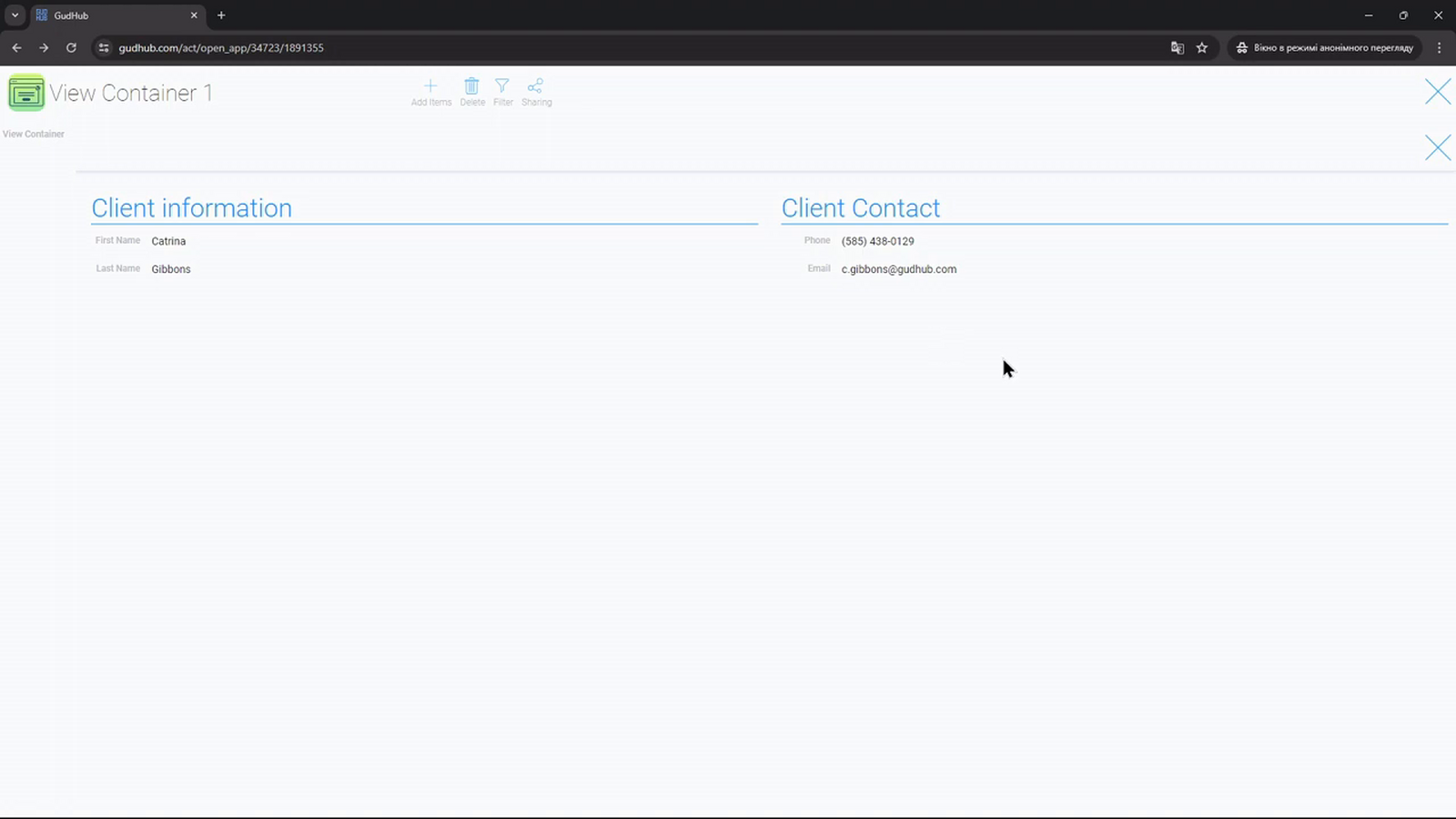
To display data in the form as soon as it loads, enable “Show default item”. View Container will display the first item from the selected application, taking the configured sorting and filters into account.
Return to the page and check the result. A form containing the customer's information should now appear inside the main view.
Step 3. Configure the Default Item Selection #
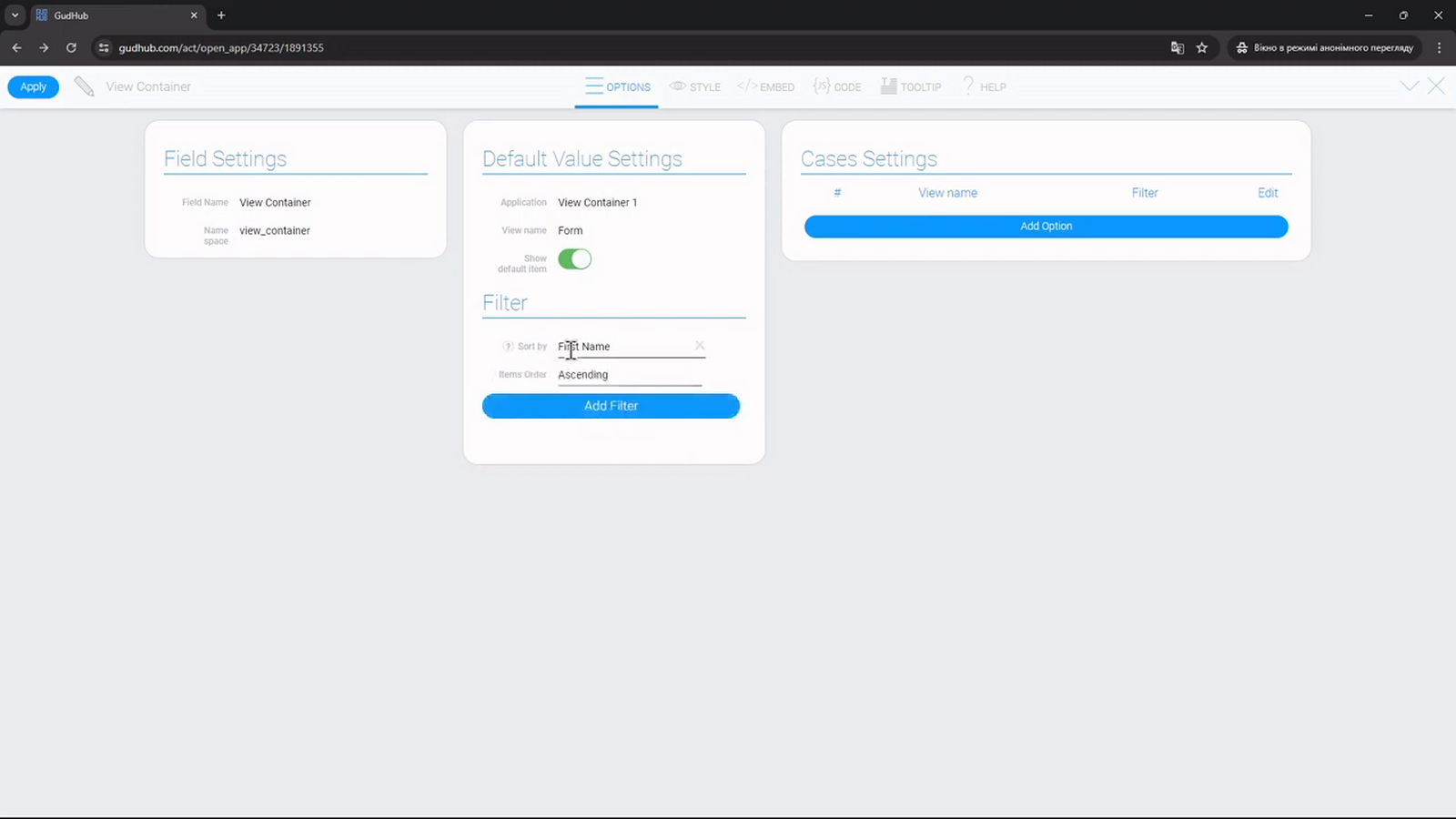
Once “Show default item” is enabled, you can configure how items are sorted and filtered.
Under “Sort by”, select the field you want to sort the data by. For this example, we'll use “First Name”. Under “Items Order”, select “Ascending” for alphabetical order or “Descending” for reverse alphabetical order.
Switching Between Records Using a Table #
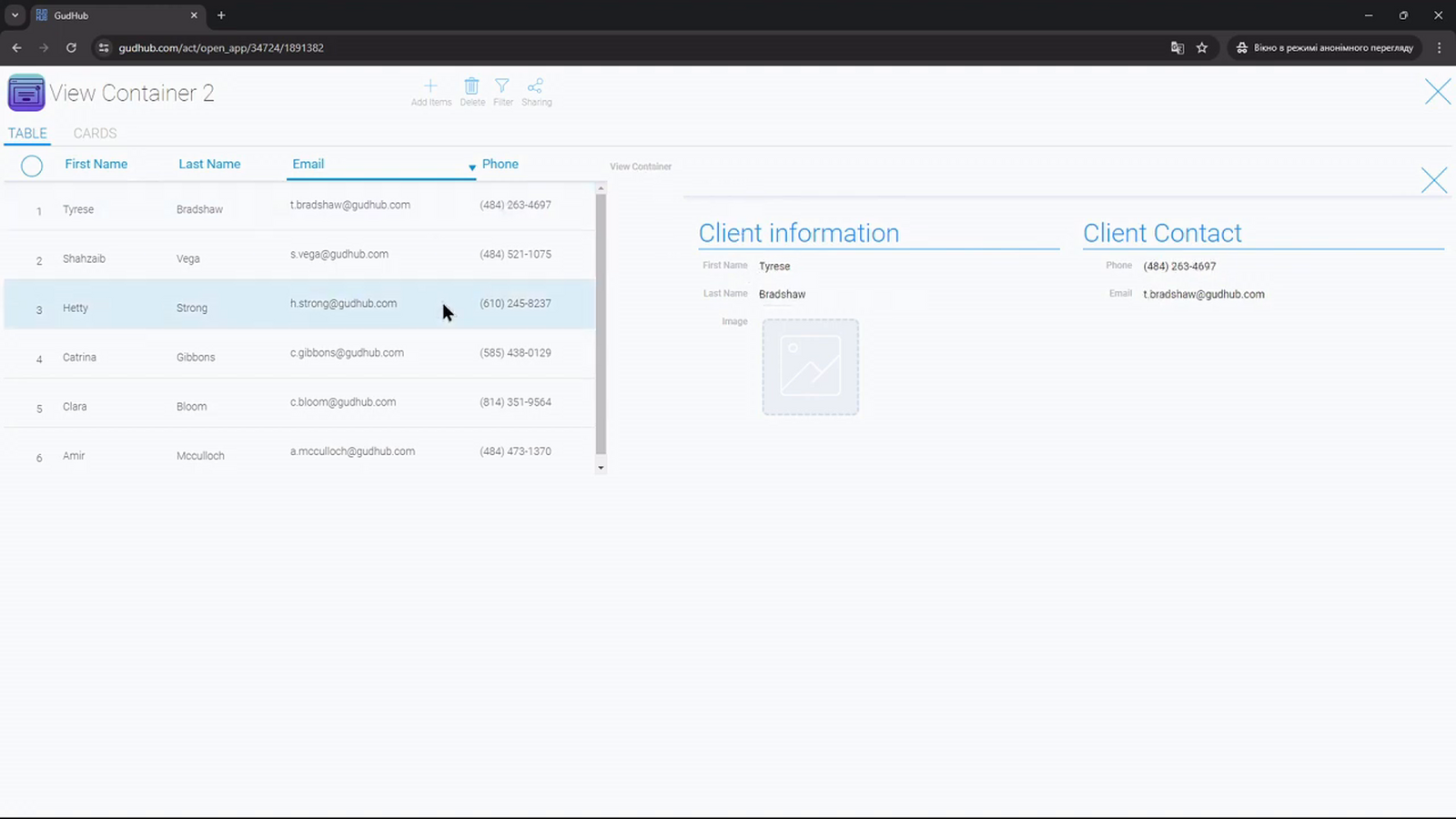
View Container can receive information about the selected item from other elements. This lets you keep a customer list on the page while displaying each customer's details alongside it.
To set this up, create a view containing a table and a View Container. In the container settings, select the application and the form that will display the customer's information.
Step 1. Change the Row Click Action #
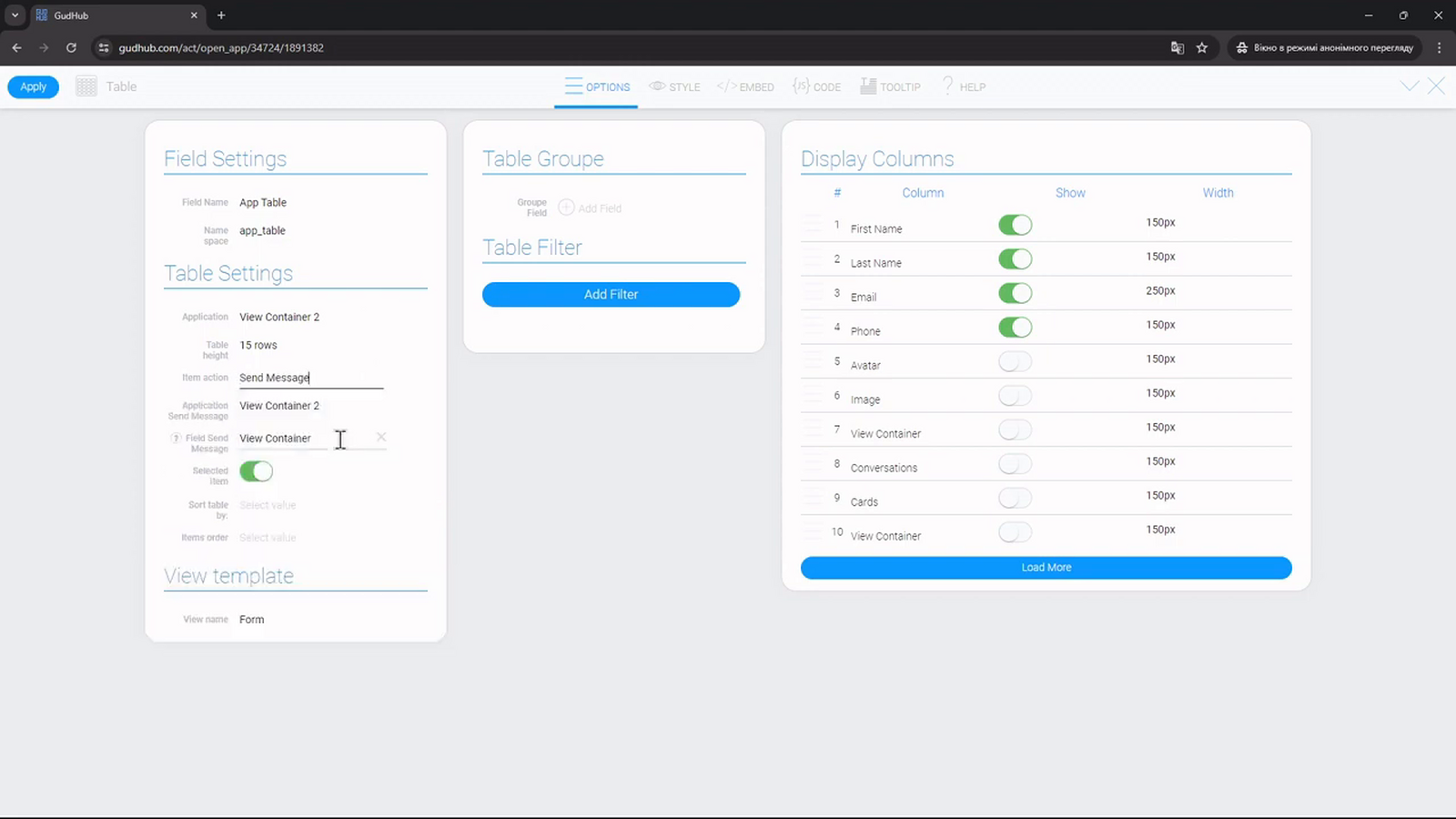
Open “Edit Field” for the Table element. Under “Item action”, select “Send Message”.
The table will now send a message about the selected item to another element. Additional settings for specifying the recipient will become available.
Step 2. Set View Container as the Recipient #
Under “Application Send Message”, select the application that contains the required container. Under “Field Send Message”, select the View Container element itself.
In this example, the application is “View Container 2”, and the field is “View Container”.
Step 3. Test Record Switching #
Return to the page and click a row in the table. The selected customer's information should appear in View Container, next to the list.
Switching Between Records Using Cards #
You can connect View Container to the Cards element in the same way. When a user selects a card, the container displays the corresponding item.
Step 1. Configure the Card Action #
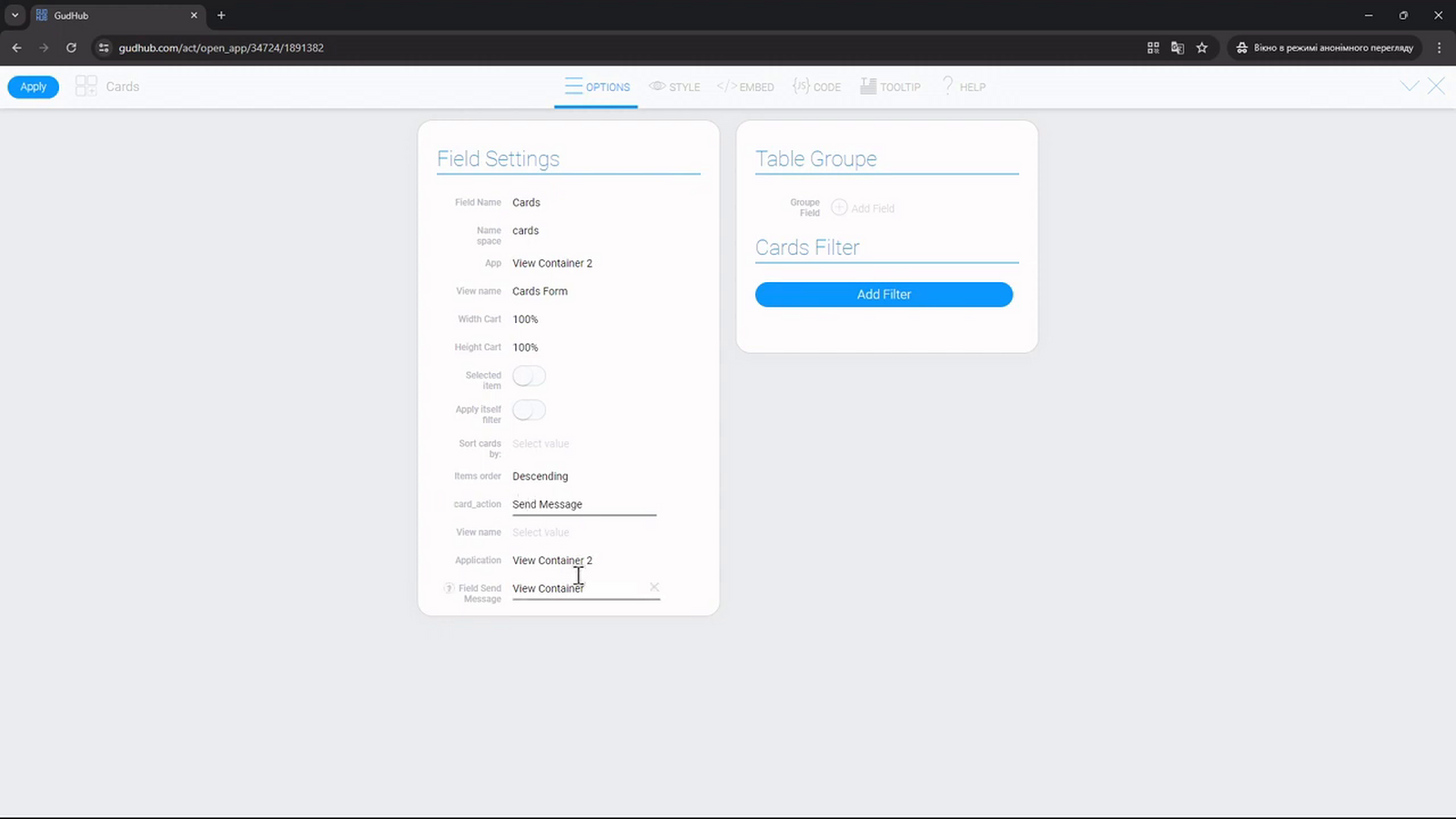
Open the Cards settings. Under the card action setting, called “card_action” in this example, select “Send Message”.
In the “Application” field, select the application containing the container that will receive the message. Under “Field Send Message”, select the required View Container.
Step 2. Check the Result #
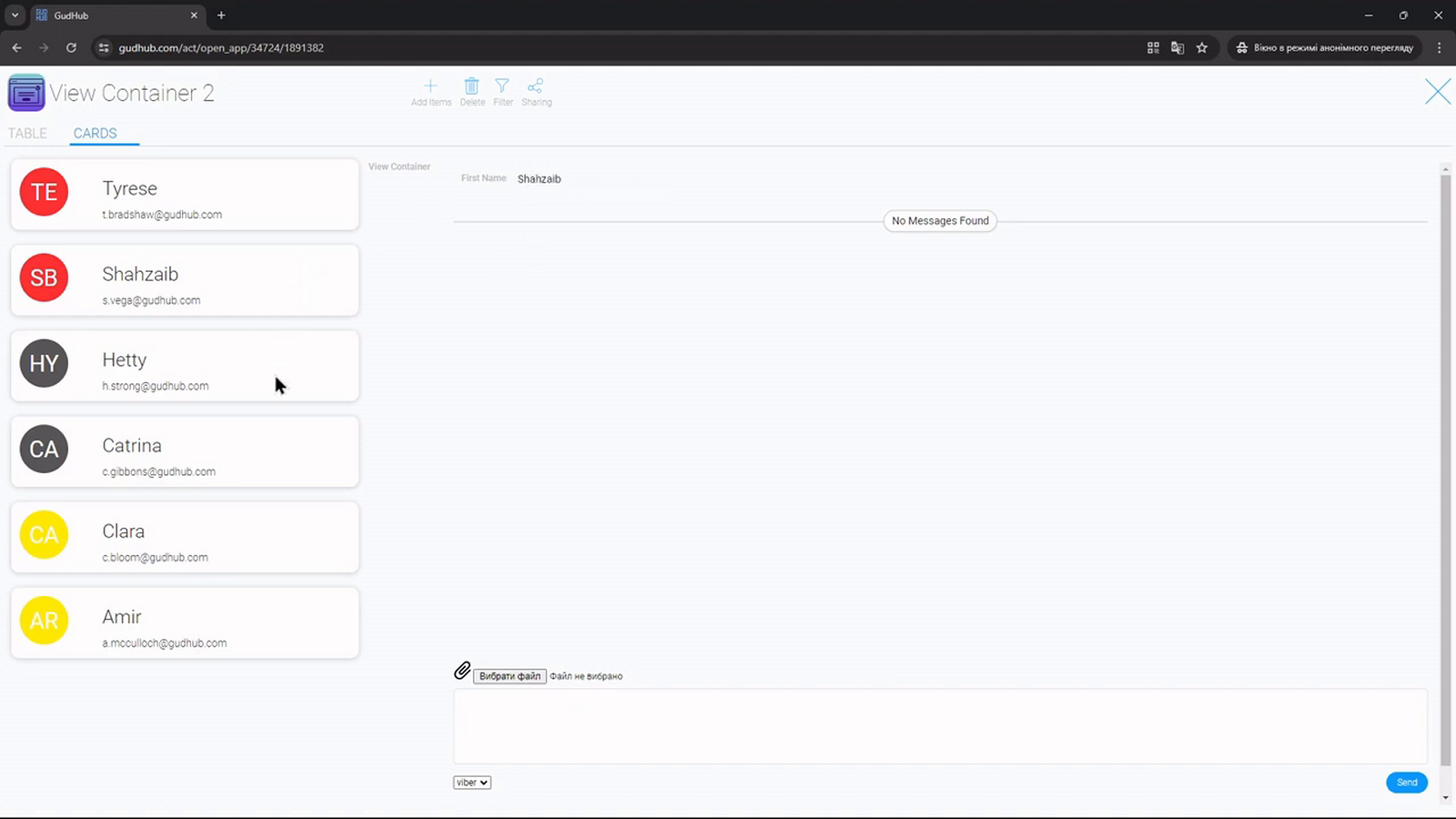
Return to the application and click several cards in succession. The container's contents should update to match the selected item.
The video shows an example with a contact list on the left and a conversation area on the right. The conversation area uses the Conversation element inside the view displayed by the container. Configuring Conversation itself is a separate task.
Displaying Different Views Based on a Field Value #
View Container lets you display different views for items with different attributes. For example, the value “Main Info” in the “Type” field can display a customer's basic information, while “Contacts” displays their contact details.
To configure this, use the “Cases Settings” section.
Step 1. Prepare the Views #
Create a separate view for each display option in the application. In this example, “Form Name” contains the customer's basic information, while “Form Contacts” contains their contact details.
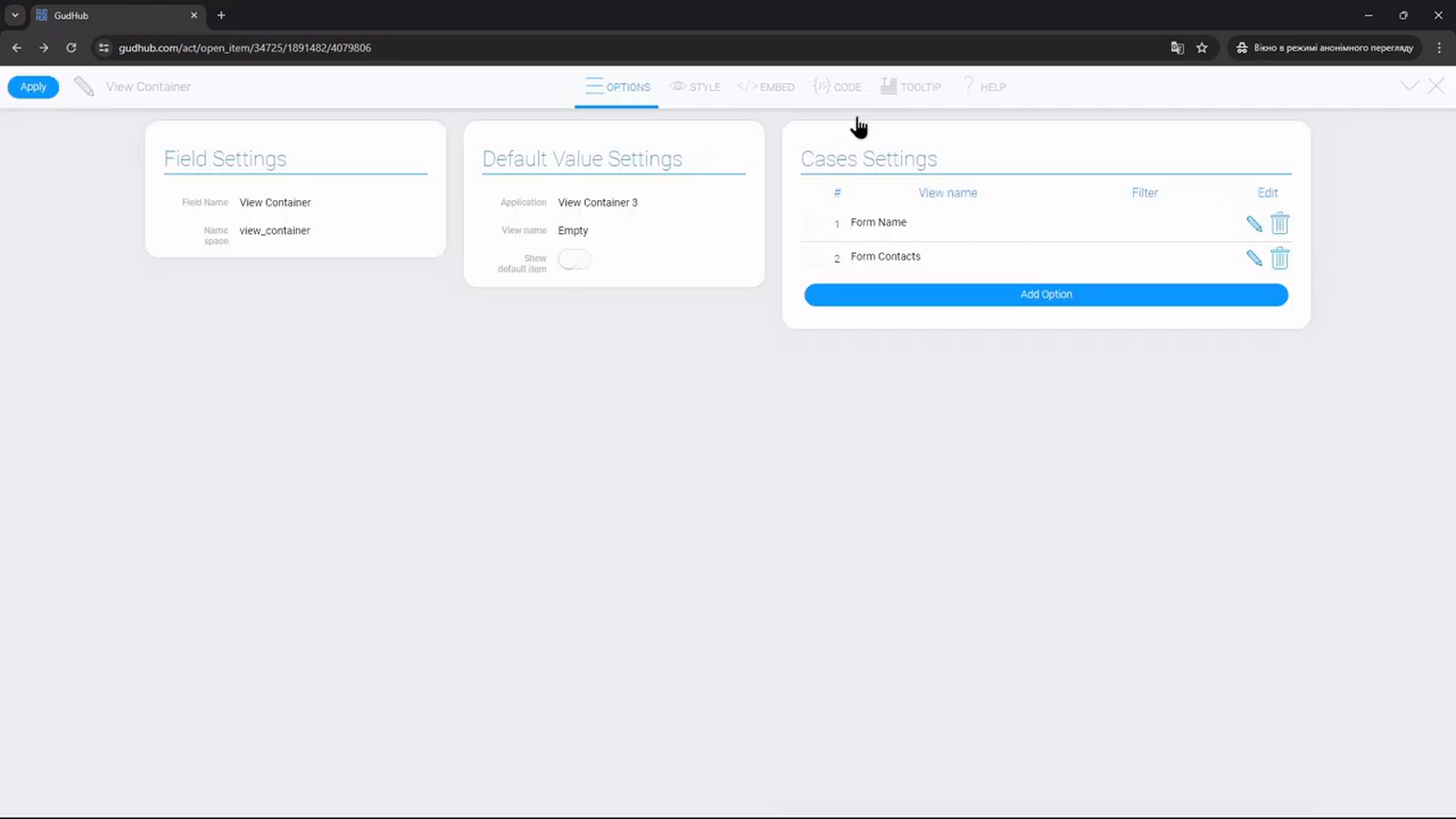
A separate, empty view called “Empty” is used as the default. Select it under “Default Value Settings” so that the container doesn't display unnecessary information when none of the conditions are met.
Step 2. Add the Display Options #
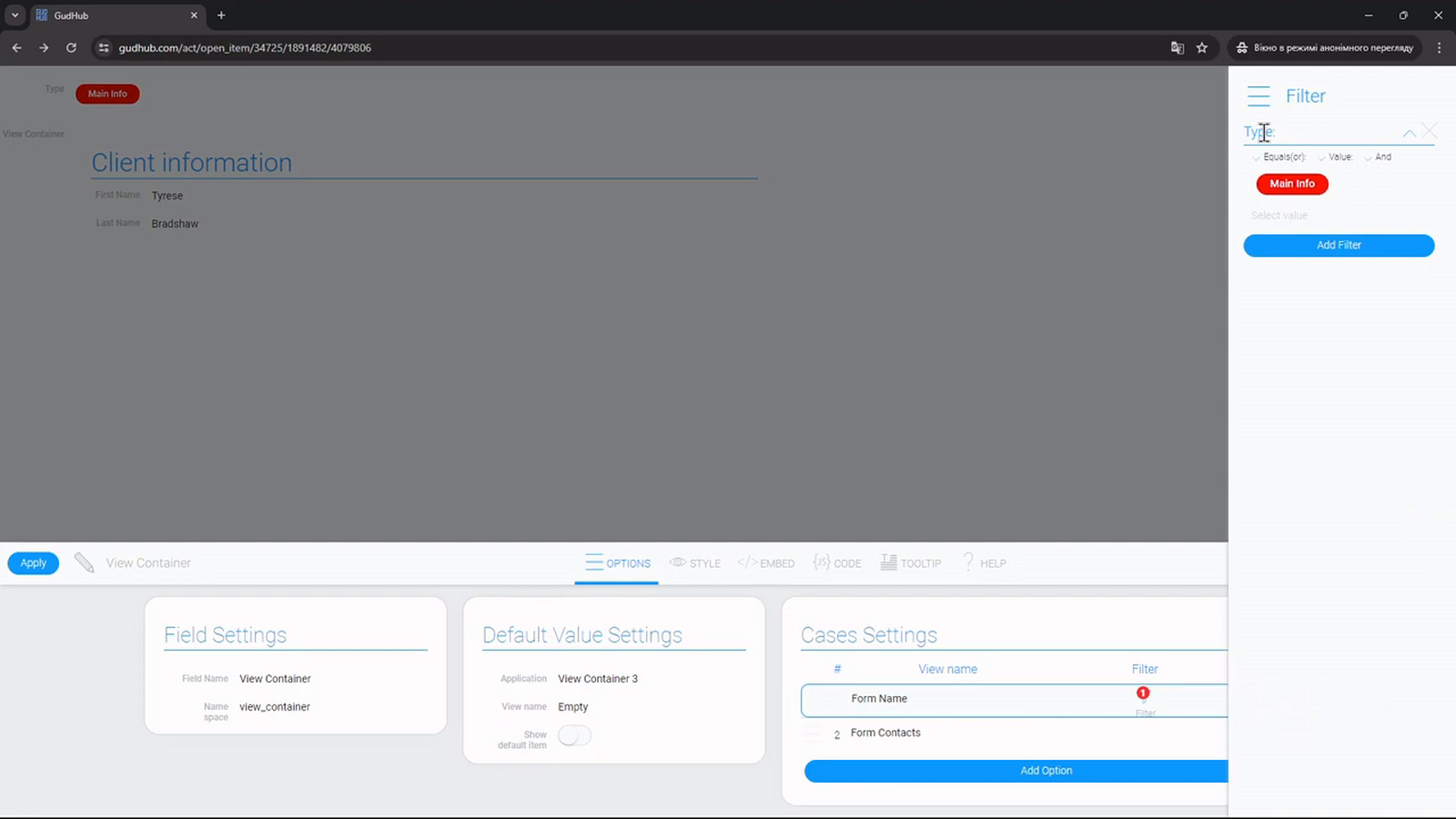
In the View Container settings, go to “Cases Settings”. Click “Add Option” and add the required views to the list.
For this example, we'll use “Form Name” and “Form Contacts”.
Step 3. Set the Condition for Basic Information #
Open the filter in the “Form Name” row. Select the “Type” field and set the condition to match the value “Main Info”.
In this example, the condition type is “Equals(or)”. When an item's field matches this value, the container displays the view containing the customer's basic information.
Step 4. Set the Condition for Contact Details #
In the “Form Contacts” row, open the filter and set the “Type” field to “Contacts”.
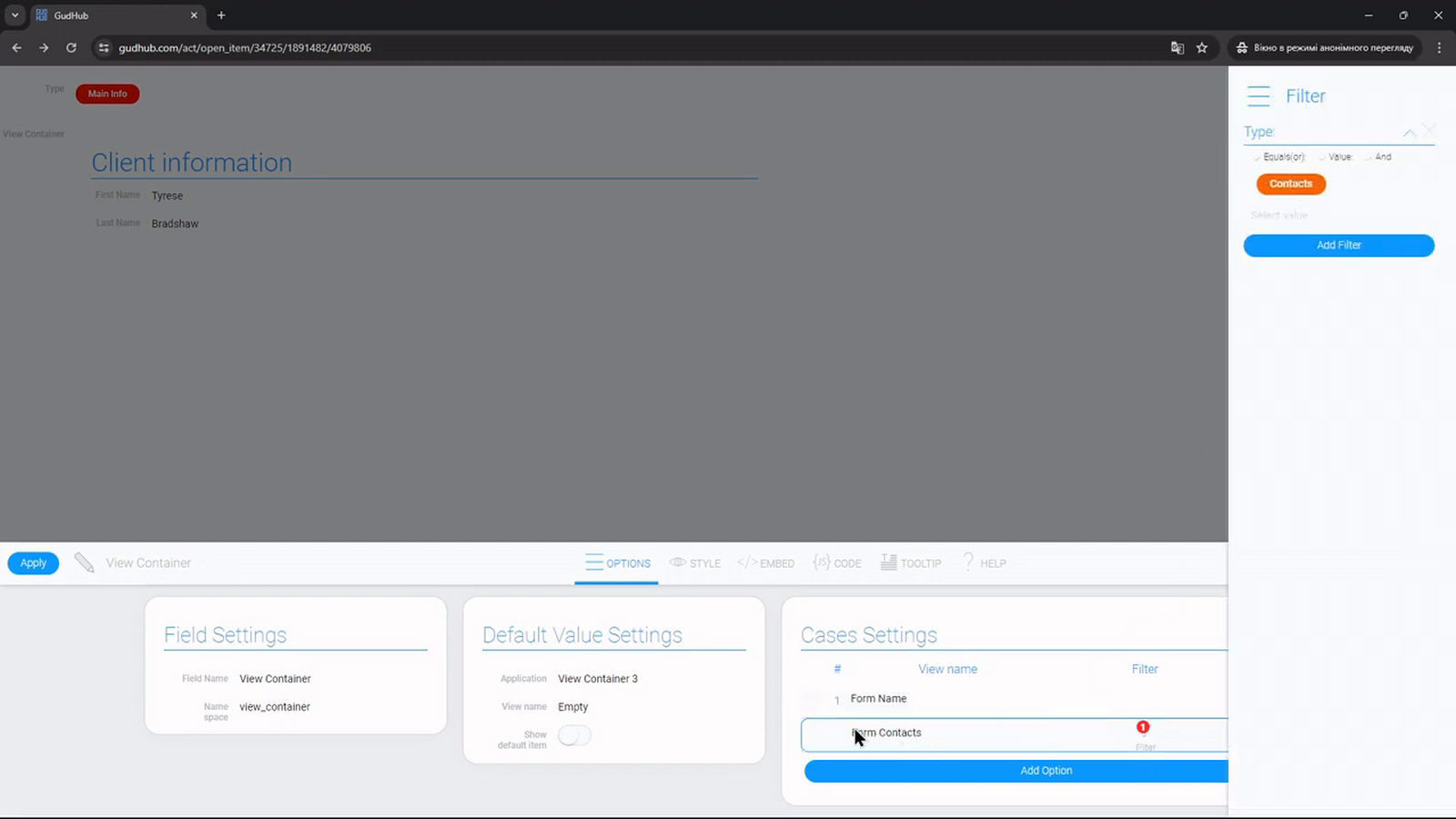
In this example, View Container is placed inside the item form opened by the table. This means that item selection and view selection happen at different levels: the table opens the required item, and the container checks its data and displays the corresponding content.
Other Ways to Use View Container #
View Container can also work with Nested List and View Tab. These elements help organize navigation and switch between content, and each has its own settings.
If needed, you can place multiple View Container elements on the same page or display a view that contains another container. This allows you to combine a list of items, detailed information, and separate data sections in a single workspace.
A properly configured View Container makes it easier to access the information you need without constantly navigating between pages. You can adjust its default view, data source, and display conditions to suit your company's workflows.