
Managing an AI Assistant in GudHub CRM #
Once configured, an AI assistant becomes a separate member of your CRM team and can perform tasks based on its assigned role, rules, and workflows. To get the most out of your assistant, it is important to configure its settings, integrations, and automation properly.
If you have not connected an AI assistant to your CRM yet, follow the AI Assistant setup guide before configuring its settings.
GudHub CRM has a dedicated section for managing AI assistants. Here, you can update the assistant’s settings, enable additional features, configure automated workflows, and control how it interacts with other parts of the system.
Below, we’ll take a closer look at the main AI assistant settings and what each section is used for.
Managing an AI Assistant #
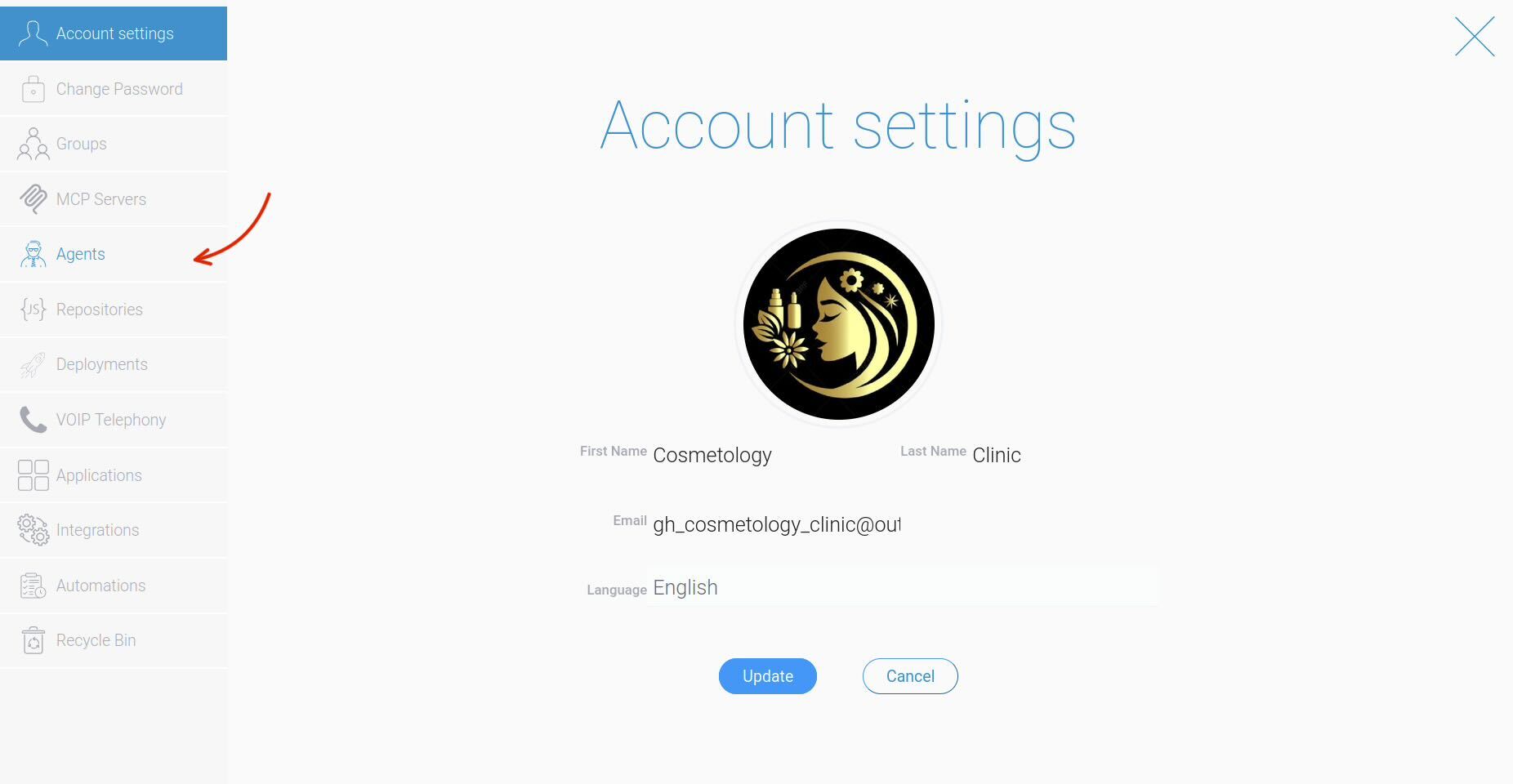
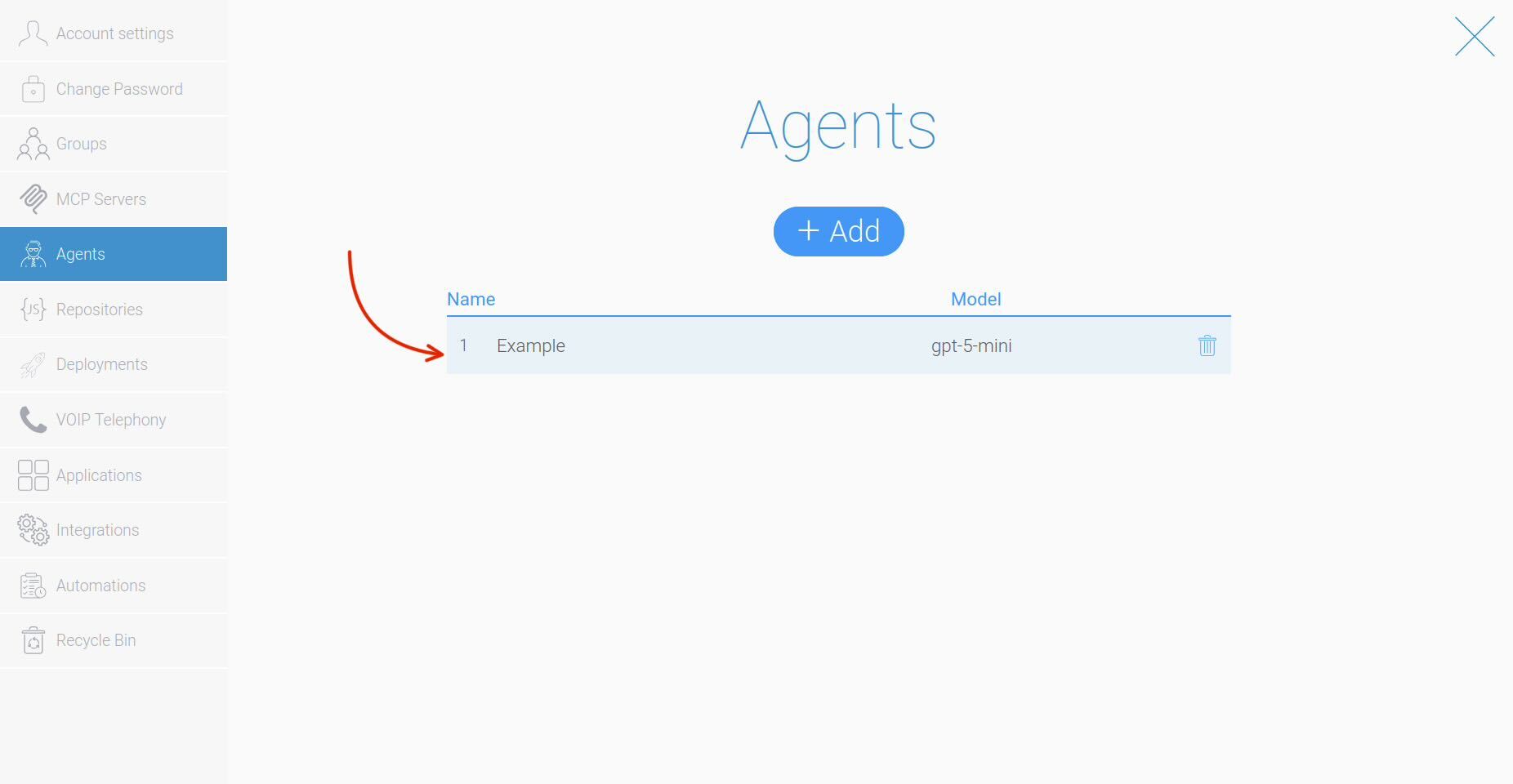
All AI assistant settings are available in a dedicated CRM section that provides tools for managing your assistants and their work.
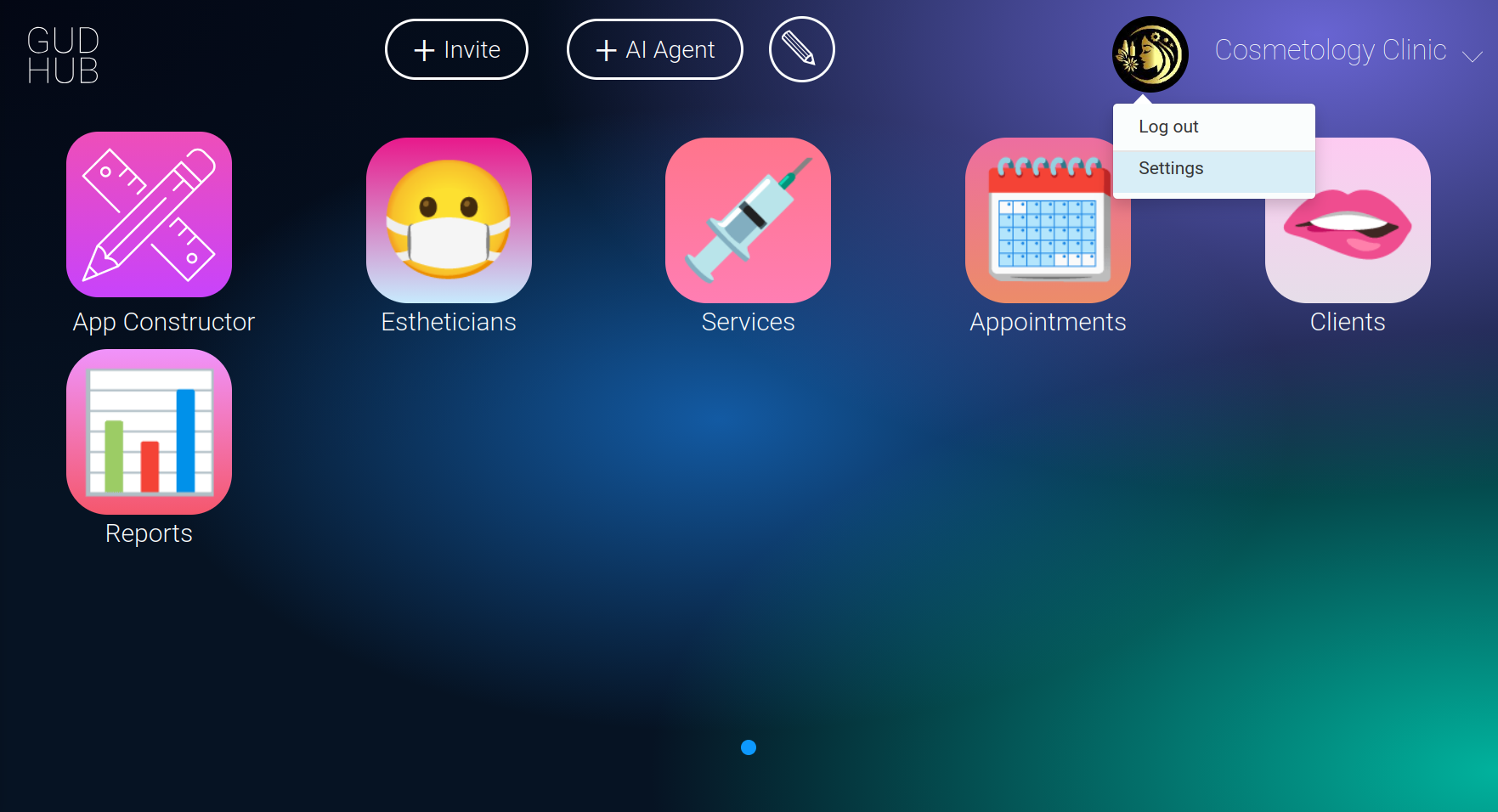
To view information about your assistants, click “Settings” on the system’s main screen.
Agent Info #
In this tab, you can change the assistant’s name, update the API Key if needed, or edit the Description.
Description defines the AI assistant’s role. It helps you quickly understand what the agent was created to do and what tasks it performs in the system.
Here, you can specify the tasks the agent is designed to handle, the style it should use, and the areas it is responsible for.
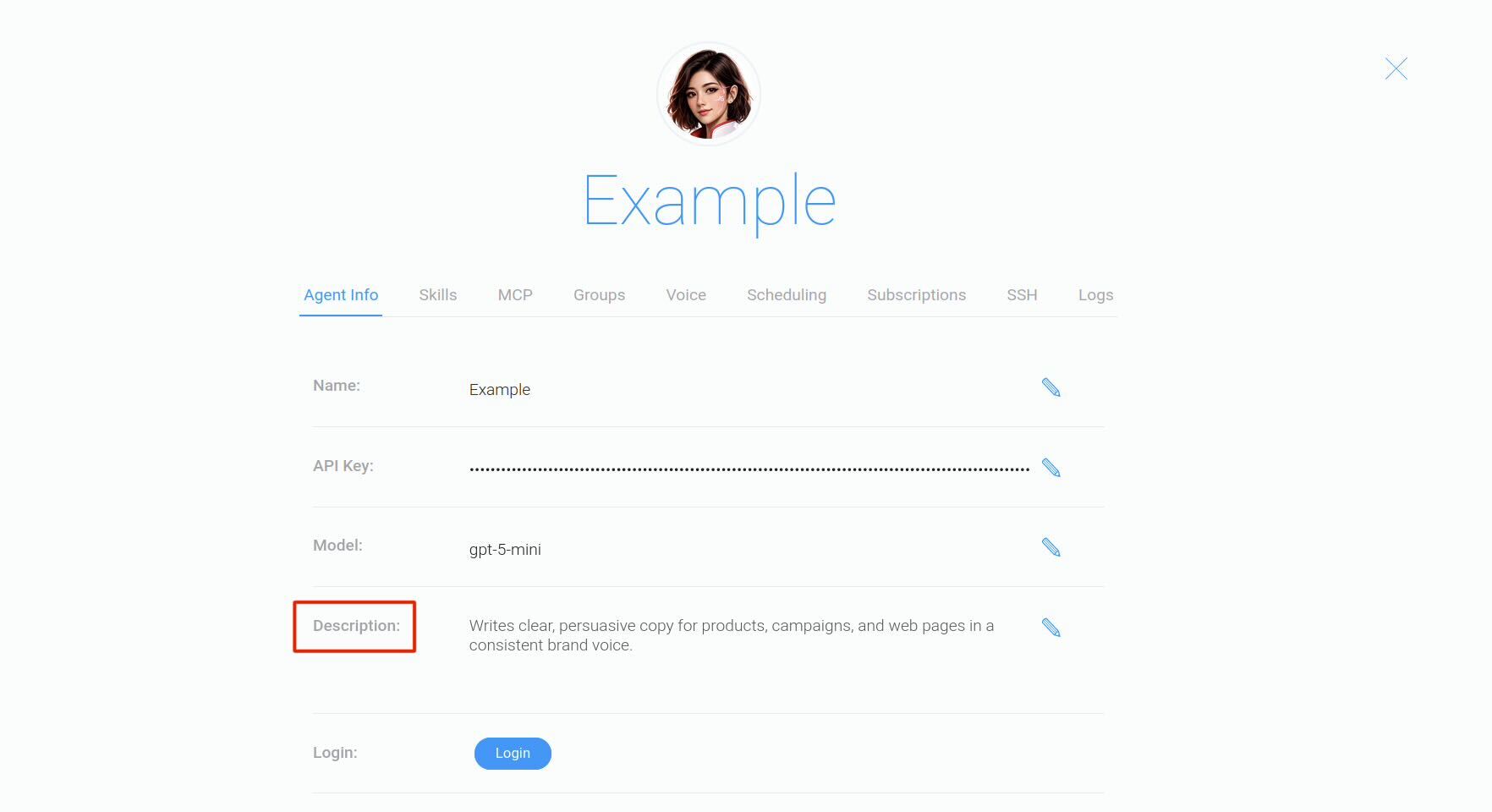
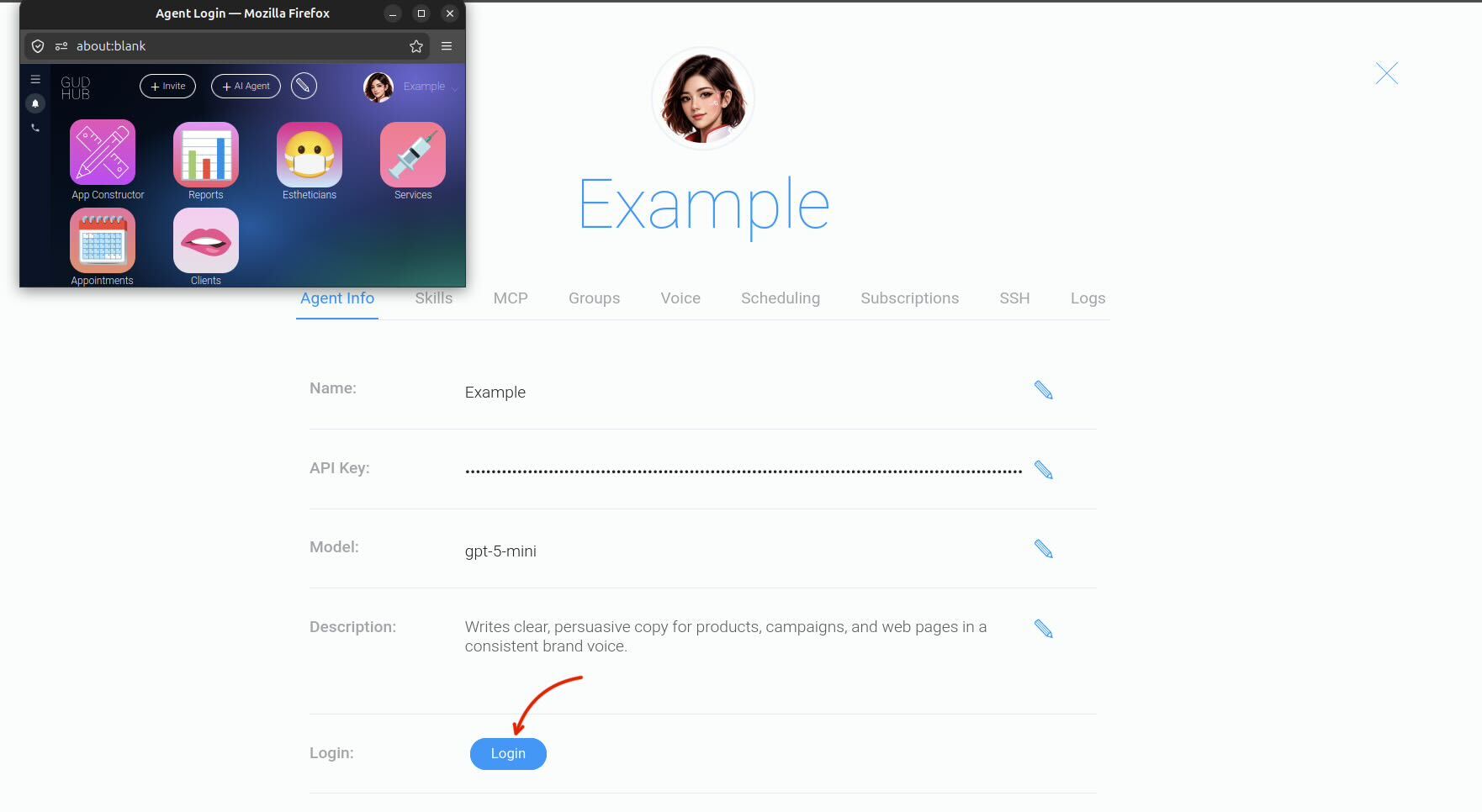
Since an AI assistant in GudHub works as a separate member of the team, logging in as the assistant allows you to test its settings and make sure it has access only to the resources it needs to perform its tasks.
Skills #
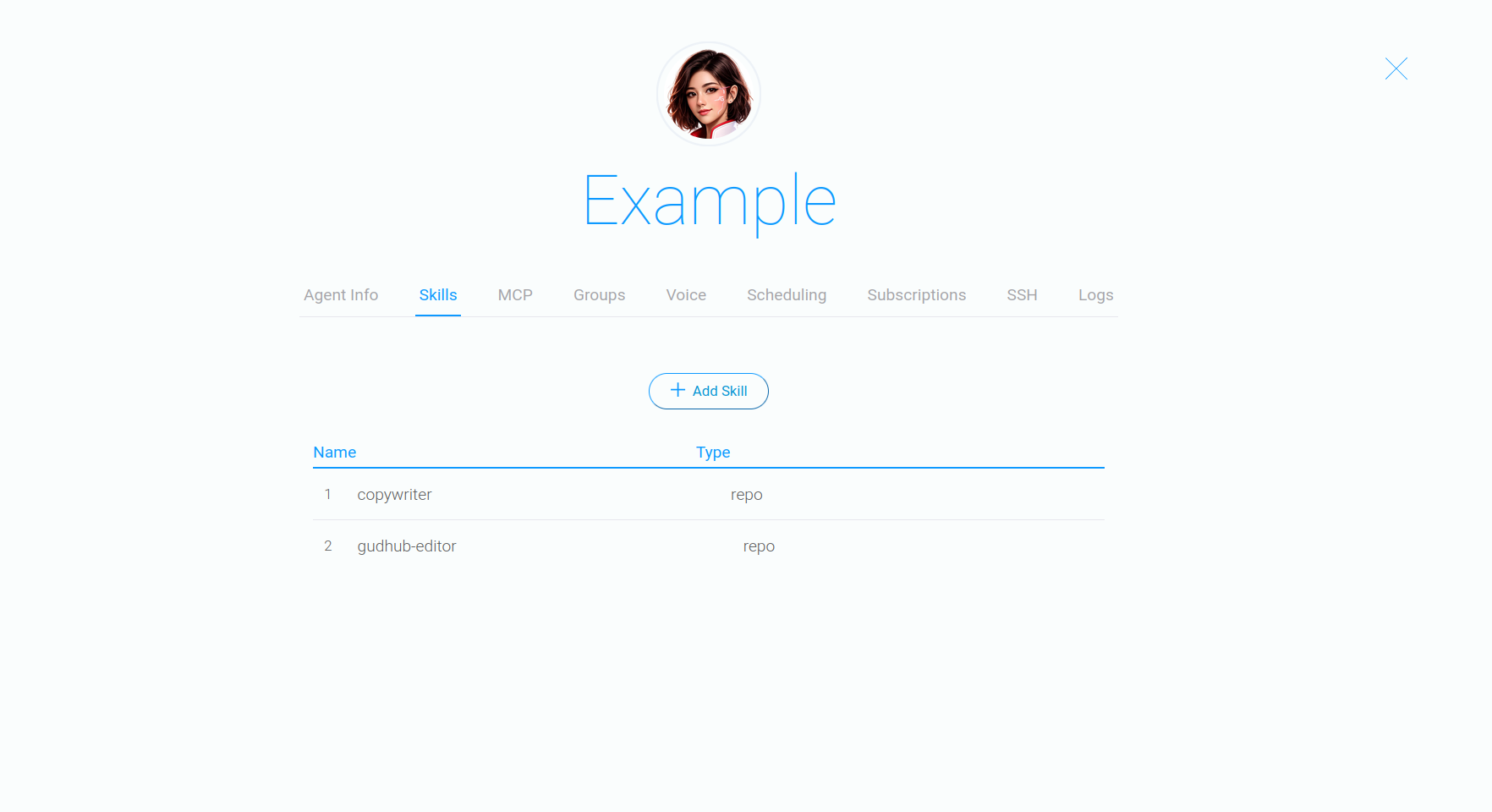
The “Skills” tab is used to manage the AI assistant’s skills.
Here, you can view the skills that are already connected, add new ones, and configure the agent’s capabilities based on its role and tasks.
MCP #
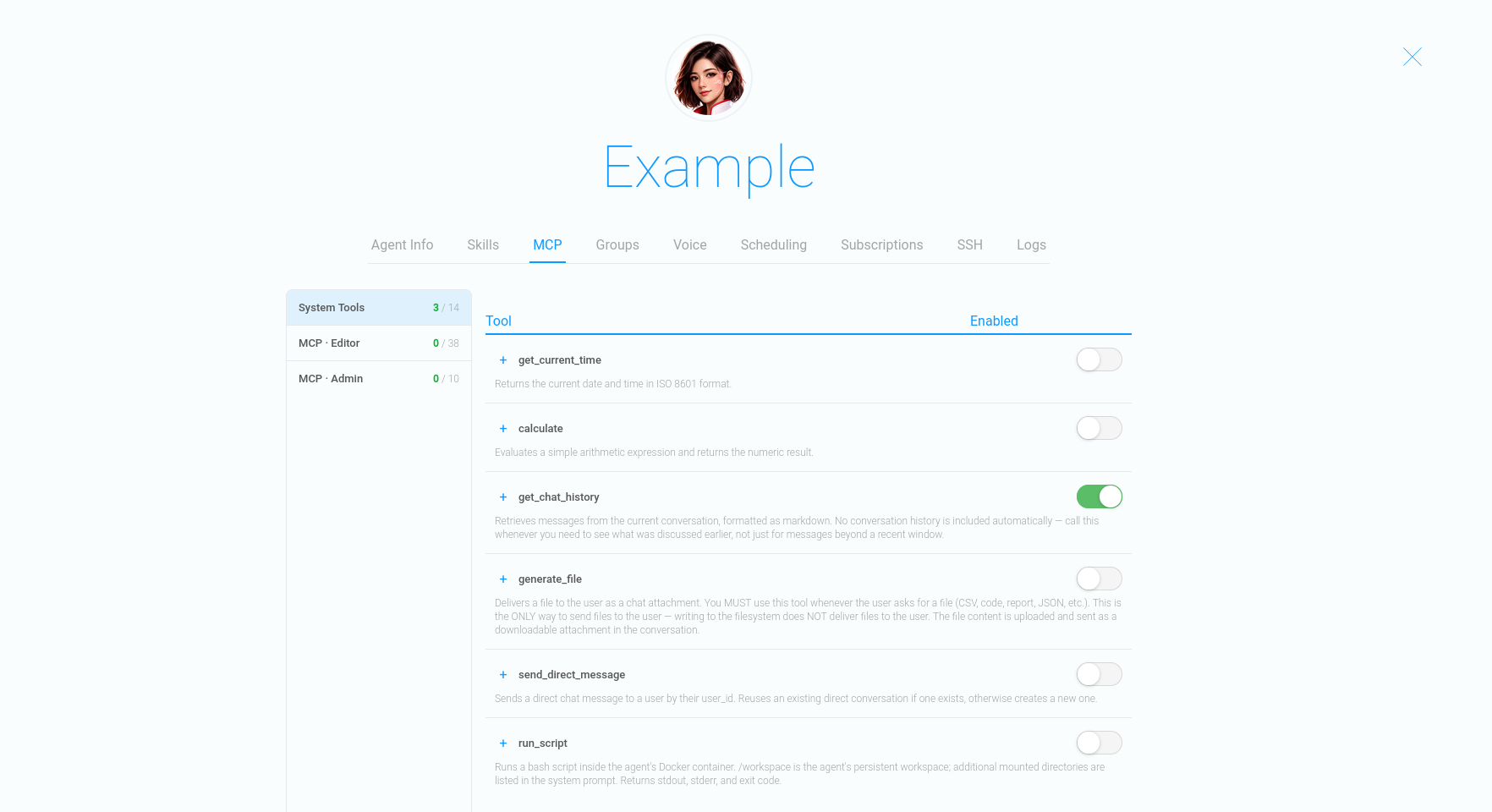
The “MCP” tab contains a list of system tools that the AI assistant can use while working in the CRM.
Here, you can view the available tools and their current status. If needed, individual tools can be enabled or disabled depending on the tasks the agent performs.
Groups #
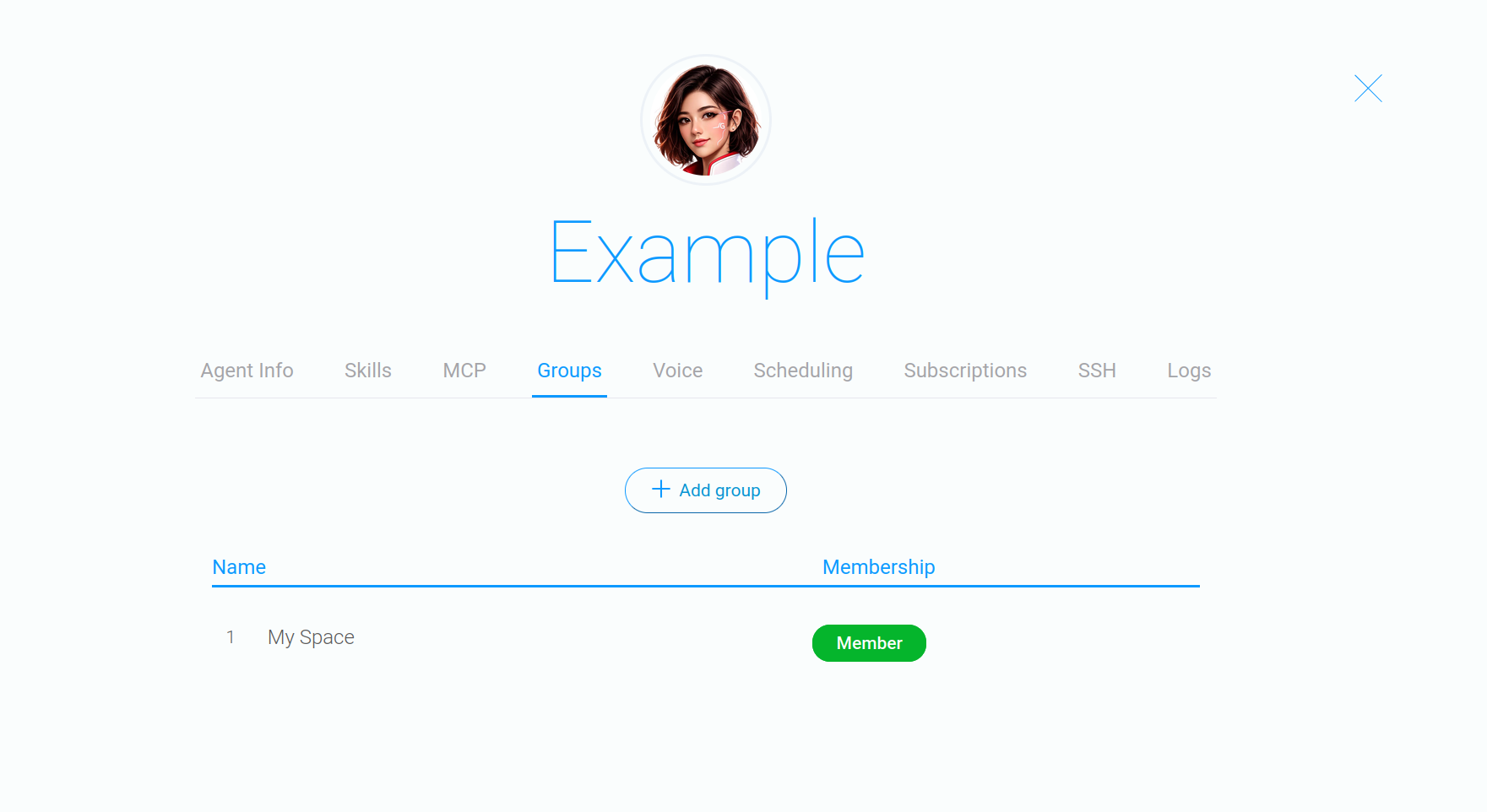
The “Groups” tab allows you to manage the AI assistant’s participation in CRM workgroups.
Once added to a group, the AI assistant becomes a full member of the group and works within the permissions assigned to it, just like other team members.
Voice #
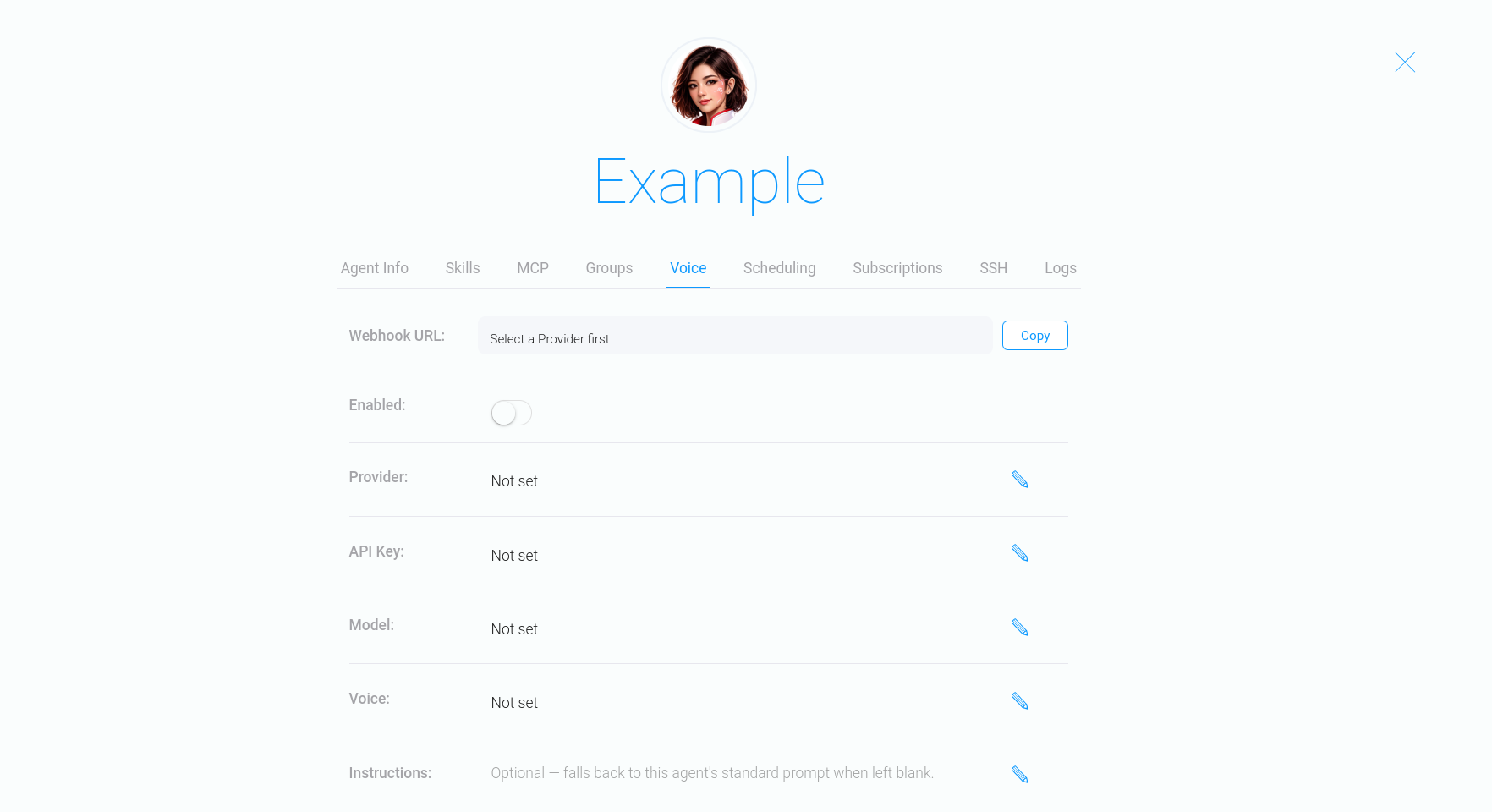
The “Voice” tab is used to configure the AI assistant’s voice interaction settings.
Here, you can connect an external voice service provider, select the model and voice the assistant will use, and configure additional integration settings.
The tab also includes an “Instructions” field where you can provide additional instructions for the AI assistant. These instructions define the agent’s communication style, behavior during voice interactions, and how it handles user requests.
Once configured, the AI assistant can use voice features provided by the connected service.
Scheduling #
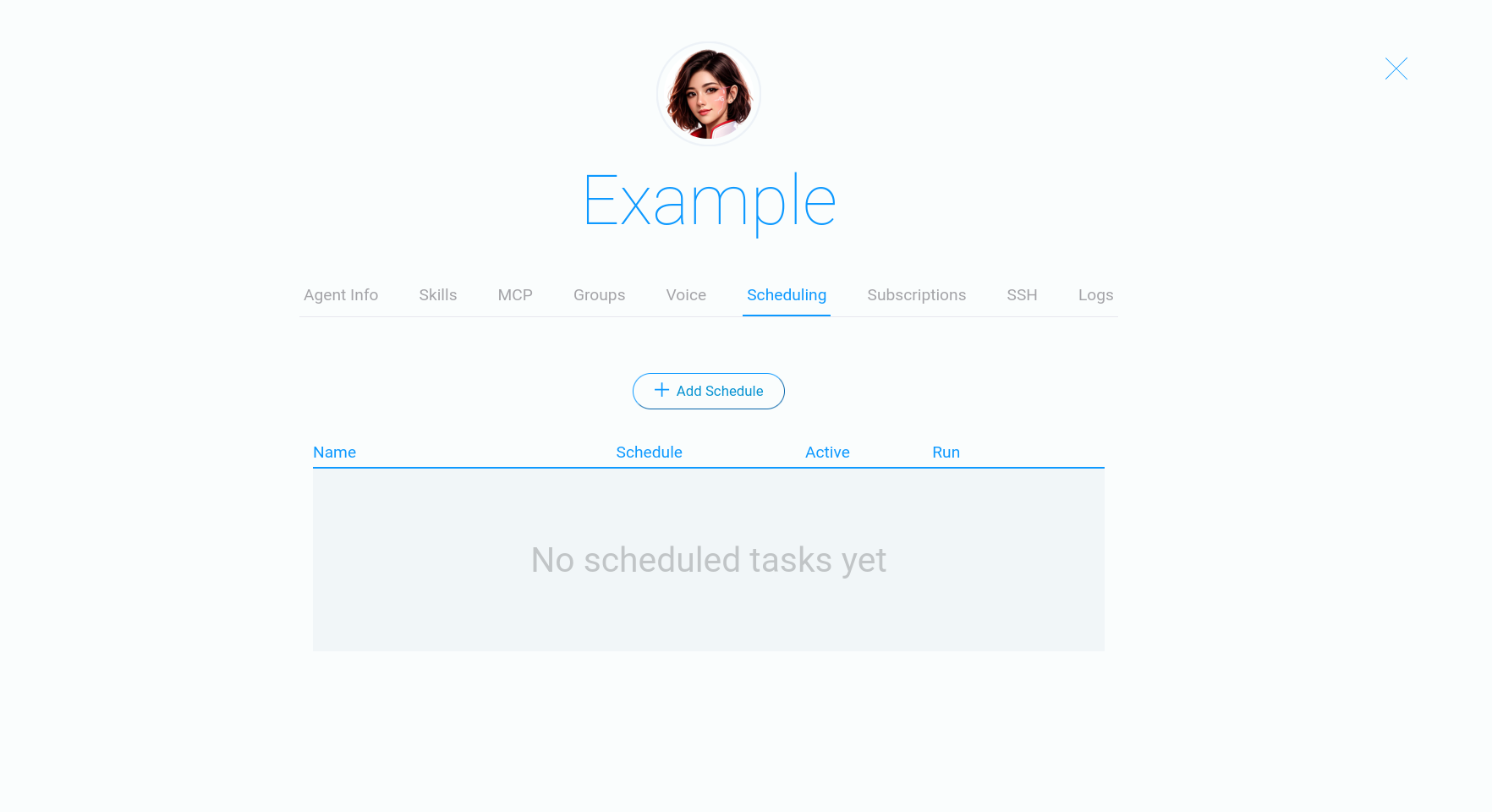
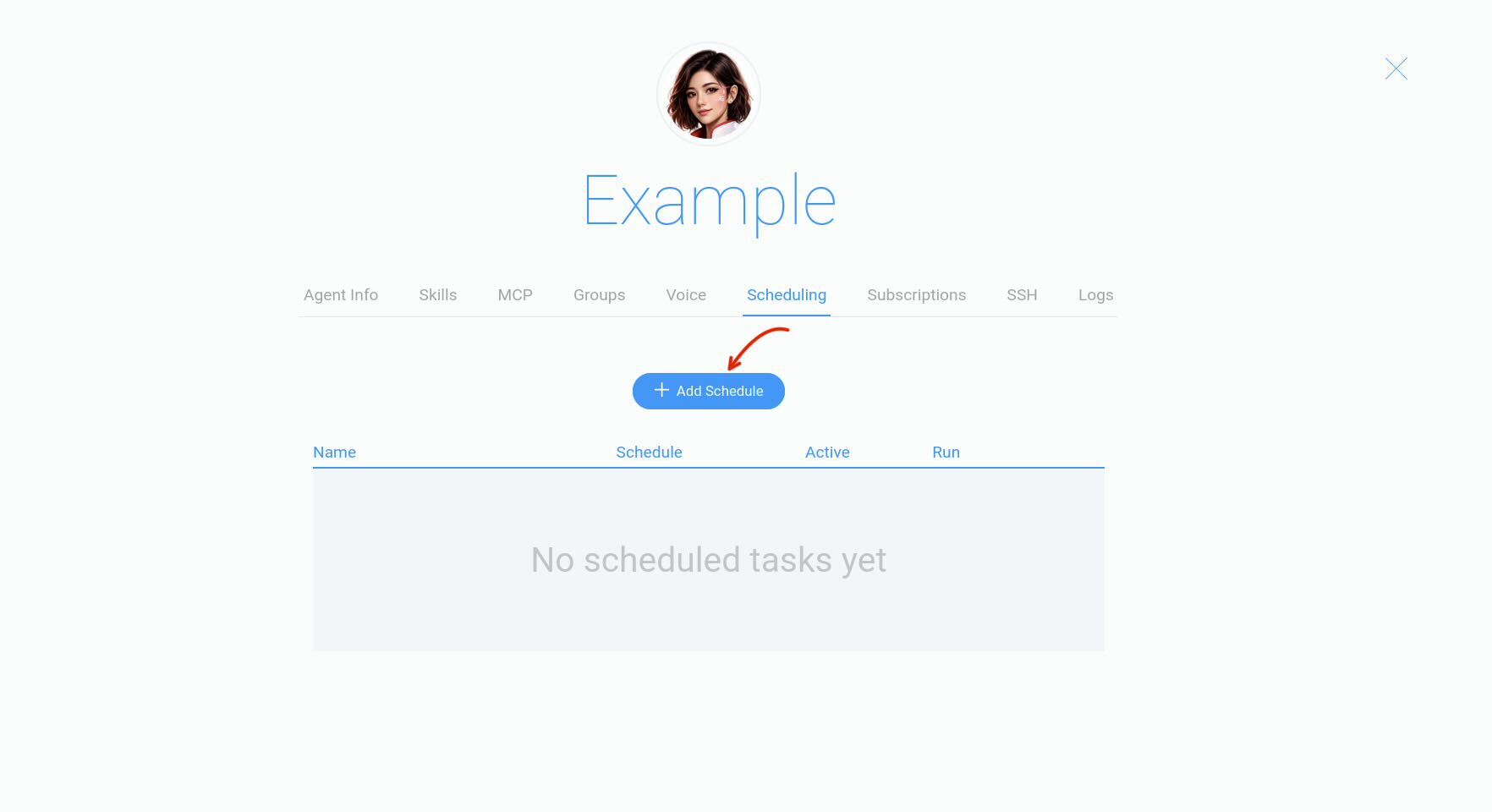
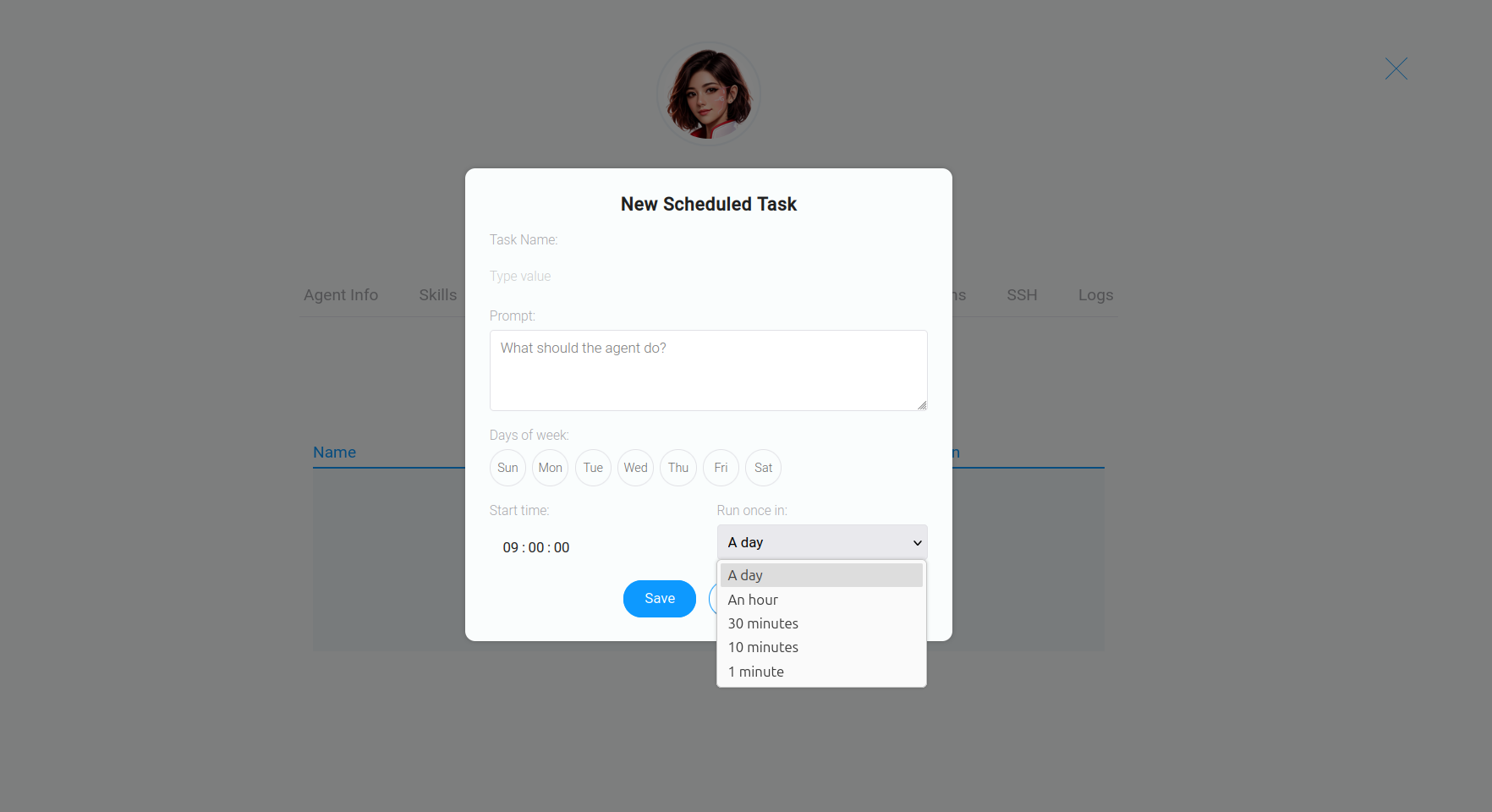
The “Scheduling” tab allows you to schedule tasks for the AI assistant to perform automatically.
Subscriptions #
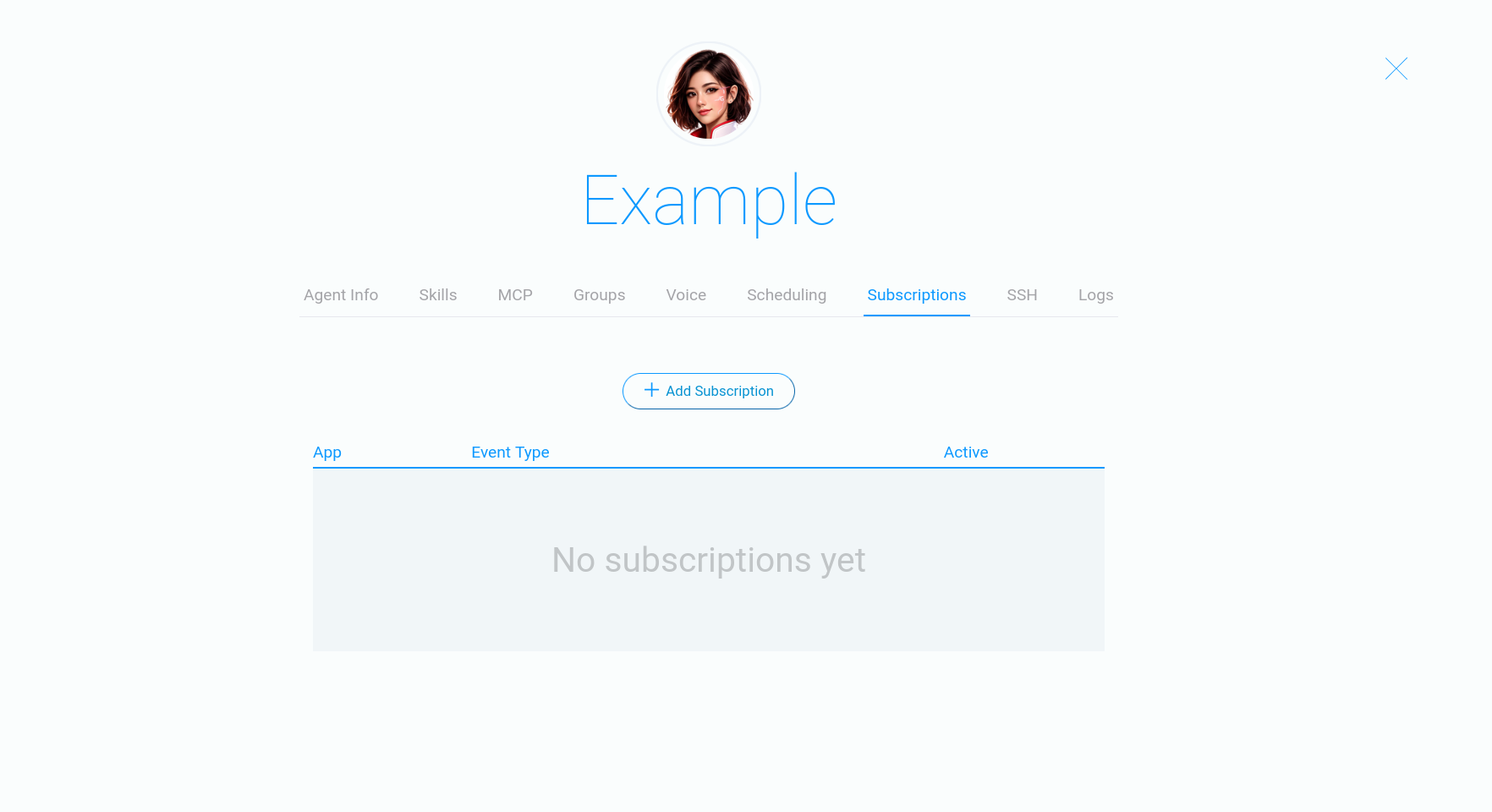
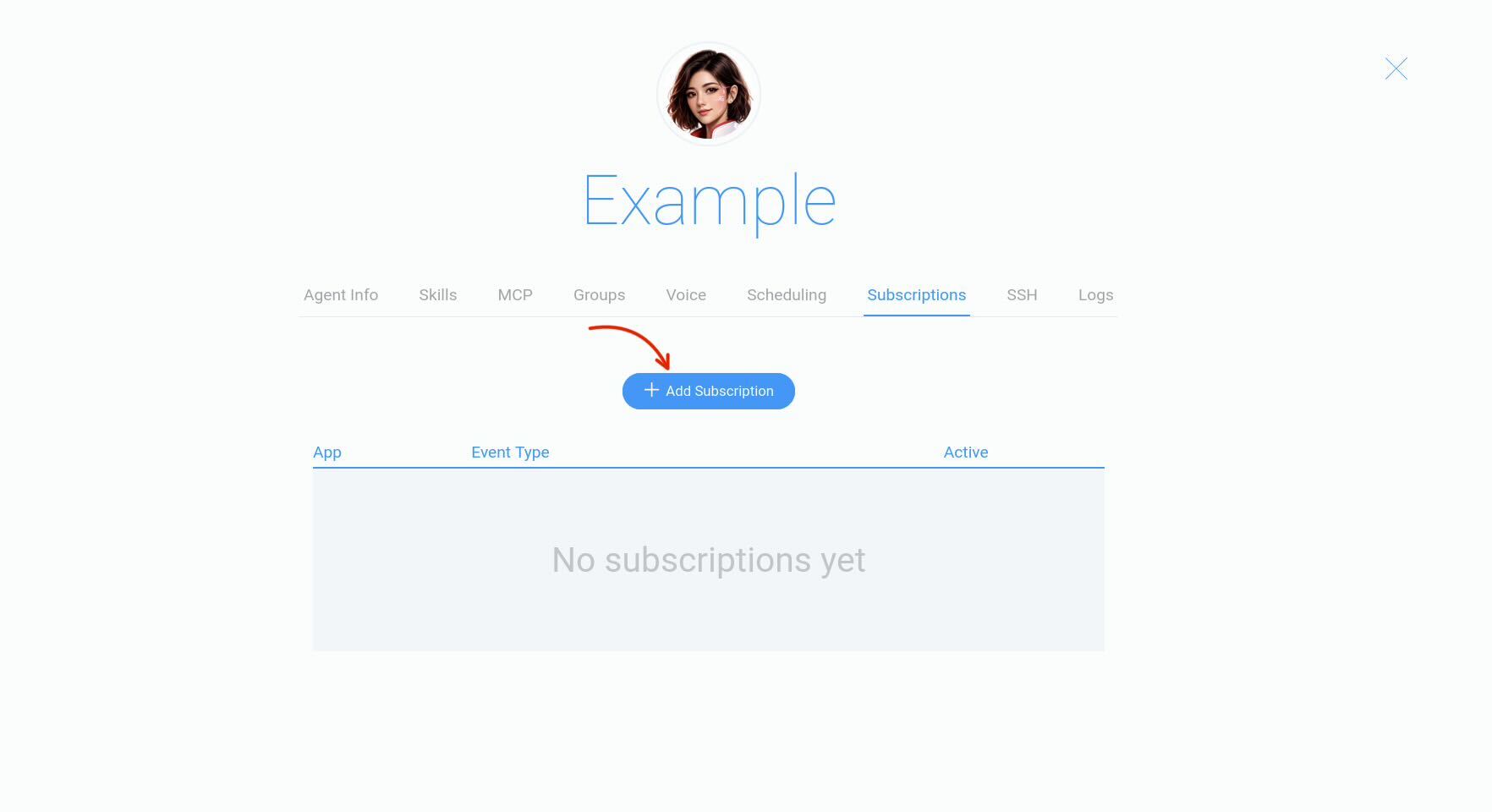
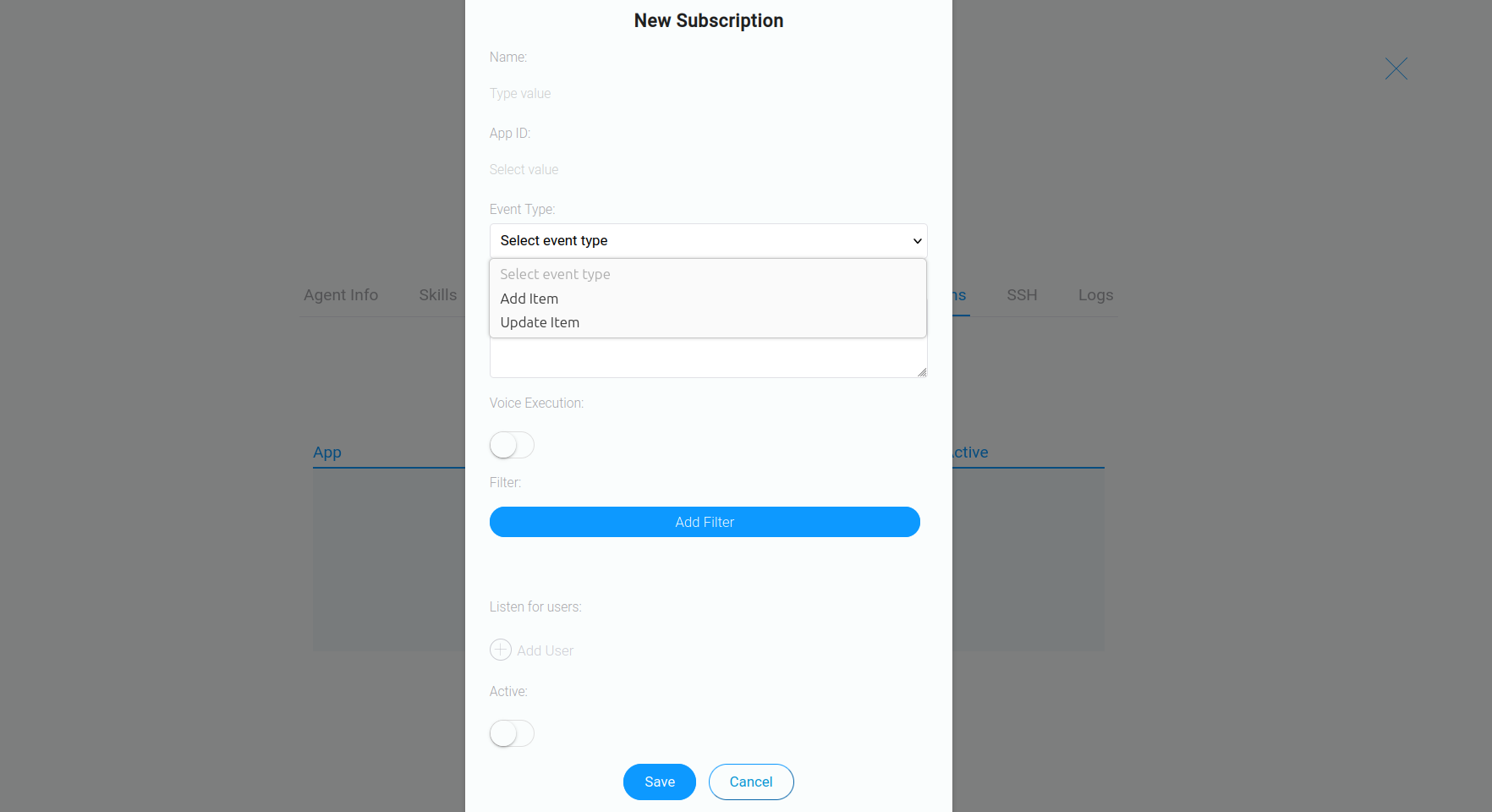
The “Subscriptions” tab allows you to connect the AI assistant to specific CRM apps and automate actions based on changes to their records.
SSH #
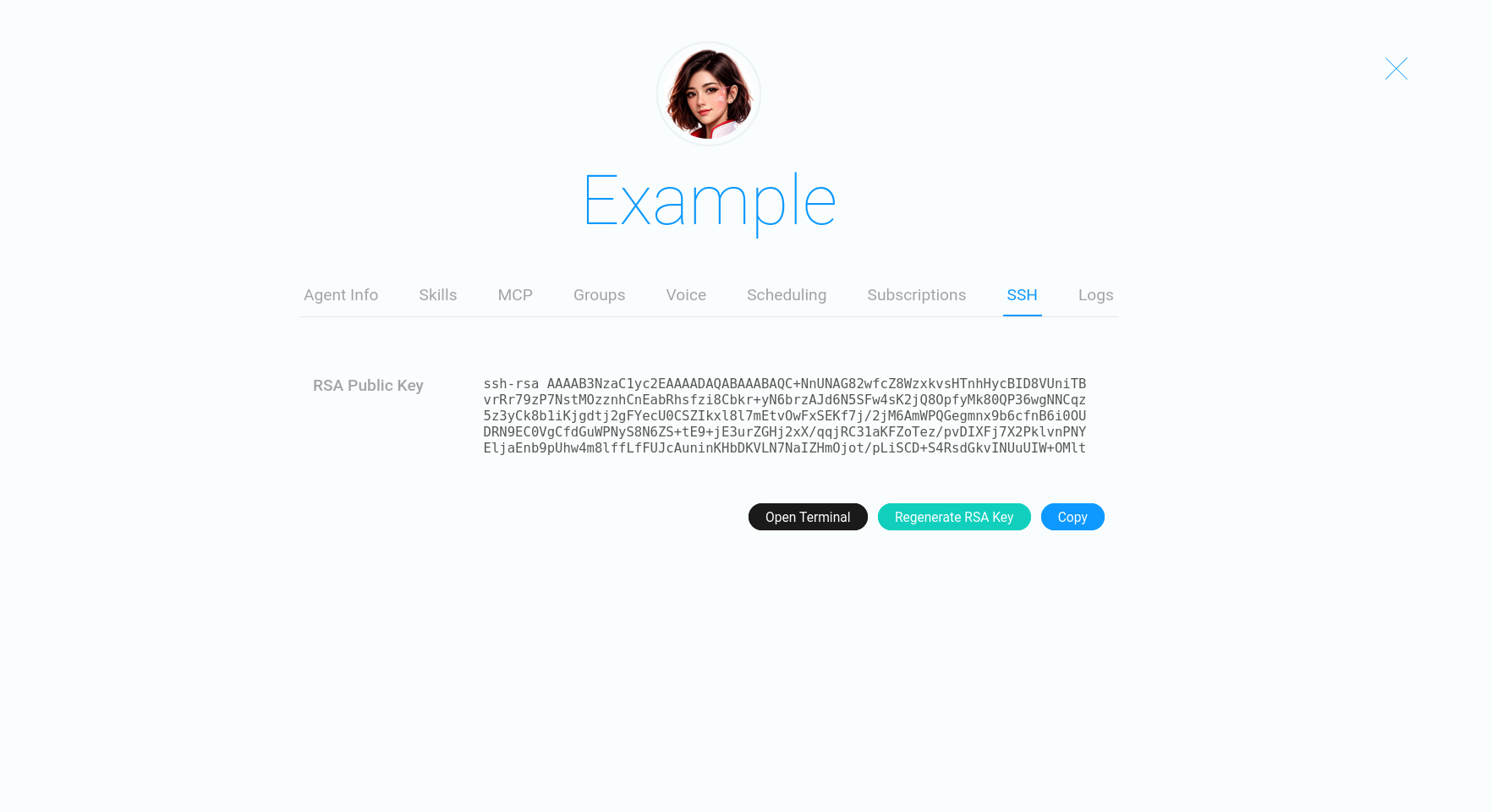
The “SSH” tab provides secure remote access to the AI assistant’s environment.
Logs #
The “Logs” tab contains the AI assistant’s activity logs.
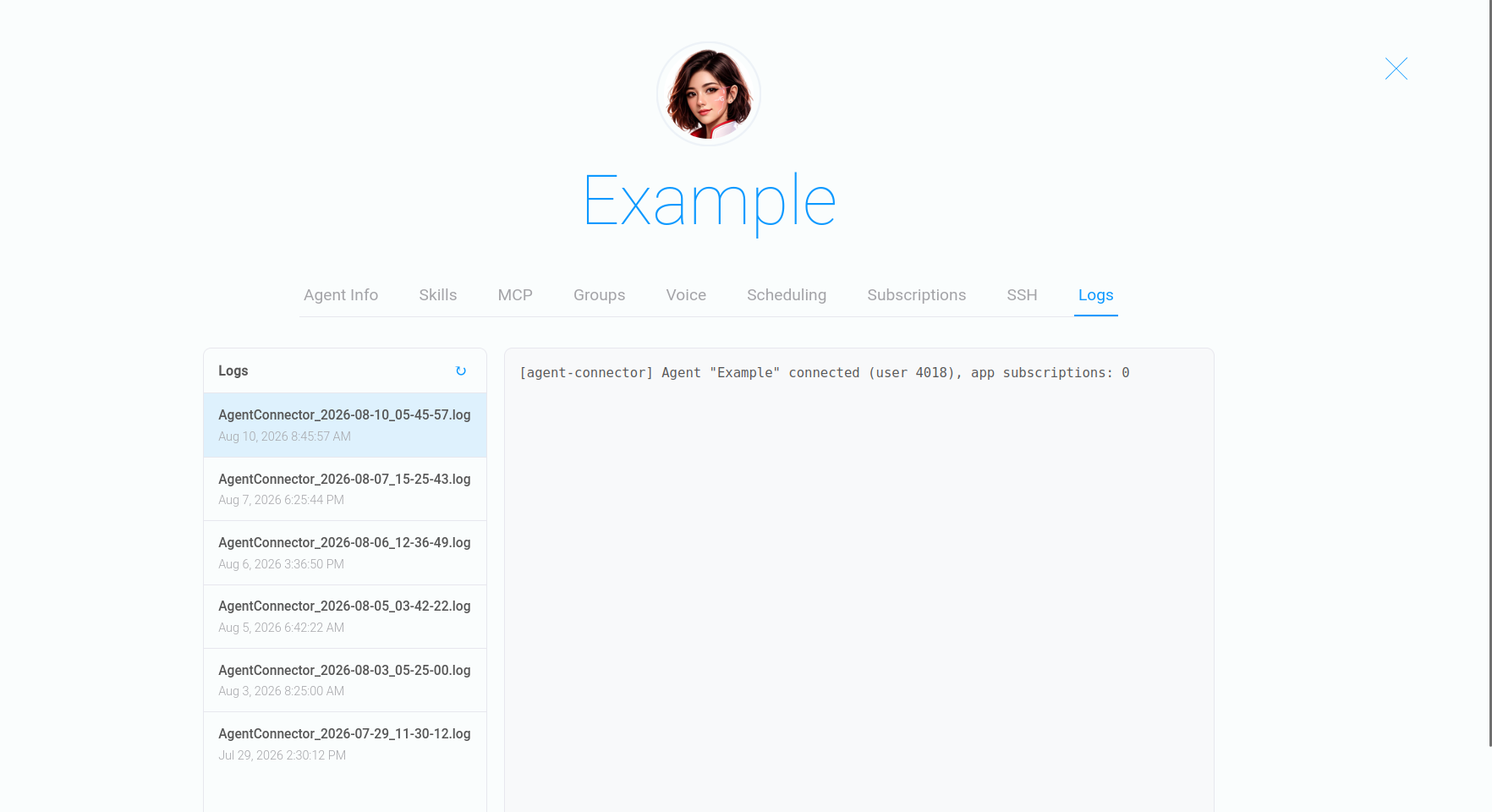
The tabs described above provide the main tools for managing the AI assistant and integrating it into your company’s workflows.
Once the necessary settings are configured, the agent is ready to work in the CRM and can perform tasks based on its role, automation workflows, and defined rules.
If needed, you can expand and adapt the assistant’s capabilities to meet new business needs by adjusting its settings and enabling additional features.