
How to Configure References in GudHub CRM: Guide Series #
GudHub provides three References elements for working with relationships between records and fields.
Item Reference stores a link to a record, Data Reference retrieves data from it, and Element Reference lets you reuse field settings.
In this series, we'll walk through how to configure each element with practical examples.
- How to Configure Item Reference – Creating Links to Records
- How to Configure Data Reference – Retrieving Data from Related Records
- How to Configure Element Reference – Reusing Shared Field Settings
Data Reference retrieves a value from the record selected in Item Reference. For example, you can select a contact by name, and their email address will automatically appear in a separate field.
You don't need to enter this value manually. It also isn't a navigation link: to open the source record, use Item Reference.
This is the second part of the series on configuring References in GudHub.
You can find all the guides in the series here.
Step-by-Step Guide to Configuring Data Reference #
For this example, we'll configure Data Reference to automatically retrieve the email address of the contact selected in Item Reference. Before you begin, prepare the Item Reference field using the first guide in the series.
Step 1. Specify the Linked Field #
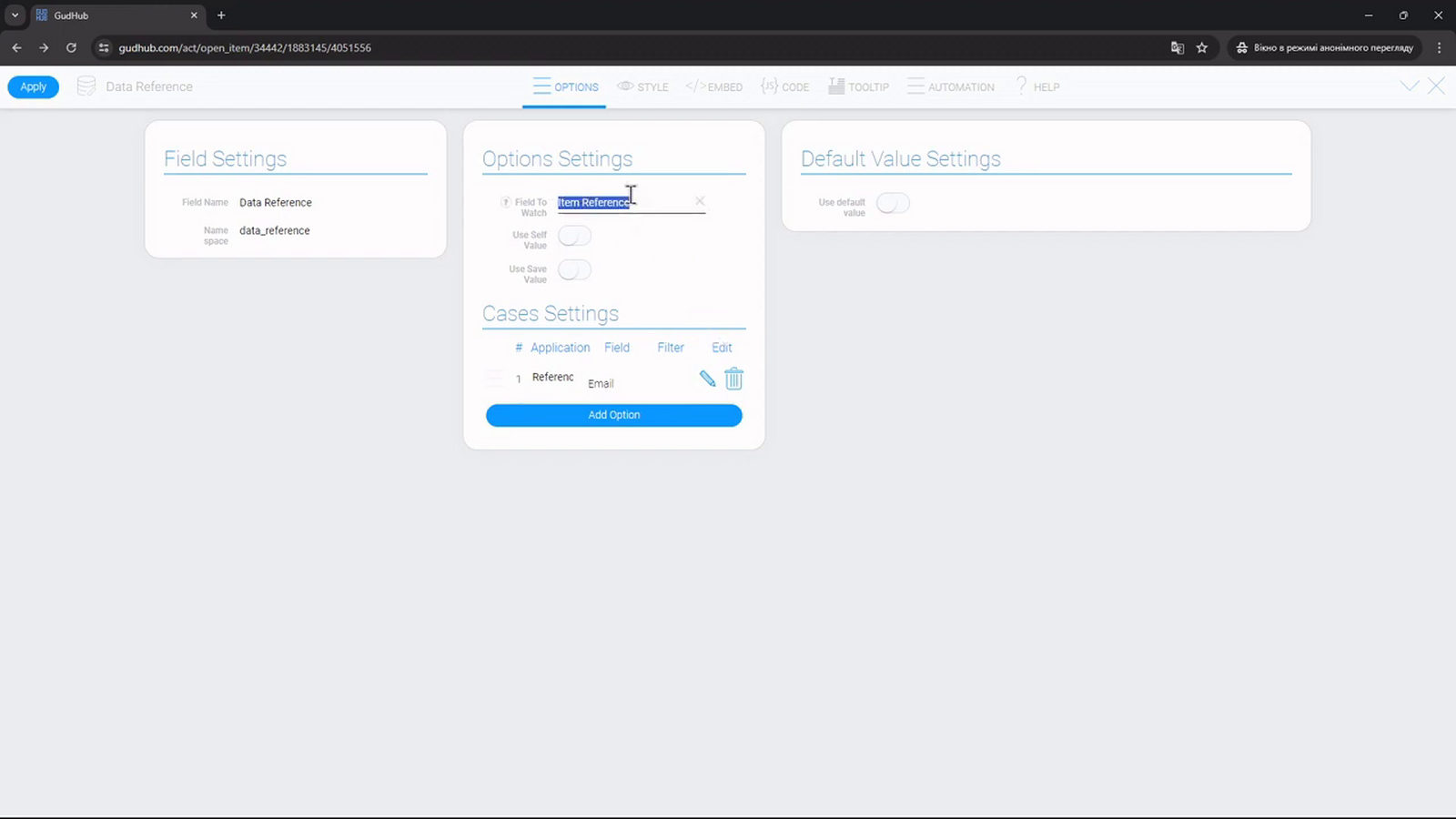
Open the Data Reference settings. Under “Options Settings”, select Item Reference in the “Field To Watch” field.
Step 2. Select the Data to Display #
Under “Cases Settings”, add or edit a source. Specify the application and the field whose value you want to retrieve. In the video example, this is “Email”.
If Item Reference works with multiple applications, configure a separate source for each one. This tells Data Reference which field to retrieve the data from, regardless of which application the selected record comes from.
You can also add a filter if needed. It limits the records whose data is passed to Data Reference and is configured separately from the filter used for the Item Reference list.
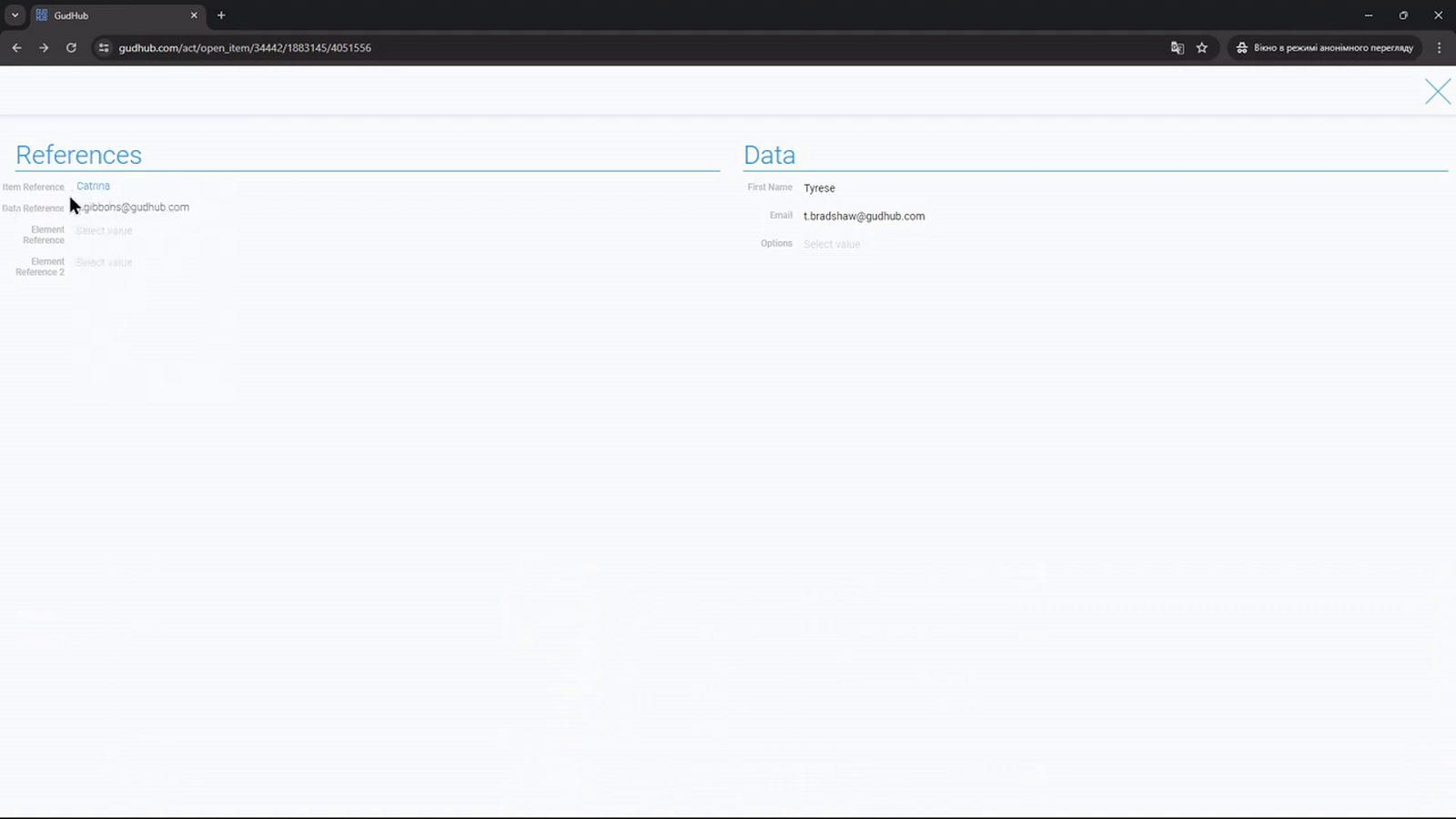
Confirm the changes and return to the form. Select a record in Item Reference and check whether the required value is displayed.
Step 3. Choose How to Store the Value #
Under “Options Settings”, there are two separate switches that affect how the retrieved data is handled.
“Use Self Value” lets you keep the first retrieved value. As shown in the video, once this option is enabled, changing the selection in Item Reference no longer replaces the value with a new one. If you disable the option, the field will display data corresponding to the currently selected record again.
“Use Save Value” controls whether the retrieved value is saved in the field itself. By default, Data Reference displays the data without saving it. Enable this option if the value needs to be used later in other fields or processes.
Step 4. Configure Value Retrieval When Creating a Record #
If you want the data to be saved when the record is created, enable “Use default value” under “Default Value Settings” along with “Use Save Value”.
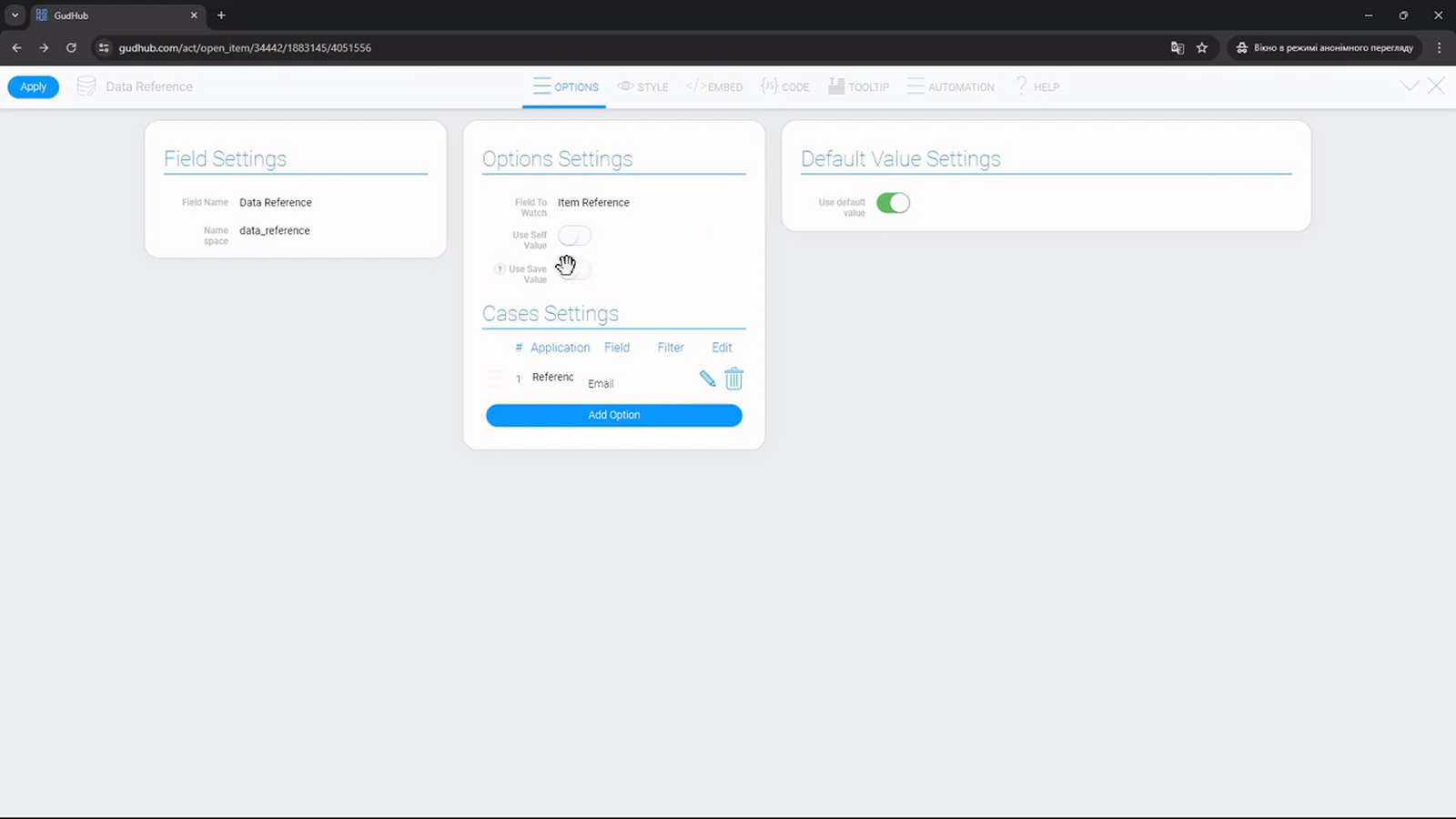
Apply the changes and test the result with a new record: select a link, save the form, and make sure the required data has been retrieved.
Data Reference helps automatically retrieve the data you need from related records. The save settings let you control how those values are handled and used later.
Previous part of the series – configuring Item Reference.
Next in the series – configuring Element Reference to reuse field settings.