
Sending Direct Messages to GudHub Users #
To send direct messages to other users in GudHub, they must belong to at least one group created in the system. You can find separate guides explaining how to create groups in GudHub and how to invite users to a group through chat.
Once your groups are set up and users have been added, you can easily send direct messages to group members without having to search for them by name, phone number, or email address. Simply open the list of members in the relevant group and select the person you want to contact. You can then communicate with them in a private chat.
Step 1. Open the chat #
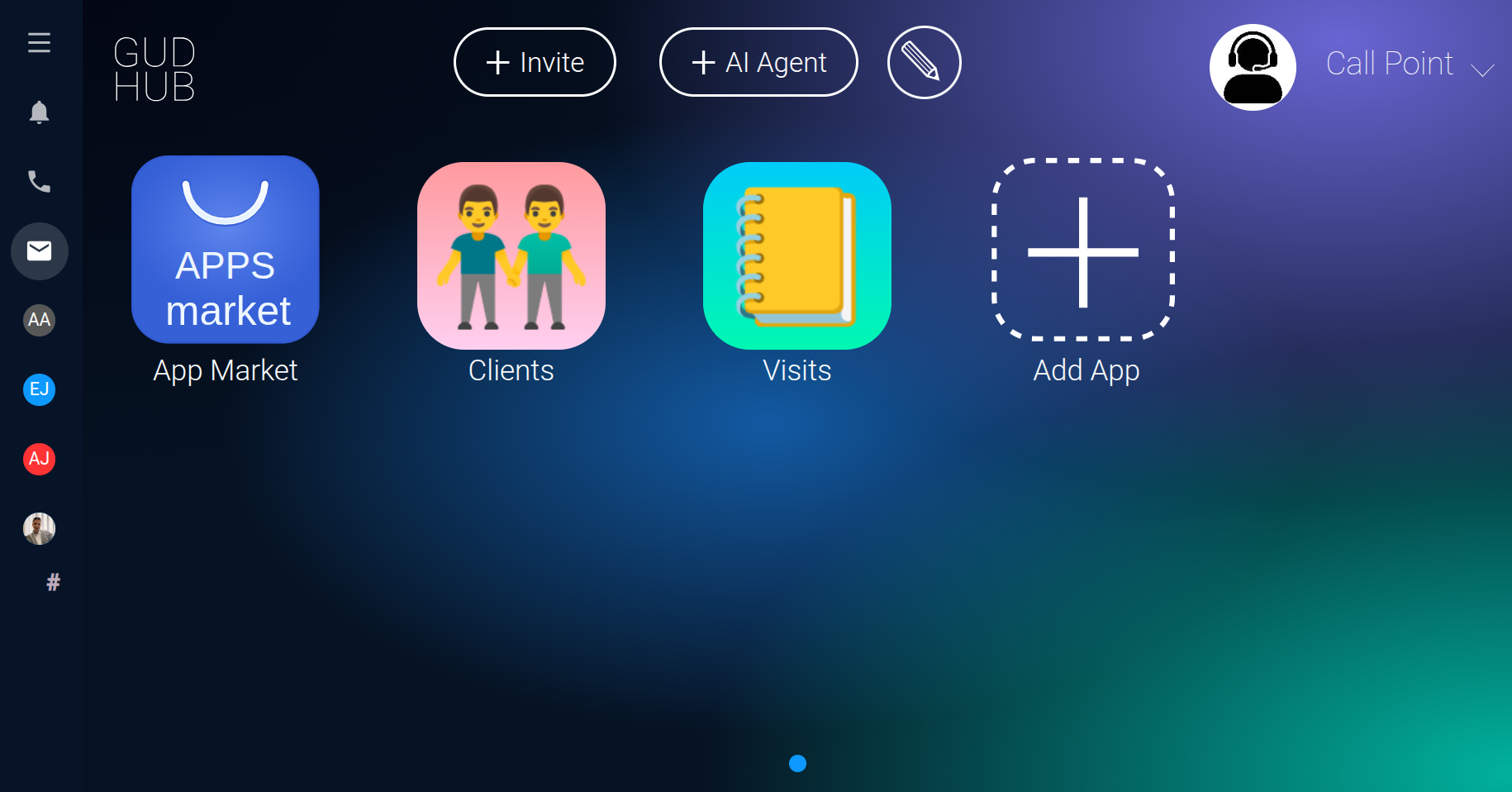
On the system's main screen, open the chat window. This is where you can view your groups, start conversations with other users, and access your existing chats.
Step 2. Open the “Groups” tab #
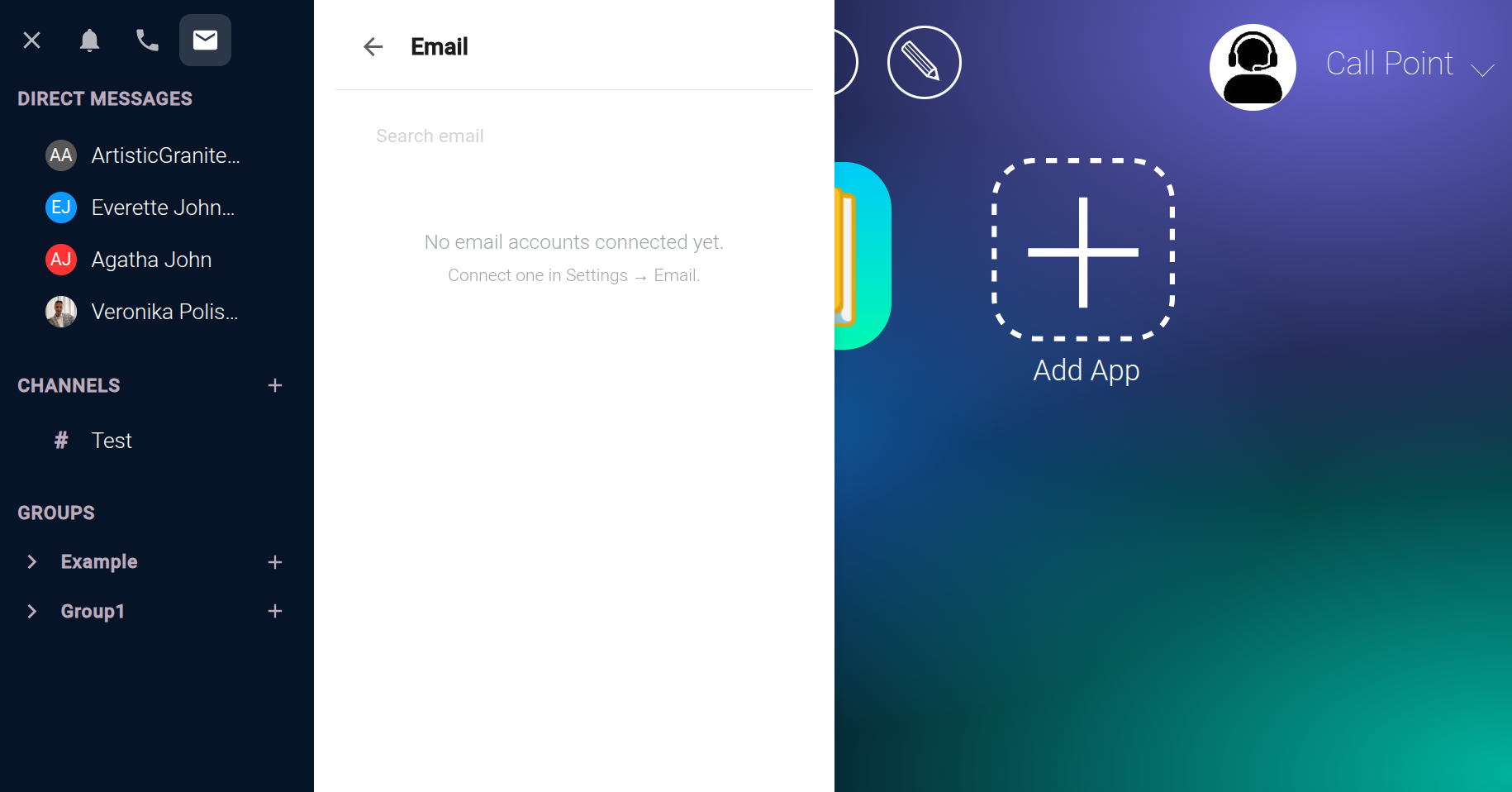
In the chat window, select the “Groups” tab. You'll see a list of groups you've previously created.
Find the group that includes the user you want to contact.
Step 3. Select a user #
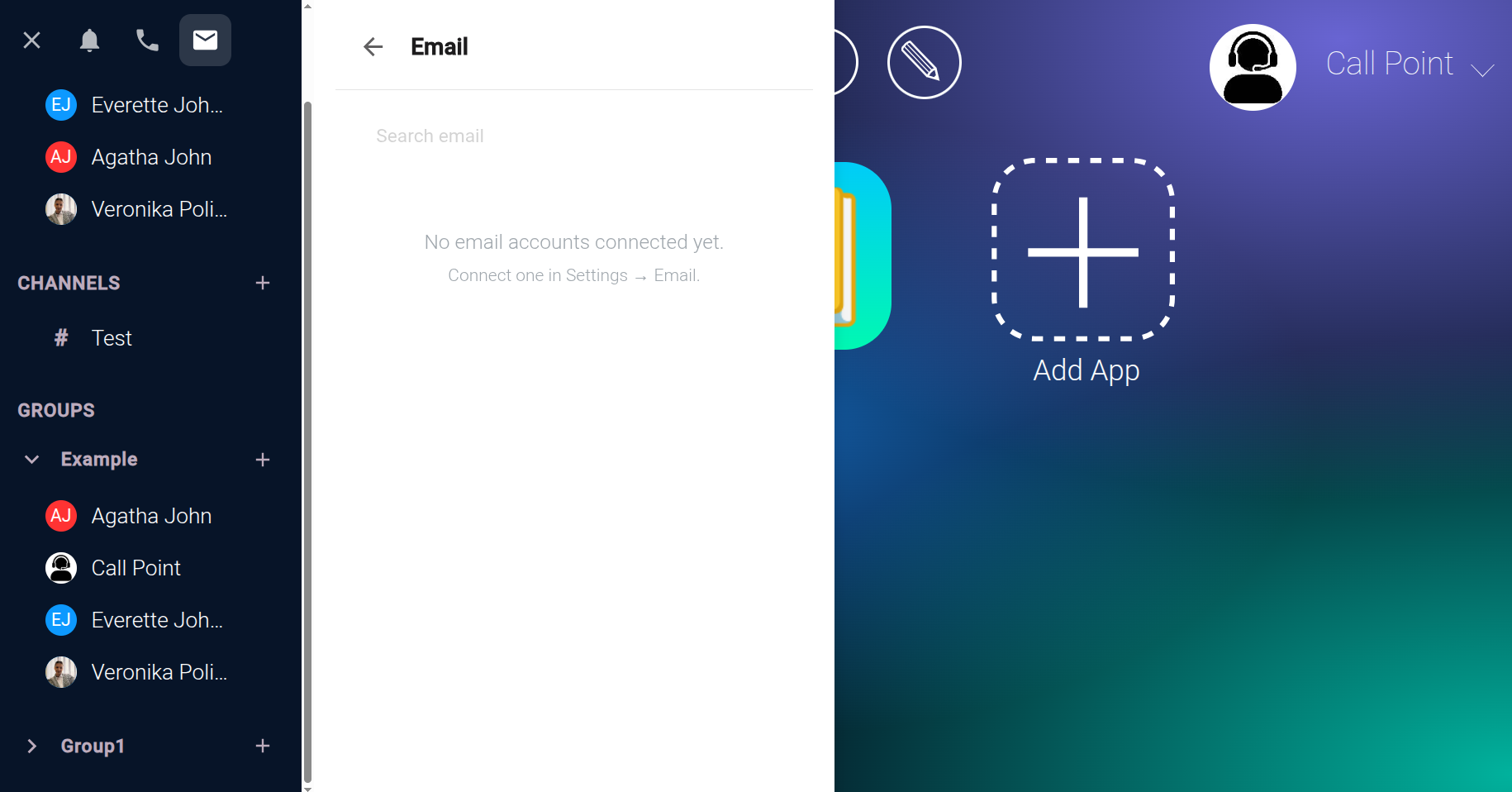
Click the relevant group to view its members. Find the person you want to start a conversation with and click their name.
This makes it easy to find the right contact without having to enter their details manually or search through all the users in the system.
Step 4. Start a conversation #
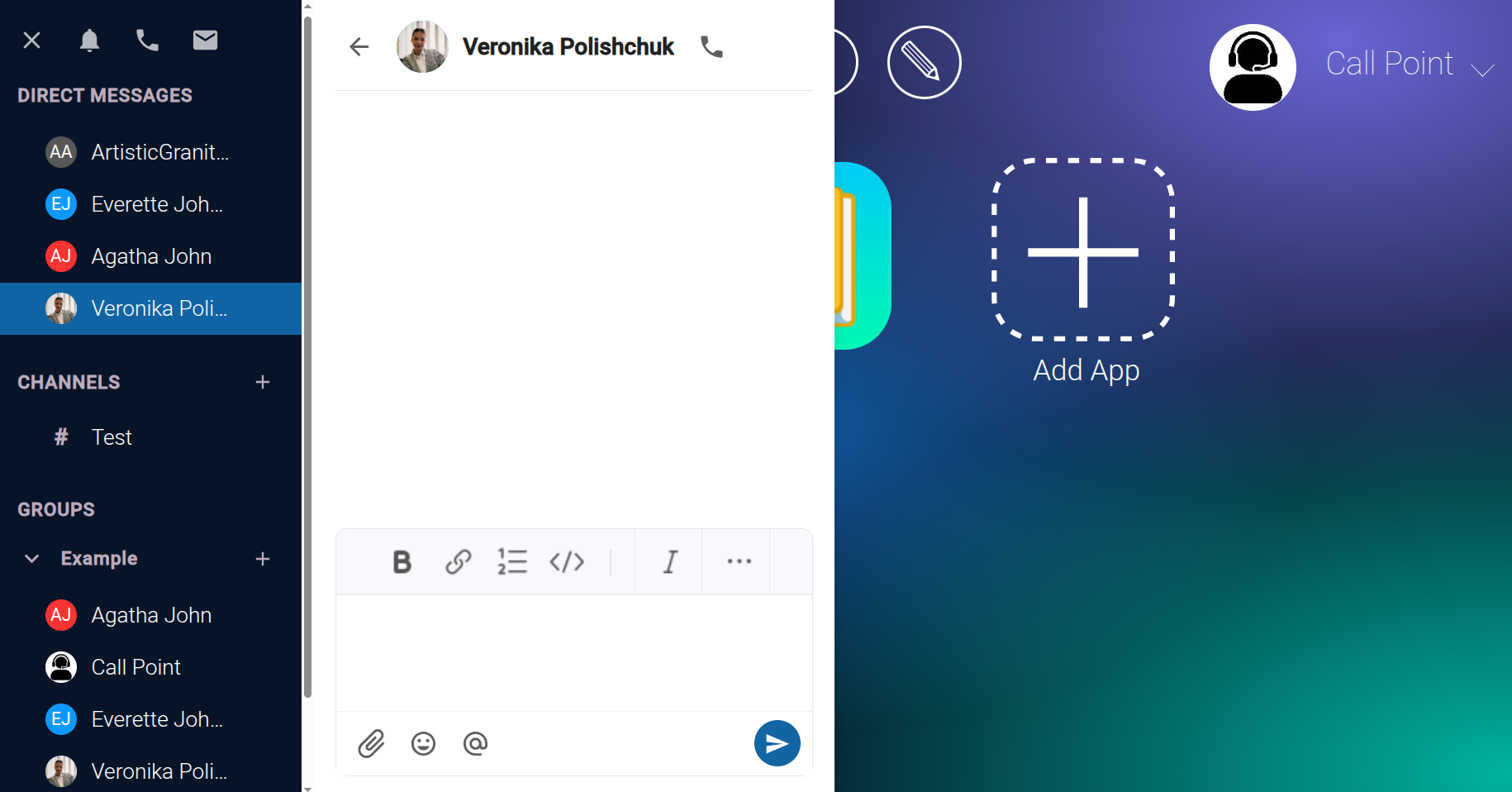
Once you select a user, a private chat will open. You can now send them direct messages and continue the conversation in this chat.
After you start a conversation, the user will automatically appear in the “Direct Messages” tab. This gives you quick access to your existing conversations, so you won't need to return to the group list and find the user again the next time you want to message them.
This makes it easier to manage your work-related communication and stay in touch with the right people without unnecessary searching.