
Creating Groups and Granting Users Access to Apps in CRM #
GudHub CRM lets you manage app access not only for individual users but also through groups. This is especially useful when you need to give multiple people access to one or more apps at the same time.
Instead of configuring permissions for each user separately in every app, you can create a group, add members, and assign access levels. This simplifies CRM administration and helps organize teamwork.
How to Create a Group in GudHub #
Step 1 #
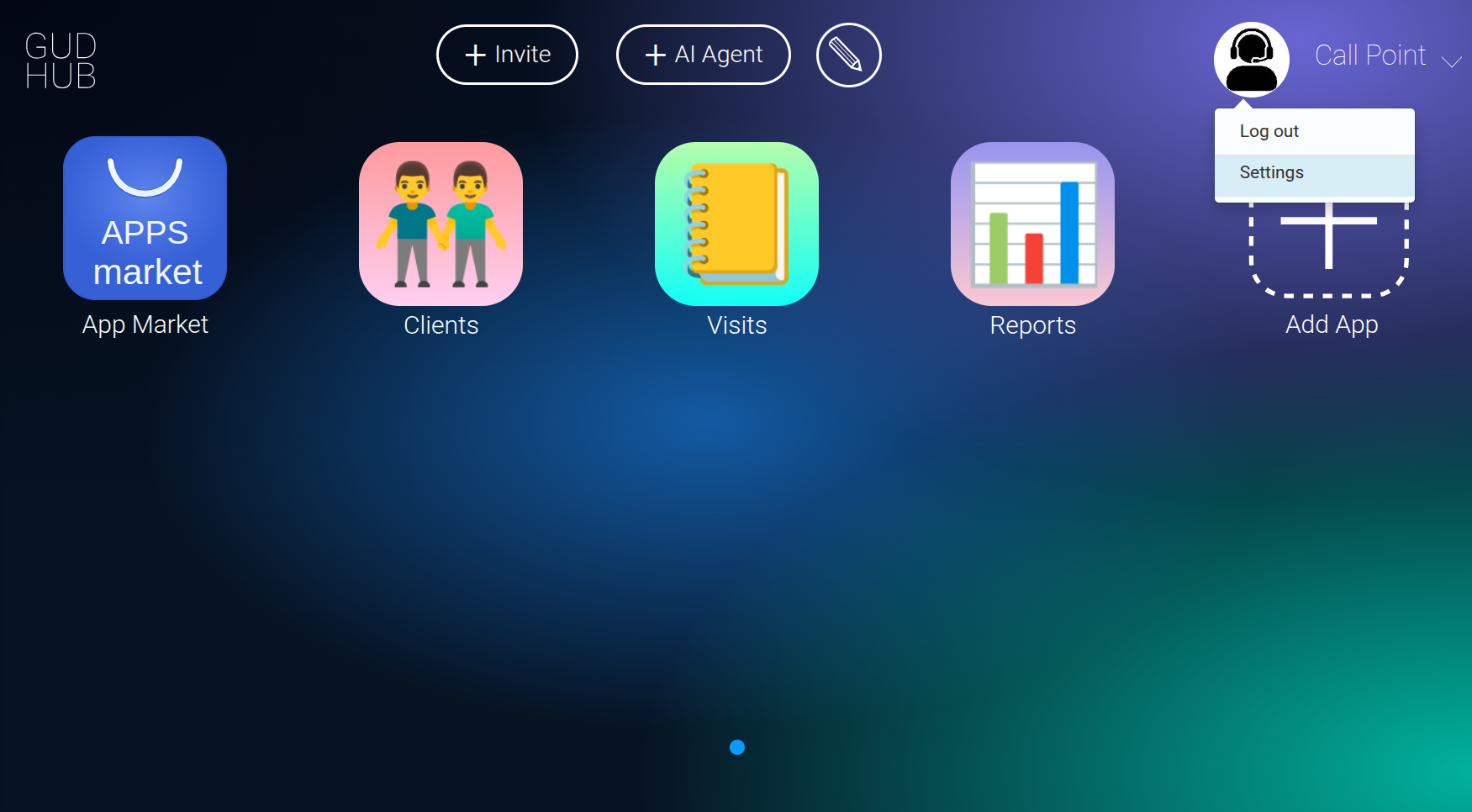
Open your profile settings by clicking “Settings”.
Step 2 #
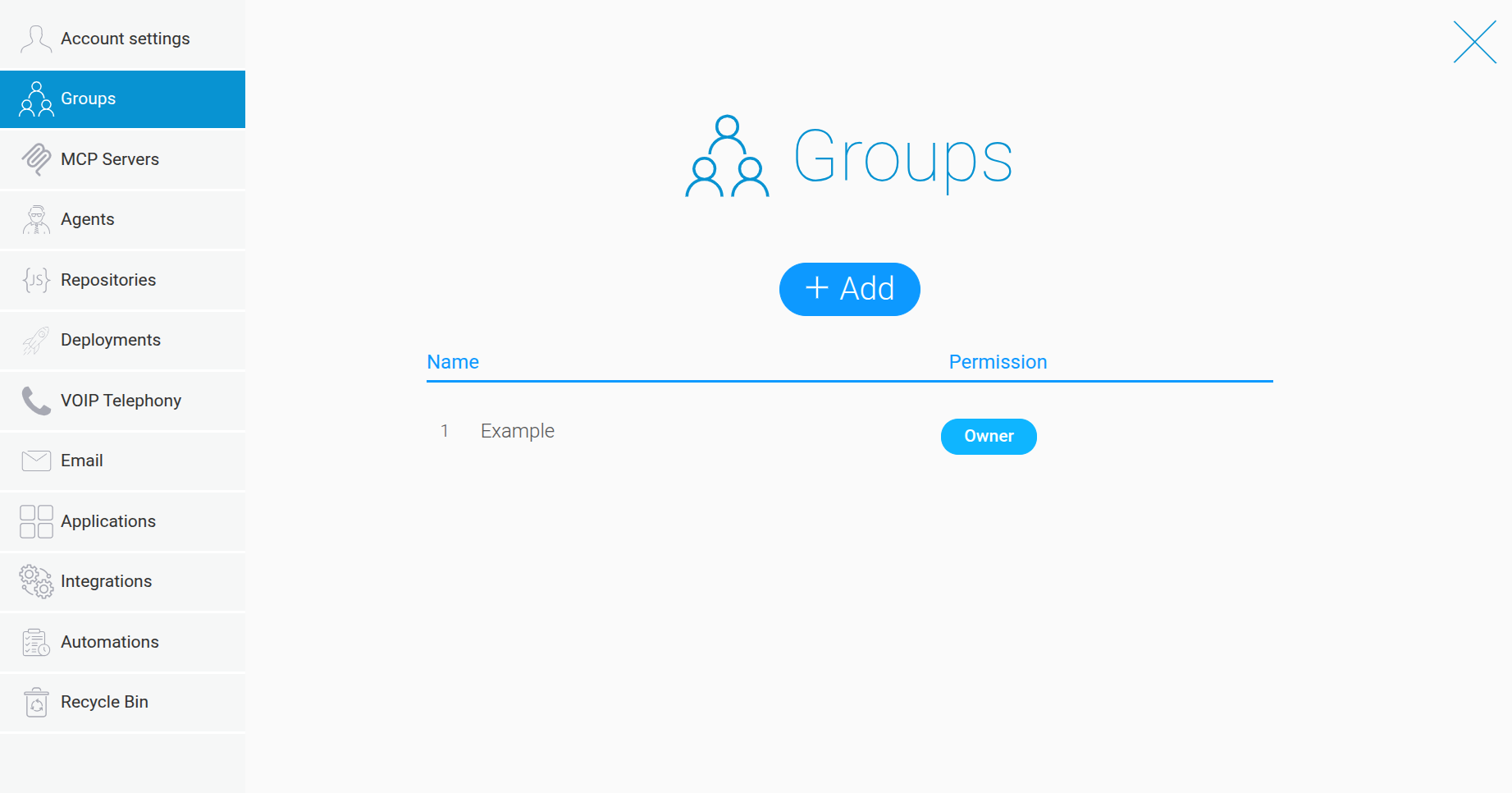
Go to the “Groups” tab.
Step 3 #
Click “Add” to create a new group.
Step 4 #
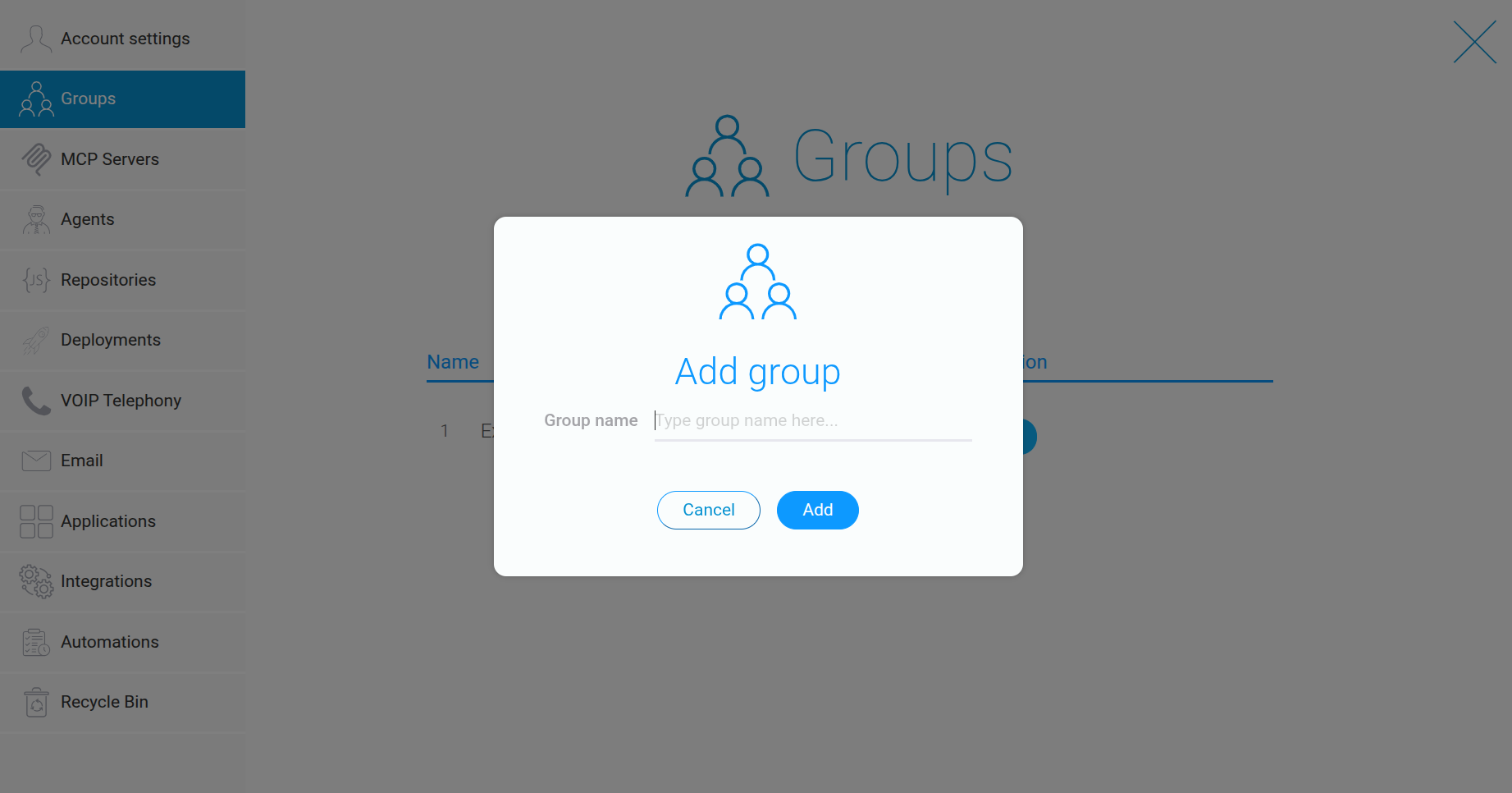
Enter a name for the group and click “Add” to confirm.
How to Manage App Access Through a Group #
Groups allow you to grant access to multiple apps at once. This is particularly useful when employees from the same department or team regularly work with the same set of data.
You can manage app access statuses in the group settings.
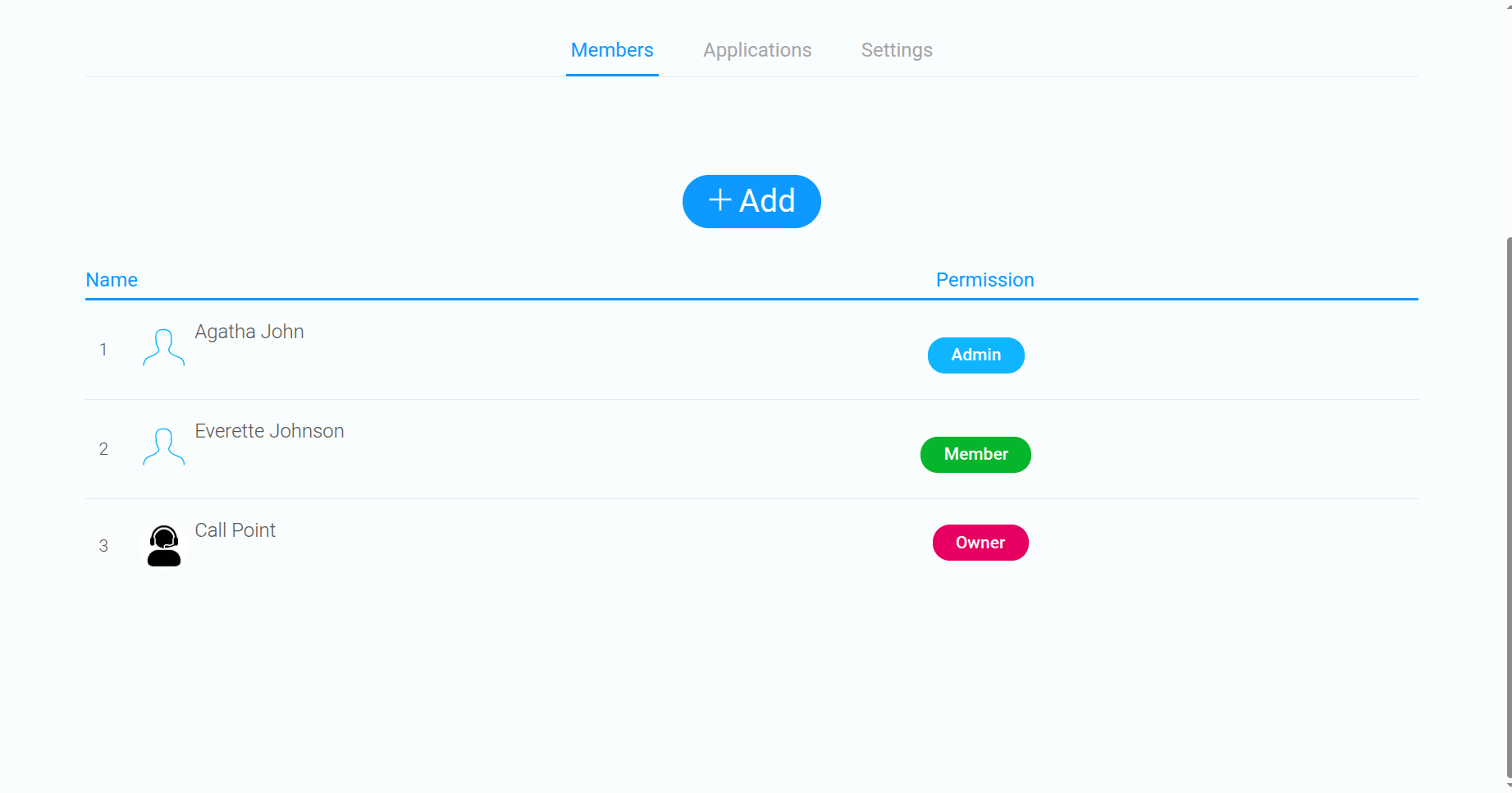
Admin – allows a member to add apps to the group.
Member – does not allow a member to add apps to the group.
This allows administrators to distribute responsibilities among group members and control who can modify the group’s settings.
When to Use Groups #
Creating groups in GudHub CRM lets you manage access to multiple apps centrally and makes user management easier. This approach is especially useful for teams, departments, or other groups of employees who need access to the same set of tools.
Use Groups to organize shared access, assign permissions to members, and simplify CRM administration.