Inviting Users to GudHub Through Chat #

GudHub Chat lets you exchange messages with other system users quickly without having to find them in the “Groups” tab under Settings. Simply select the user you want to contact and send them a message. Users you've already chatted with automatically appear in the “Direct Messages” tab. scr12 Chat also allows you to invite users to groups within the system. This is especially useful when you need to add several people to one or more groups at once. You can invite both users who are already registered on the GudHub platform and those who don't have an account yet.

How to Invite Users to a Group Through Chat #

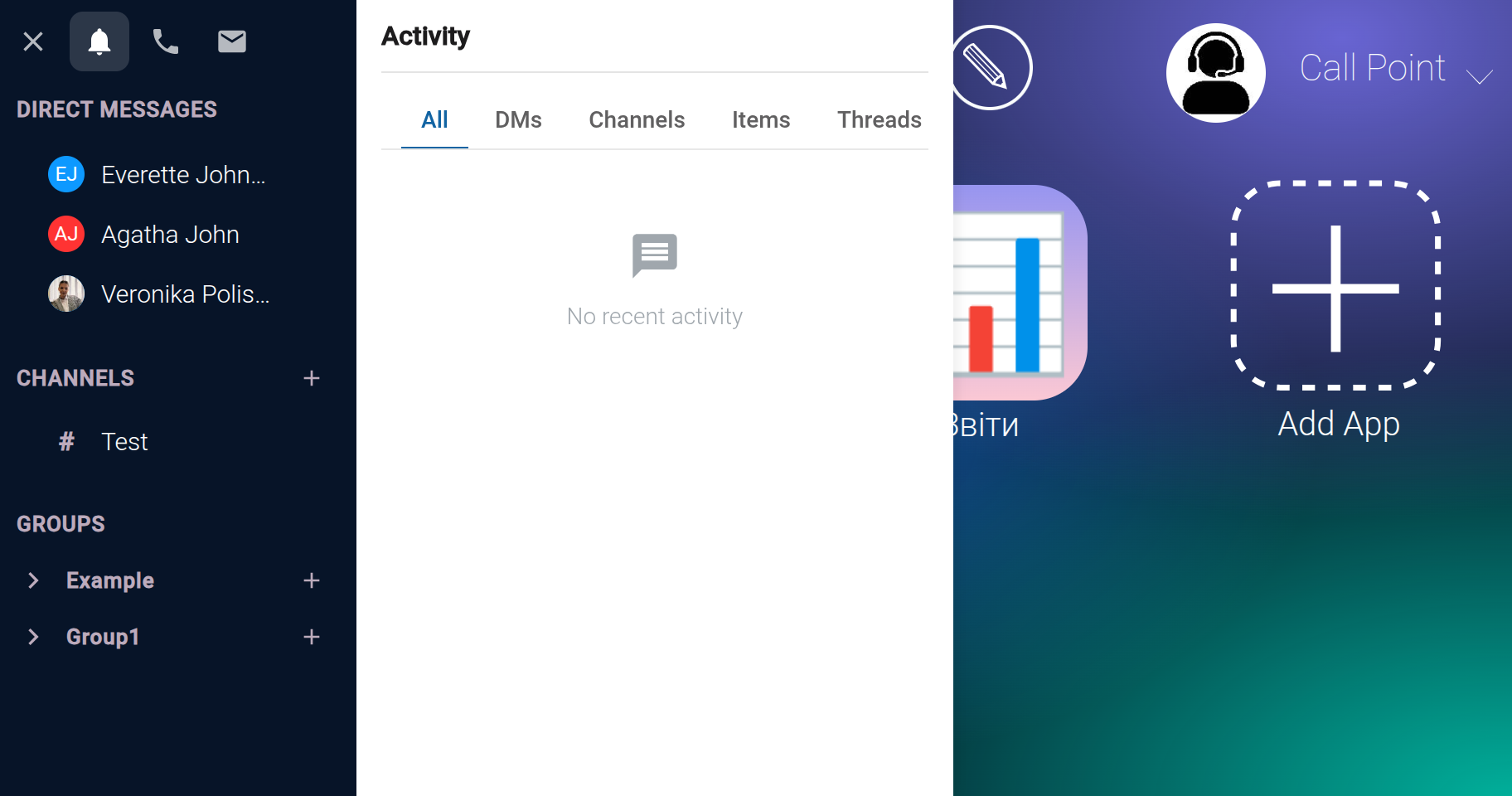
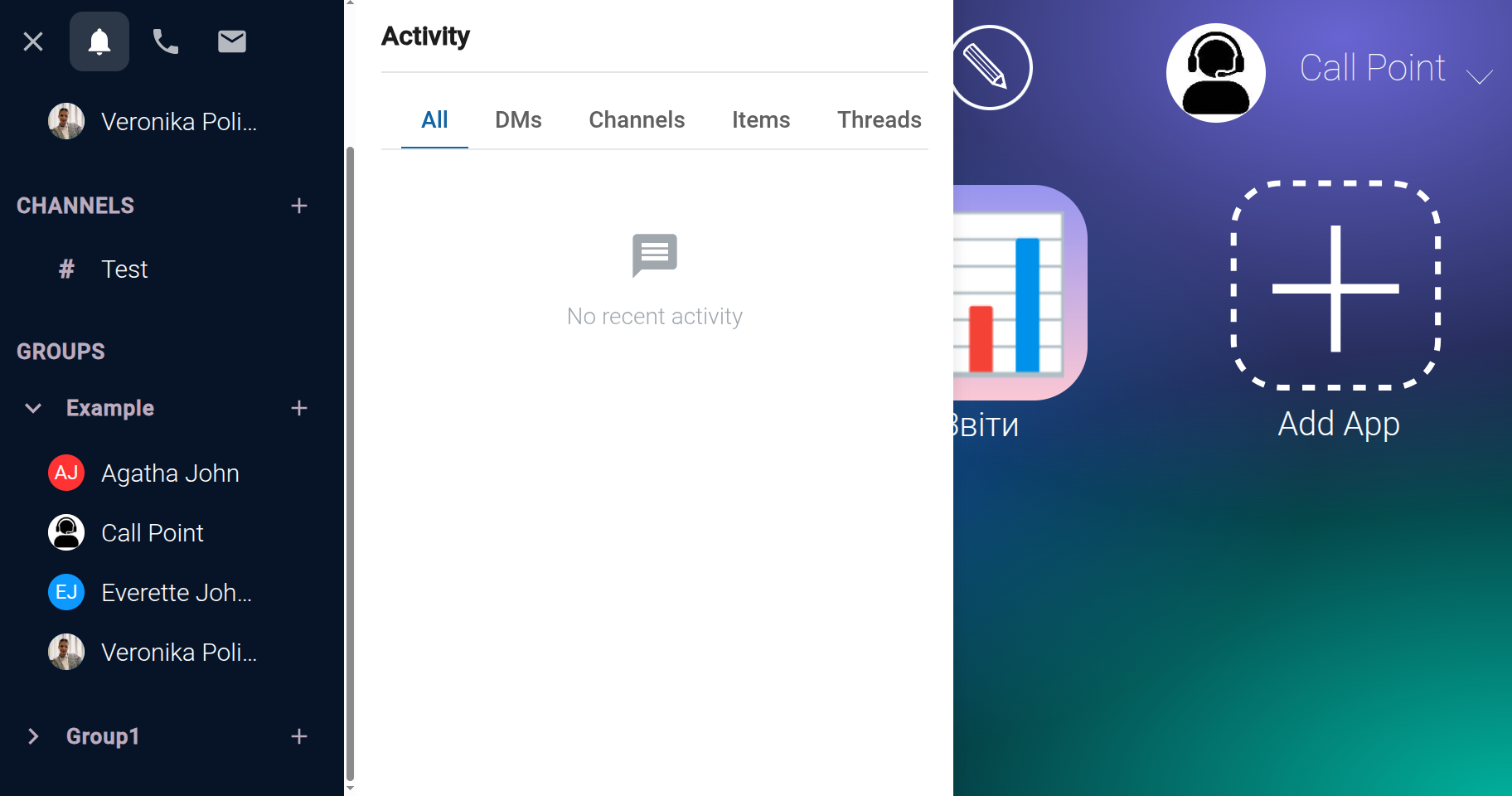
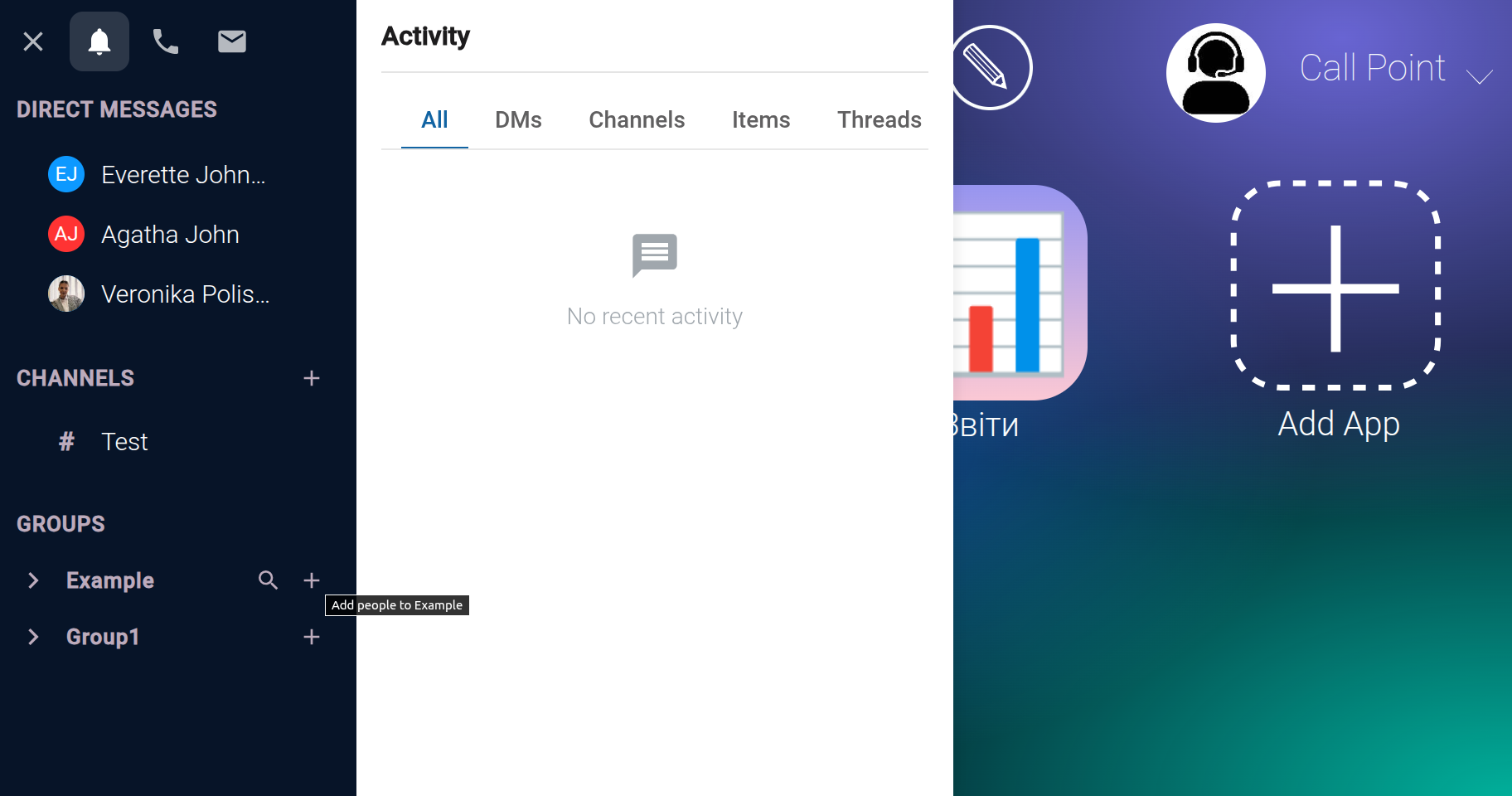
On the system's home screen, open the chat window. scr1 The chat window has three tabs: “Direct Messages”, “Channels”, and “Groups”. To invite users to a group, go to the “Groups” tab, where all previously created groups are displayed. scr2 If you need to create a new group or grant users access to apps, see our separate guide.

In GudHub, you can invite both registered users and people who haven't joined the platform yet to an existing group. Let's look at both options.

Inviting Registered Users #

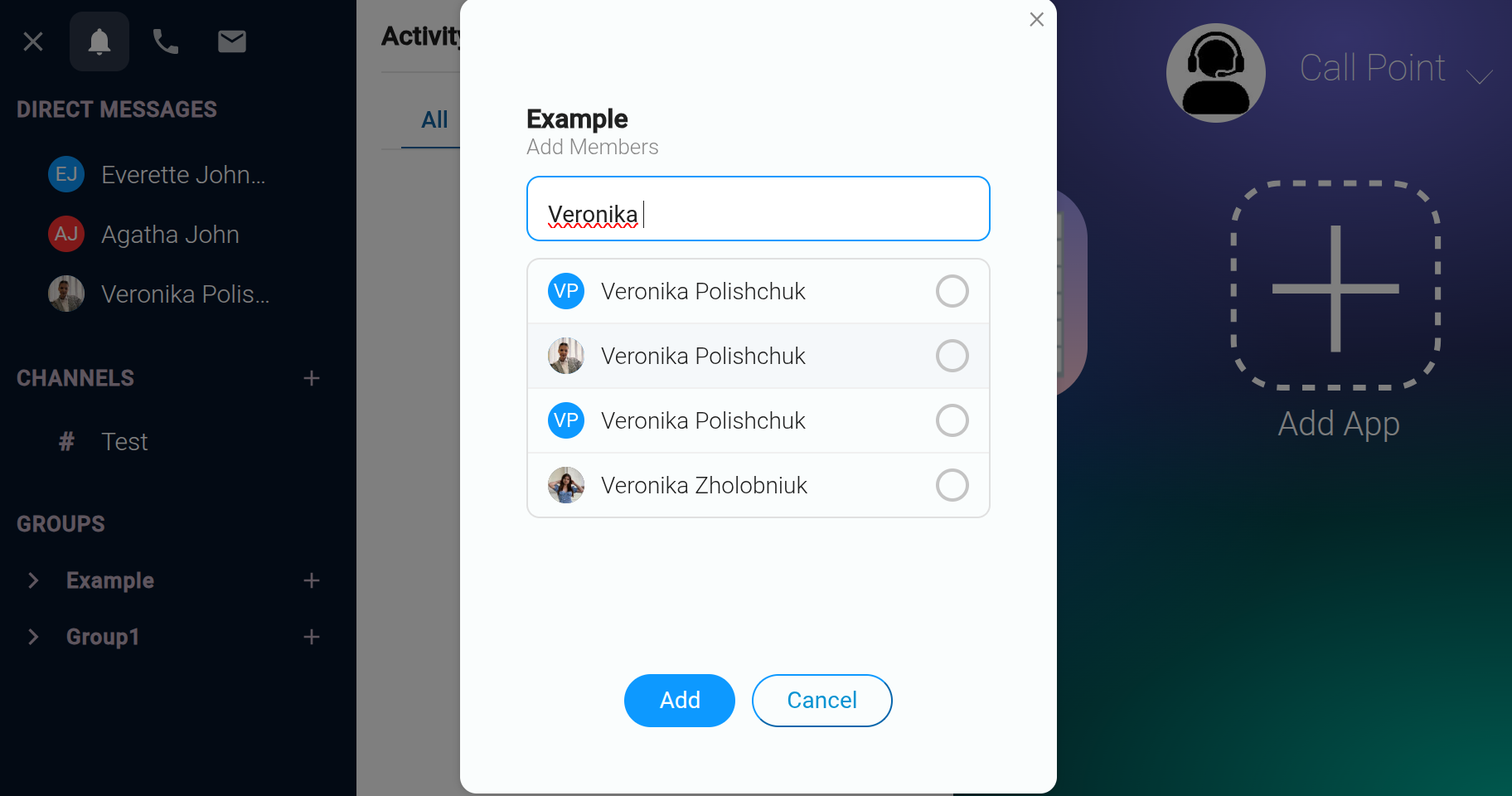
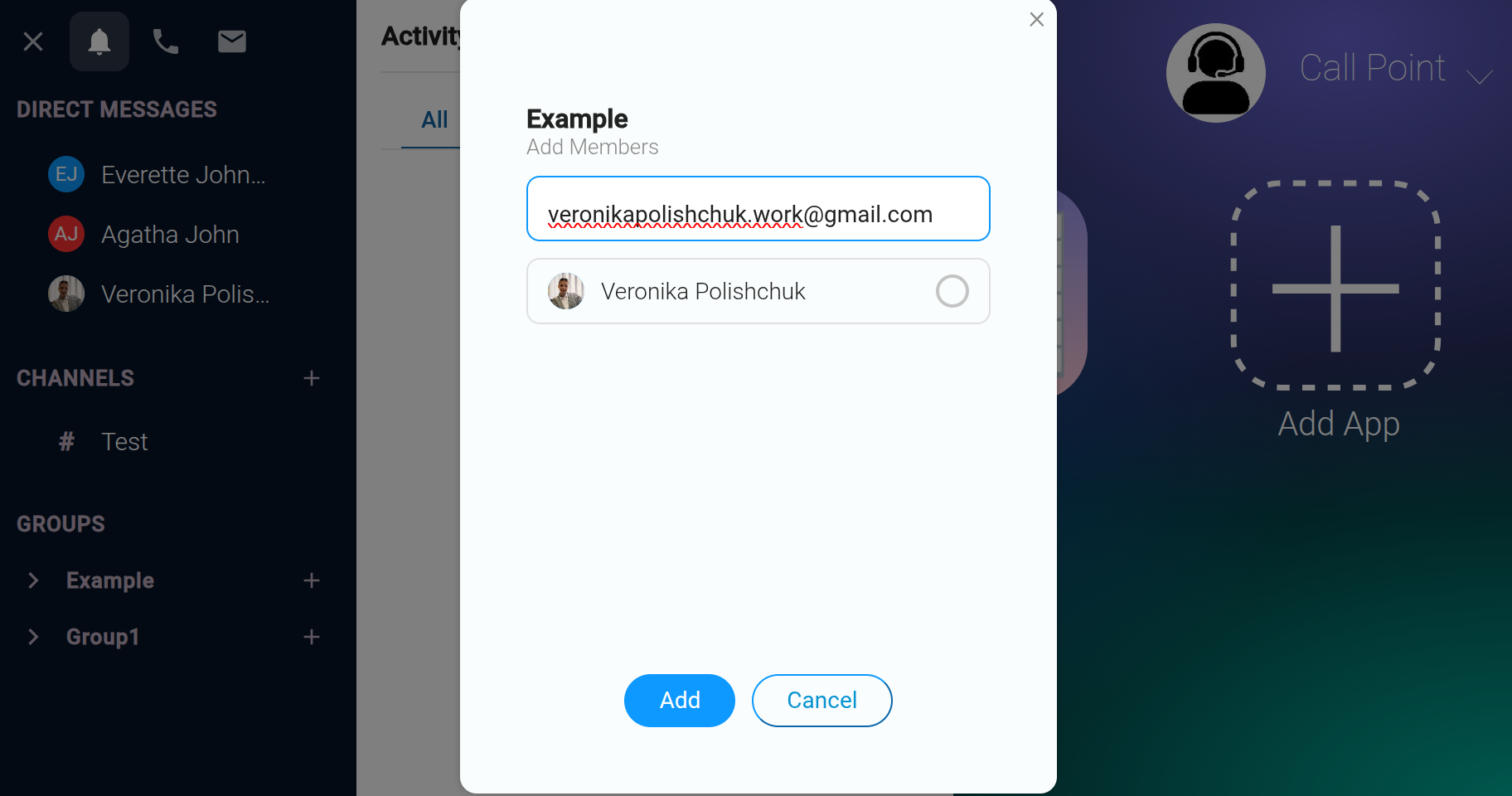
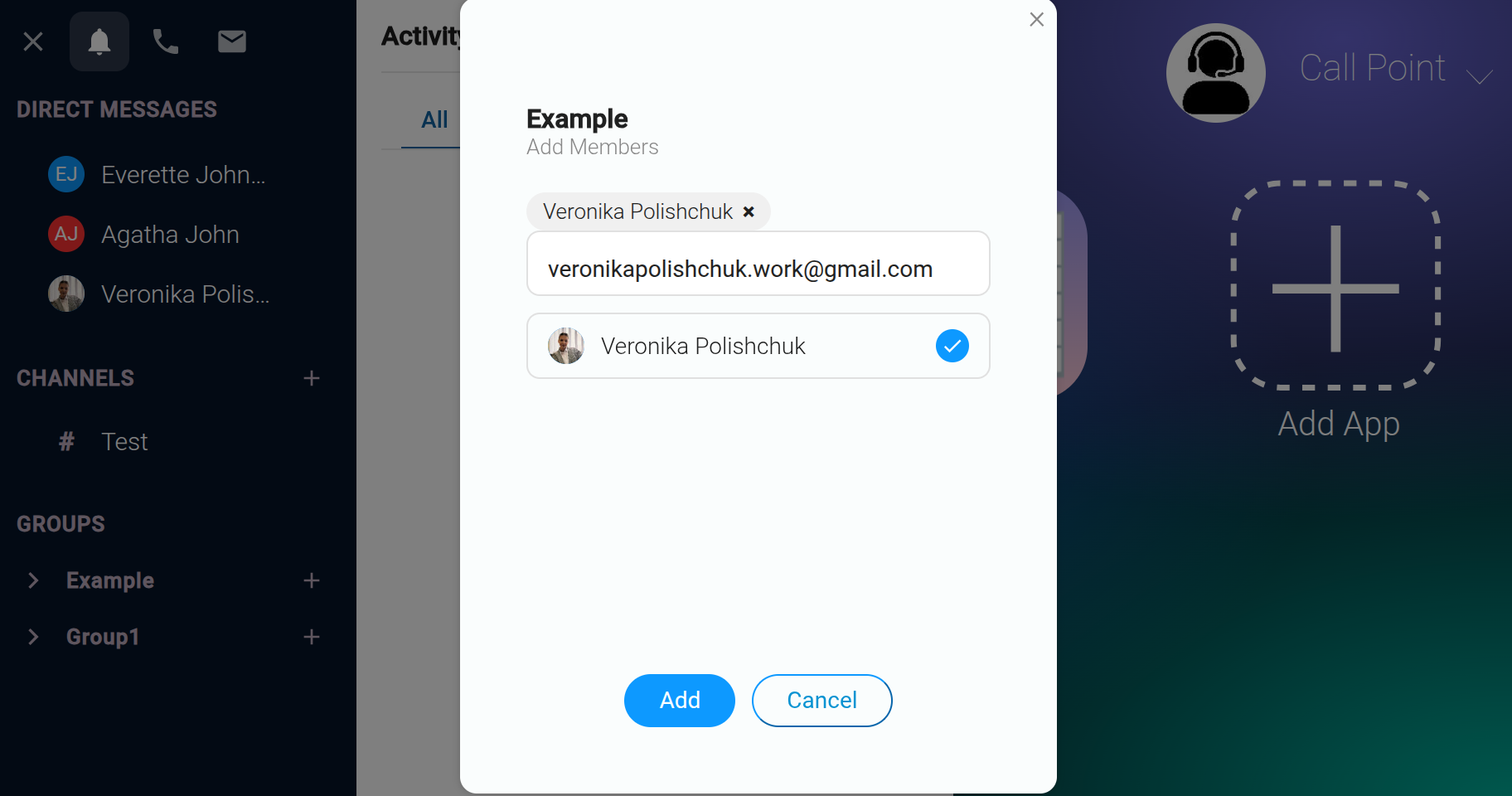
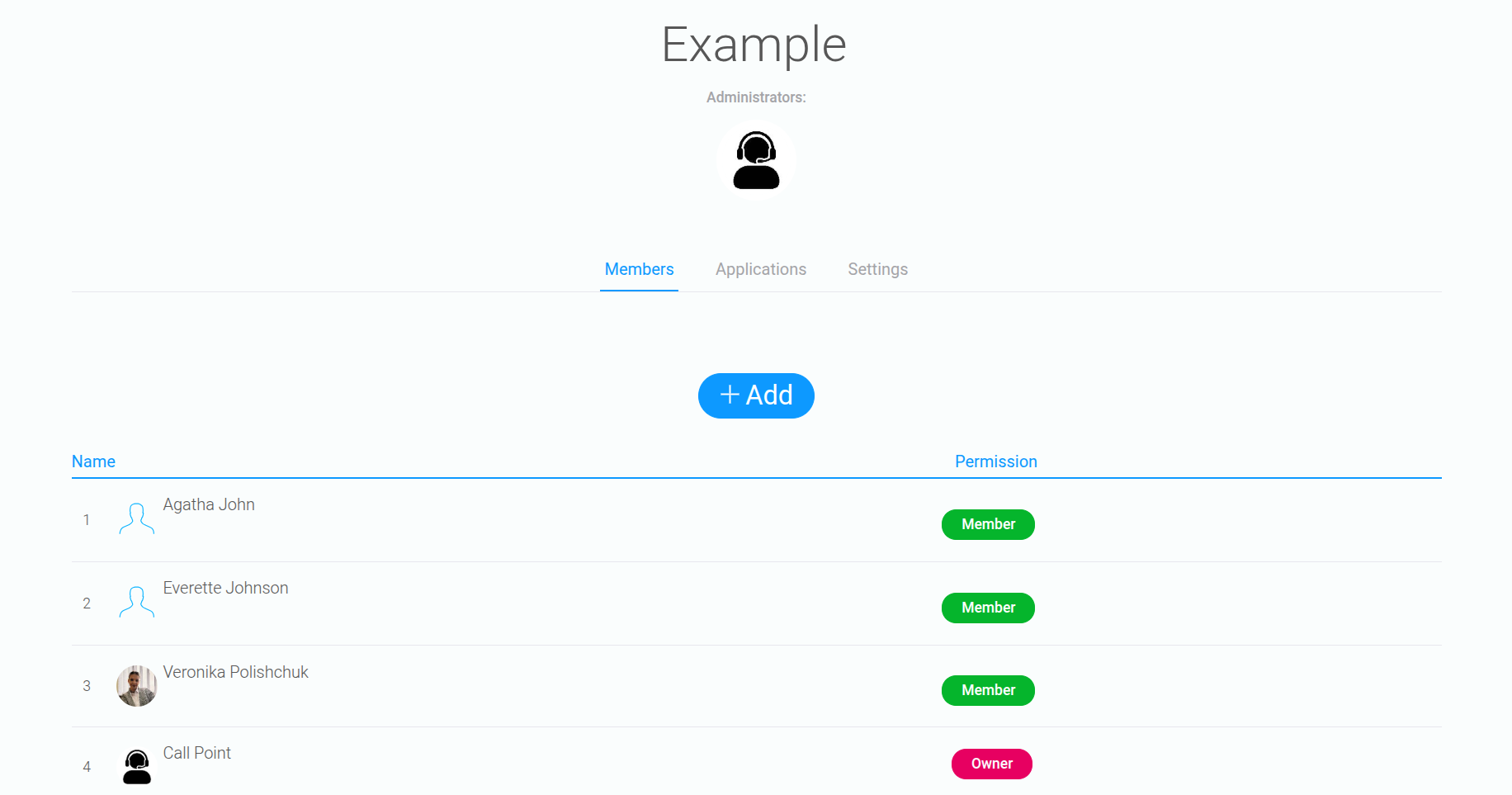
Select the group you want to add a user to and click the “+” button. scr3 Find the user you need by name or email address. scr4 scr5 Select the user and click “Add”. scr6 The user will then automatically appear in the group's member list. scr7 You can also check this in the system's Settings. Open the “Groups” tab and select the relevant group. The added user will appear in the member list with the “Member” access level. scr8 For more information about user access levels, see our separate guide.
Inviting Users Who Aren't Registered on GudHub Yet #

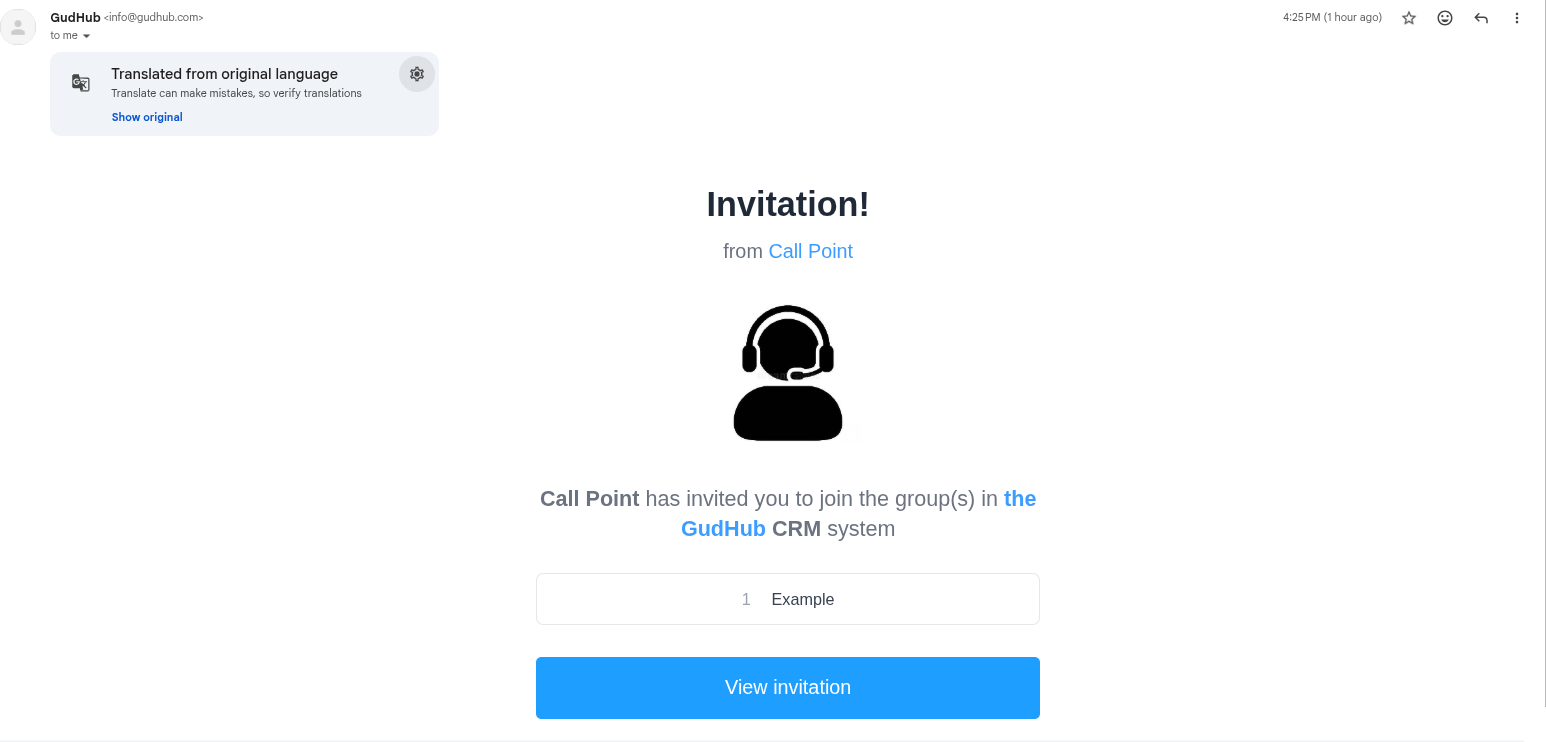
If the user you want to invite doesn't have an account yet, you can send them an invitation. Enter their email address and click “Invite”. scr9 An invitation to join the group in GudHub will be sent to the email address you provided. scr10 To view the invitation, click “View Invitation”. On the page that opens, you can review the invitation details and choose to accept or decline it. scr11 If the user accepts the invitation, they'll need to complete the standard GudHub registration process. For step-by-step instructions, see our separate registration guide.

Once registration is complete, the user will gain access to the system and the group they were invited to, according to the permissions granted by the group owner.

Invite Users and Manage Access in GudHub #

GudHub Chat lets you add both registered users and new users who don't have an account yet to your groups. This simplifies team collaboration and helps you give the right people access to the system more quickly.

Use this feature to invite users to the appropriate groups and organize collaboration to meet your team's needs.