Working with View Layout
#
In this guide, we’ll walk you through how to create and customize a View Layout in GudHub.
View Layout is a GudHub feature that lets you customize the appearance of your apps, choose which elements are displayed on the page, and control how they are arranged.
Please note: View Layout is available only in the PRO version of GudHub.
You can configure a separate View Layout for each app.
Setting Up View Layout
#
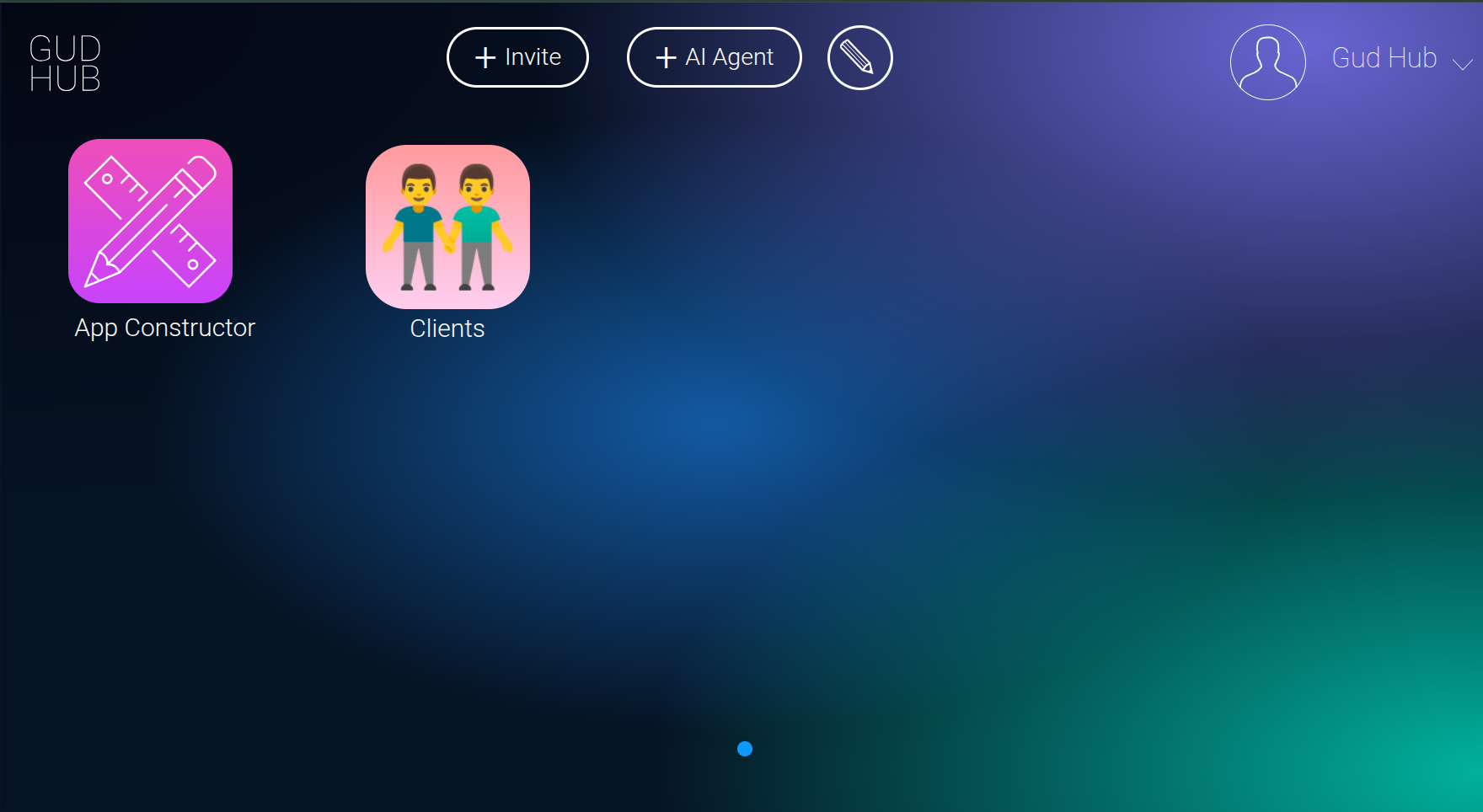
To start customizing the layout, open the app whose appearance you want to change.
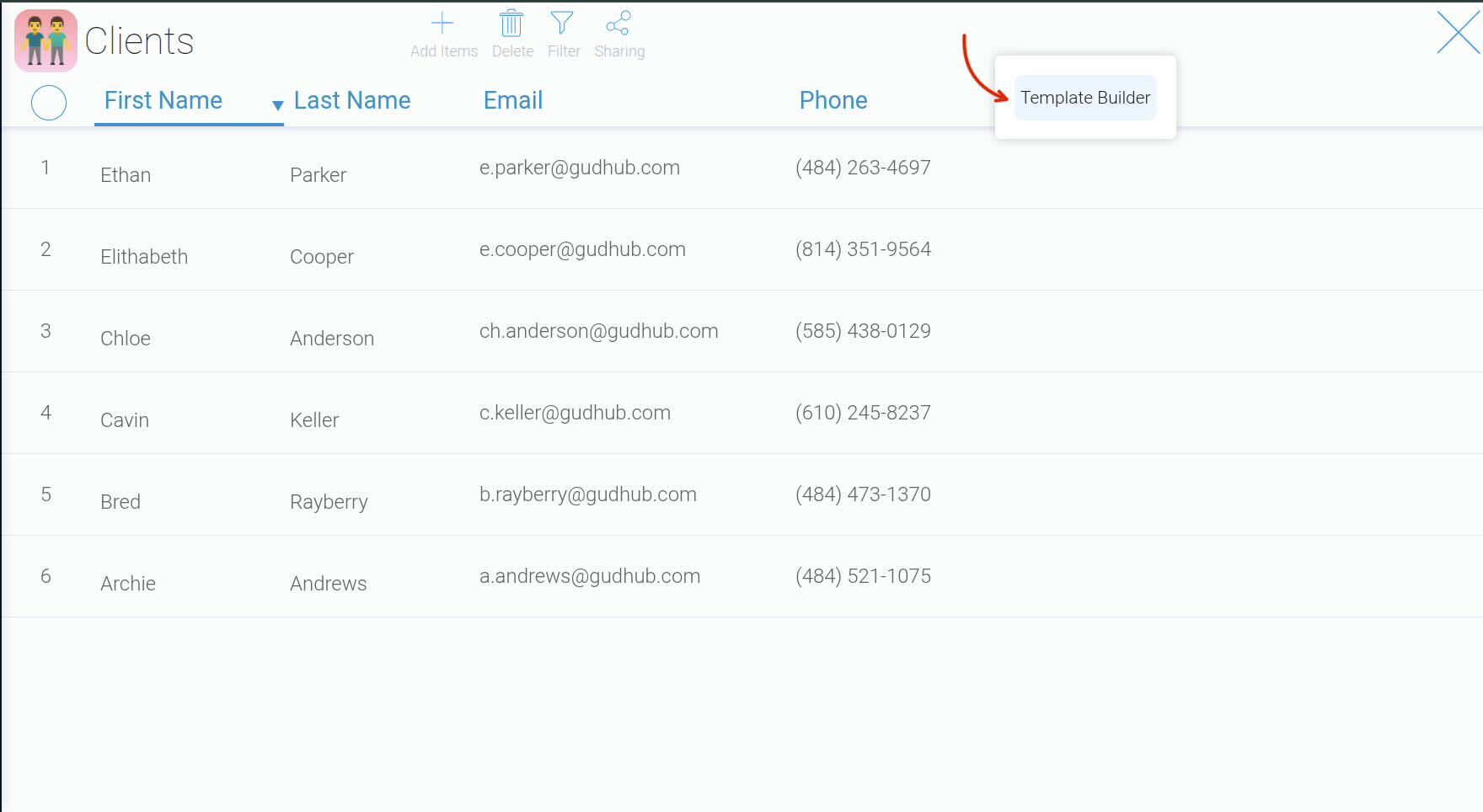
 Right-click anywhere in the workspace and select “Template Builder”.
 Please note that View Layout is available only in the PRO version of GudHub.
With an active PRO version, you can create and customize your own views in "Template Builder".
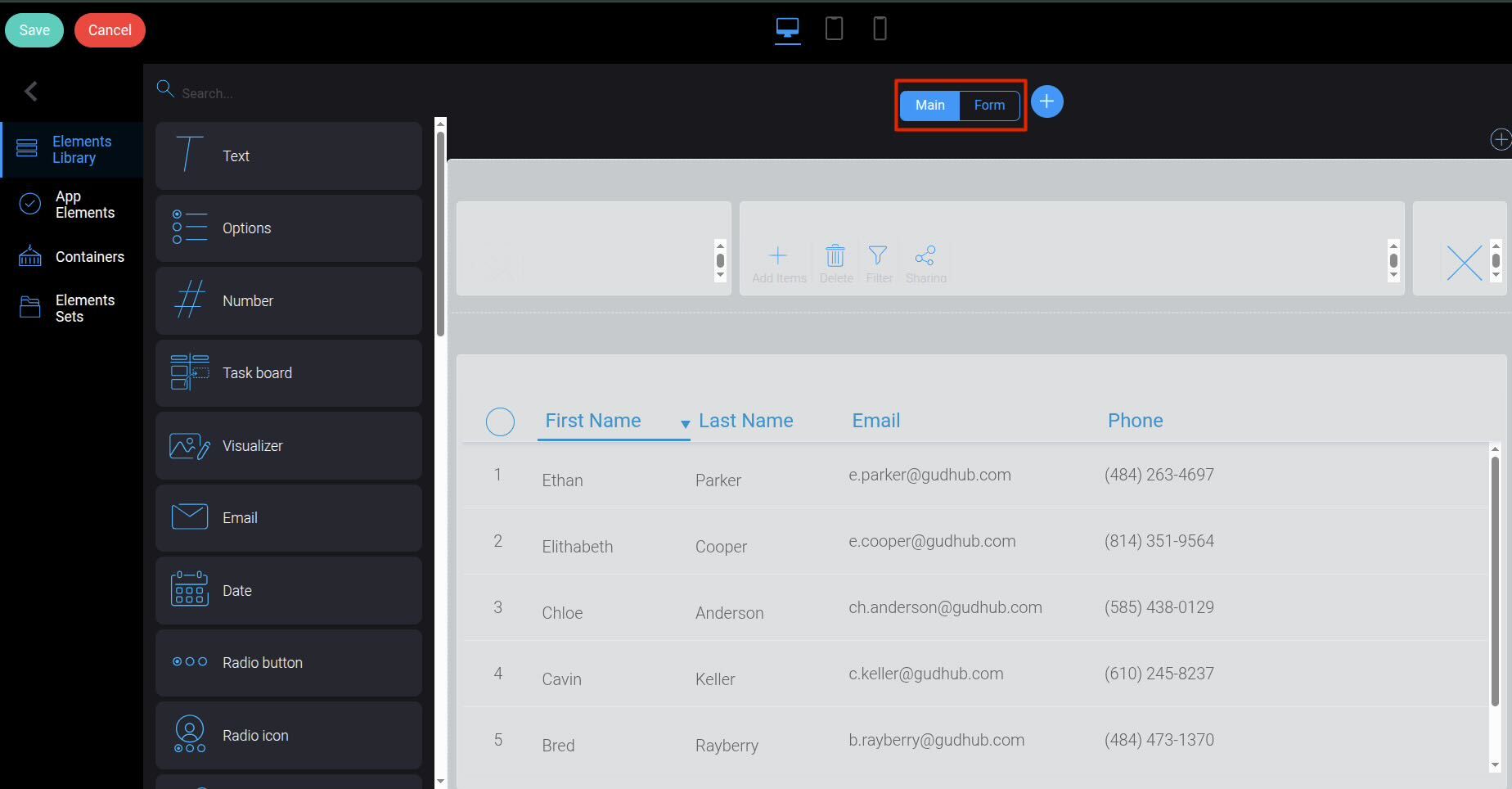
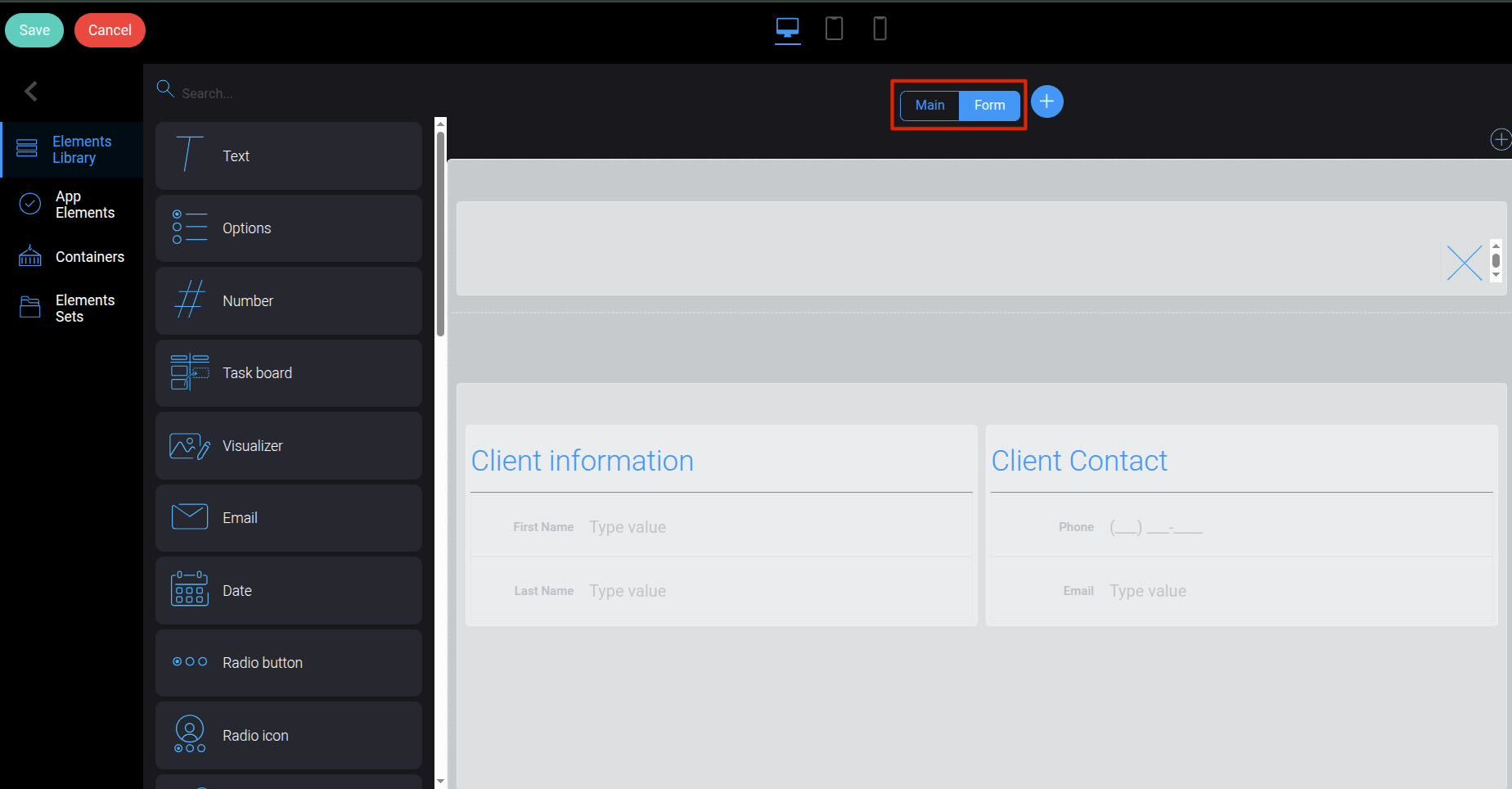
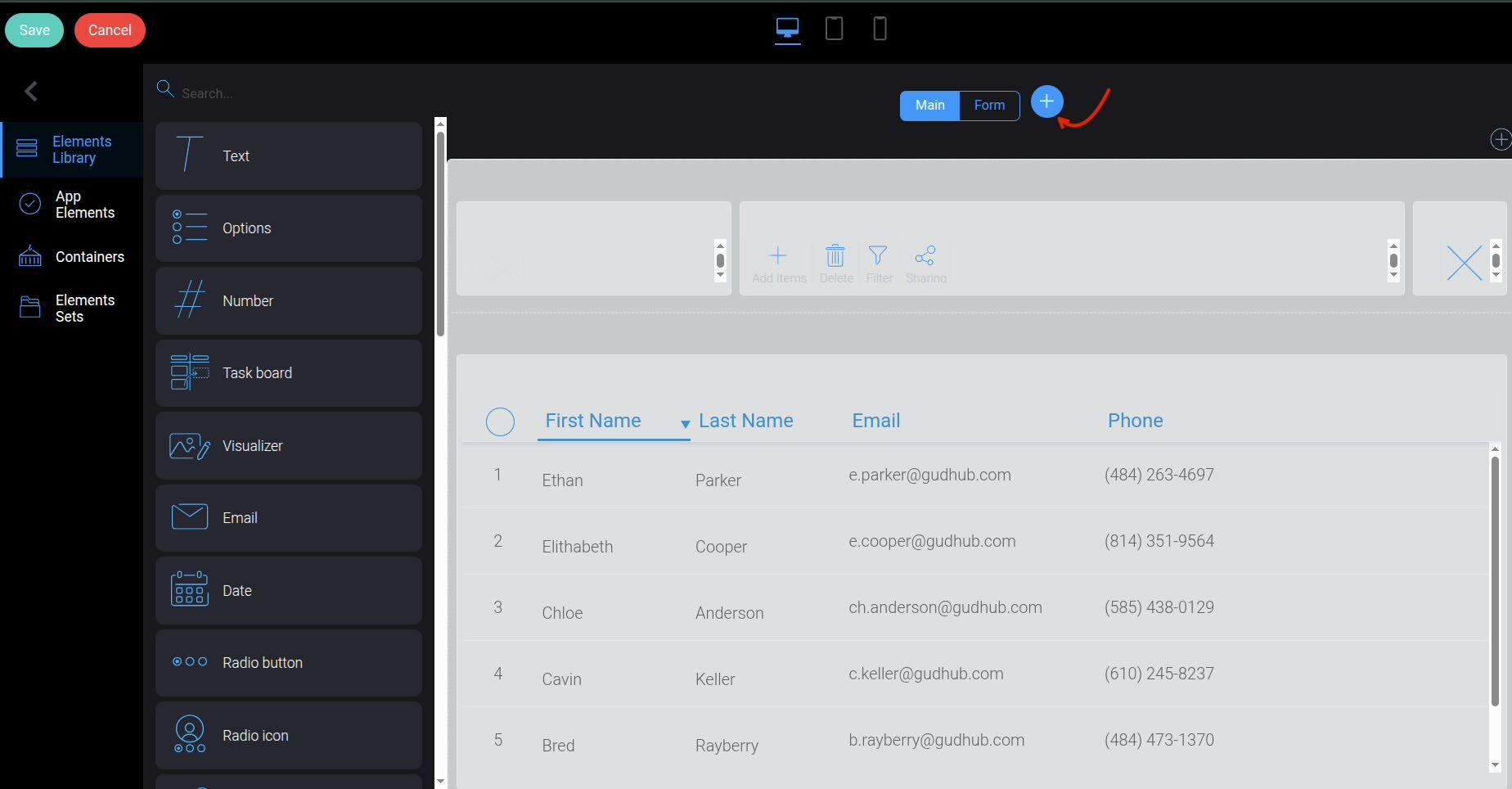
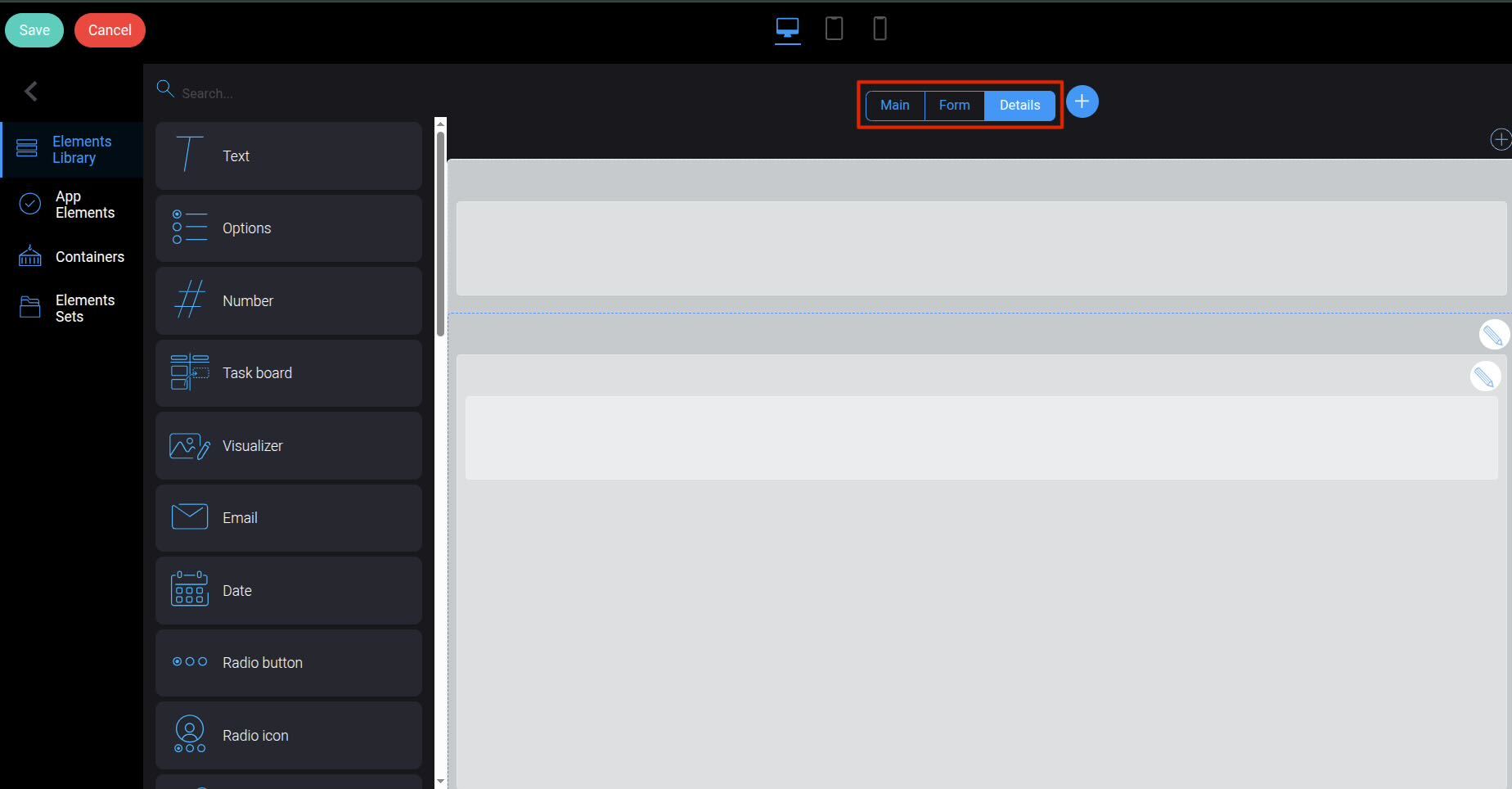
When working with tables, two views are available by default: “Main” and “Form”.
“Main” is the table’s main view, which displays an overview of the records.
 “Form” is a view nested within “Main” that displays detailed information about the selected record.
 Following the same principle, you can create additional views and build a system with multiple levels of nested views to suit your needs.
To add a new view, click “+”.
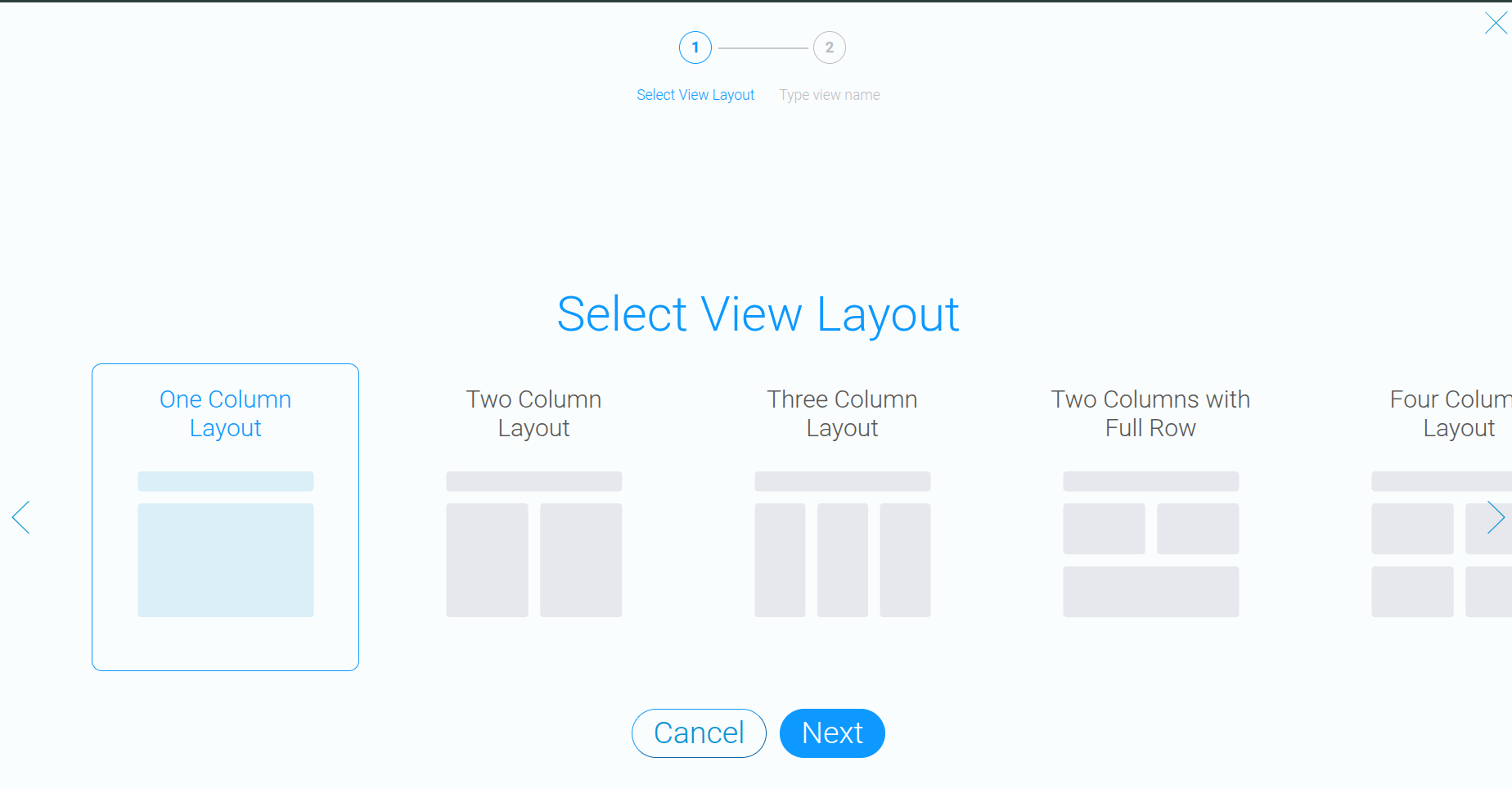
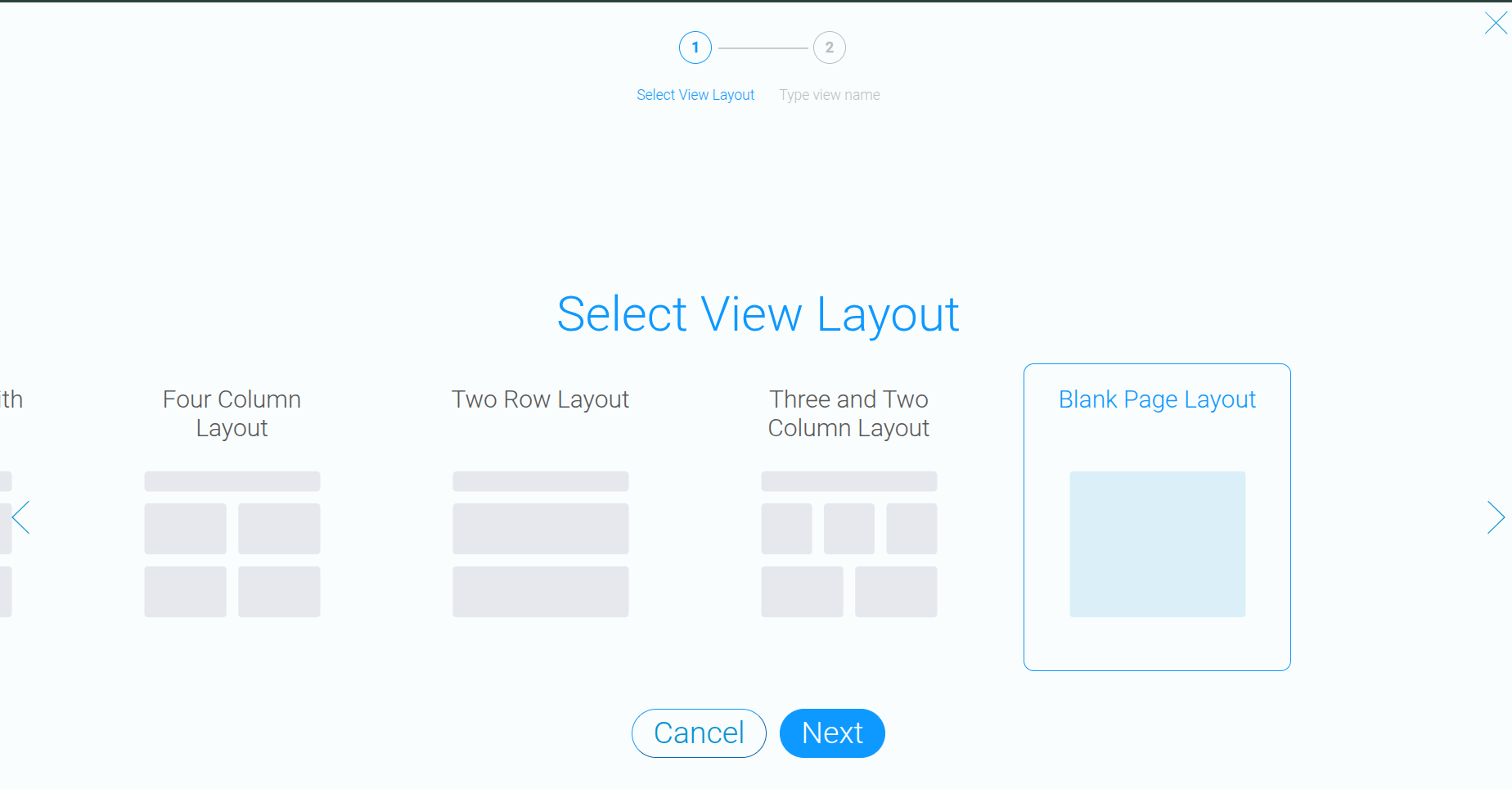
 Next, choose the template that best fits your needs. Each template includes a preview showing how the blocks will be arranged.
 You can also arrange the blocks yourself. To do this, select “Blank Page Layout”. This option allows you to create a custom layout with the blocks arranged to suit your system’s needs.
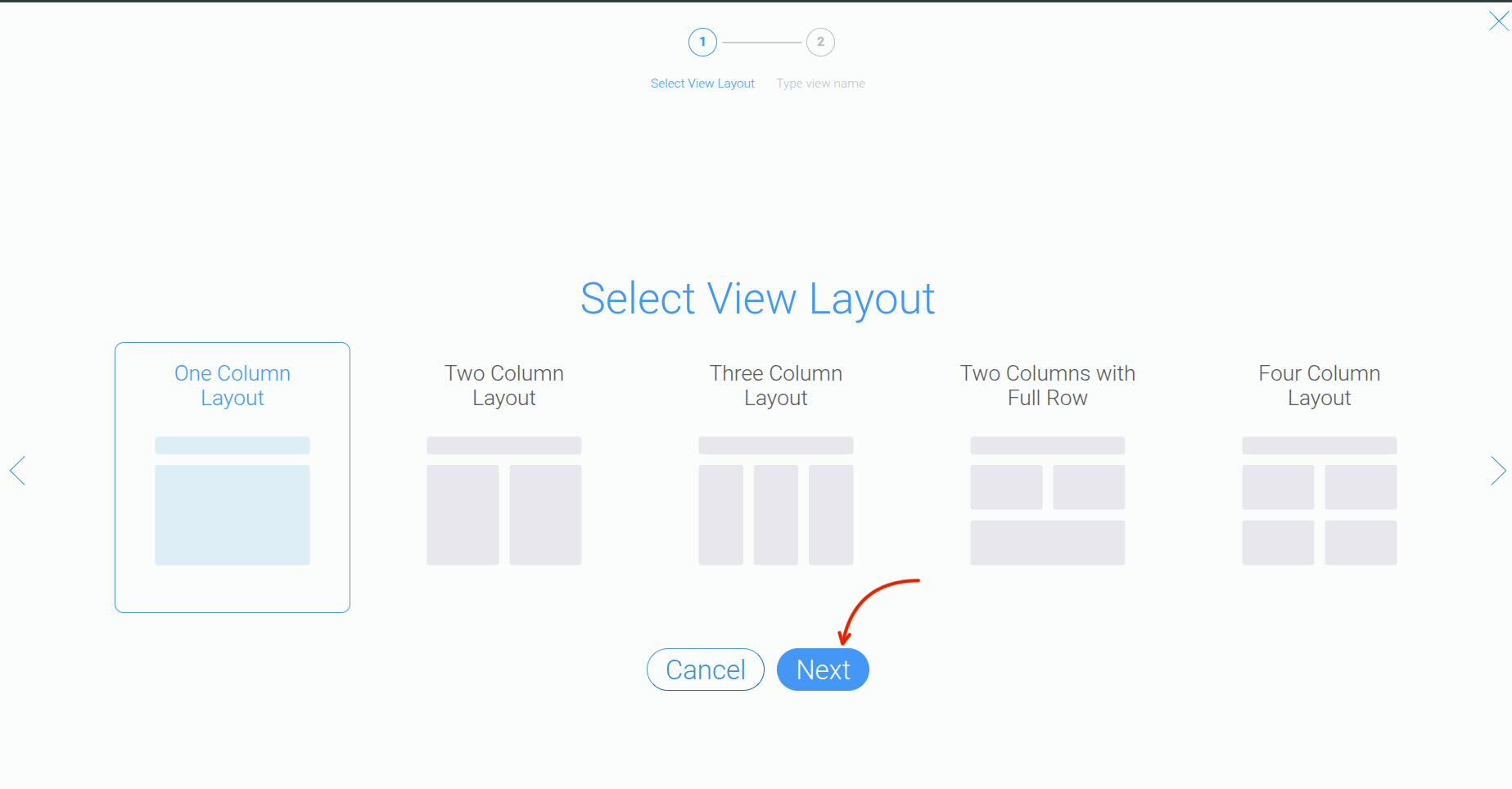
 For this example, we’ll select the first template. Once you’ve selected it, click “Next”.
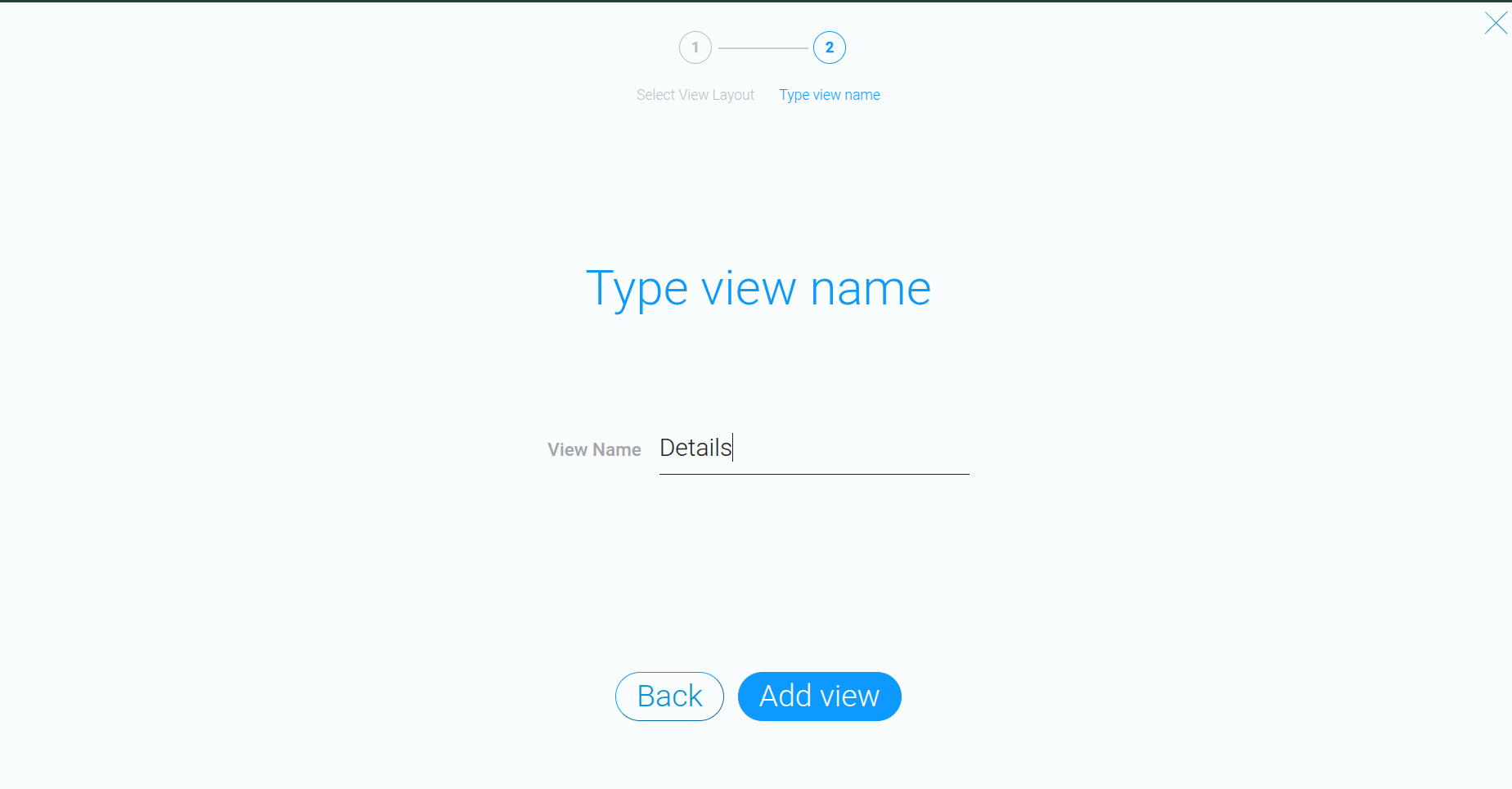
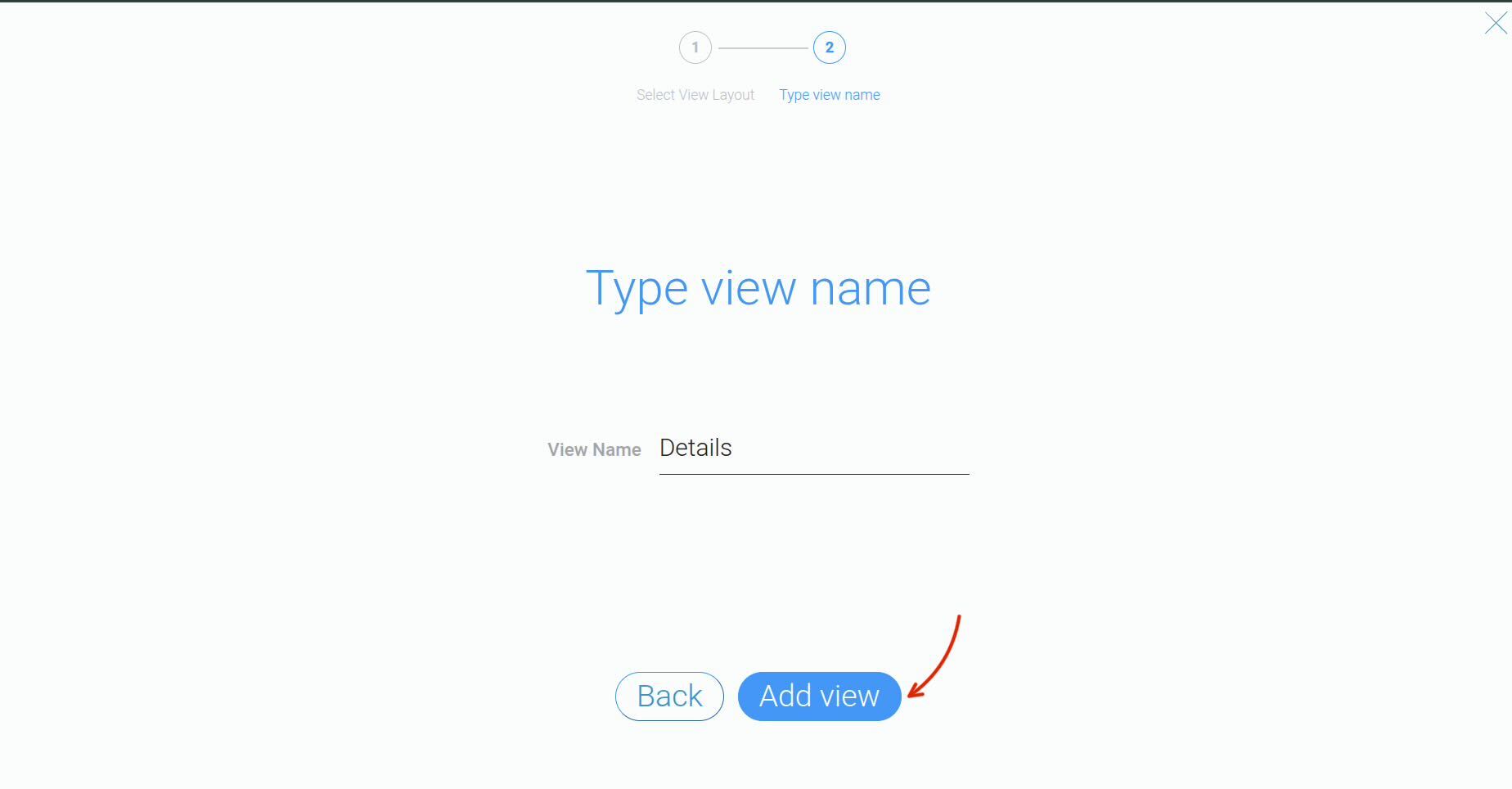
 Next, enter a name for the new view. This name will appear in the navigation bar between views.
 Once you’ve entered the name, click “Add View”.
 The new “Details” view will then appear in the navigation bar.
 You can now customize existing blocks, add the tools you need, and create relationships between tables to display the required data.
For more information on setting up relationships and sharing data between apps, as well as adding new fields to tables, see the GudHub guide series.