Working with Data in an App #
Once records have been added to your app, you can edit, filter, or remove them at any time. These tools make it easy to keep your data accurate, organized, and up to date.
Editing Records #
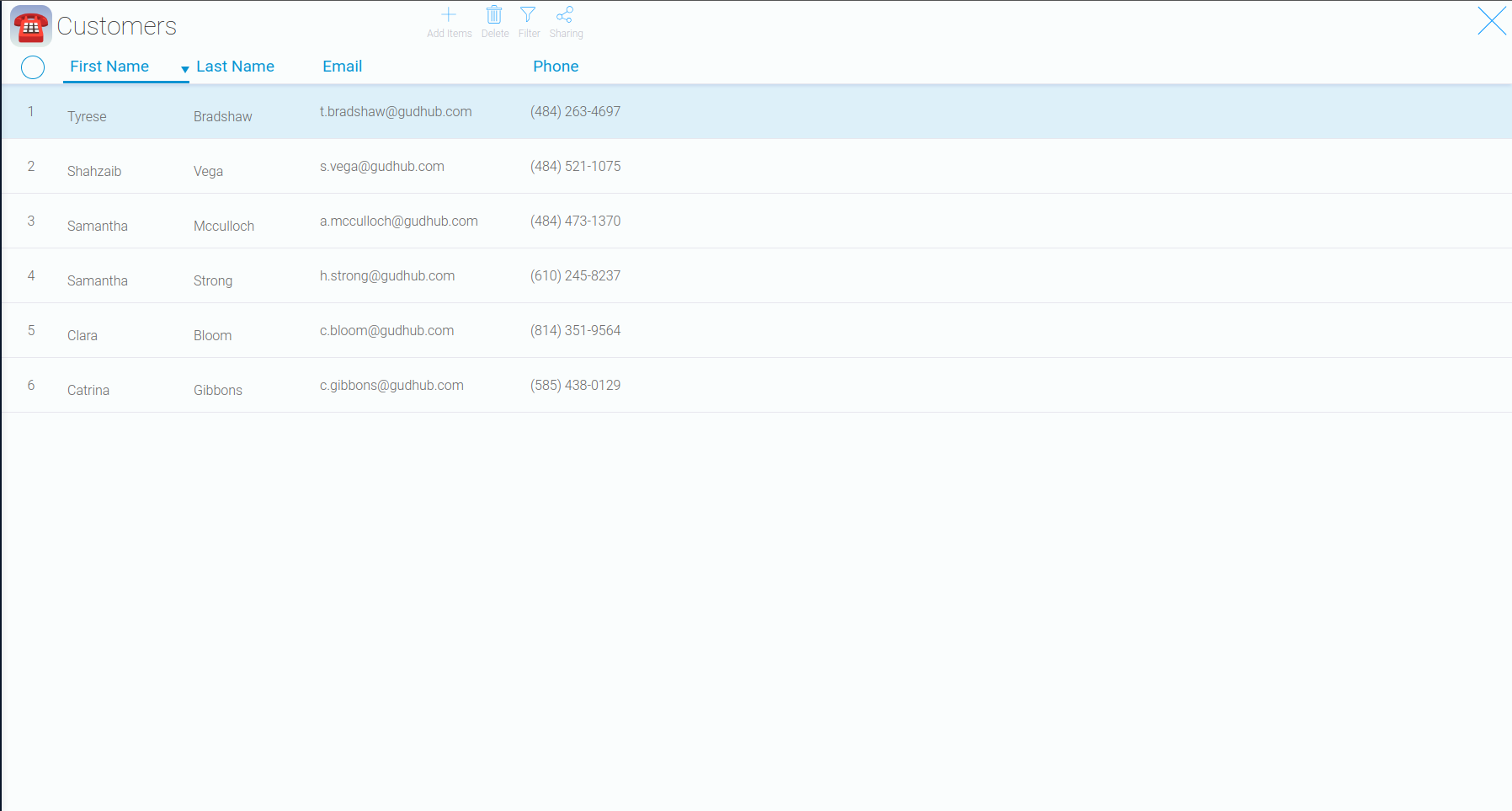
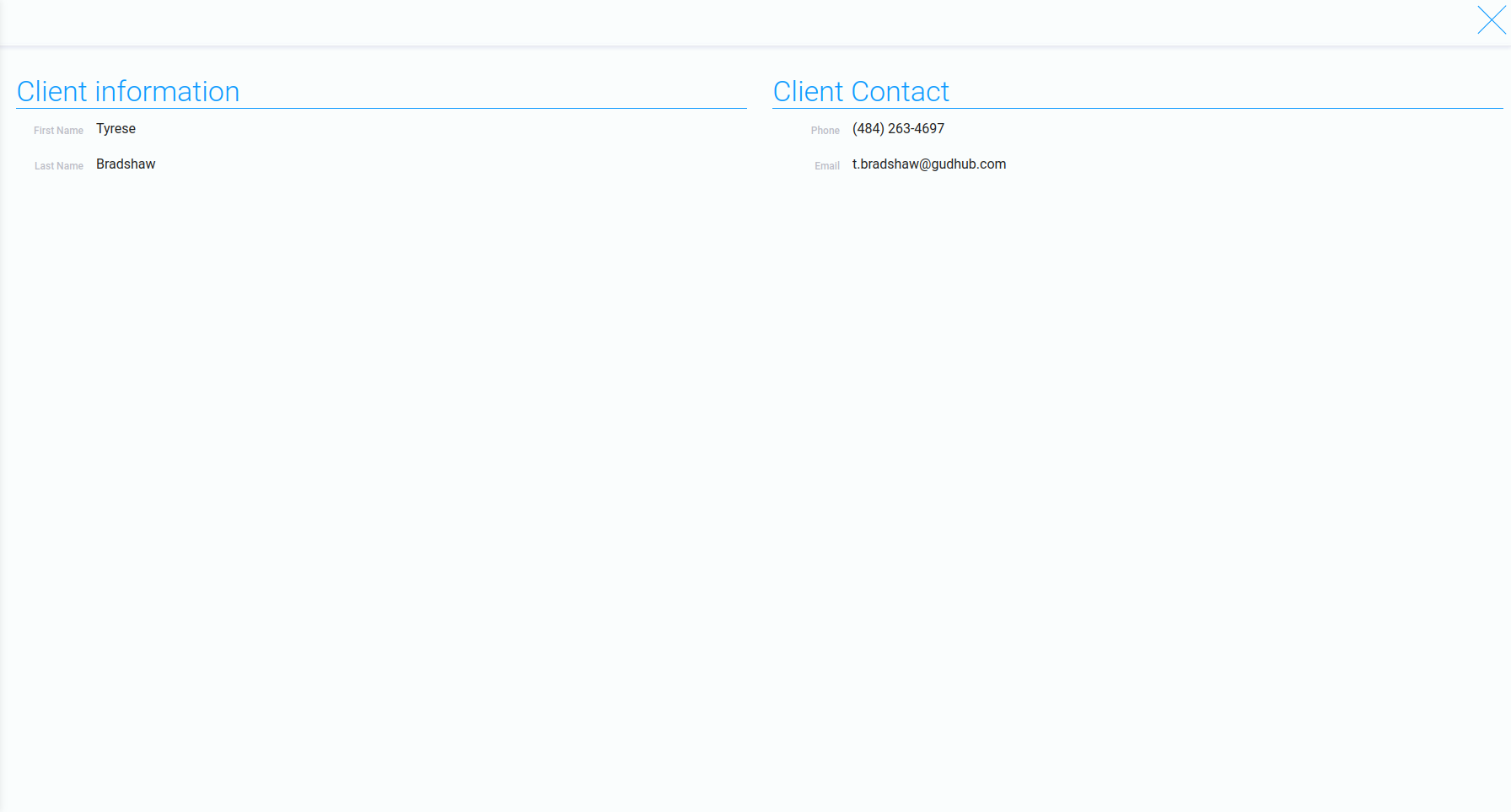
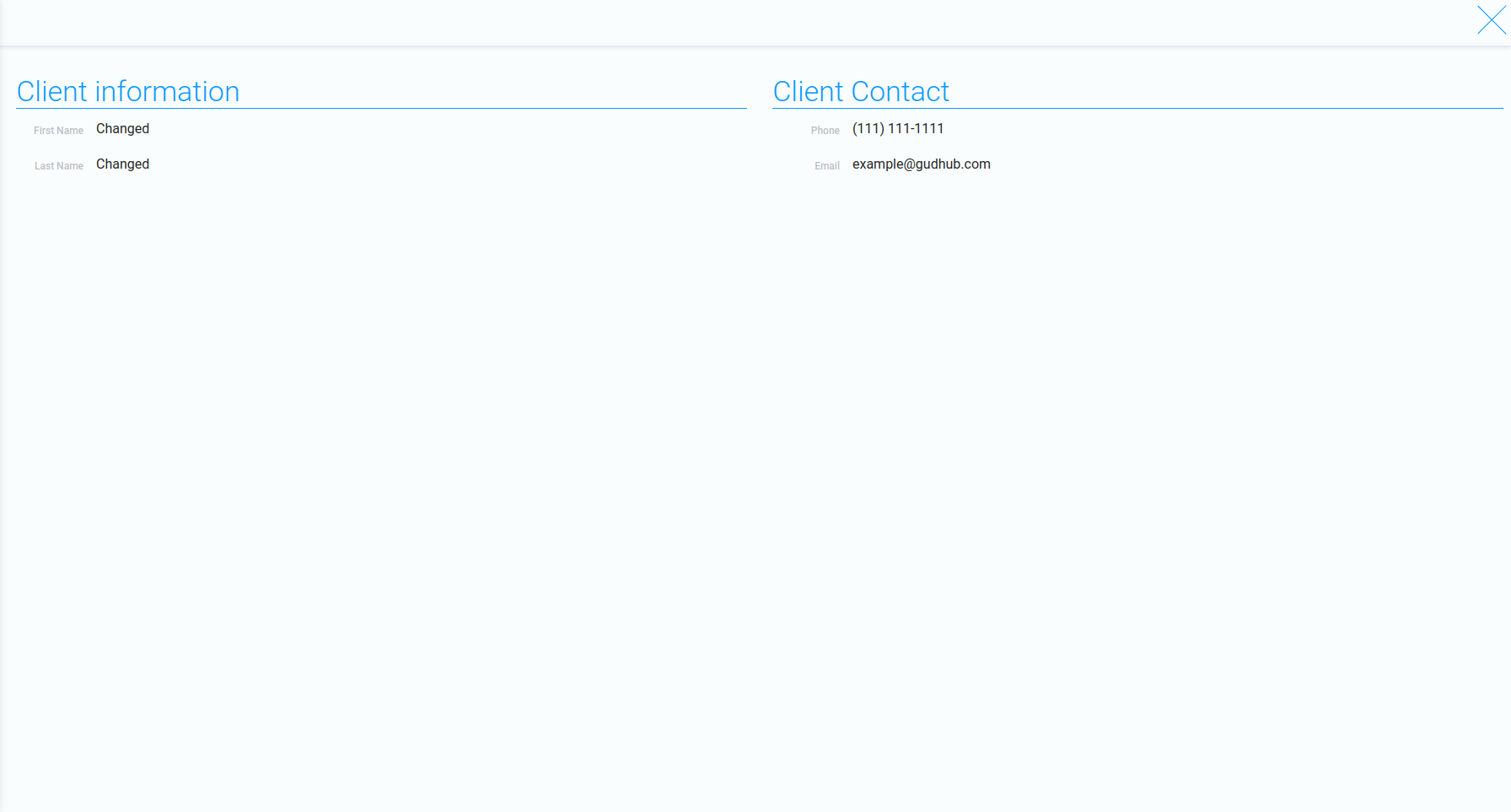
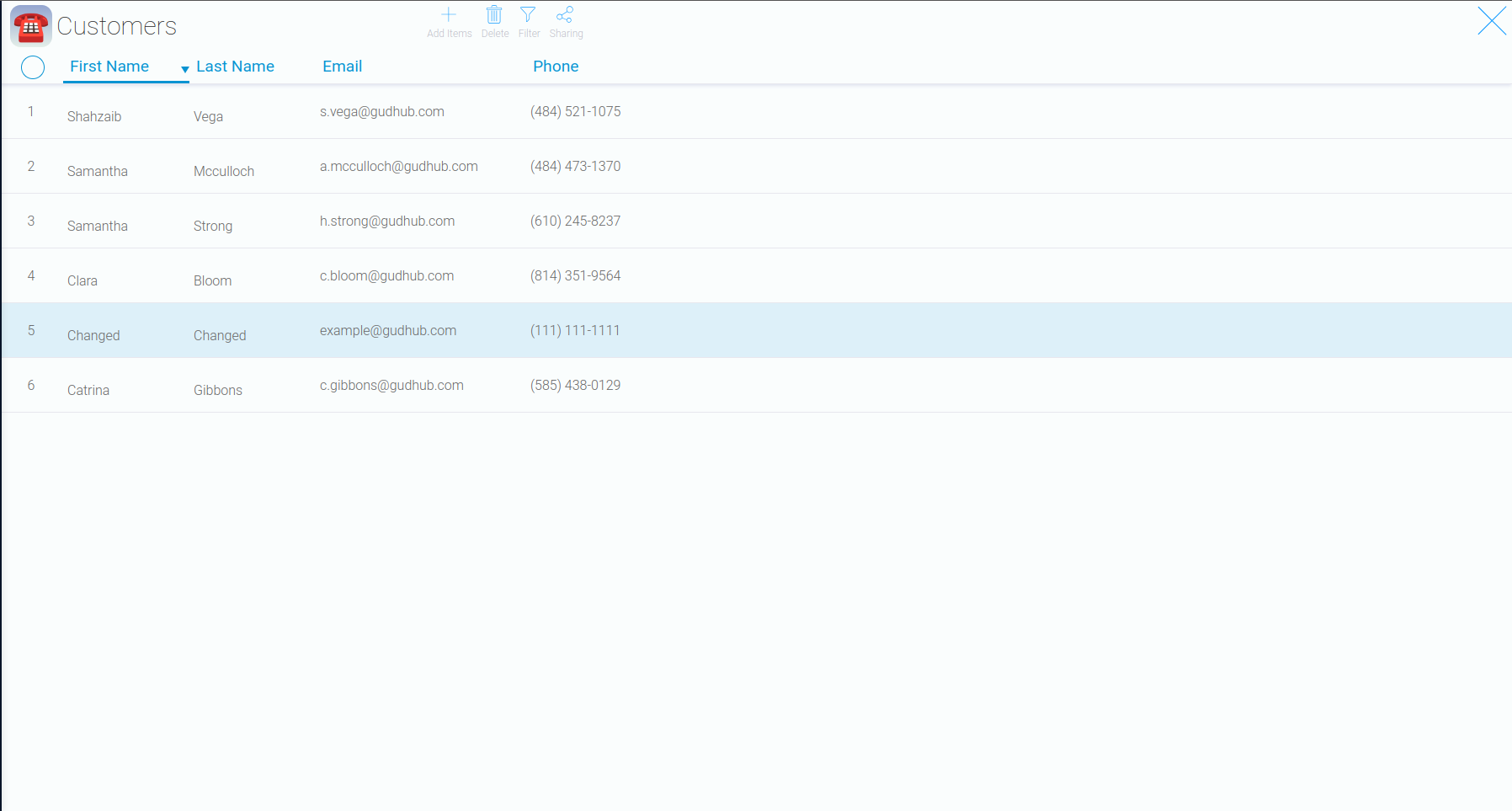
All records in your app can be edited at any time. To update a record, click the corresponding row in the main list.
Filtering Records #
When working with large amounts of data, filters make it easier to find the records you need. They allow you to display only the records that match specific criteria.
Step 1 #
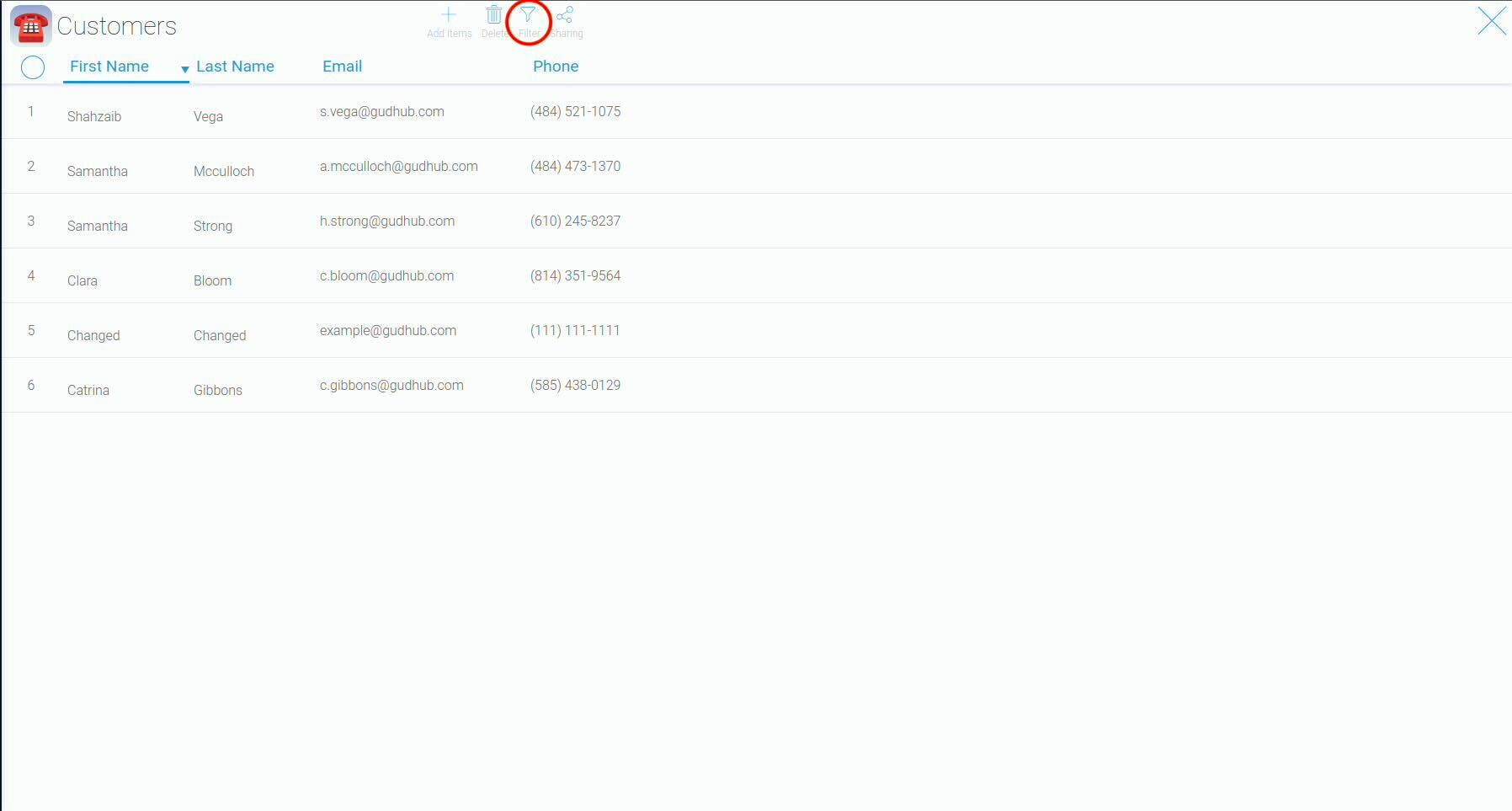
Click the "Filter" button to create a new filter.
Step 2 #
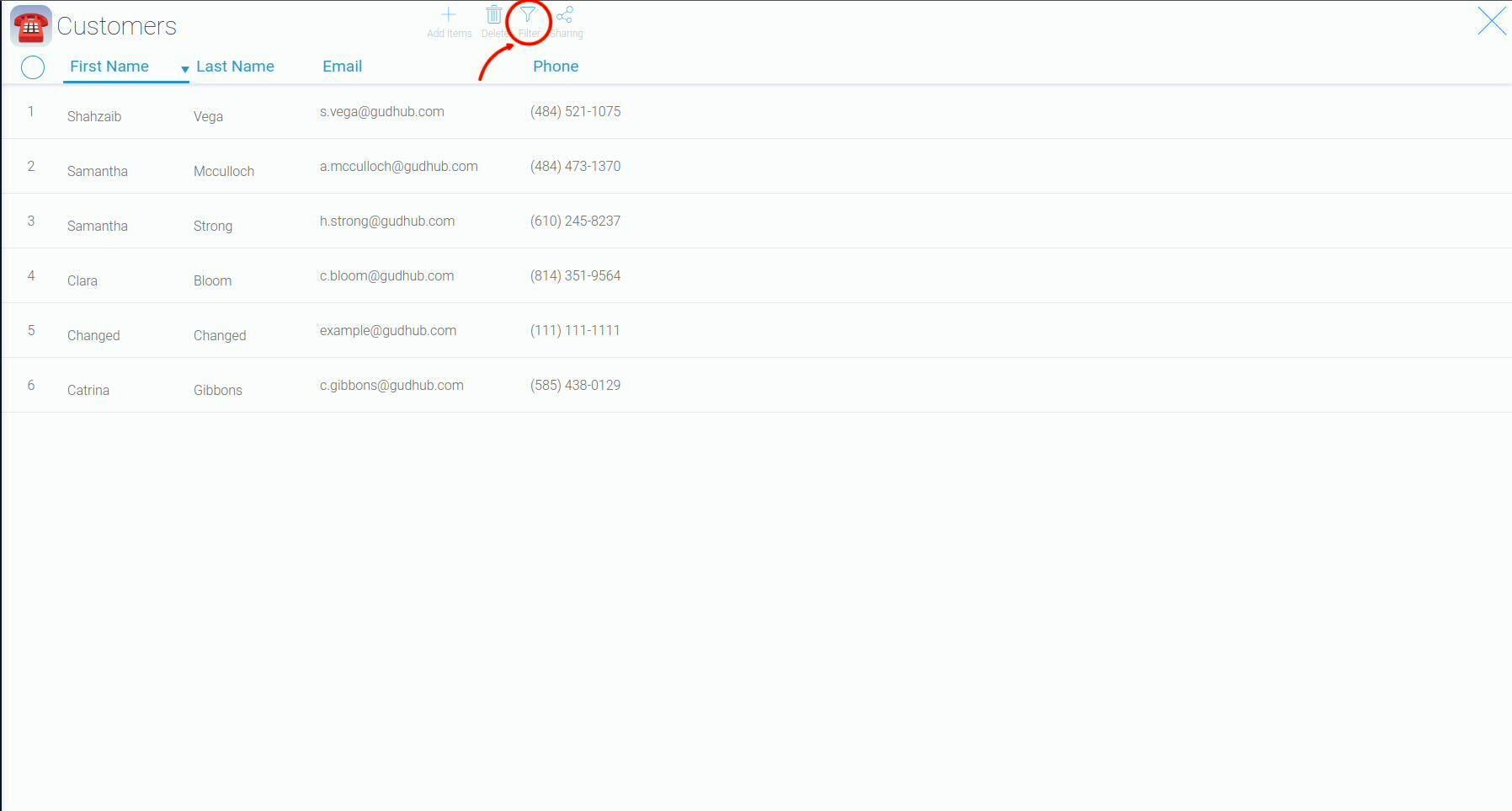
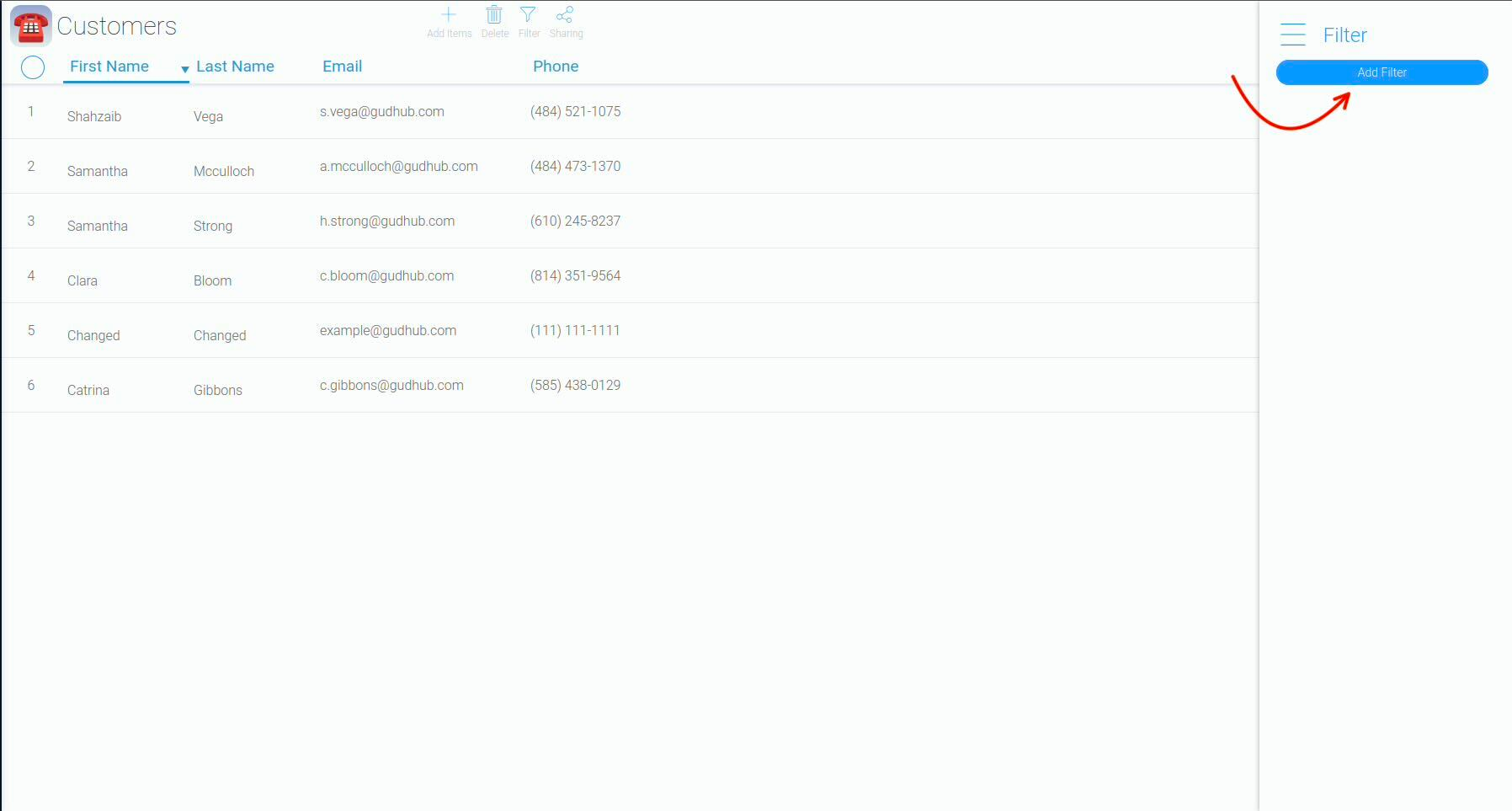
In the panel that opens, click "Add filter".
Step 3 #
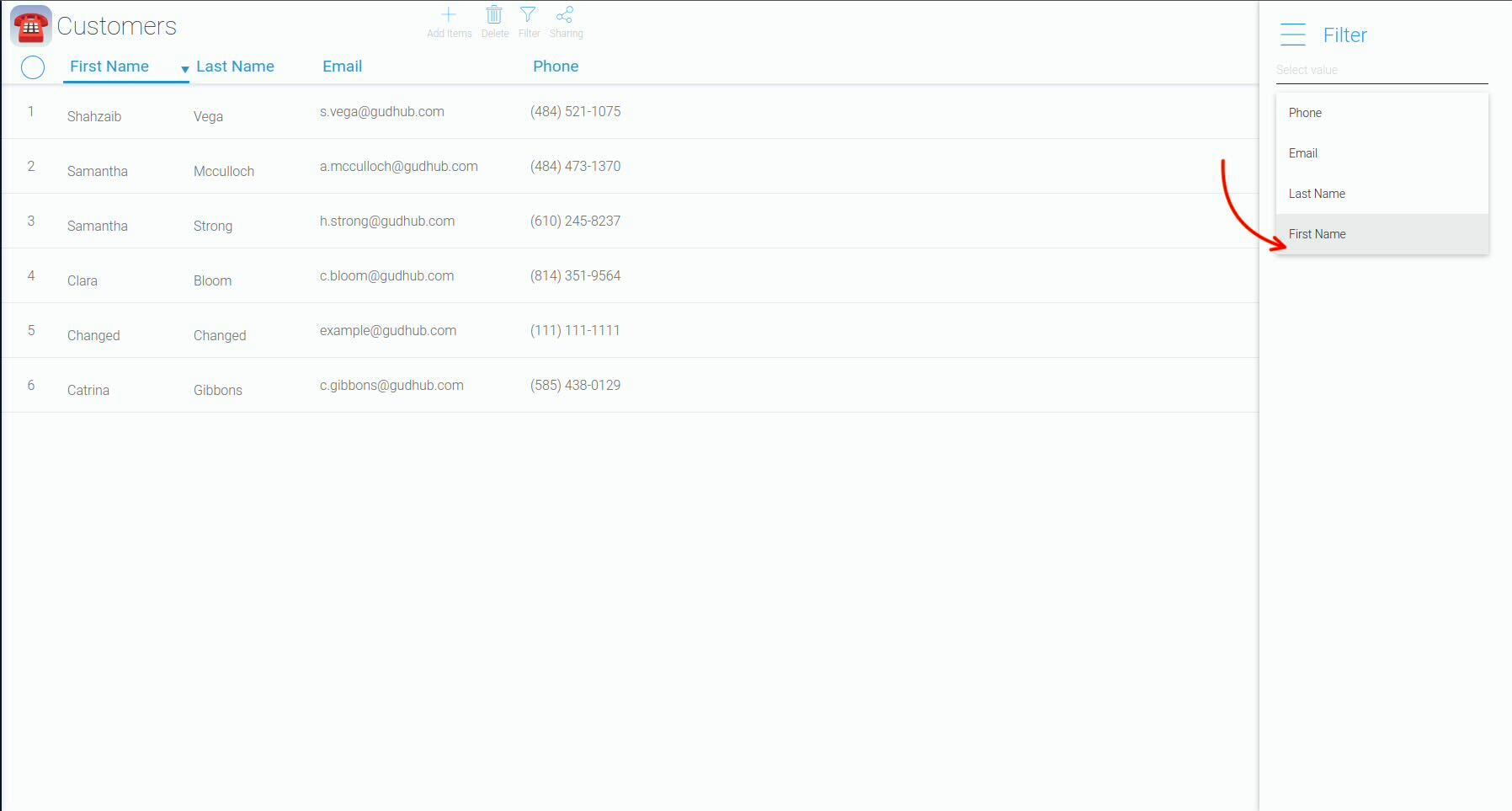
A list of available filter options will appear. In this example, we'll filter records by the customer's first name.
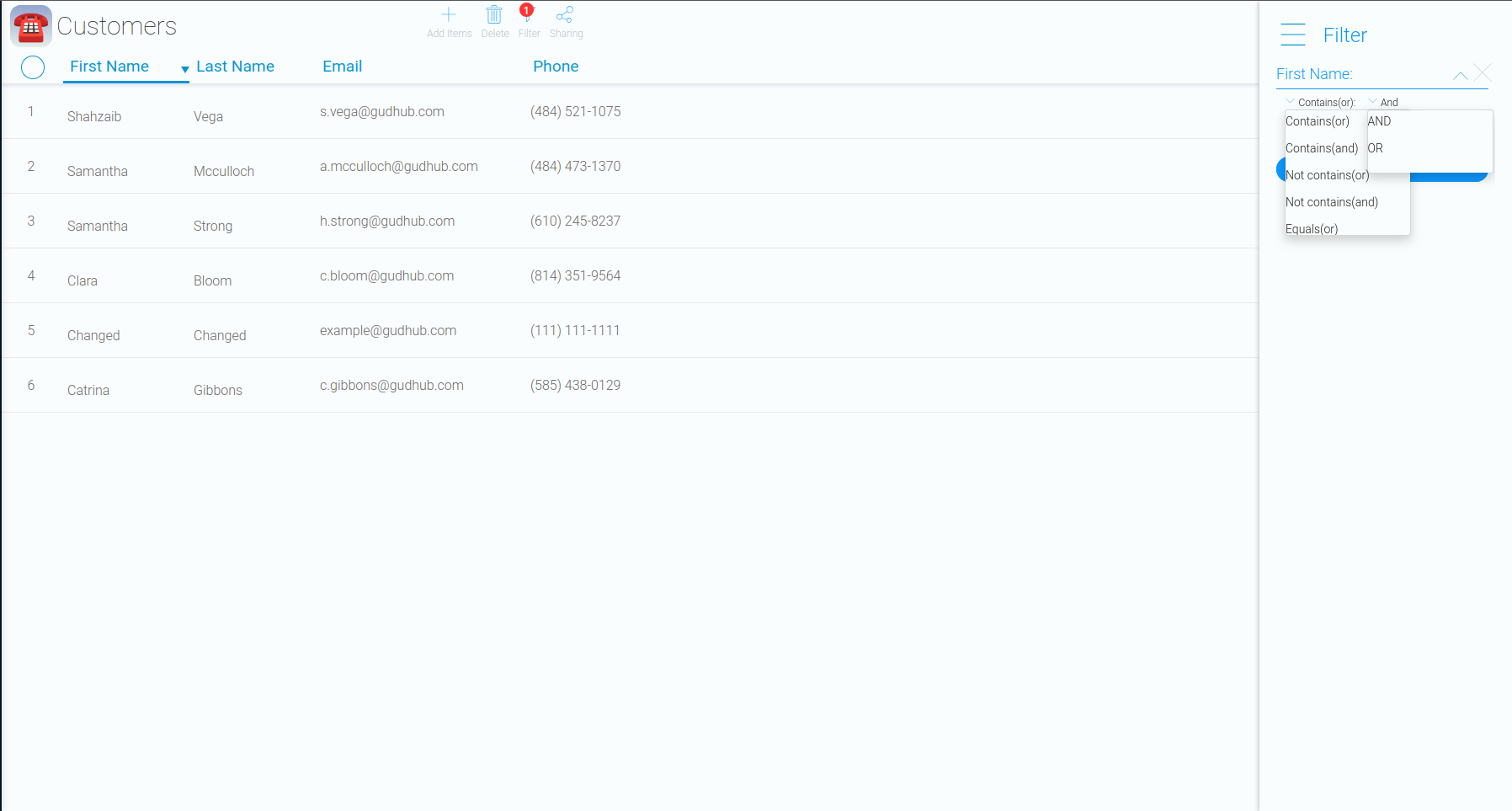
The following options are available:
"Contains or" – finds records that contain any of the specified values.
"Contains and" – finds records that contain all of the specified values.
"Not contains or" – finds records that do not contain any of the specified values.
"Not contains and" – finds records that do not contain all of the specified values.
"Equals or" – finds records that exactly match the specified value.
The second parameter determines how multiple filter conditions are combined.
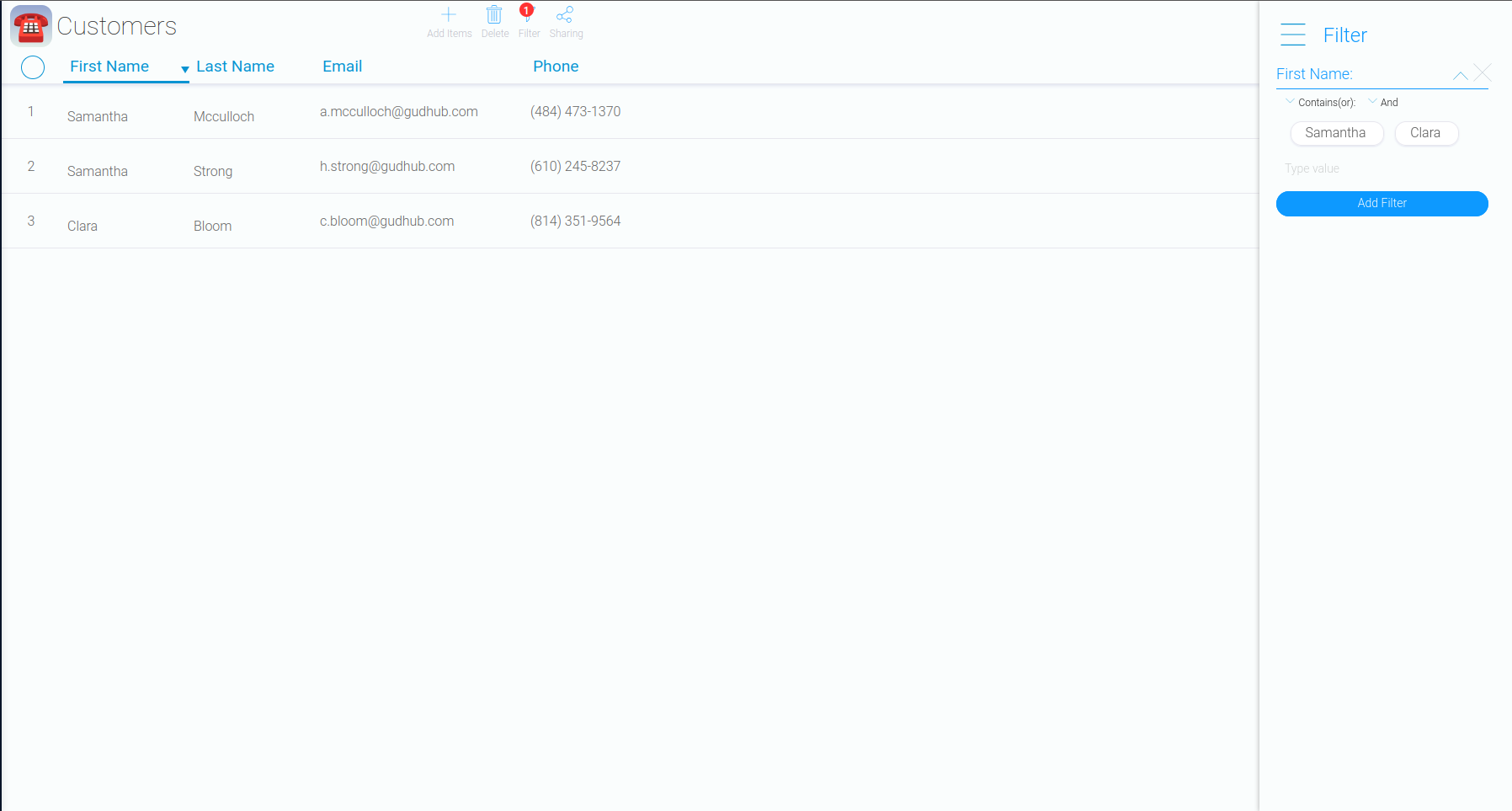
Two options are available: "And" / "Or". For example, suppose you want to display only customers named "Samantha" or "Clara".
Enter both names in the "Type value" field.
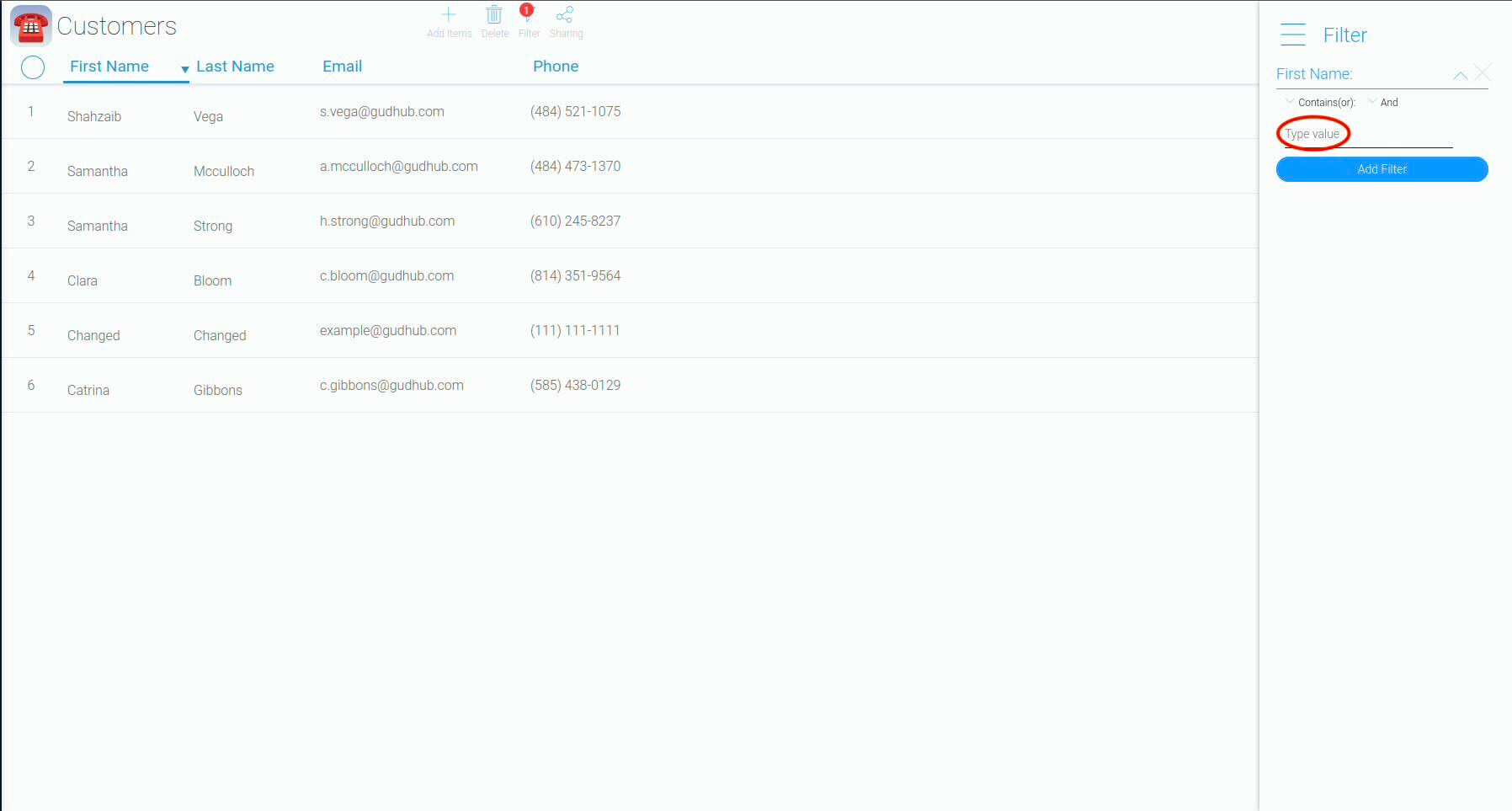
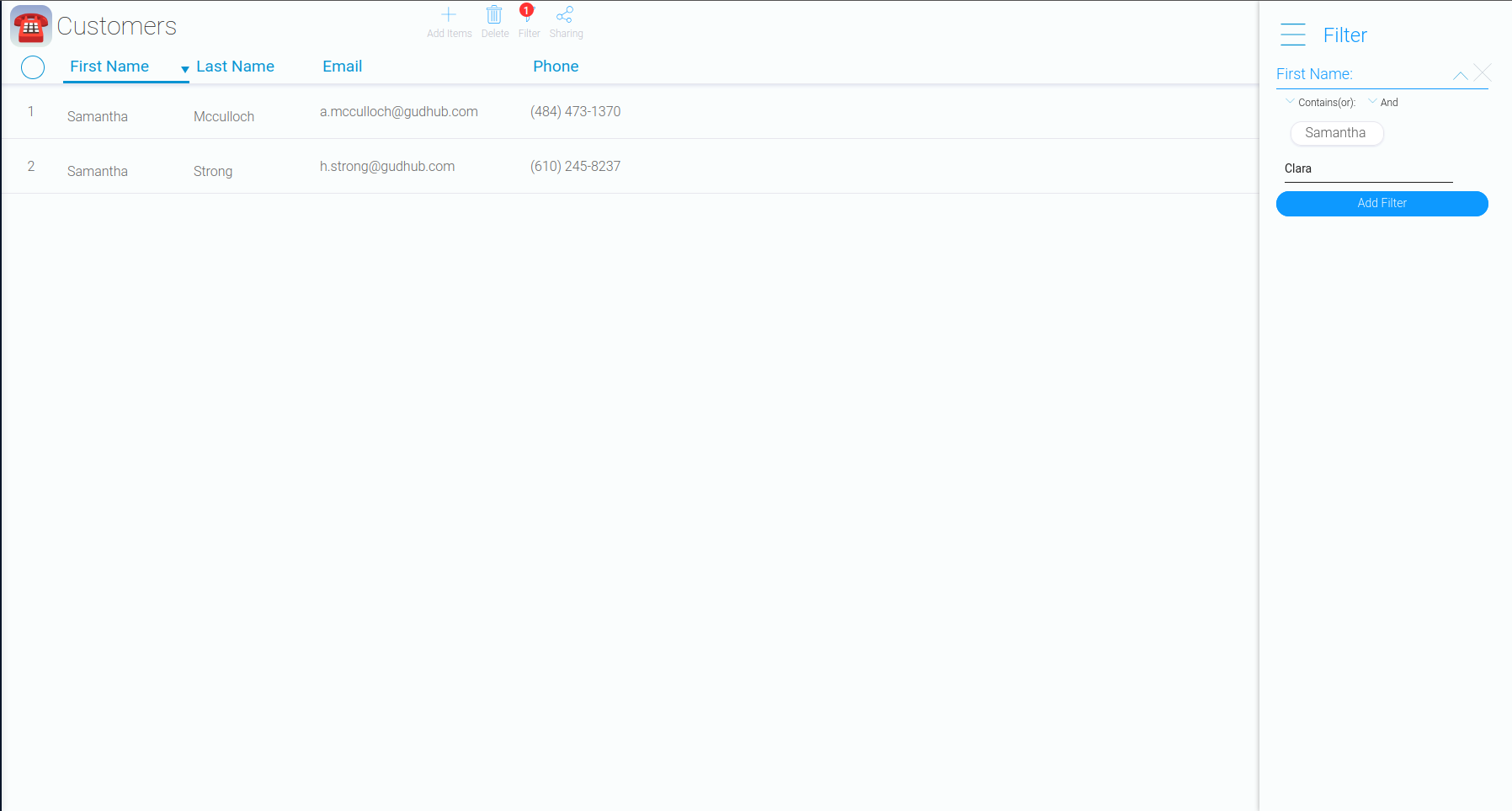
Thus, we tell the system: «Show customers whose name contains “Samantha” or “Clara”», and then specify: «Display in the table customers whose name contains both “Samantha” and “Clara”».
The filtered results are displayed automatically in the main list.
Deleting Records #
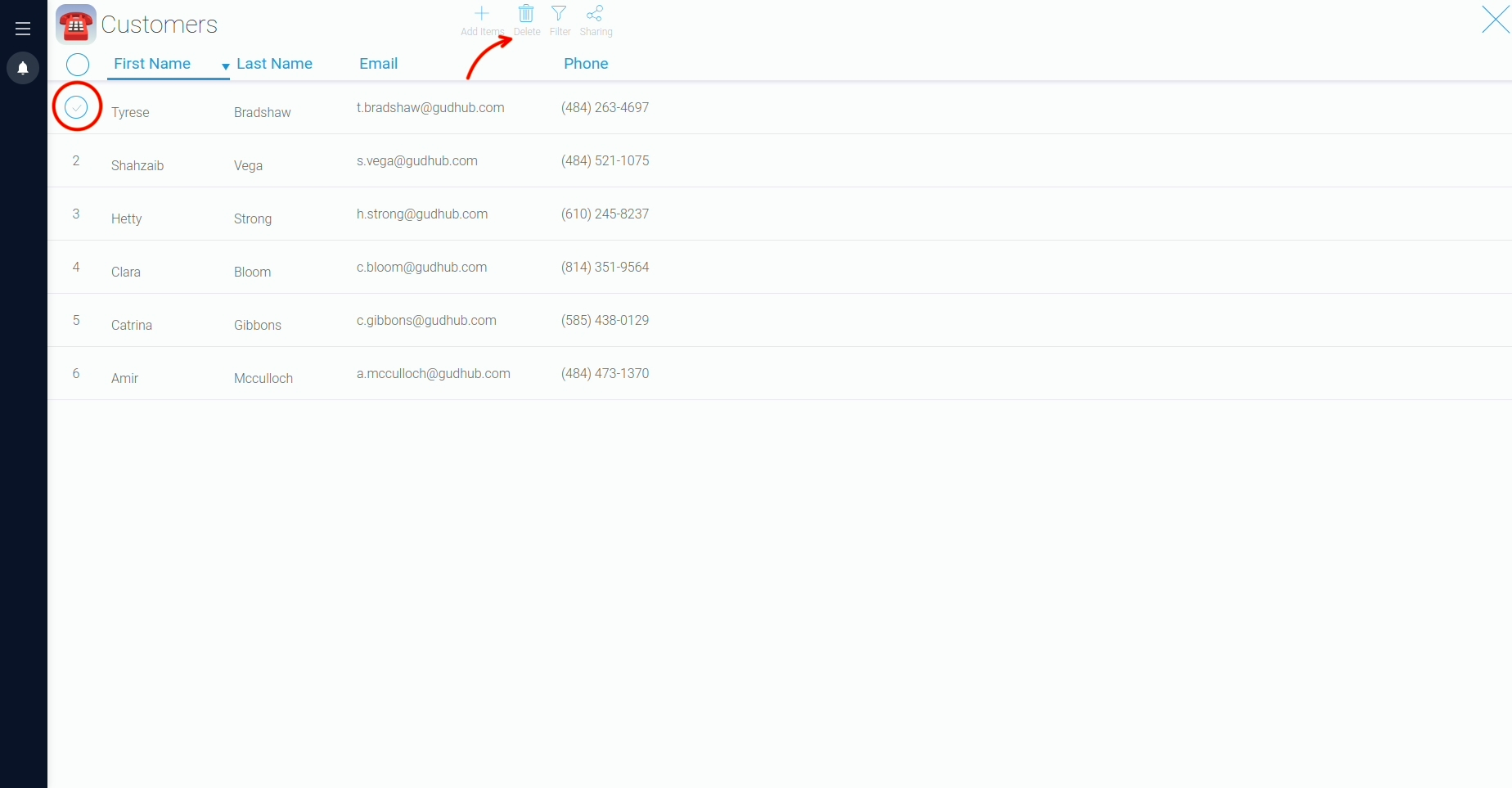
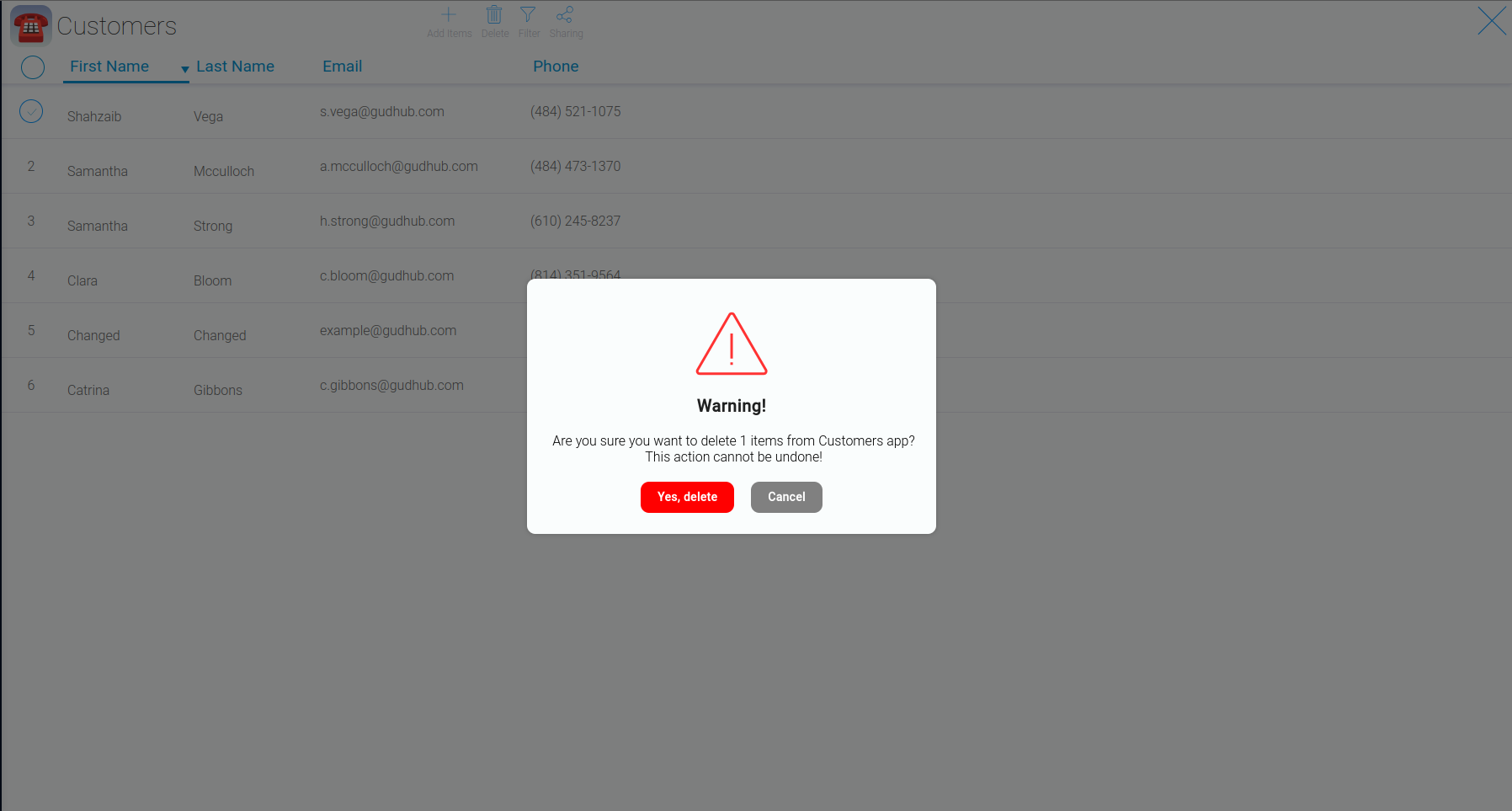
To delete a record, hover over its row number and select the corresponding row. Then click "Delete".