Deleting Elements from an App
#
In GudHub, there are two ways to delete elements from an app. Although both actions are referred to as “deleting,” they have different results: the first removes an element from view, while the second permanently removes it from the app.
Before you learn how to delete elements, check out our previous guide on adding new elements to an app.
The First Way to Delete Elements from an App
#
The first method removes an element from view while keeping it available in the app.
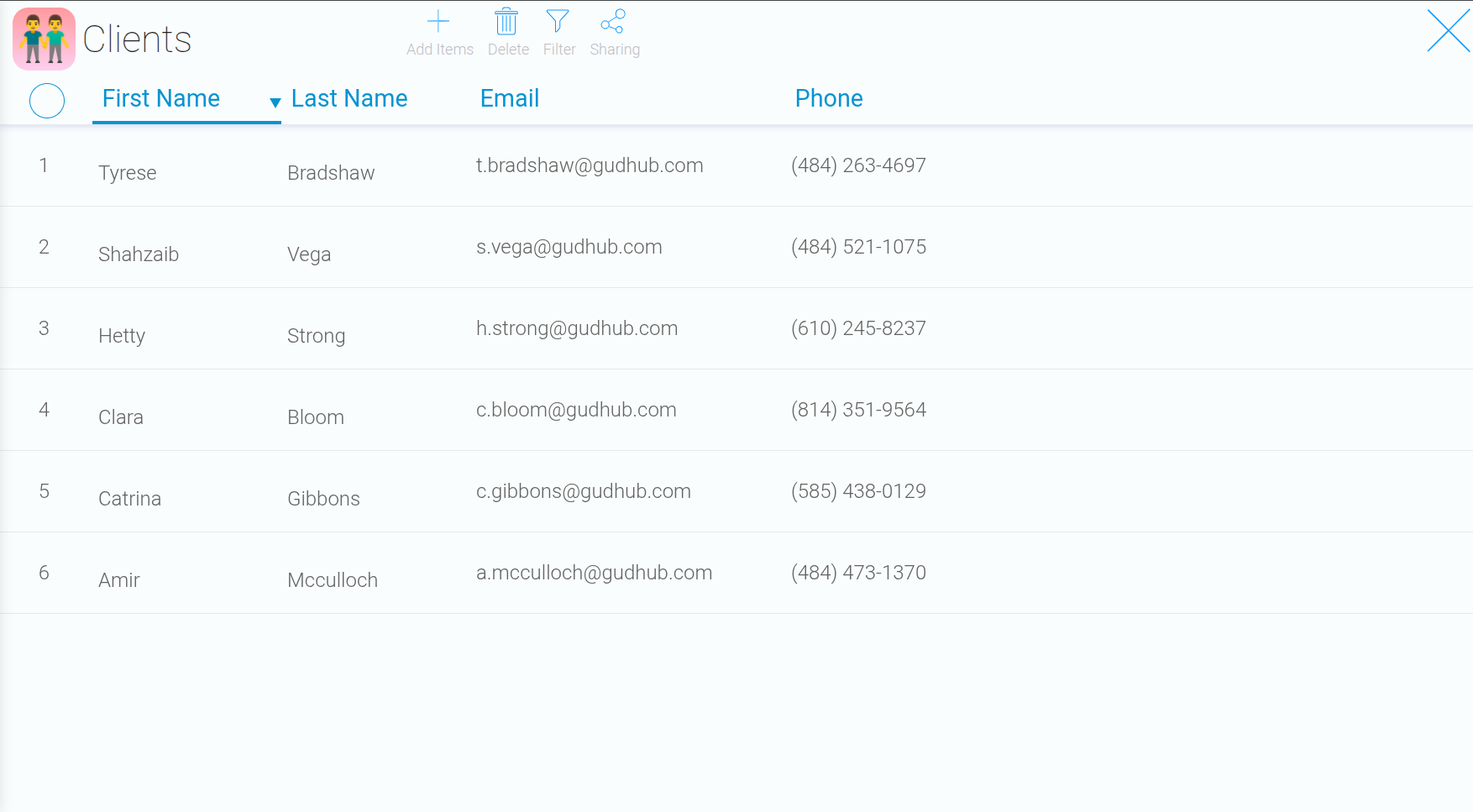
To get started, open the app you want to edit.
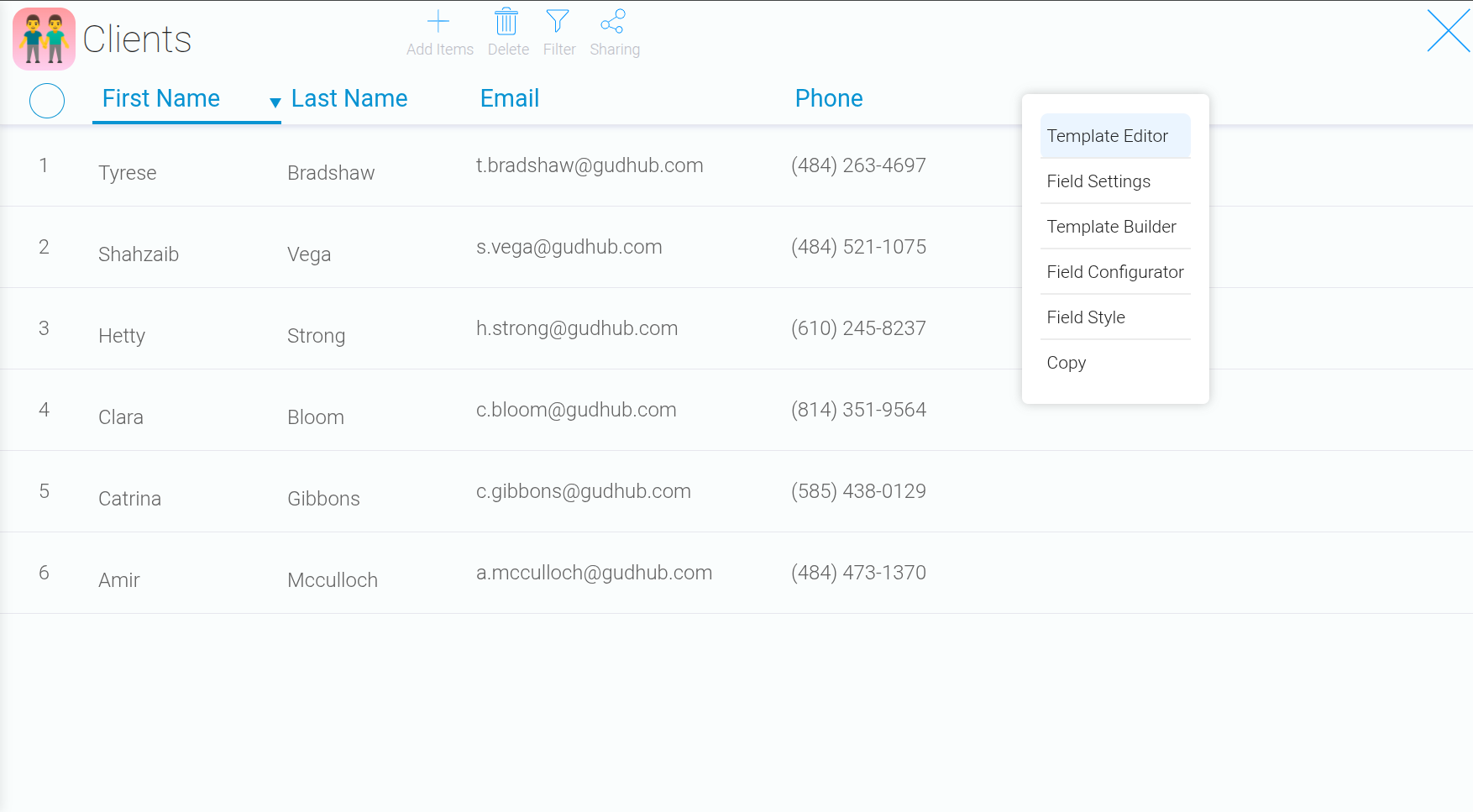
 Then right-click anywhere in the workspace and select “Template Editor”.
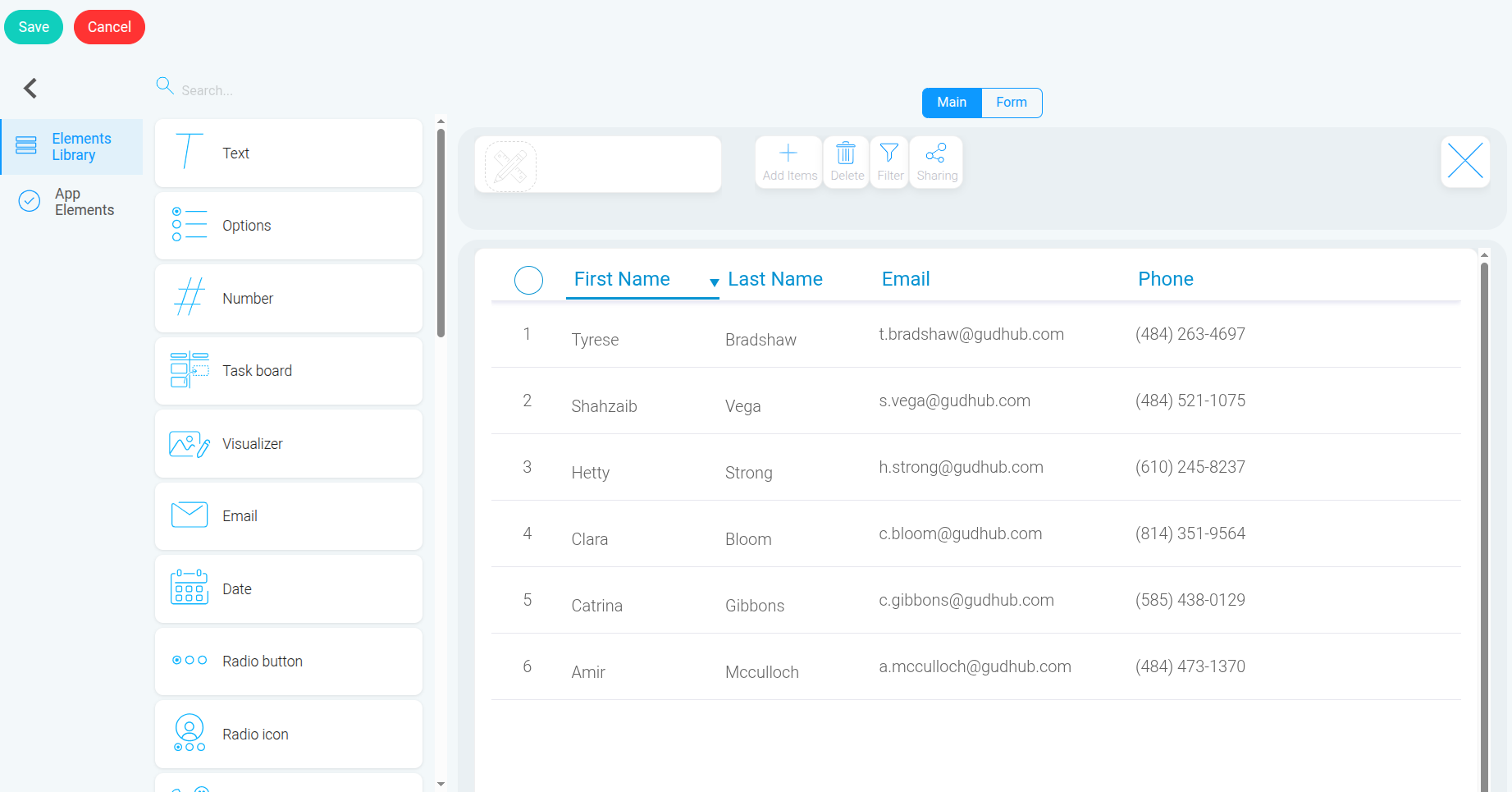
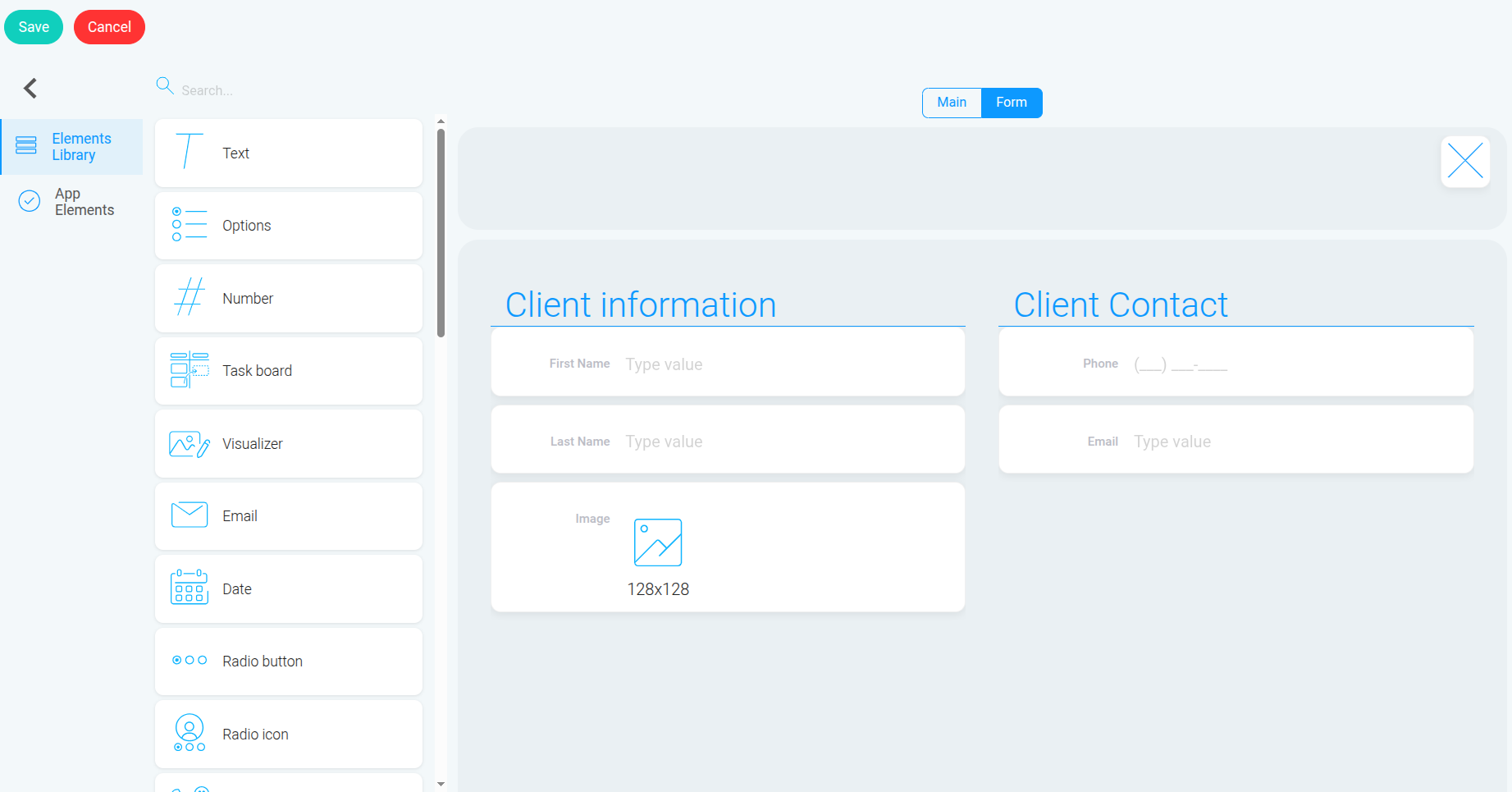
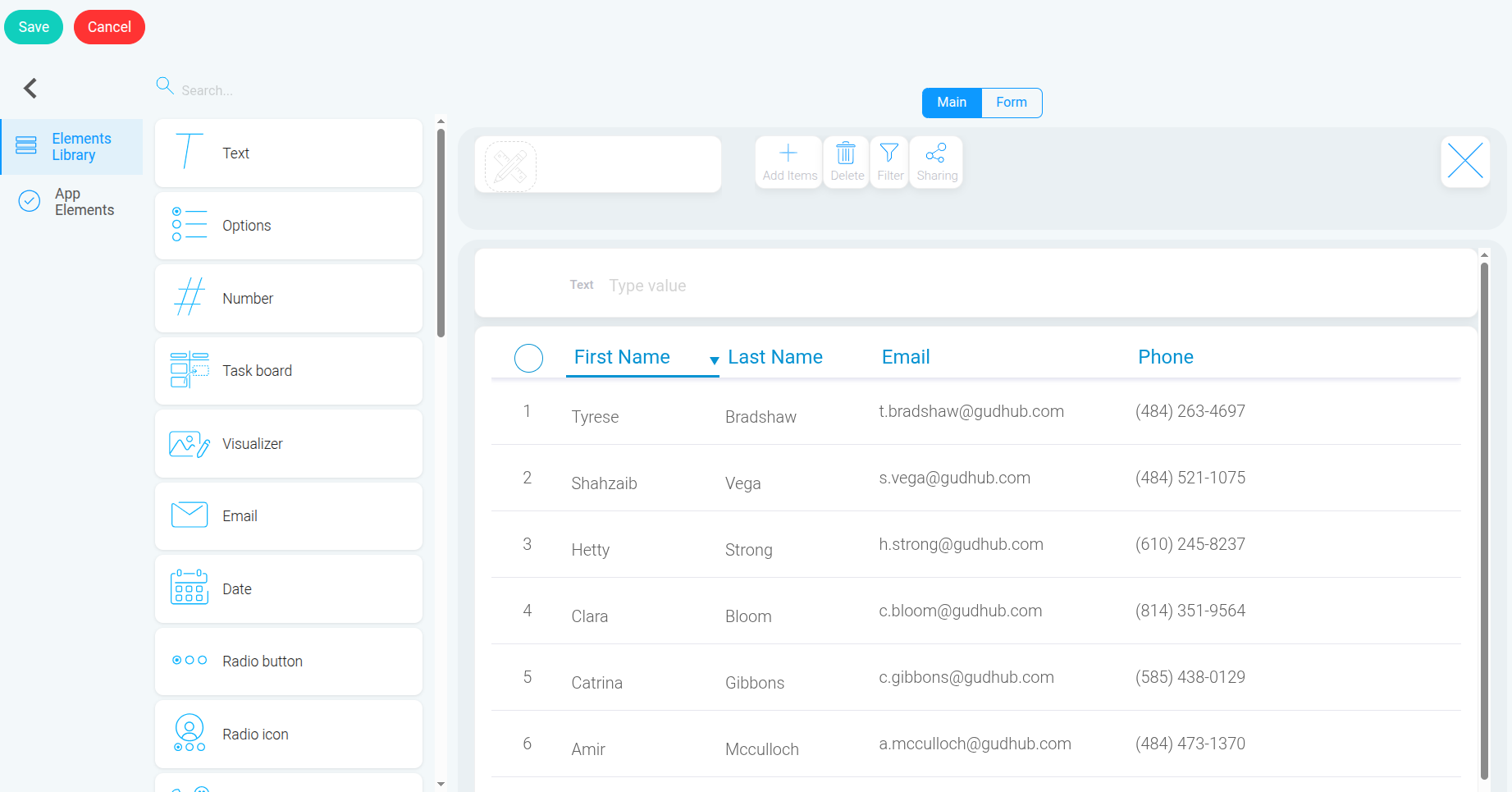
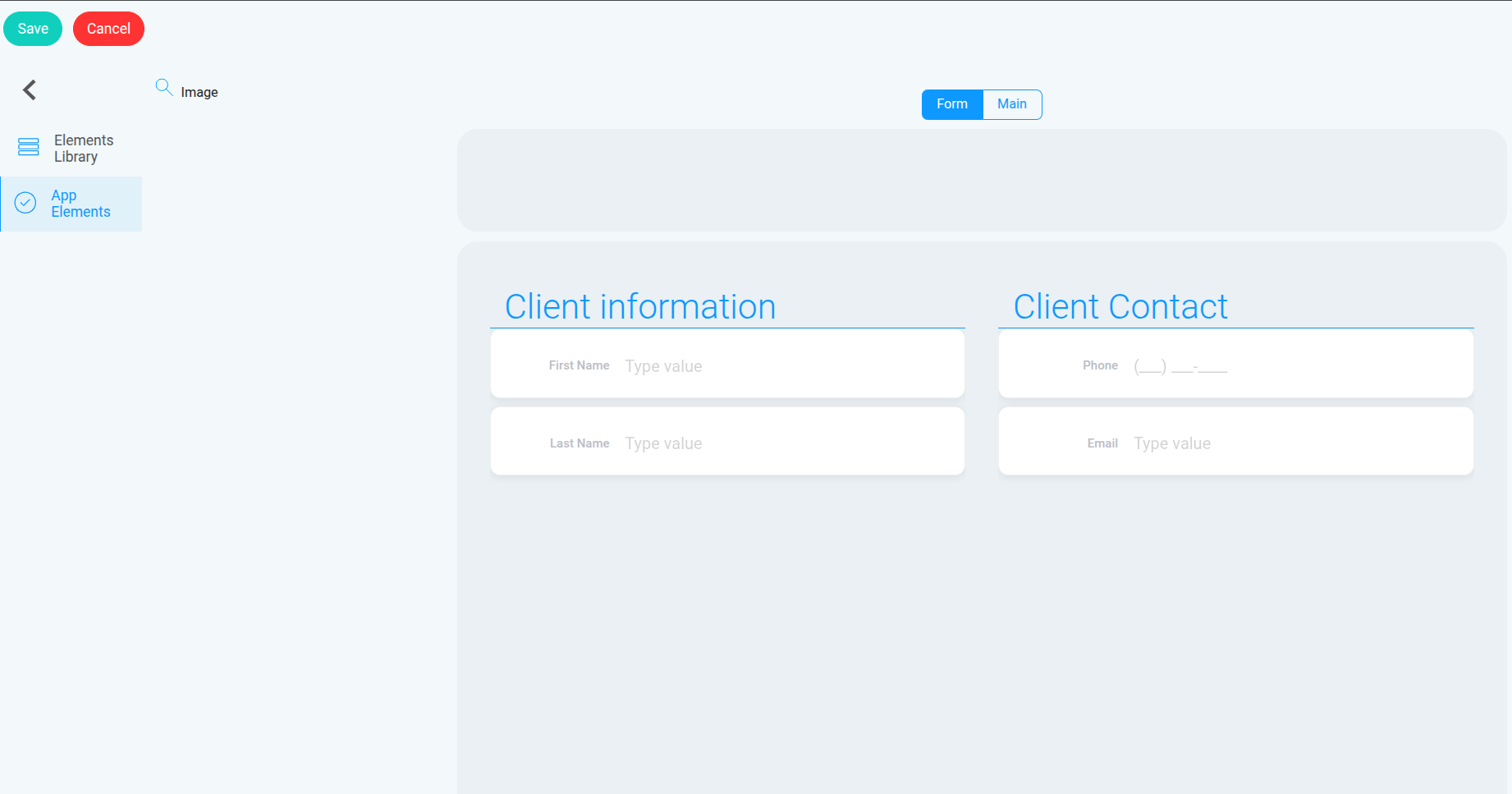
 Pay attention to the “Main” and “Form” tabs.
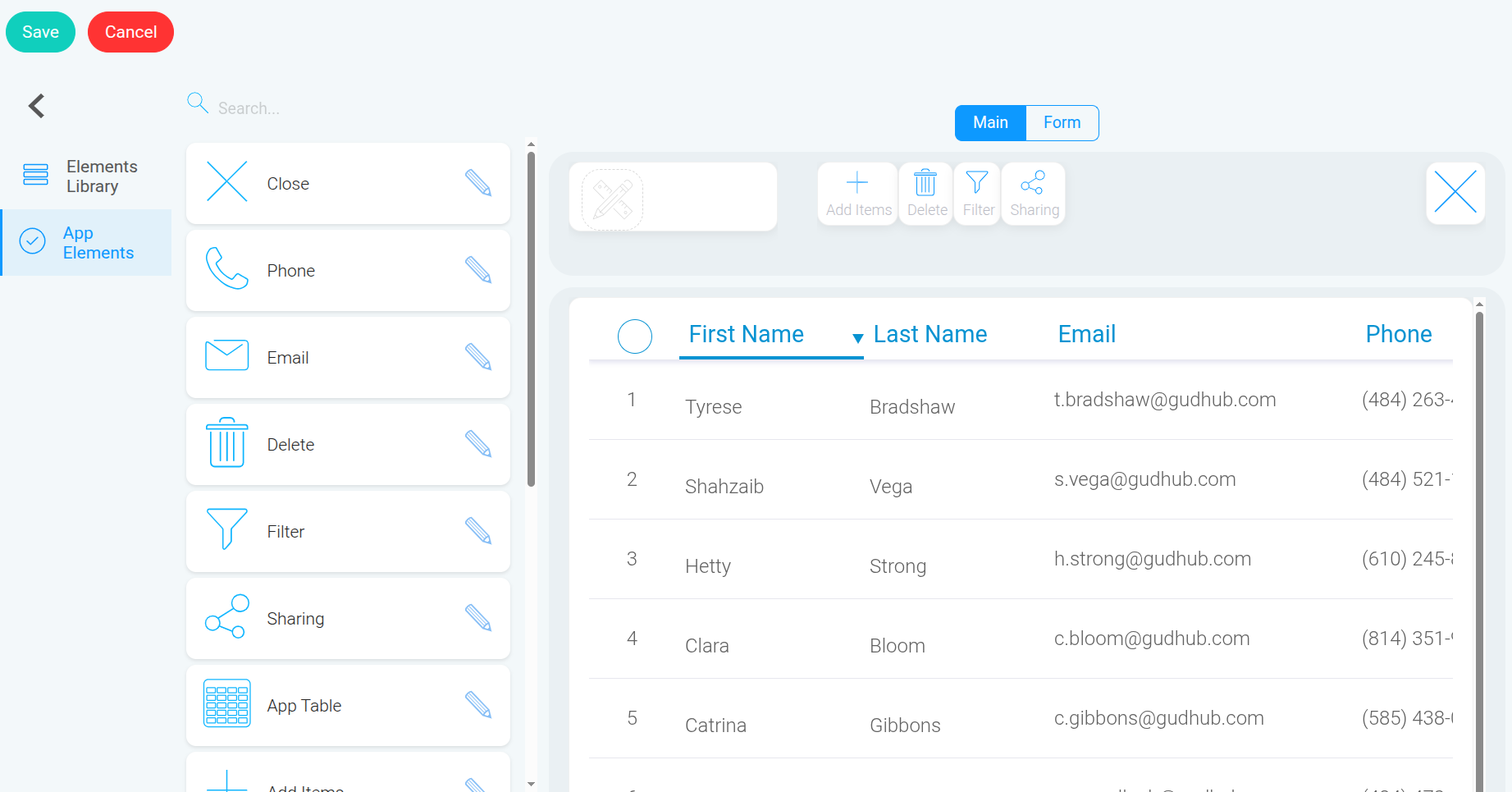
The “Main” tab contains the elements displayed on the app’s main page.
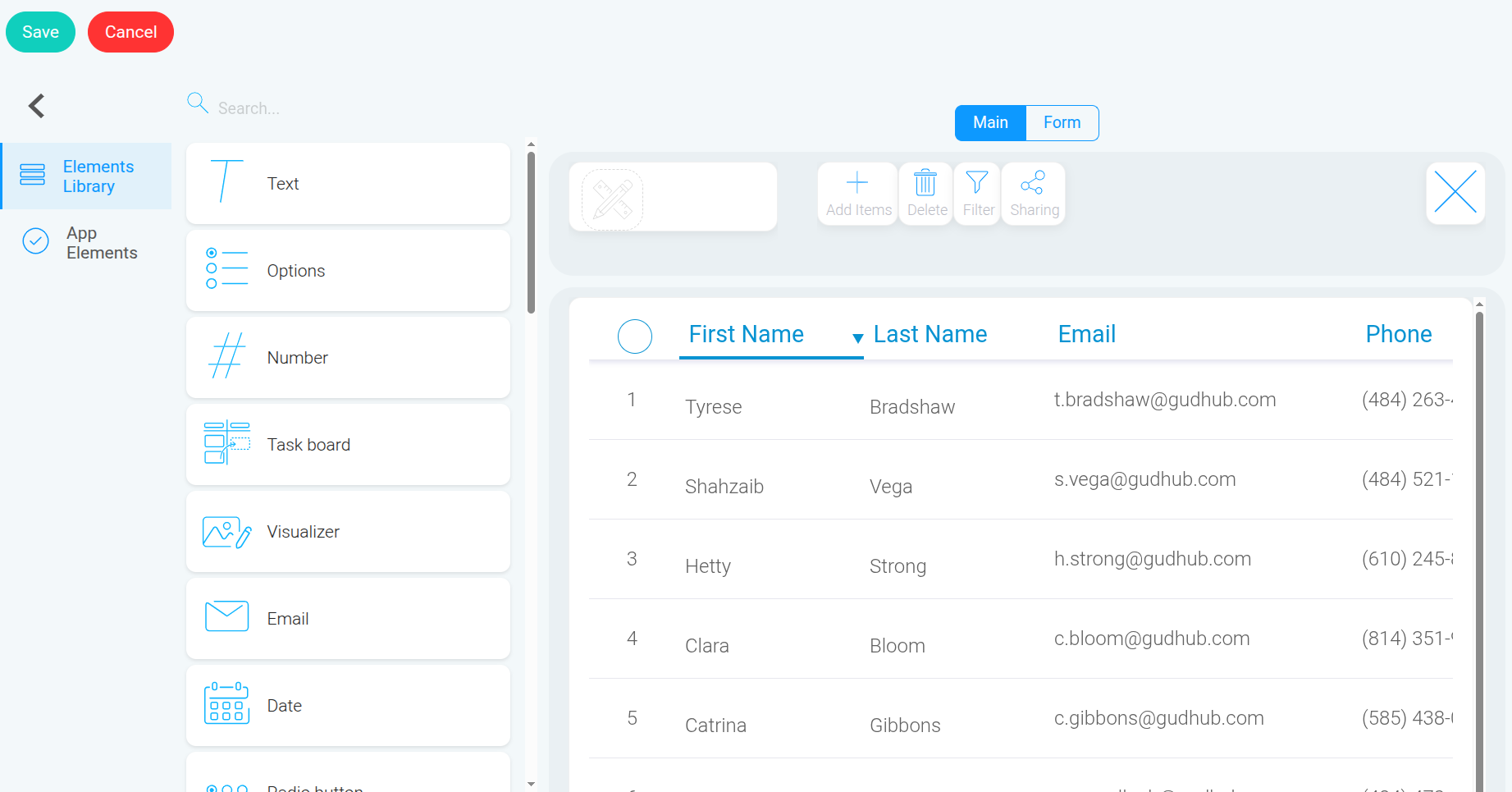
Pay attention to the “Main” and “Form” tabs.
The “Main” tab contains the elements displayed on the app’s main page.
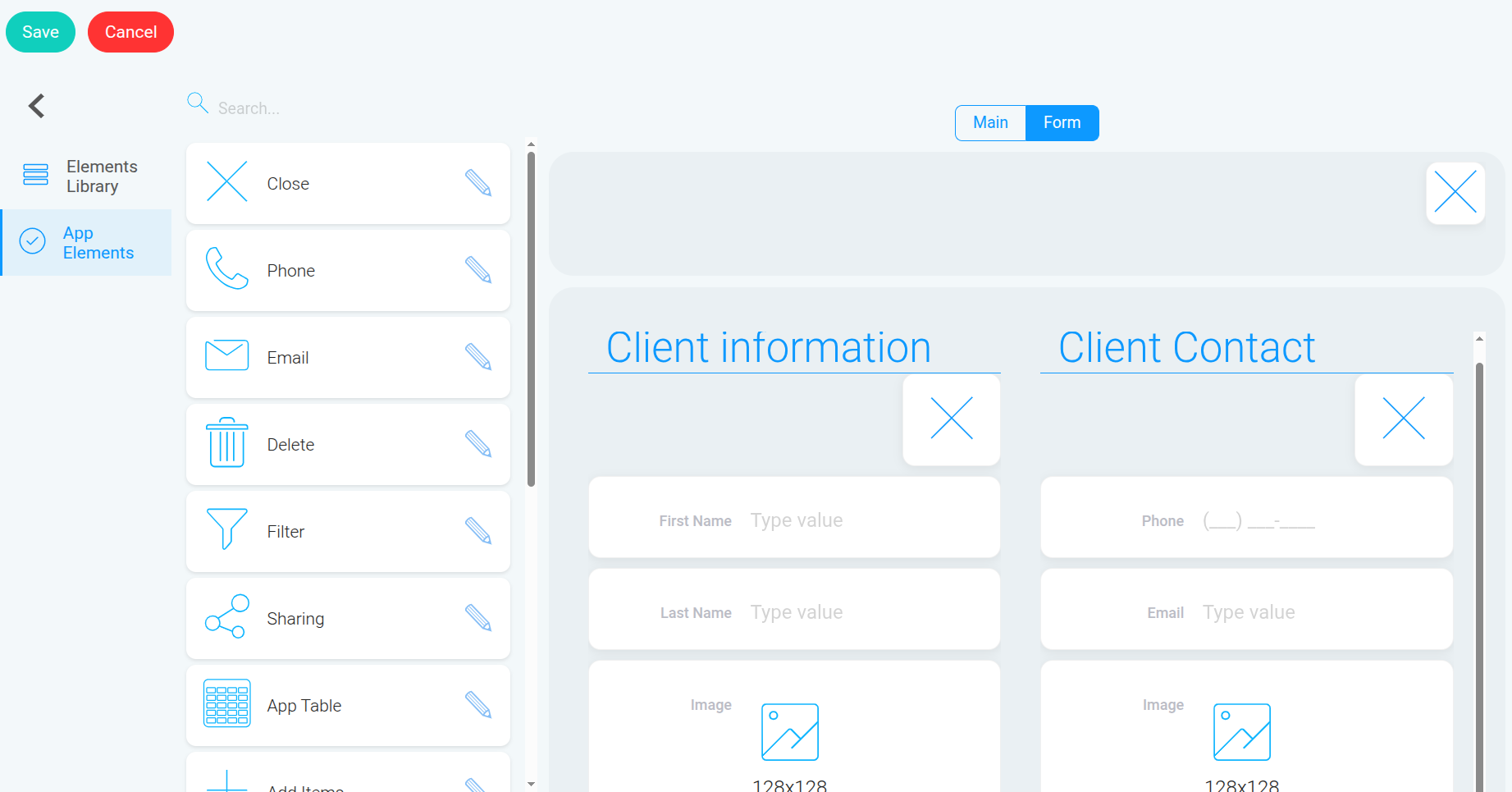
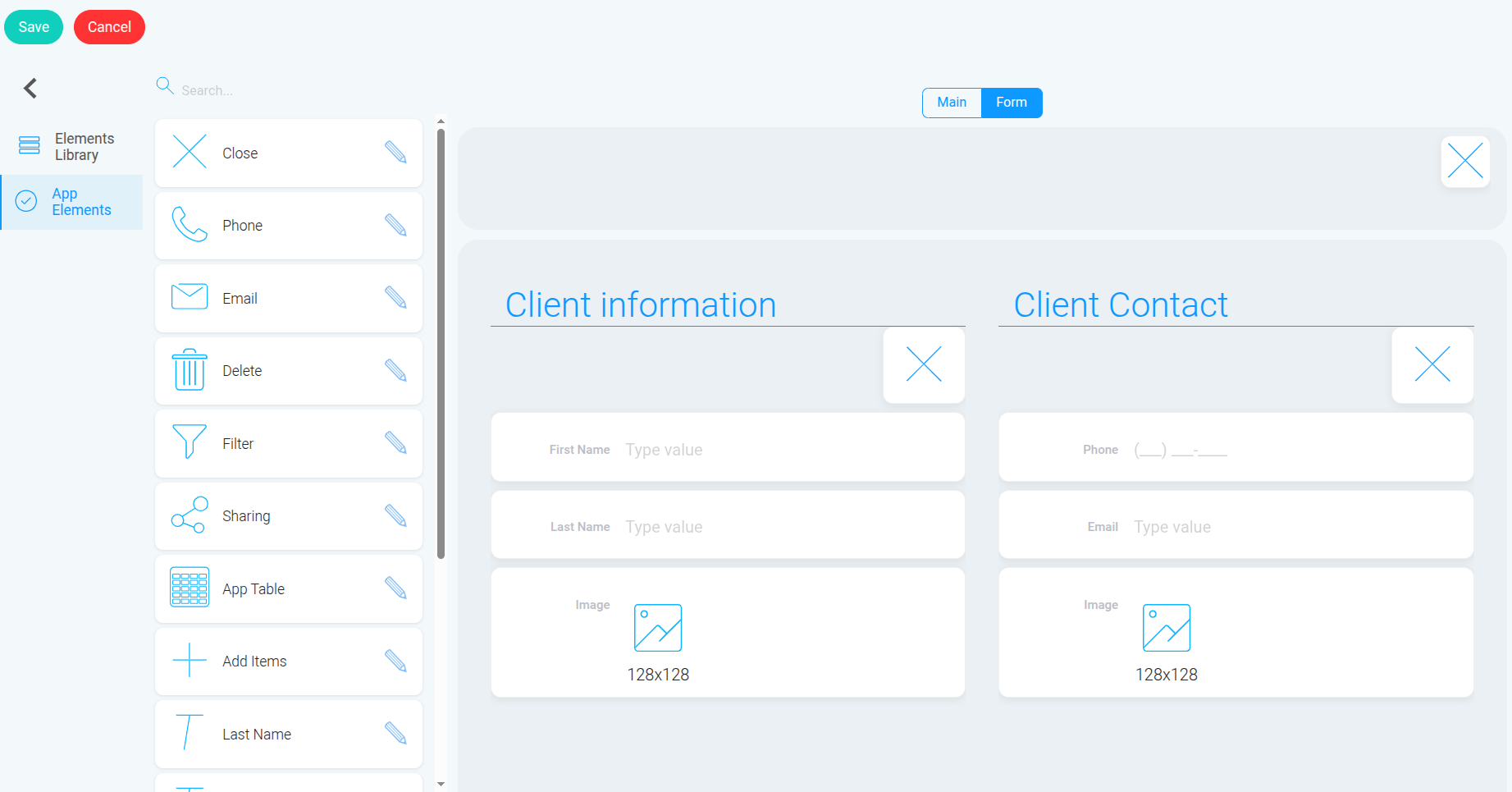
 The “Form” is a nested window within “Main” that contains the elements displayed in the detailed view of a selected record. In our example, this is the individual client card you open by selecting a client from the main list.
 As an example, let’s delete the “Text” element from the “Main” tab.
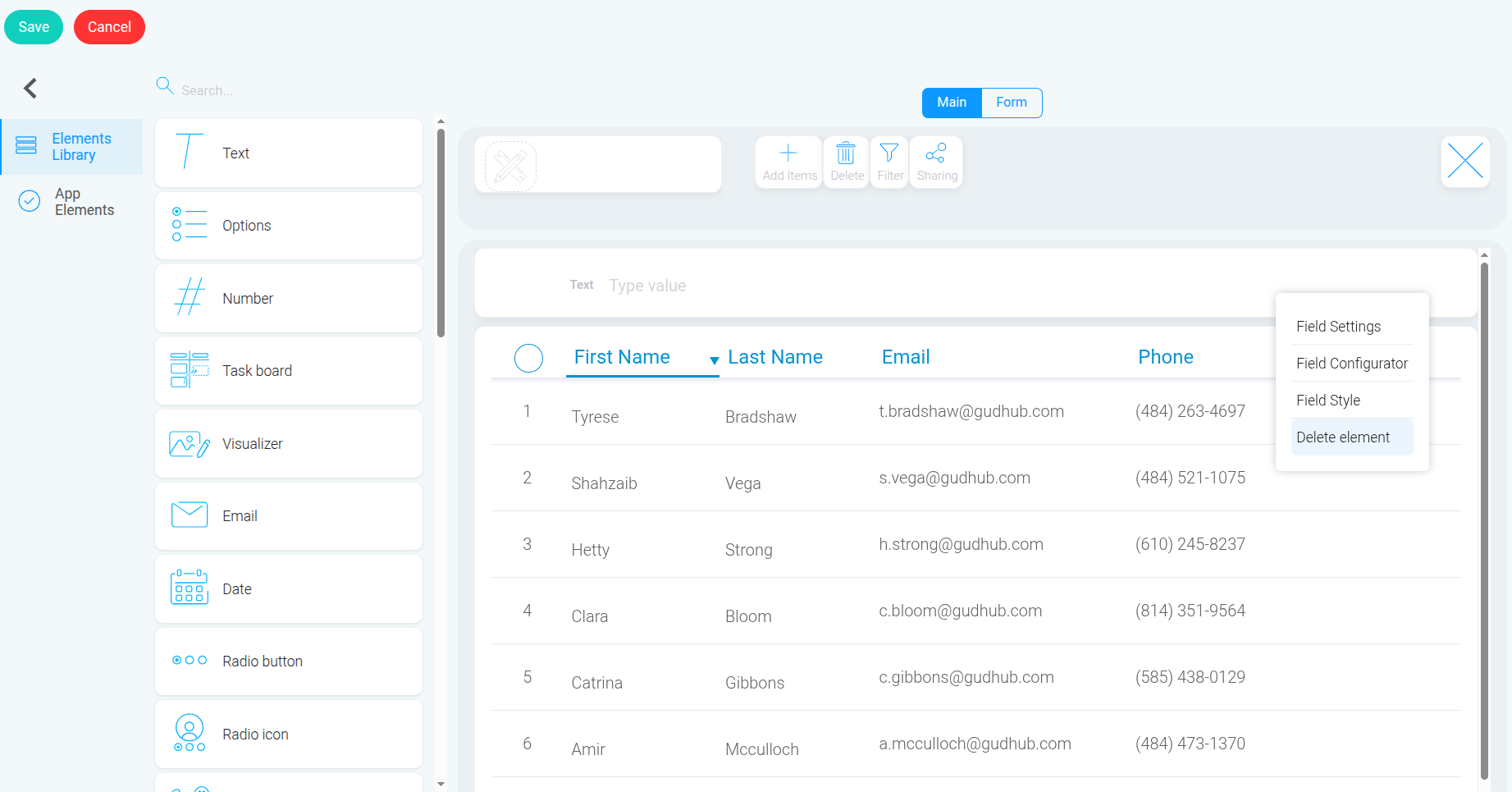
 Right-click the element you want to remove and select “Delete Element”.
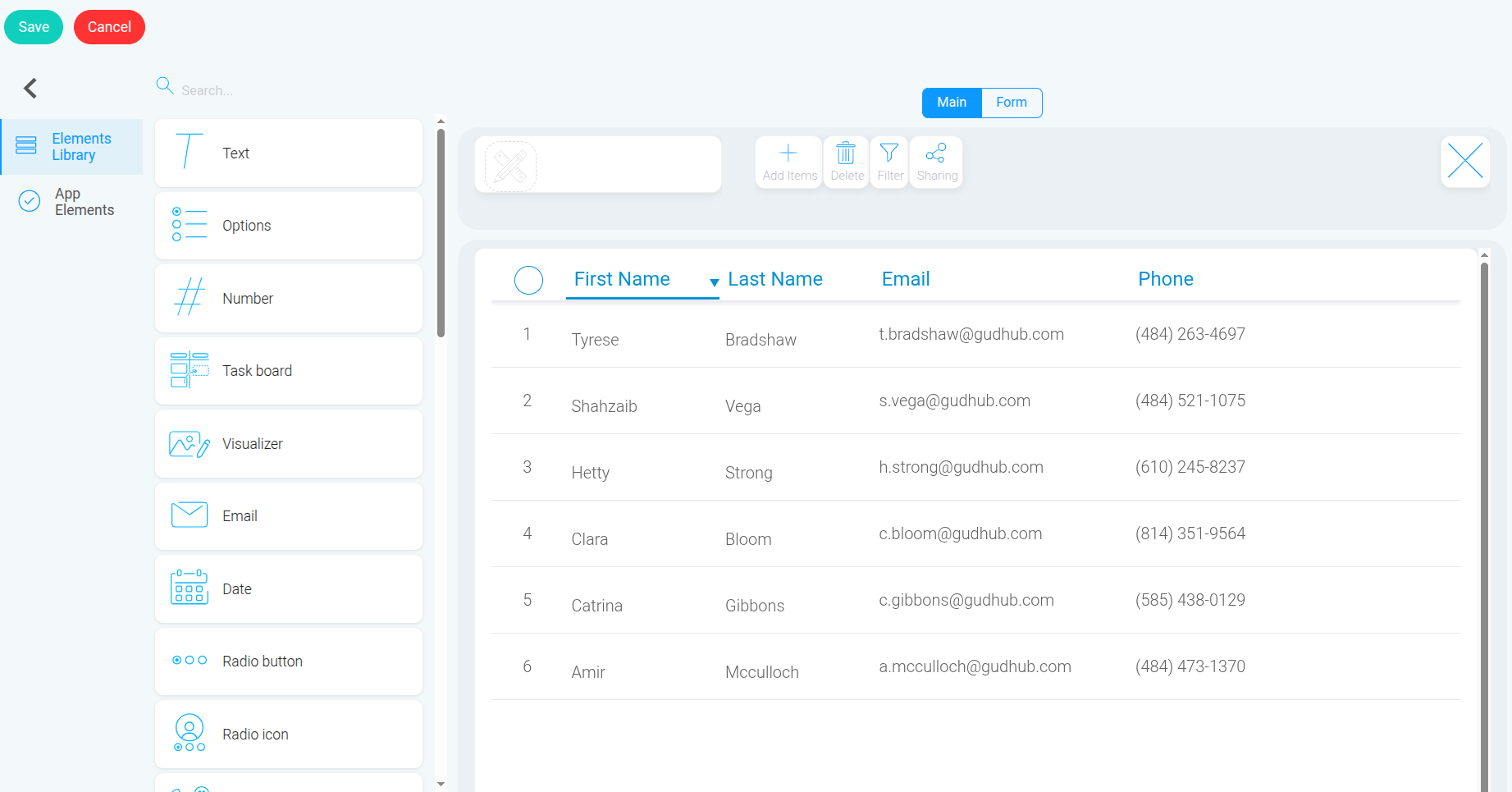
 The element is now removed from view in the “Main” tab.
However, take a look at the “Elements Library” and “App Elements” sections.
The “Elements Library” contains all the elements available for use in the app.
The element is now removed from view in the “Main” tab.
However, take a look at the “Elements Library” and “App Elements” sections.
The “Elements Library” contains all the elements available for use in the app.
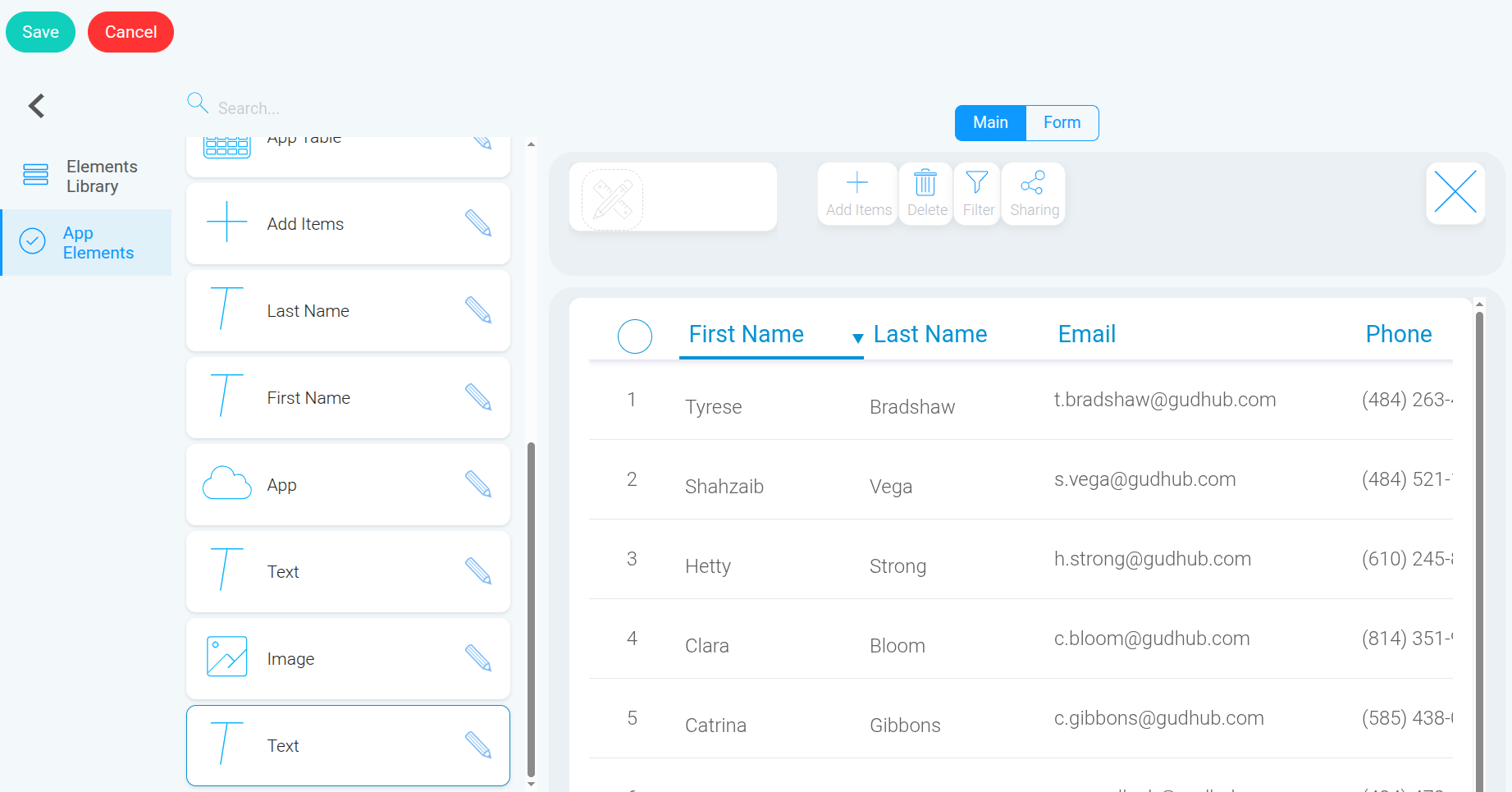
 The “App Elements” section contains the elements that have already been added to the specific app.
 Even after deleting the “Text” element using “Delete Element”, it still remains in the “App Elements” section.
 This means that the element has only been removed from the current view, not deleted from the app.
The second method is used when you want to permanently delete an element from the app.
This means that the element has only been removed from the current view, not deleted from the app.
The second method is used when you want to permanently delete an element from the app.
The Second Way to Delete Elements from an App
#
To permanently delete an element from the app, go to the “App Elements” section.
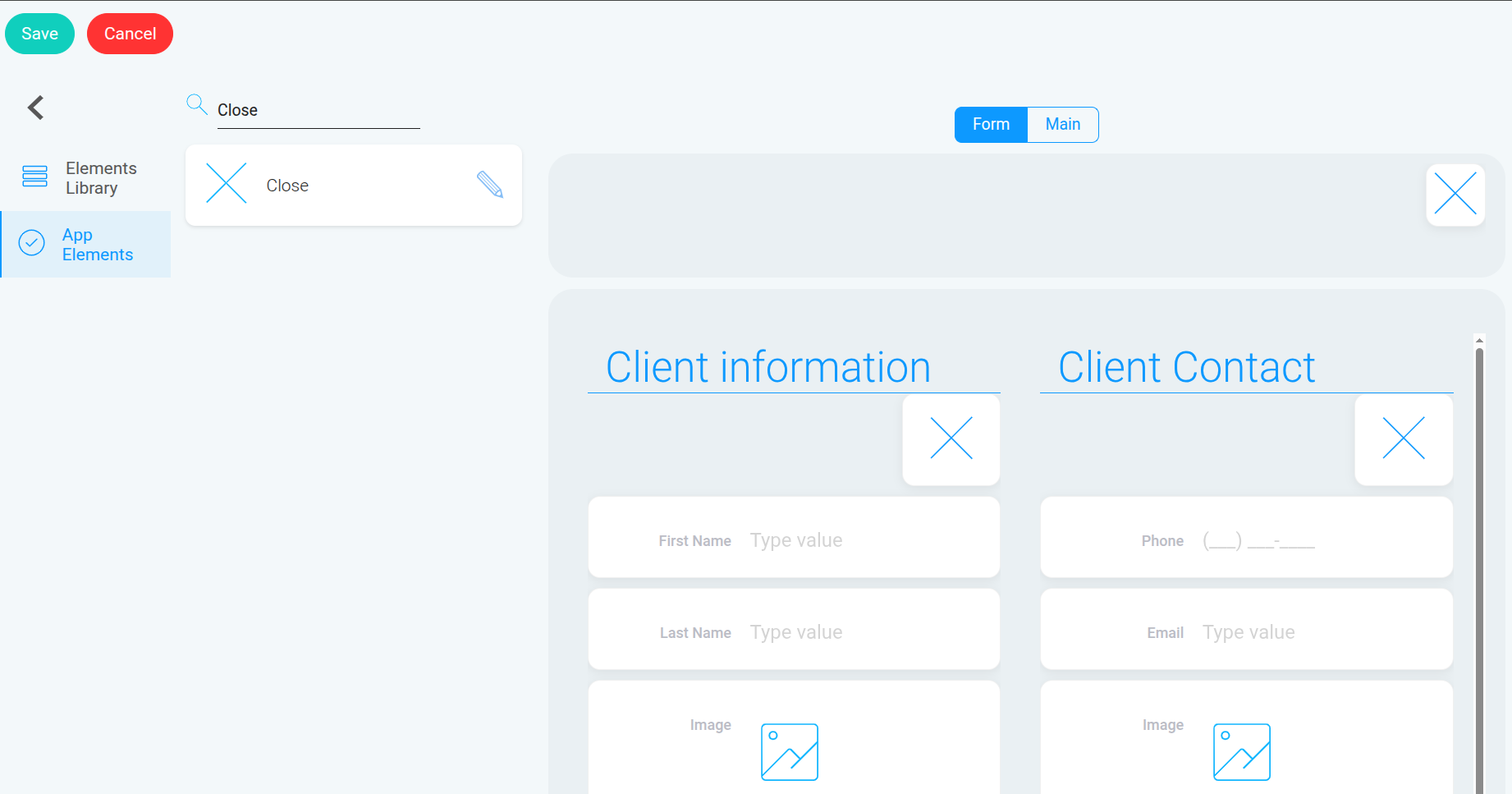
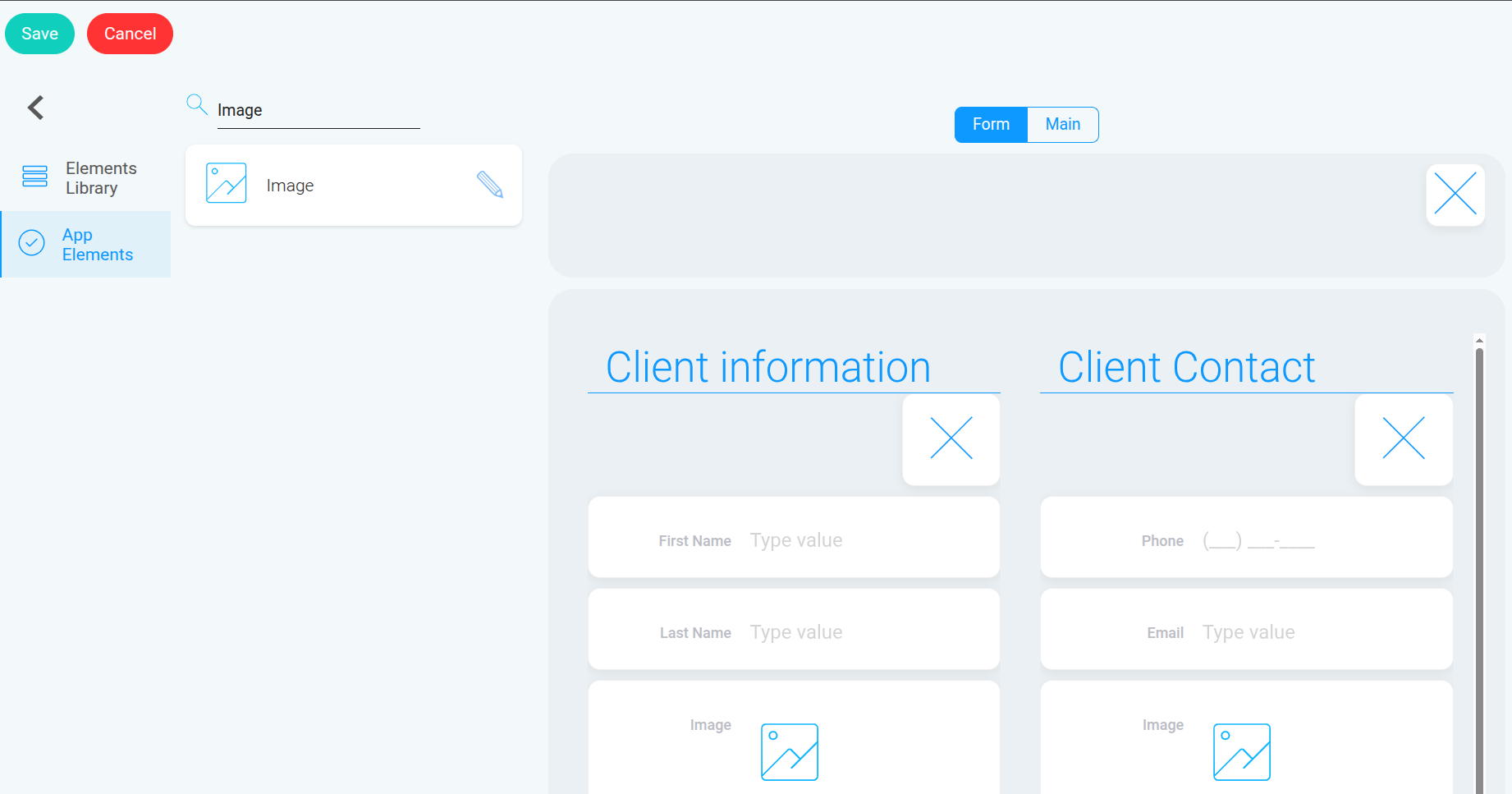
 As an example, let’s delete all “Image” and “Close” elements from the app.
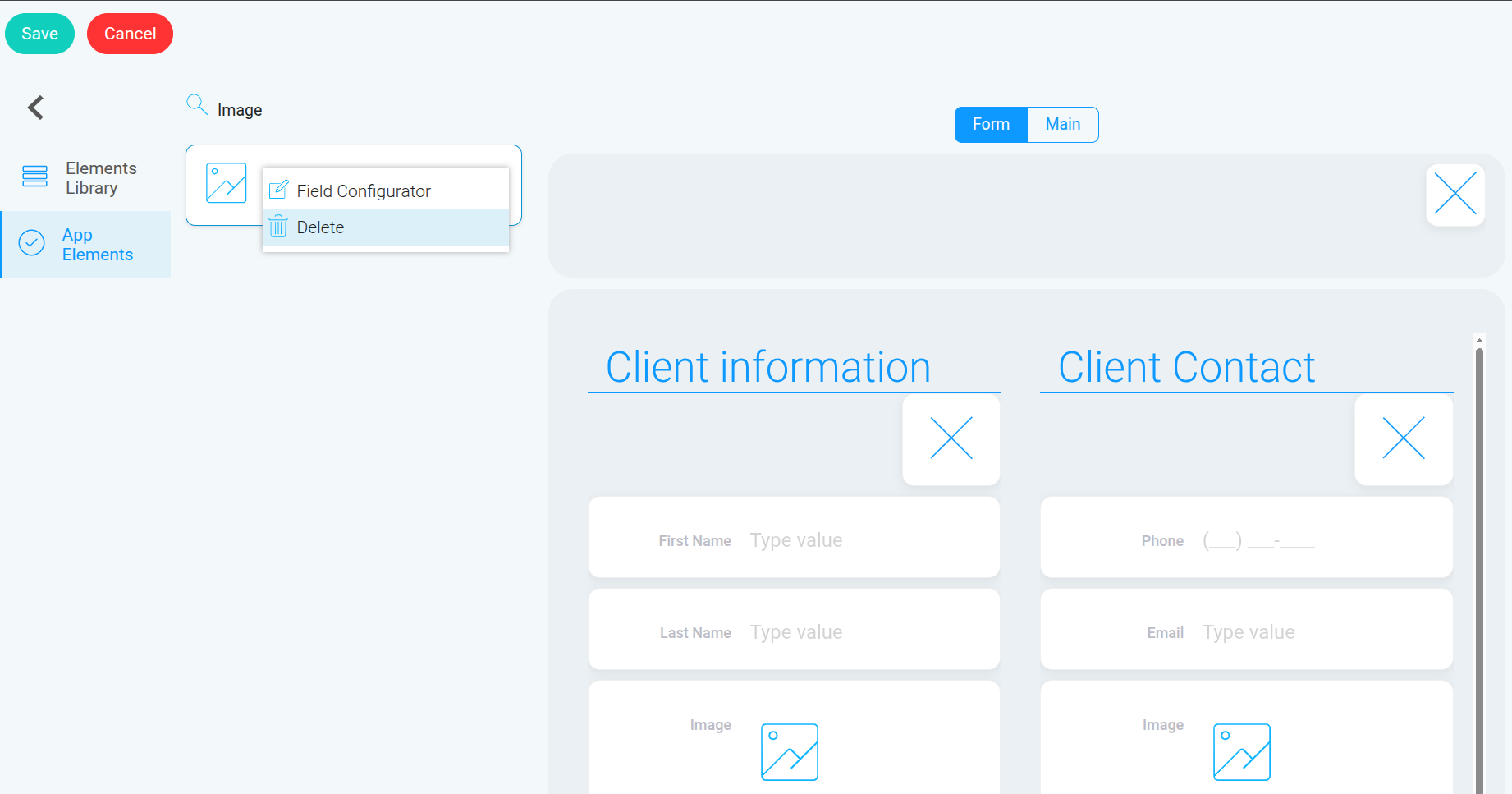
 Find the “Image” and “Close” elements in the “App Elements” section and click the edit icon for each one.

 Then click “Delete”.
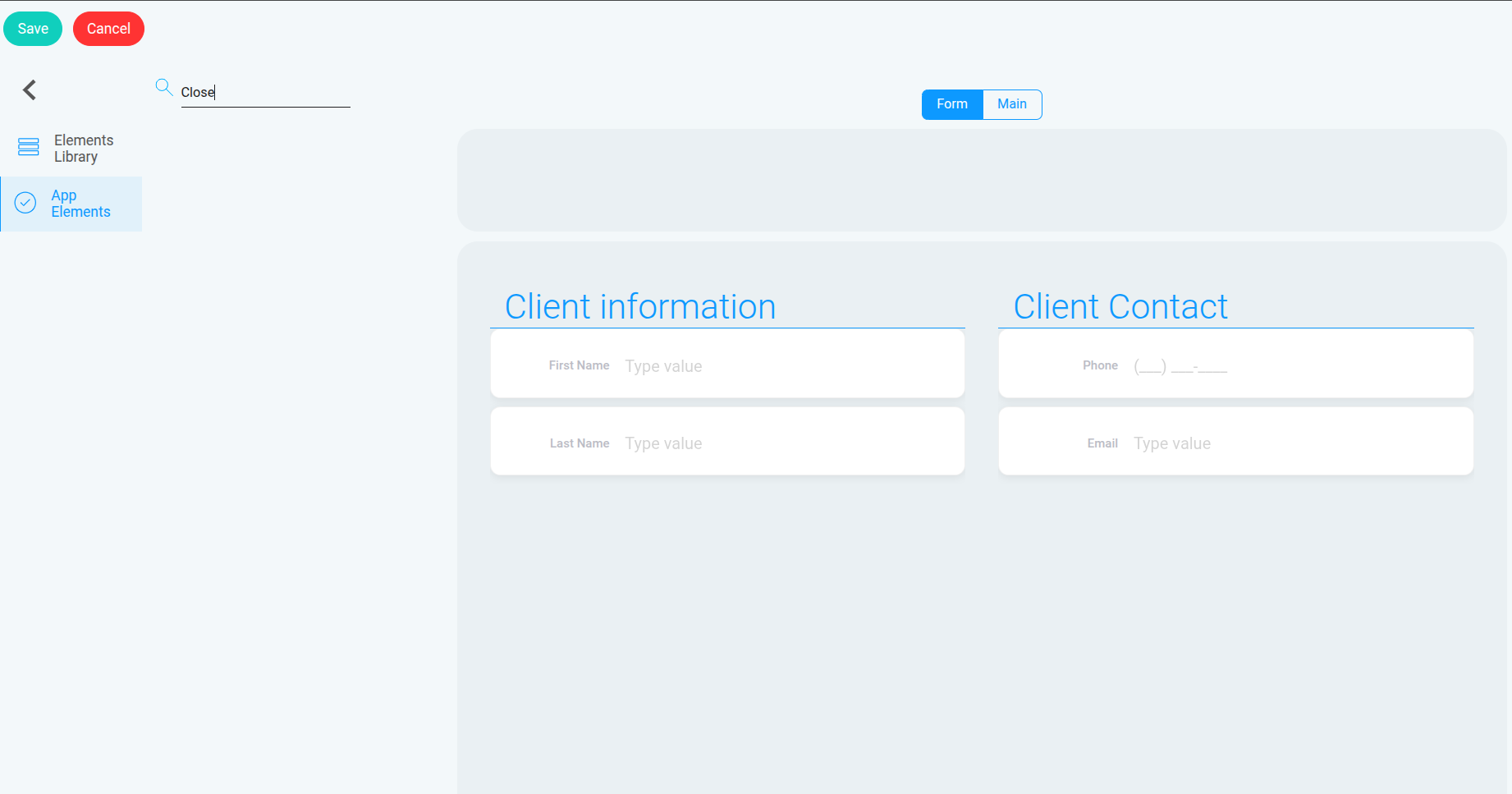
 Once deleted, the element will be removed from the app and will no longer appear in the “App Elements” section.

 To save your changes, click “Save”.
In GudHub, you can either remove an element from view while keeping it available in the app, or permanently delete it from the app through the “App Elements” section.
Choose the option that best fits your needs depending on whether you plan to use the element again in the future.
To save your changes, click “Save”.
In GudHub, you can either remove an element from view while keeping it available in the app, or permanently delete it from the app through the “App Elements” section.
Choose the option that best fits your needs depending on whether you plan to use the element again in the future.