How to Link Apps in a CRM: A Step-by-Step Guide Series #
In GudHub, apps can work together, share data, and perform tasks across the system. For example, one app can store customer information while another keeps track of customer visits.
In this step-by-step series, we’ll use a practical example to show you how to connect two apps in a CRM. We’ll create a separate “Visits” app, link it to the “Clients” app, and then set it up so each client’s visit history appears in their individual client record.
You can follow the guides in order, as each one builds on the previous guide and takes the setup one step further.
What This Series Covers #
- Creating and setting up an app for tracking customer visits.
- Connecting the apps.
- Exchanging data between apps.
- Displaying related information in a client record in the PRO version.
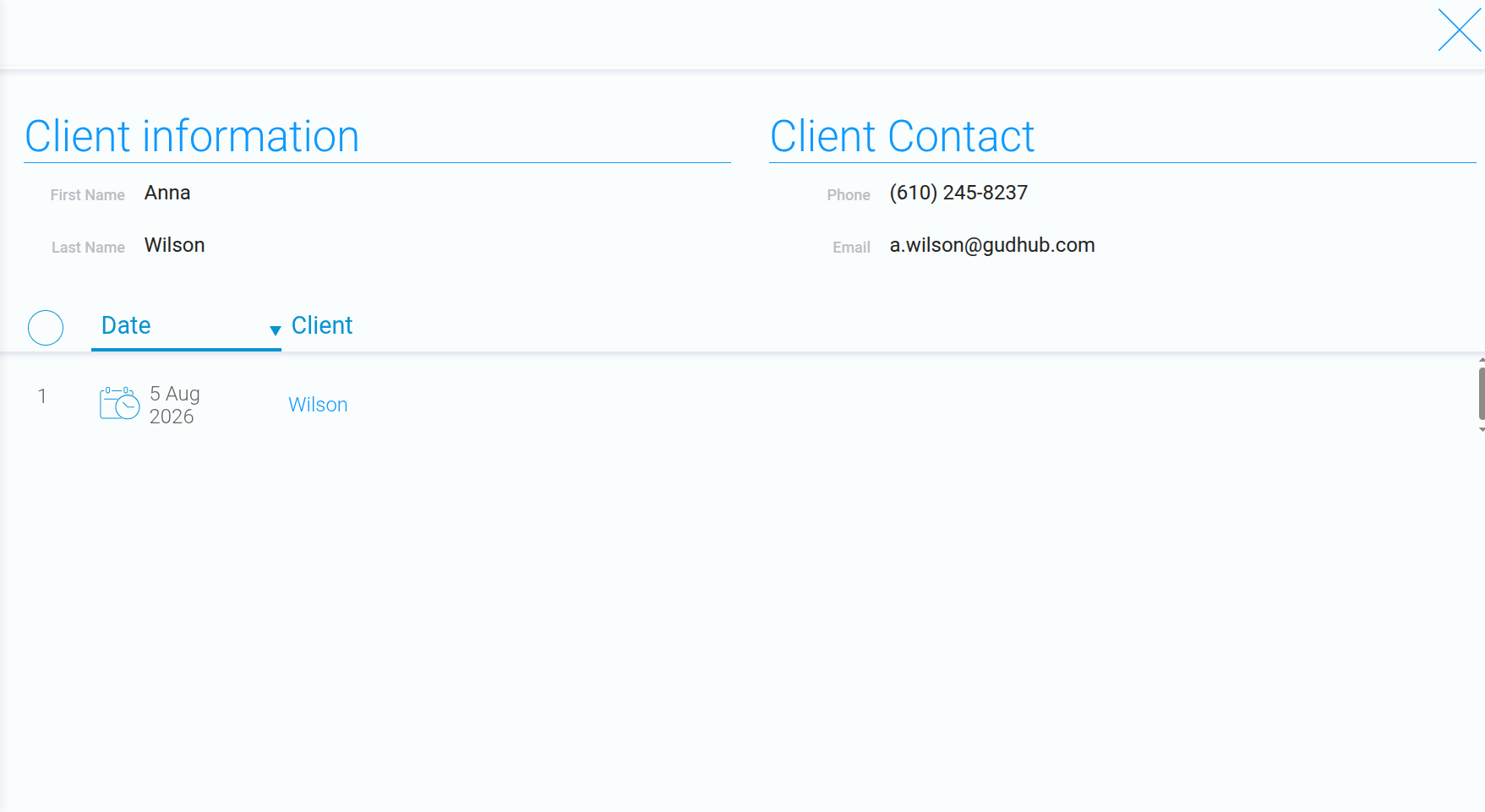
In the previous guides, we created a fully functional app for tracking customer visits. You can add new records, select a customer from the database, and record the date of each visit – no additional PRO settings are required.
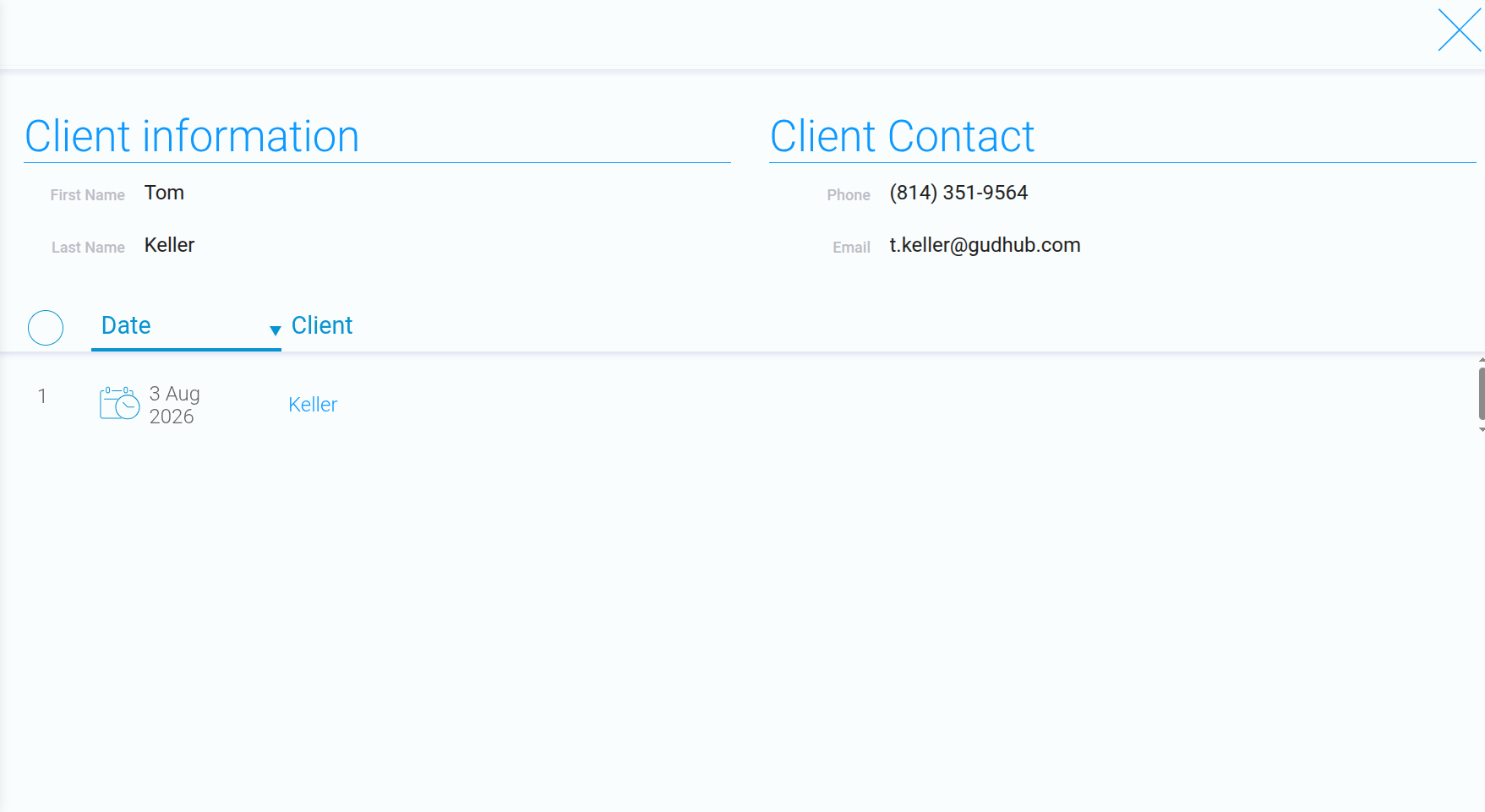
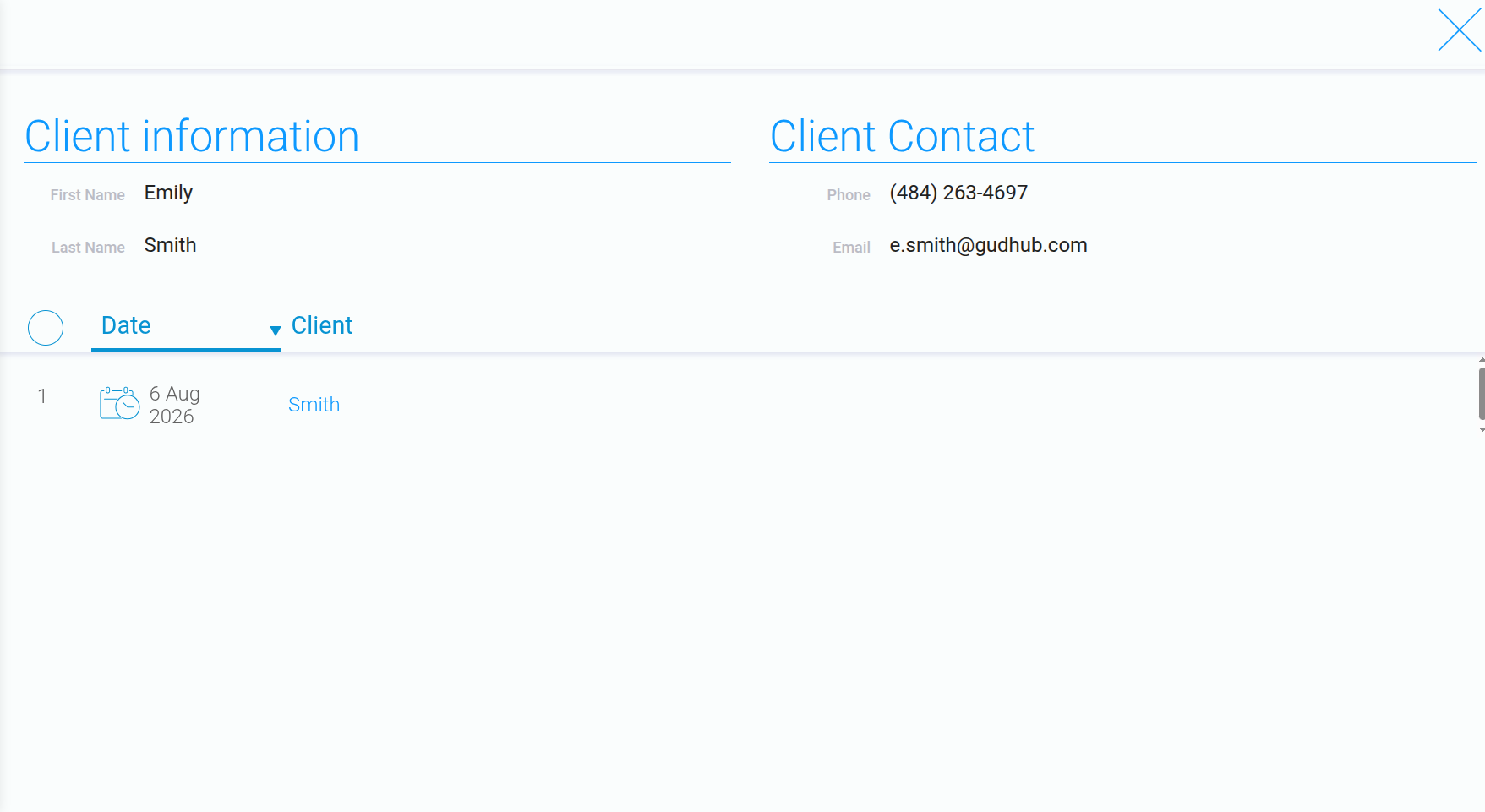
The PRO settings extend this connection by allowing the visit history to be displayed automatically in the individual client record in the “Clients” app.
In other words, the “Visits” app remains fully functional without these additional settings. The PRO version simply adds a convenient way to view related information in one place, without having to switch between apps.
Now, let’s set up the visit history to appear directly in each client’s record. To do this, we’ll add a separate section to the “Clients” app where data from the “Visits” app will be displayed.
Additional PRO Settings #
Step 1 #
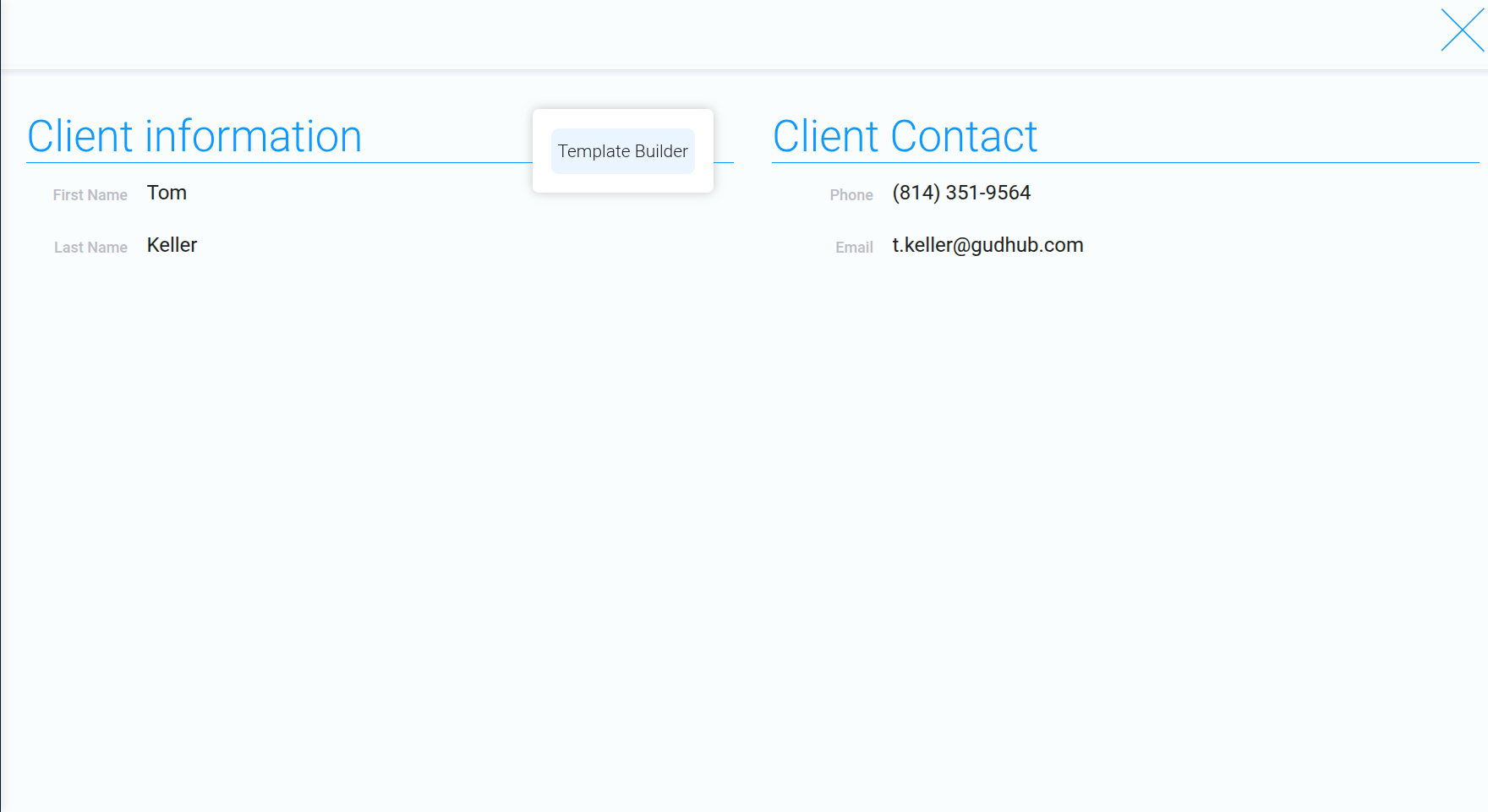
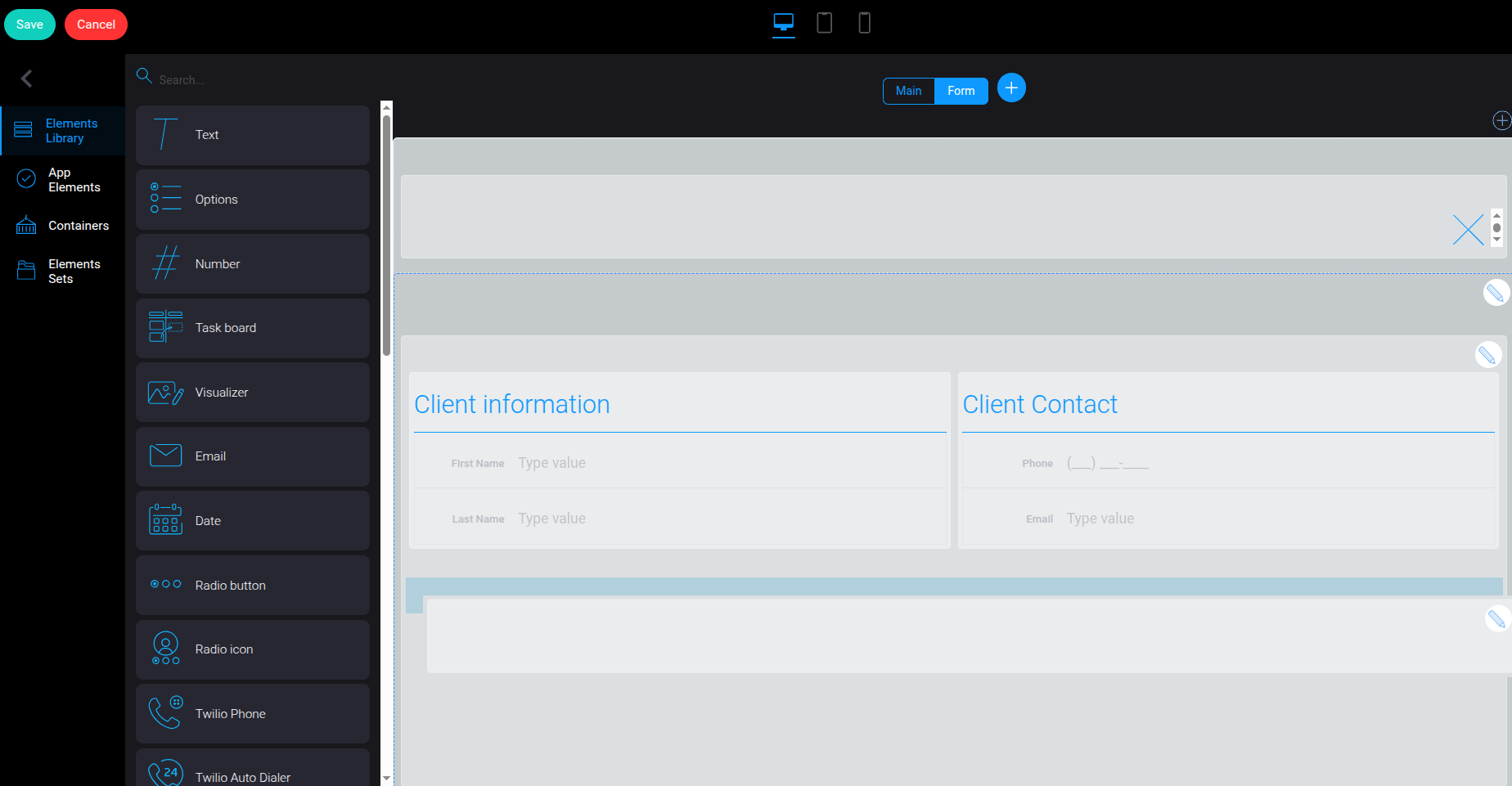
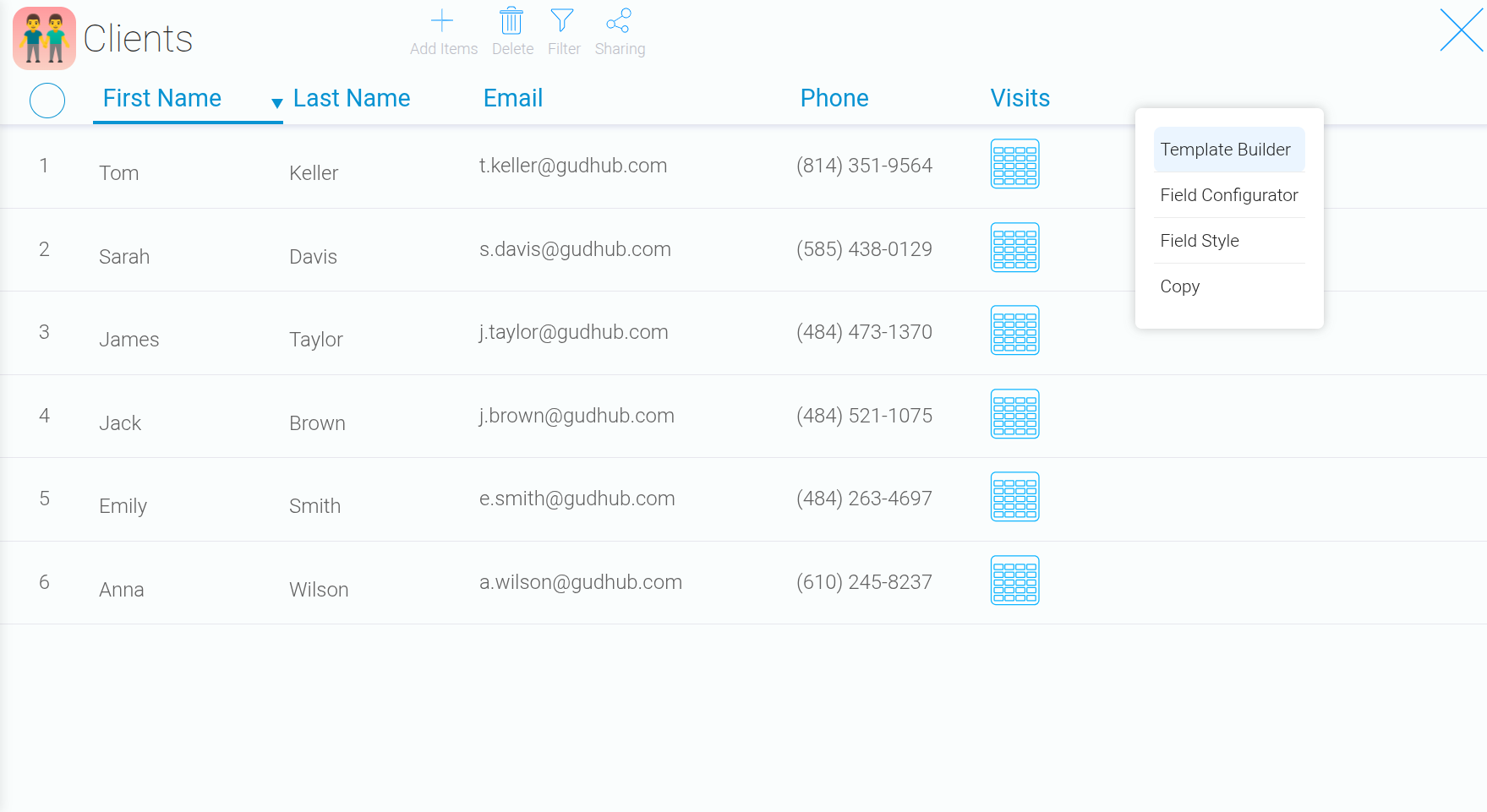
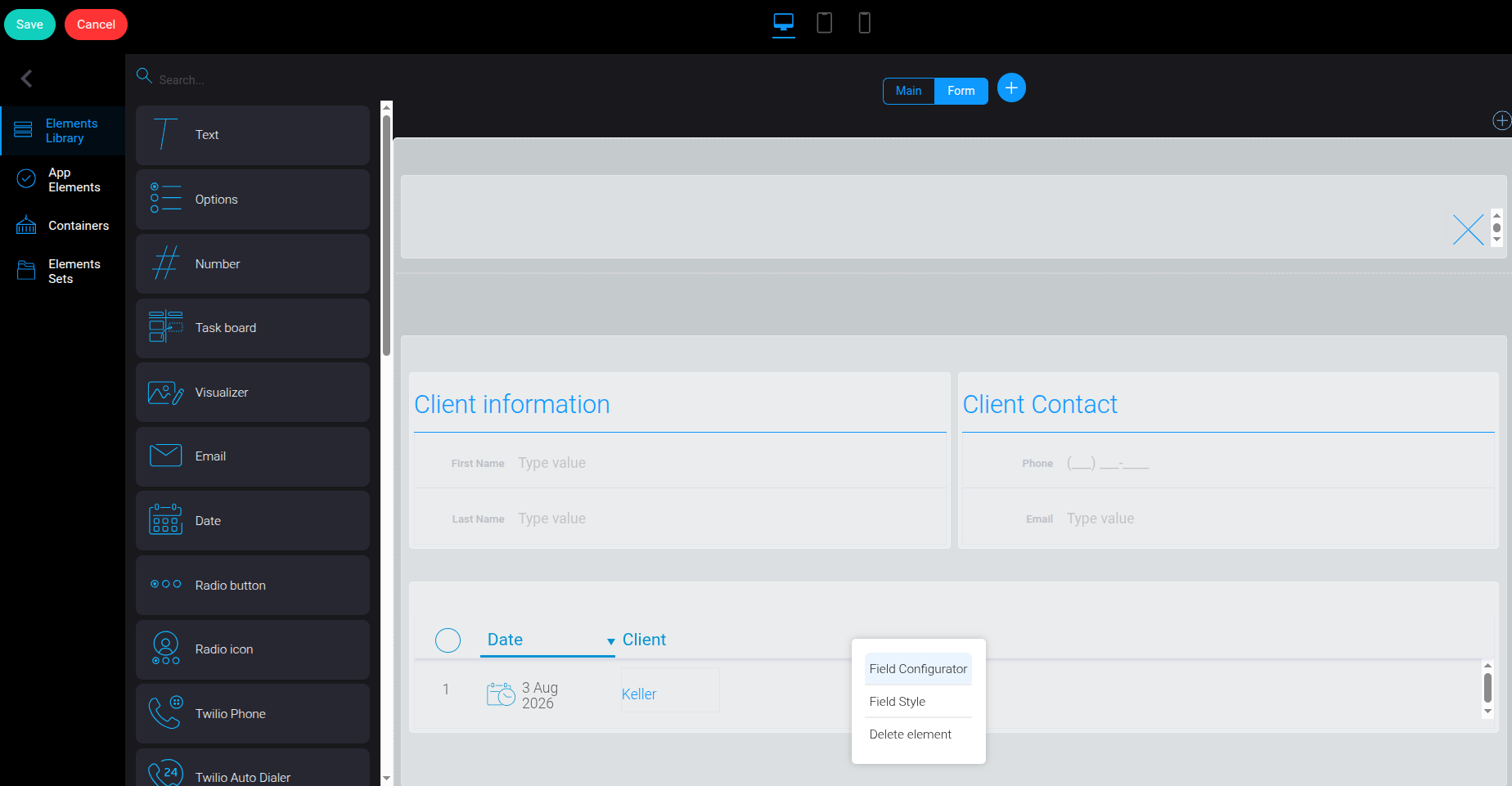
Open the “Clients” app and select any record. Right-click any table field to open the context menu, then select “Template Builder”.
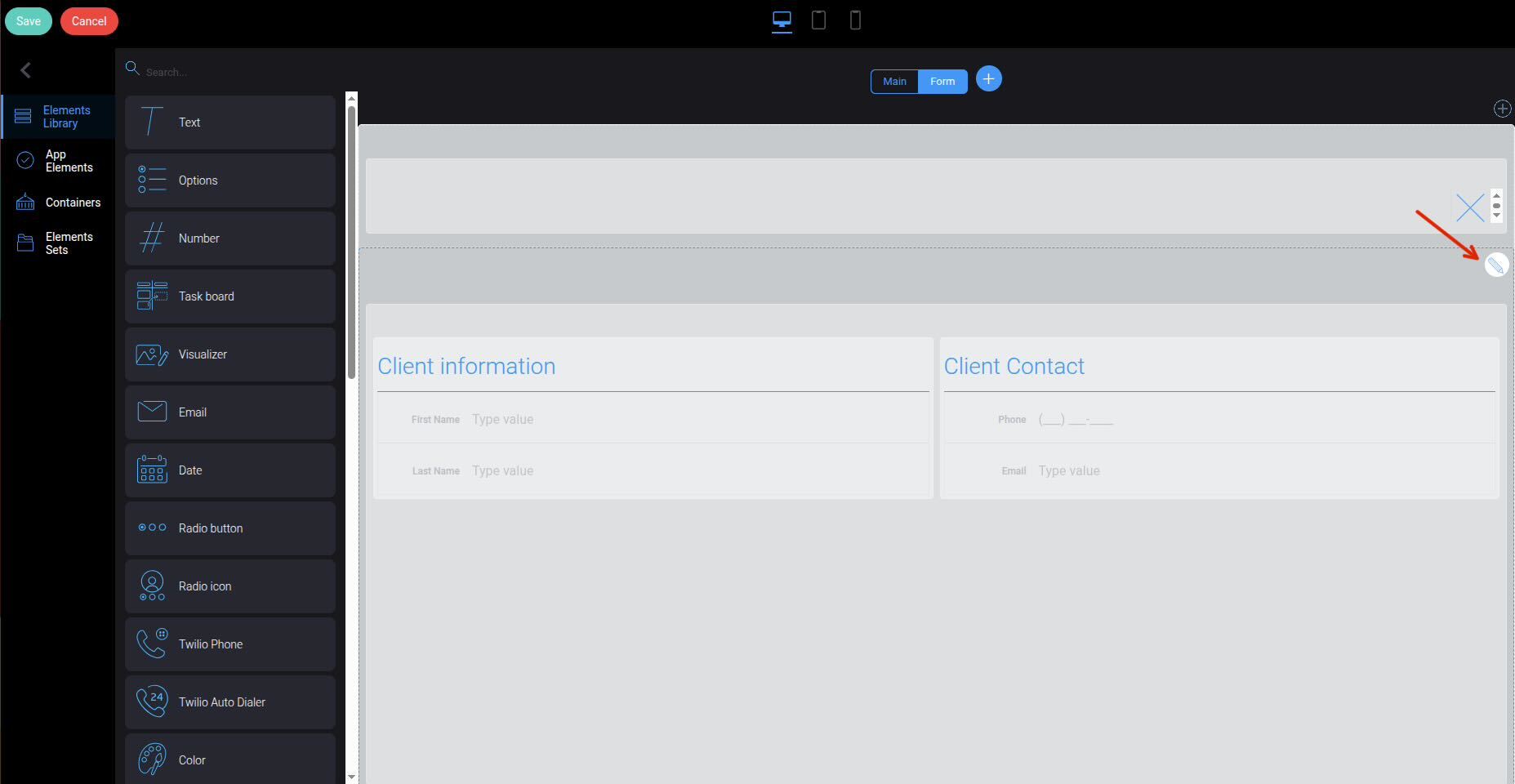
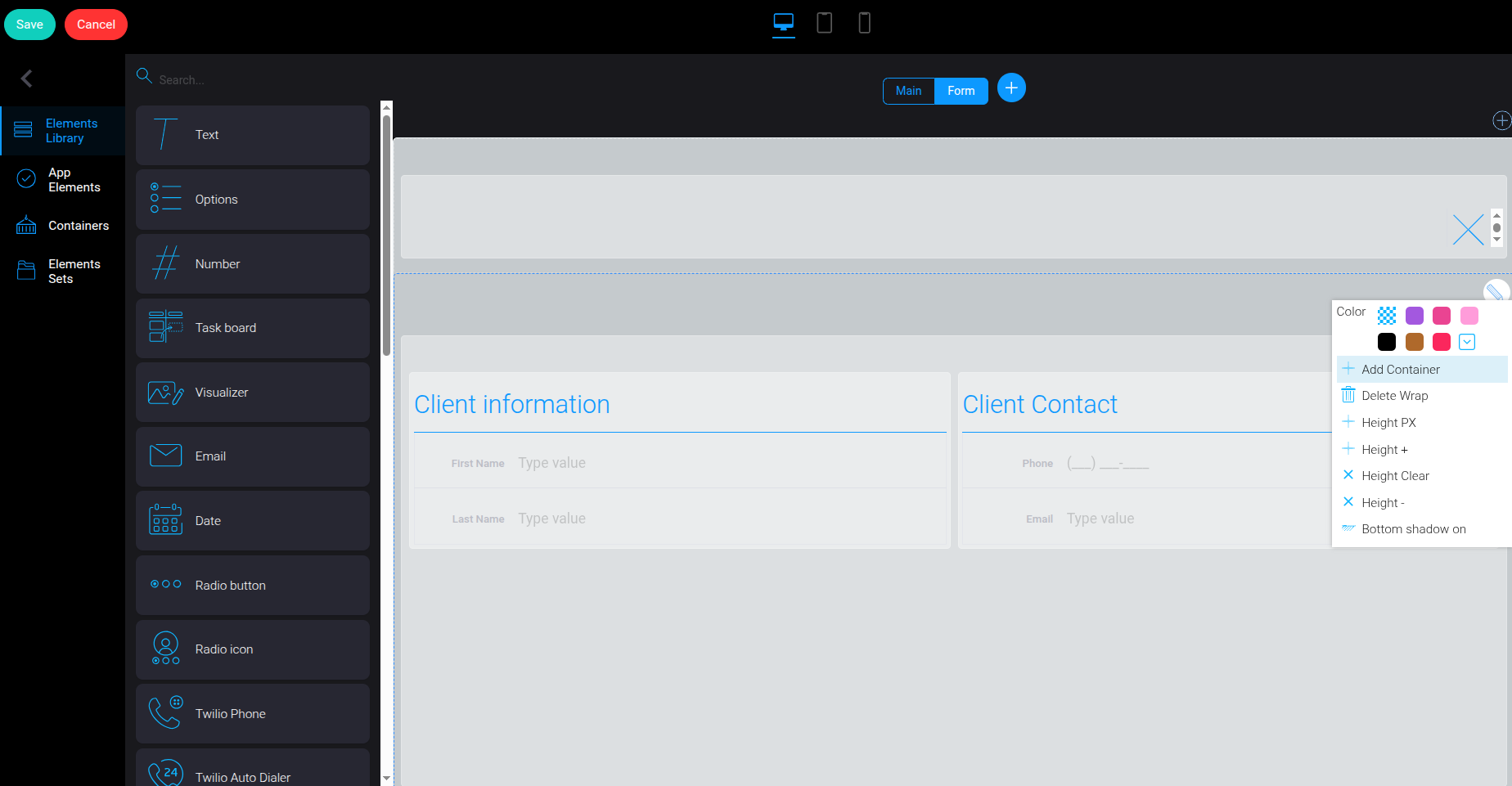
Step 2 #
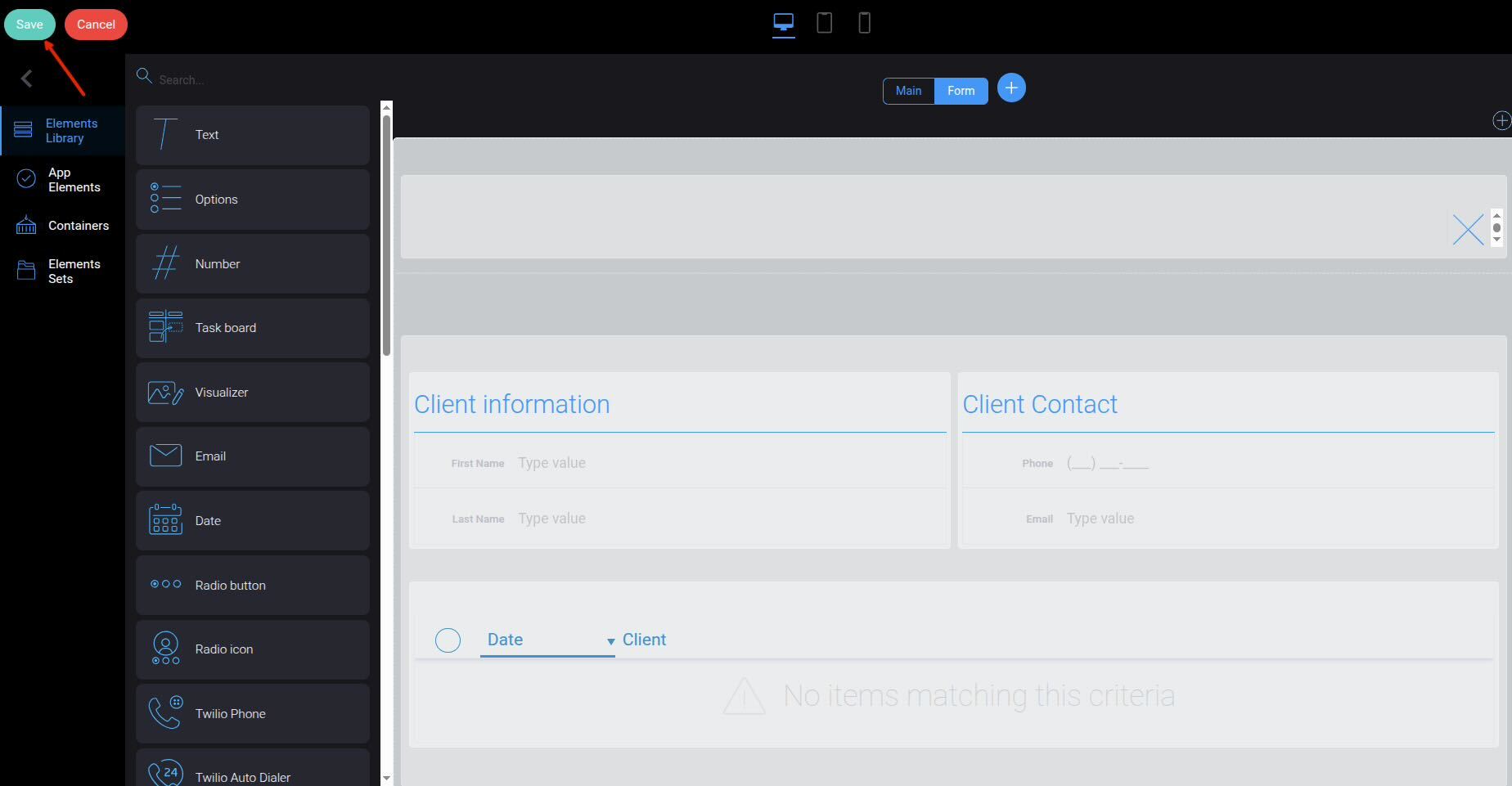
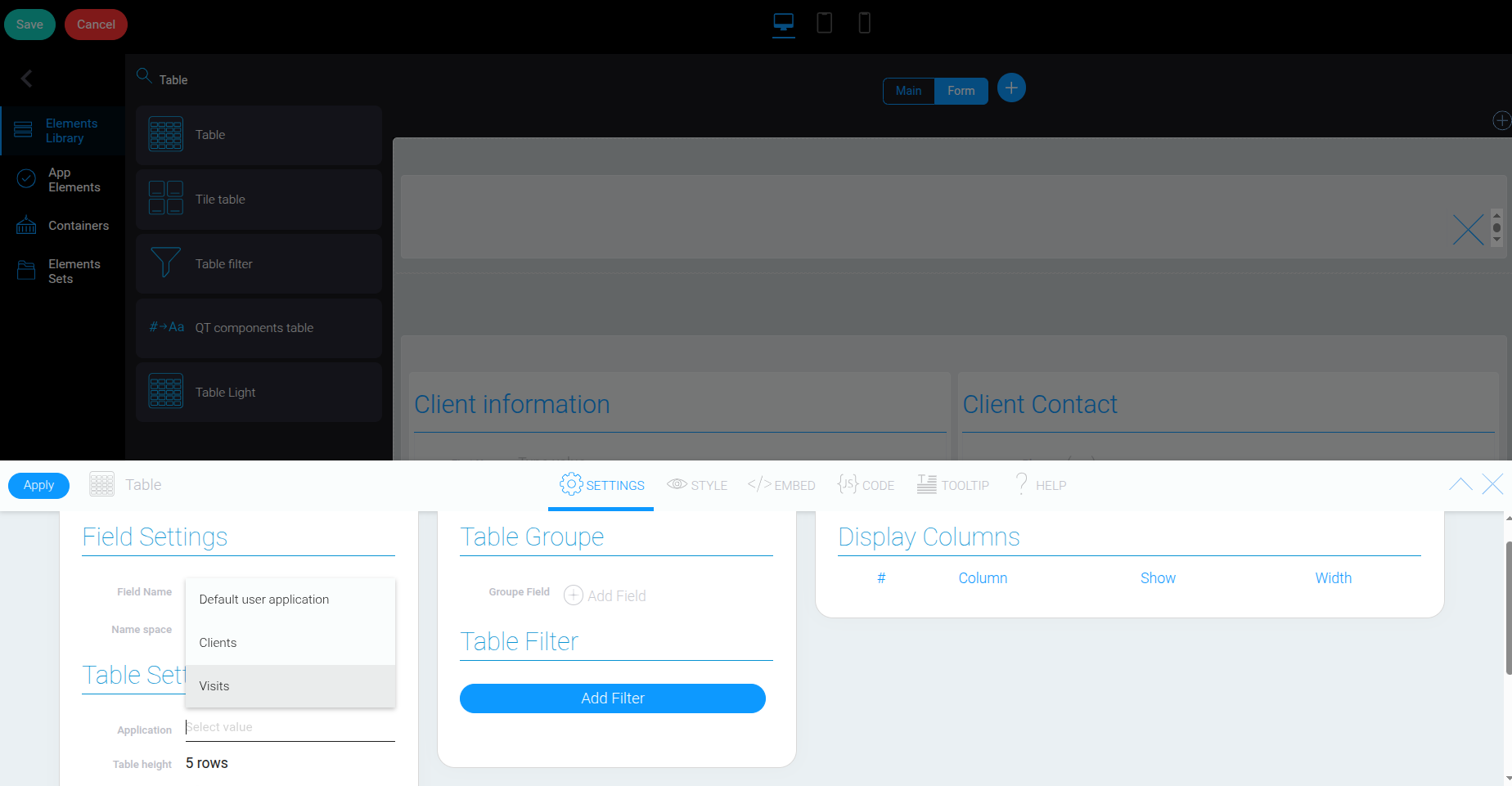
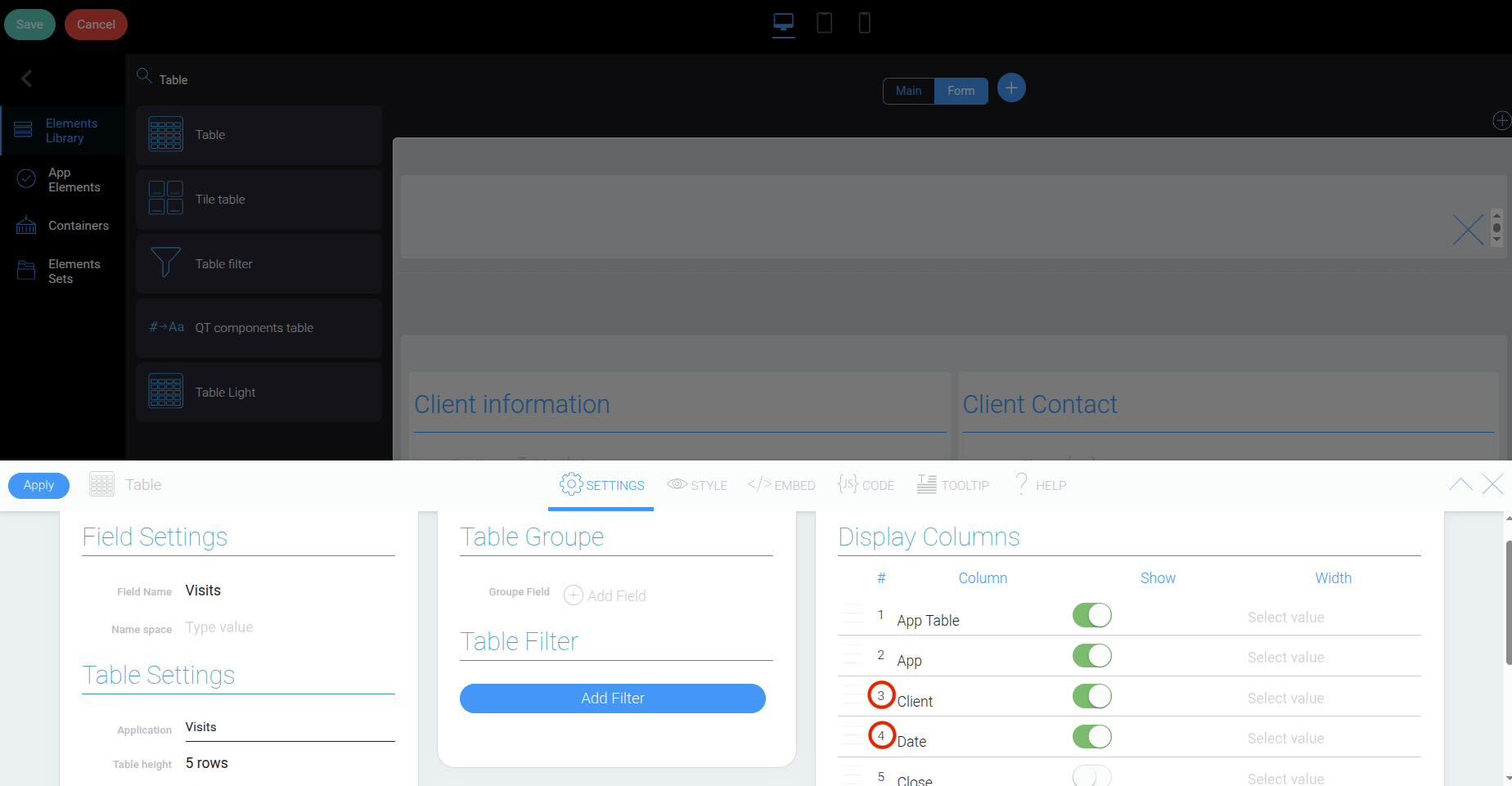
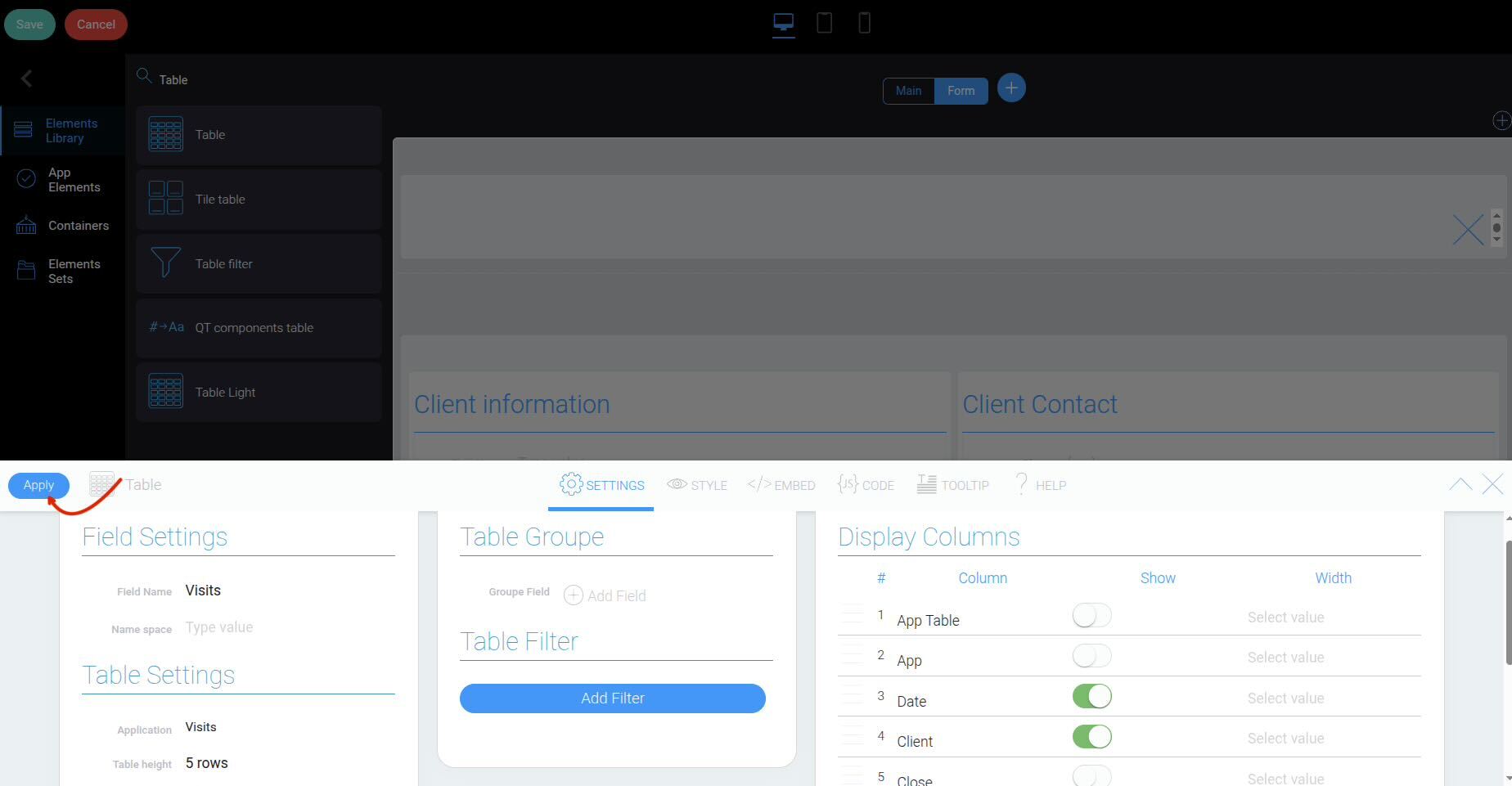
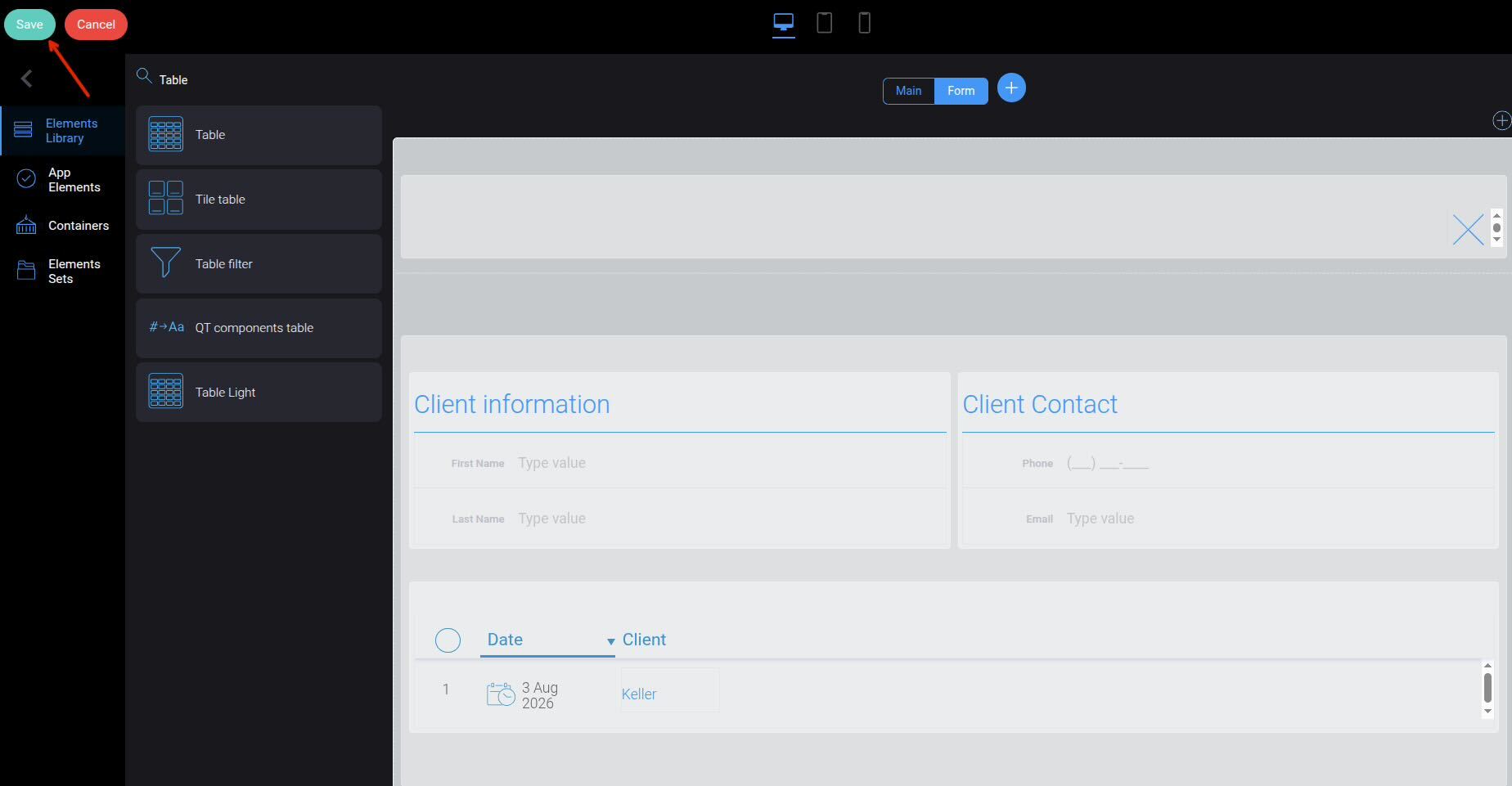
Now, add a table to the new container to display data from the “Visits” app.
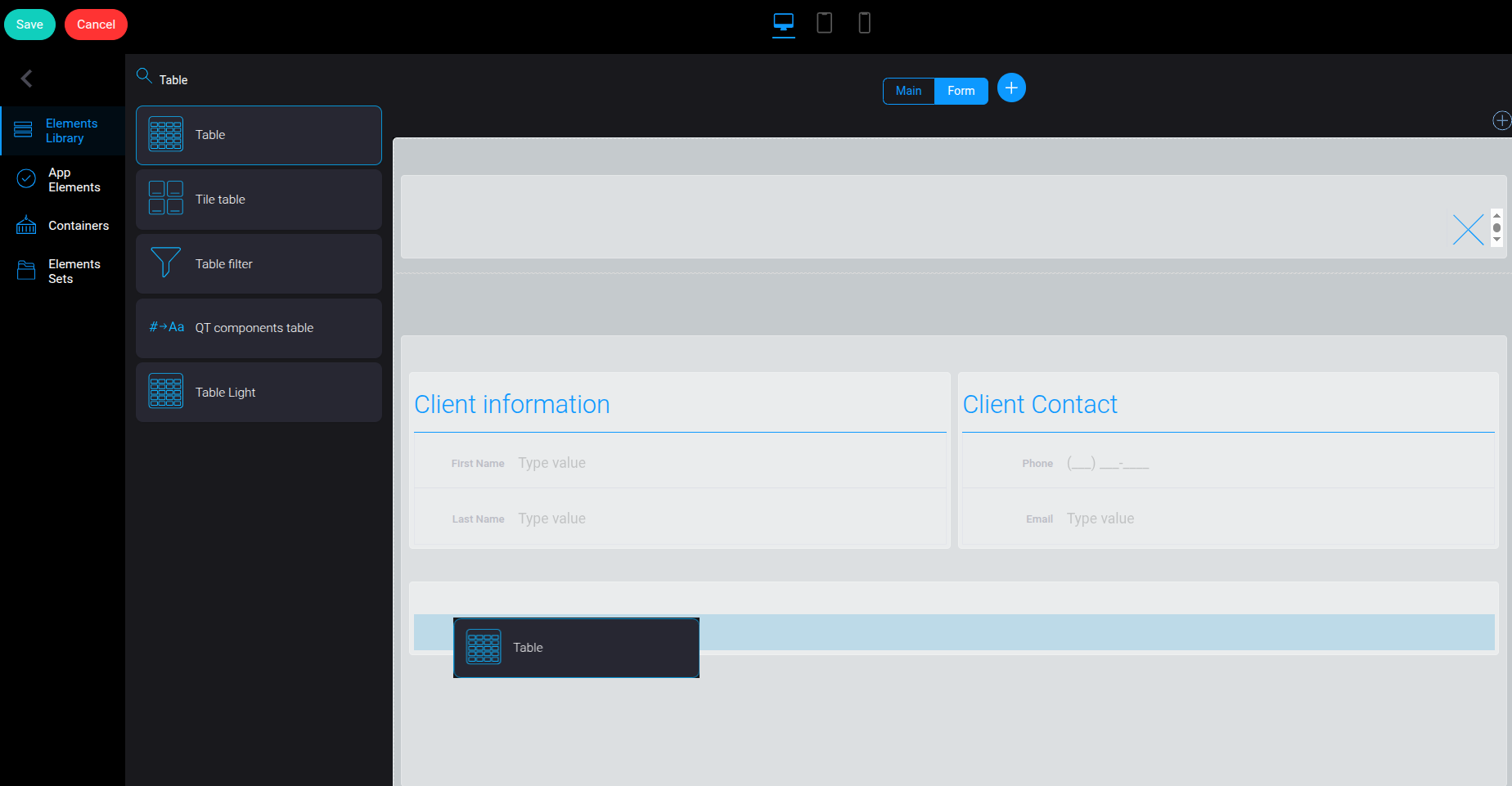
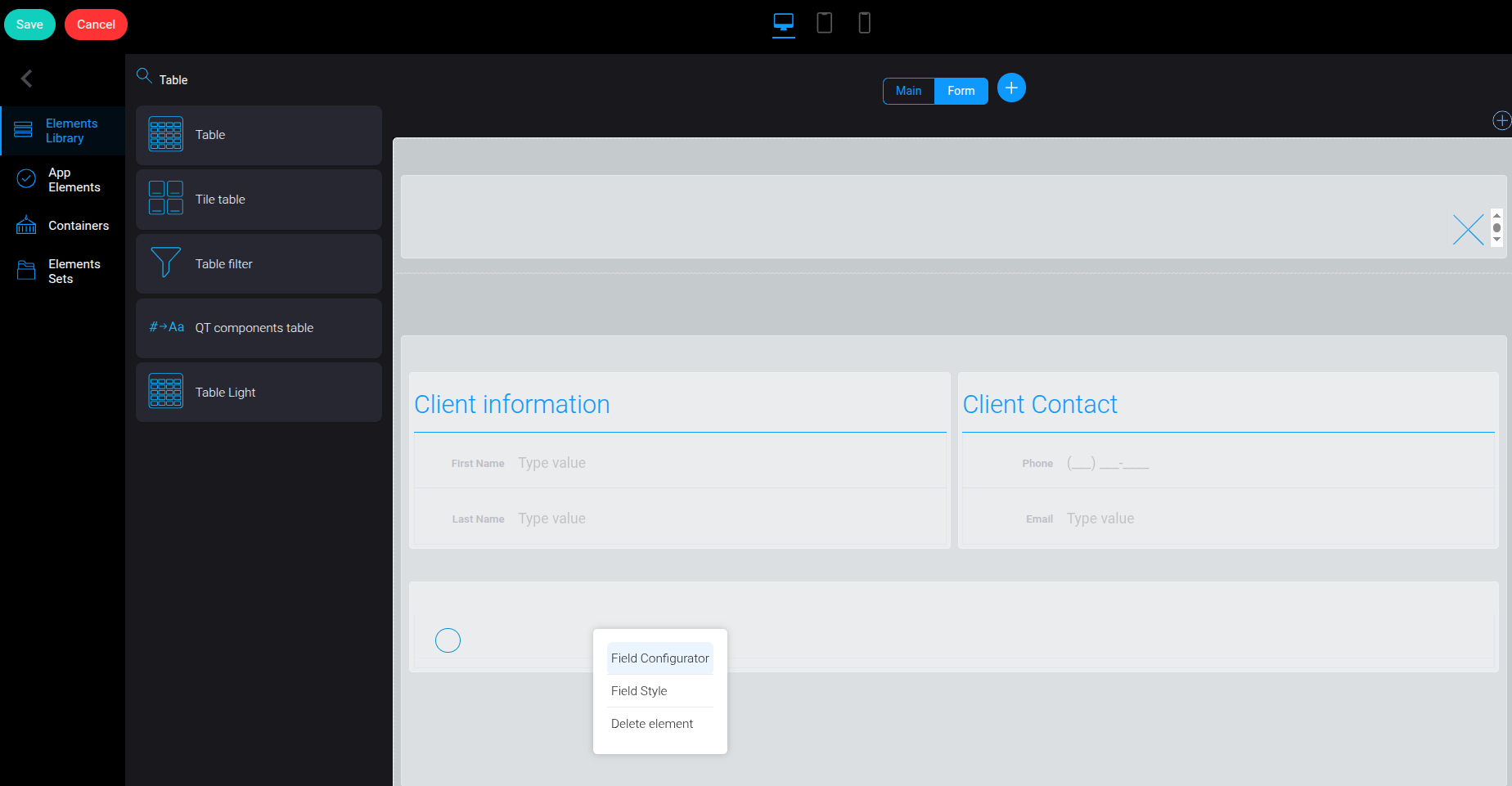
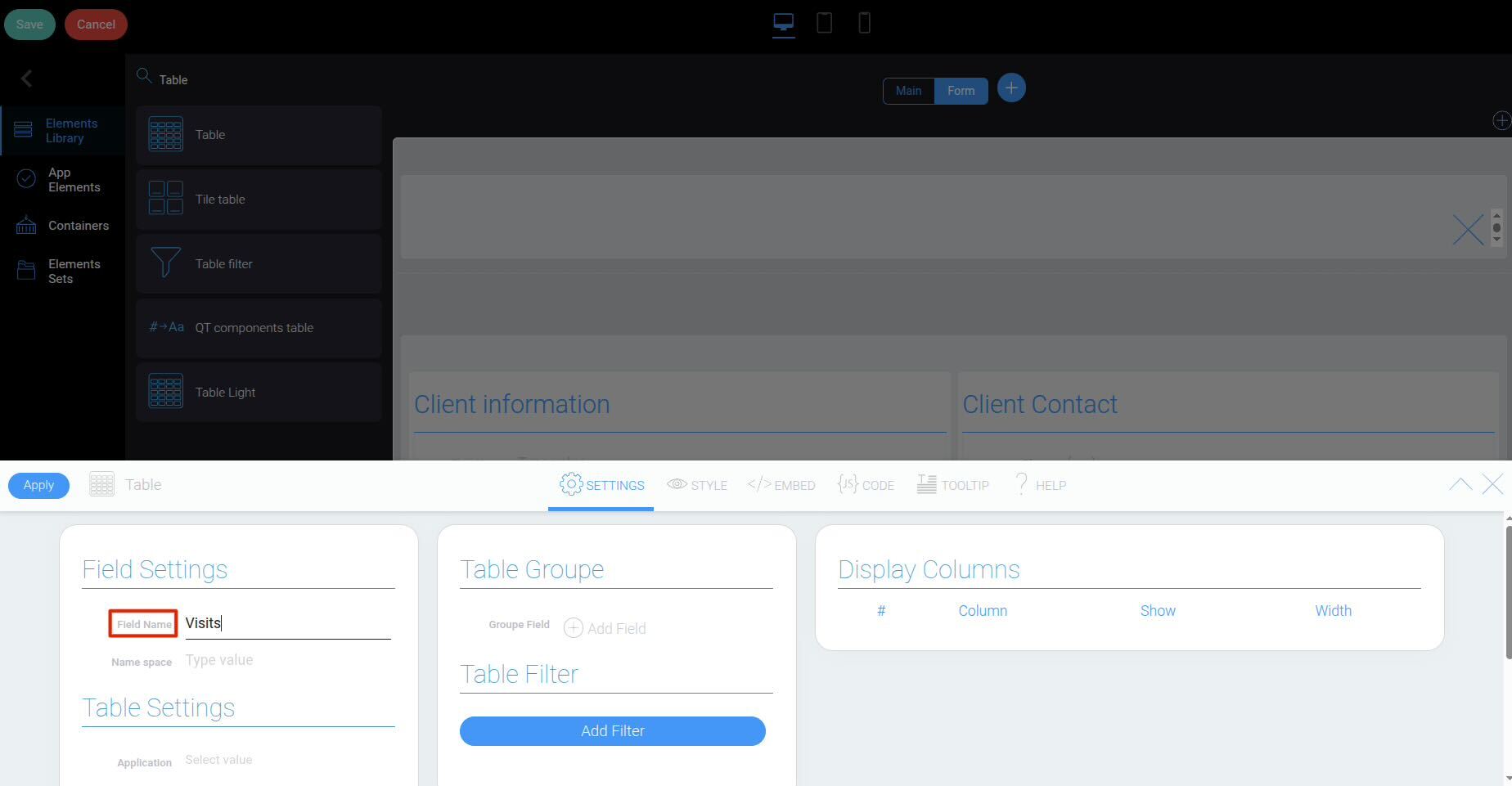
In the “Elements Library”, find the “Table” element and drag it into the container you created.
Step 3 #
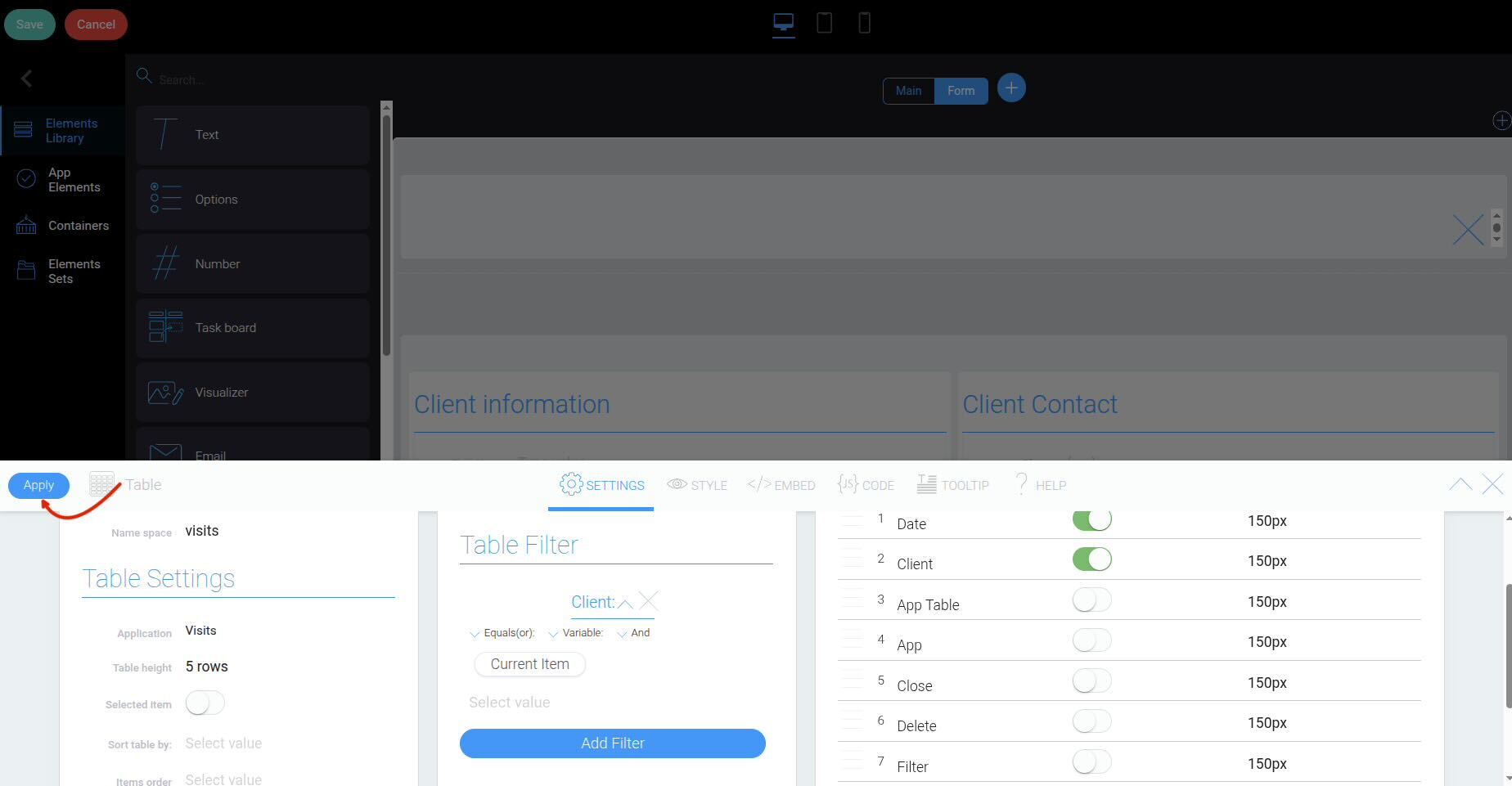
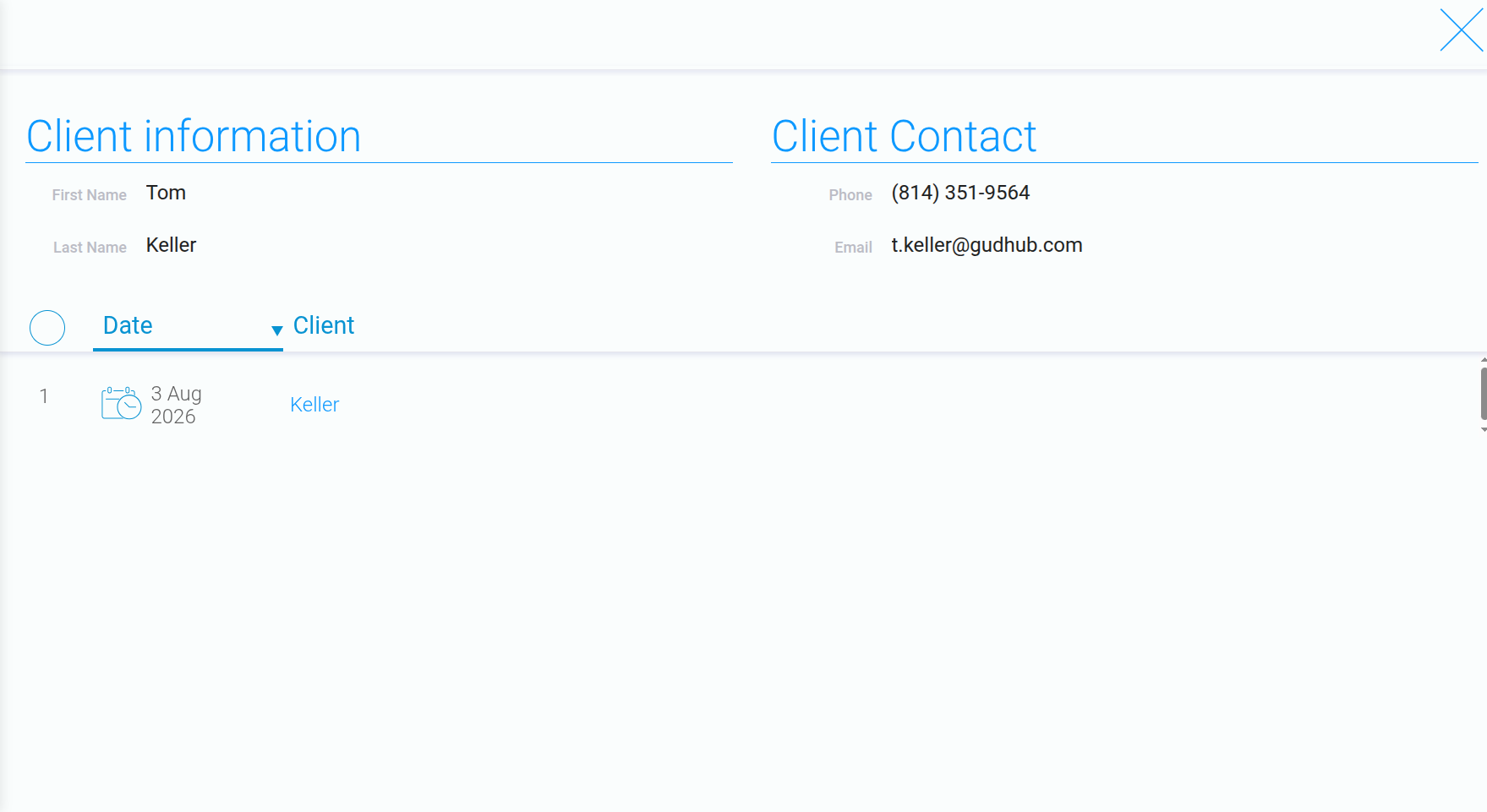
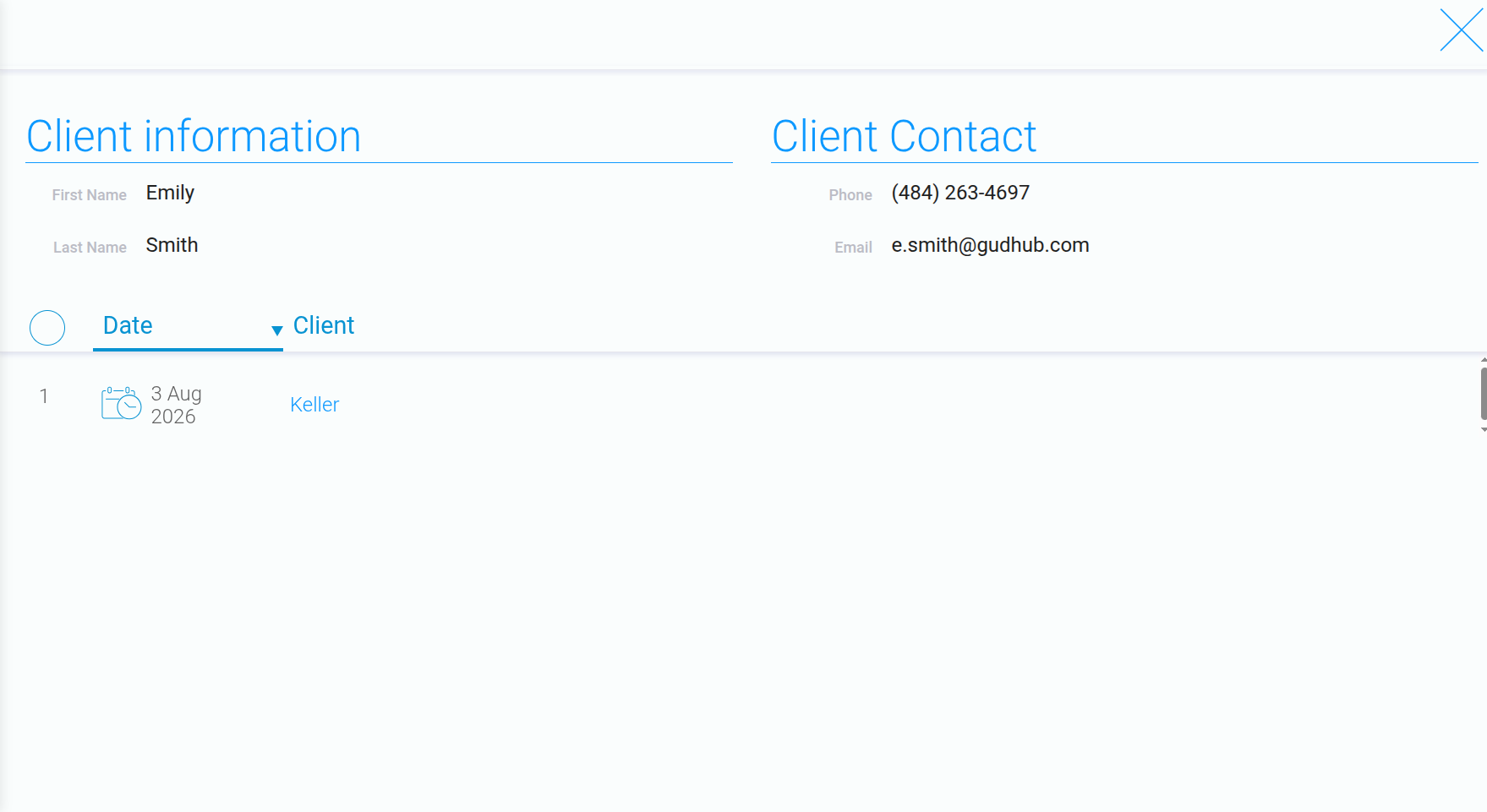
At this stage, there is one important detail to keep in mind: if you open any client record, the table may also display visits belonging to other clients.
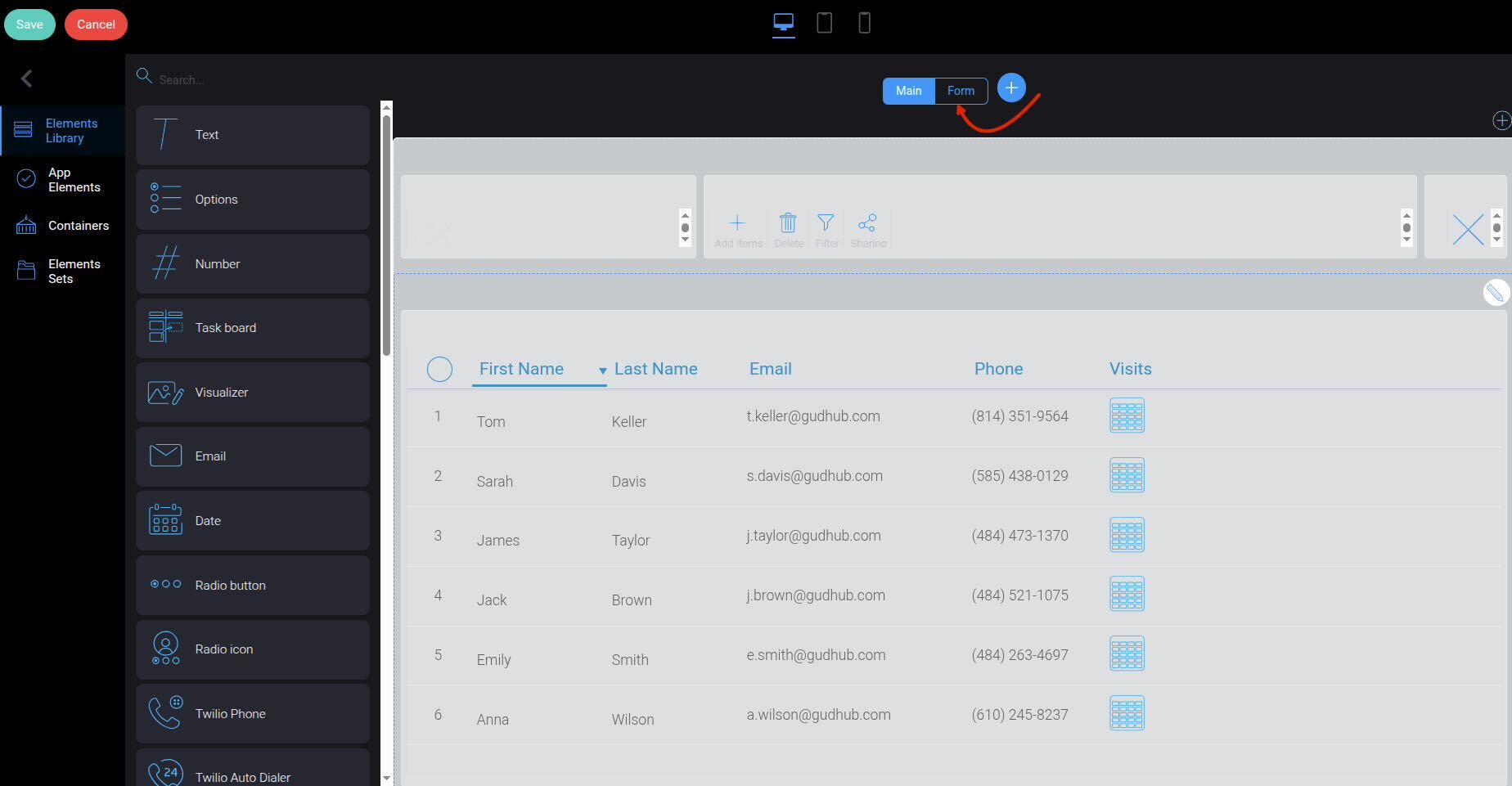
To do this, open “Template Builder” again.
Step 4 #
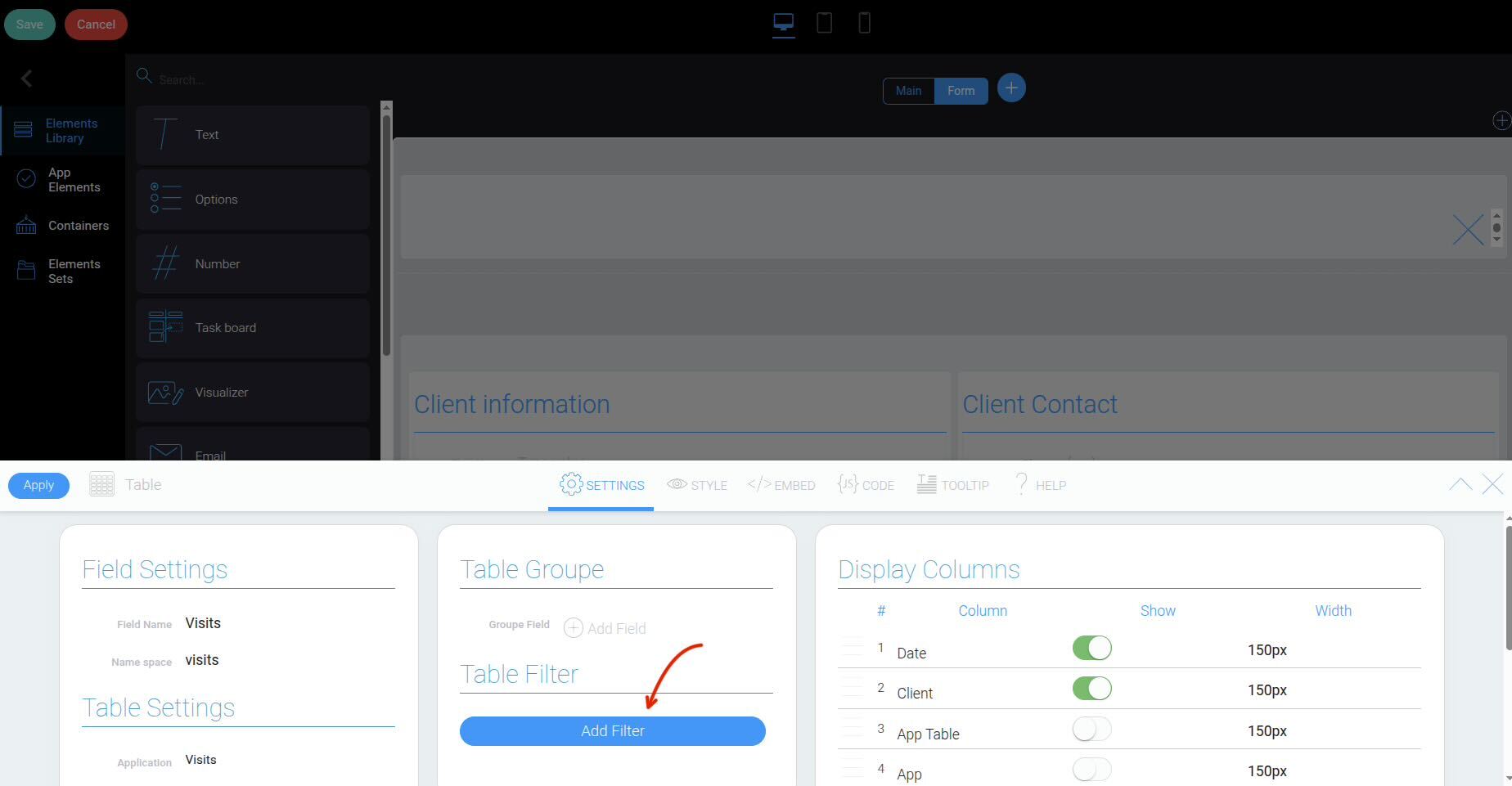
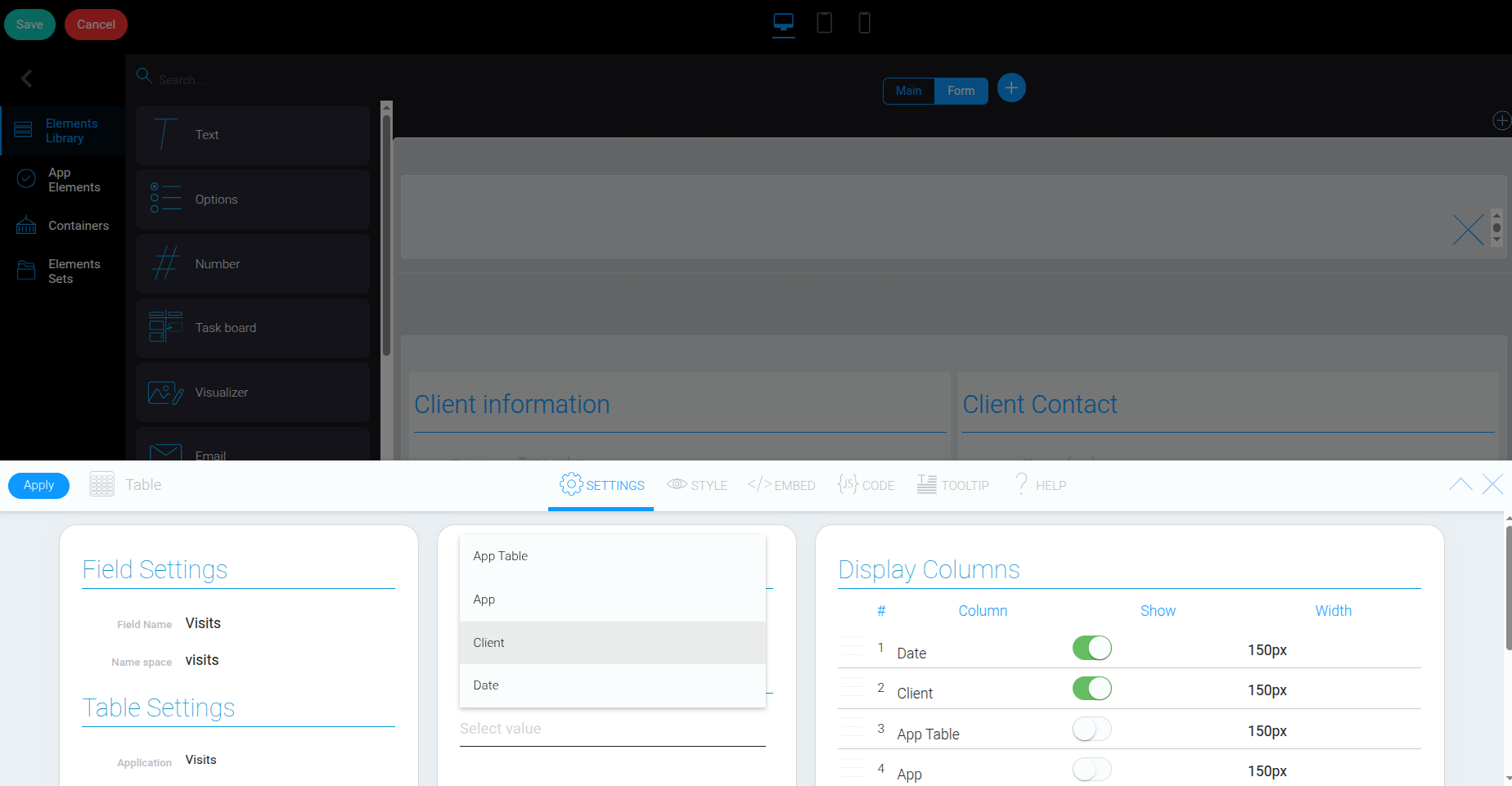
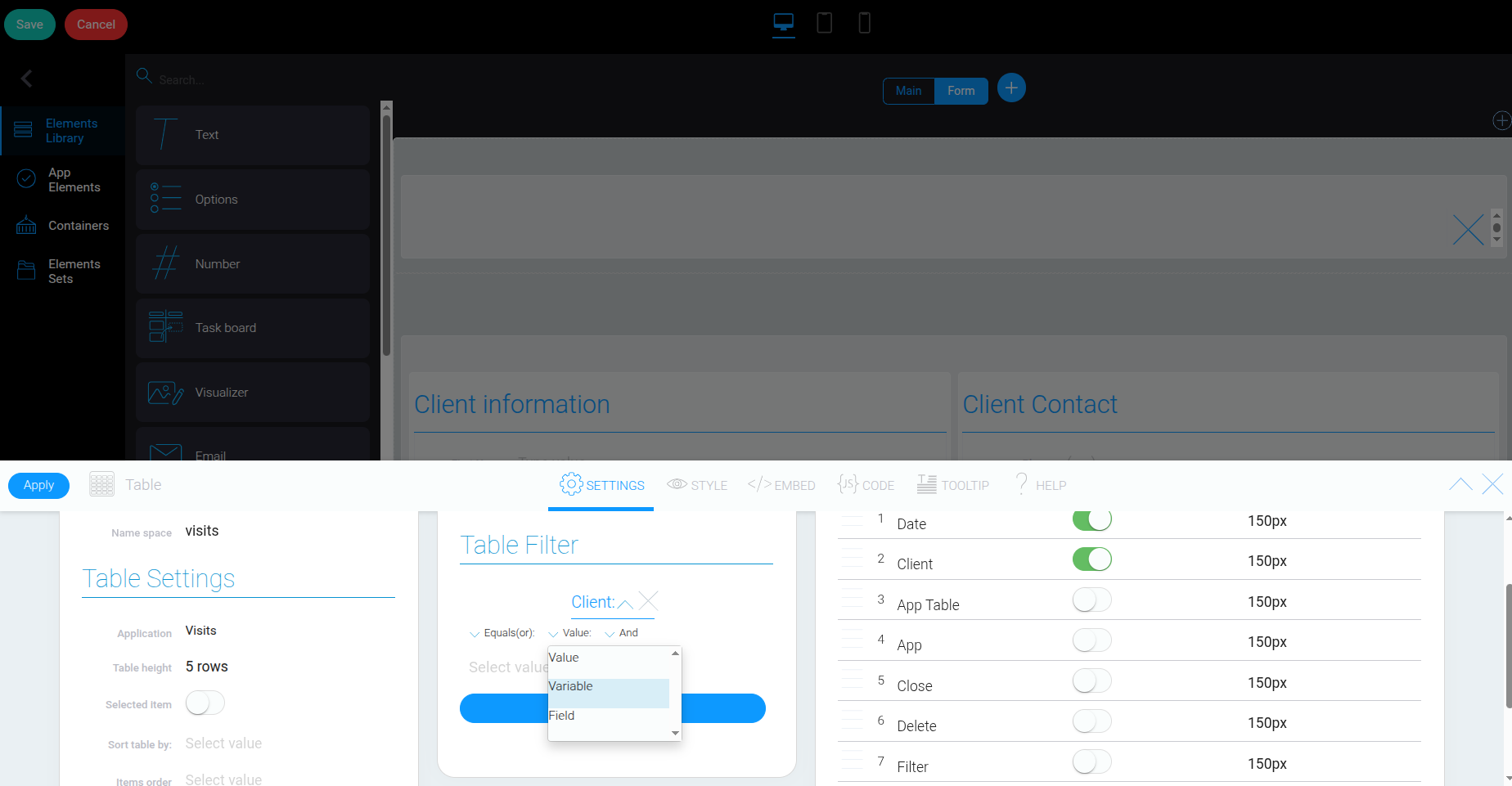
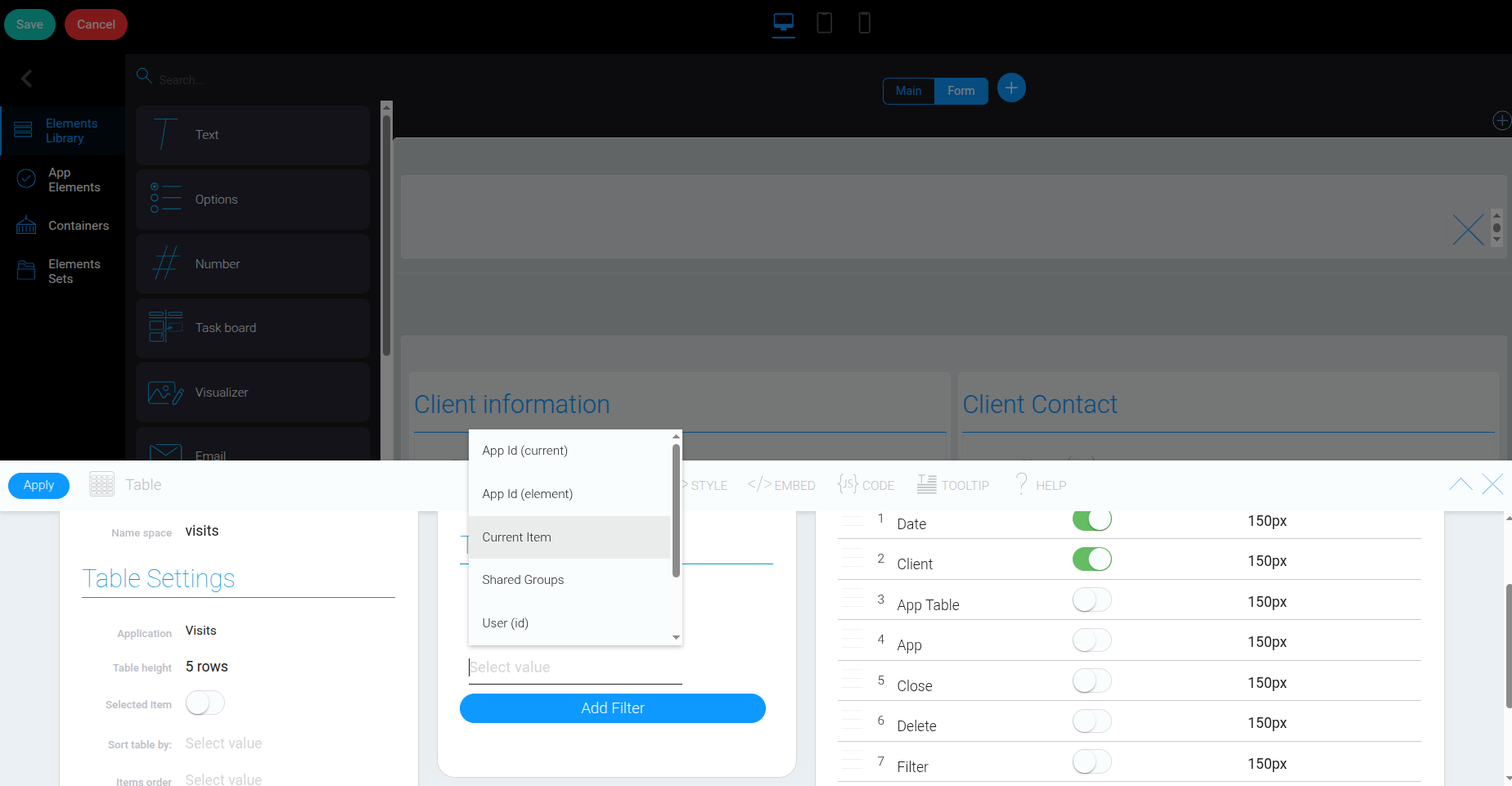
In the table settings, click “Add Filter”.
- “Equals (or)”
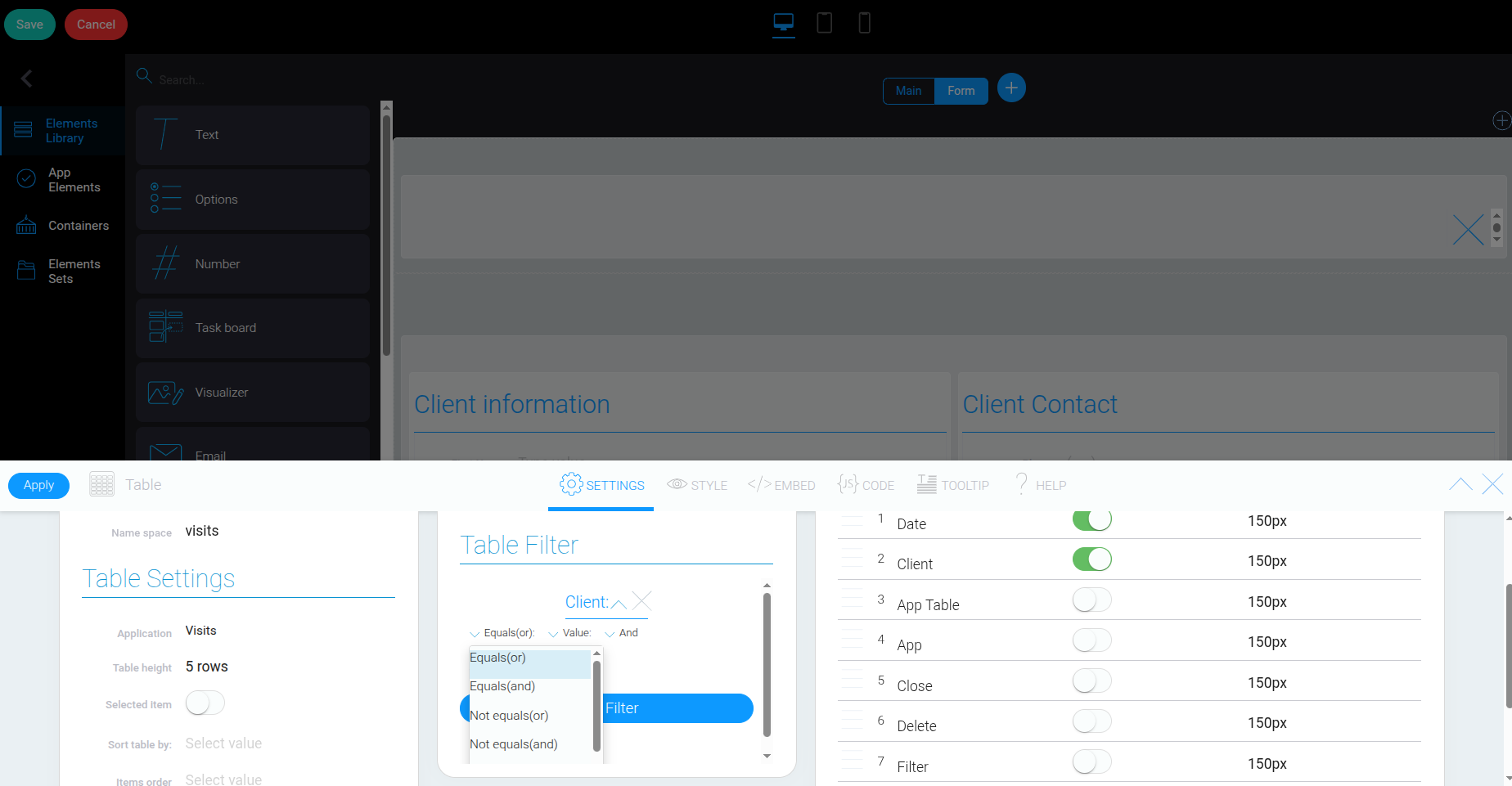
- “Variable”
Click “Apply” to save the changes.