Copying Apps and App Systems in a CRM
#
GudHub CRM allows you to duplicate existing apps and entire app systems. This makes it easy to reuse an existing structure, including fields and their configurations, without having to build everything from scratch.
To duplicate apps, GudHub uses the Install App element. Together with the App element, it lets you select the apps you want to copy and create duplicates in your account.
In this guide, we’ll walk through the process of copying apps step by step, including how to preserve the connections between them.
Before you begin, make sure the required apps are available in your list. To copy an app, you need Read, Read&Write, Admin, or Owner permissions.
For this example, we’ll copy two apps, one of which is linked to the other through an Item Reference field. To preserve this connection in the copies, both apps must be copied at the same time.
For more information on linking apps, see our separate guide.
Step 1. Add the Elements Needed for Copying
#
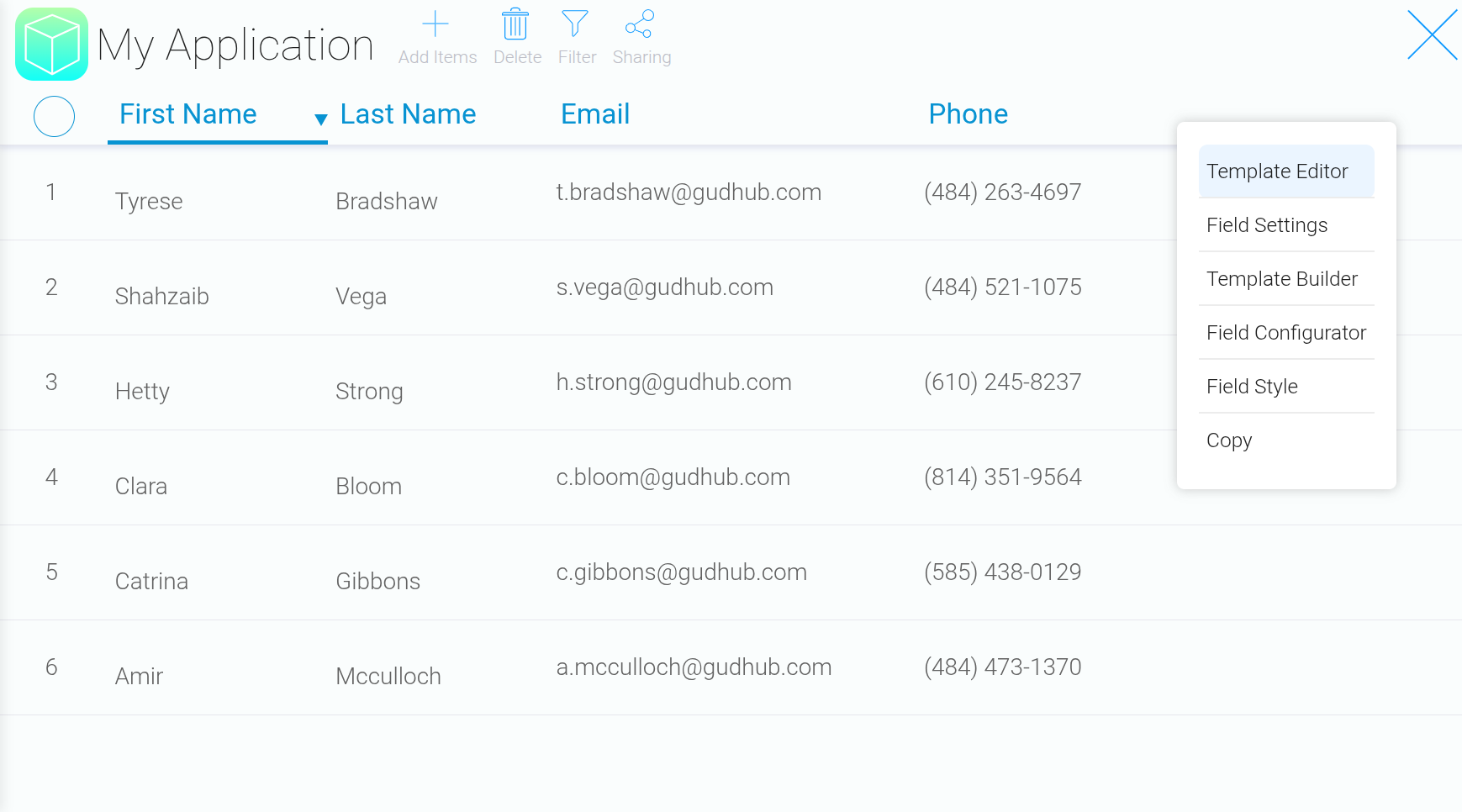
Open a new or existing app where you can edit the template. Navigate to any record and open the “Template Editor”.
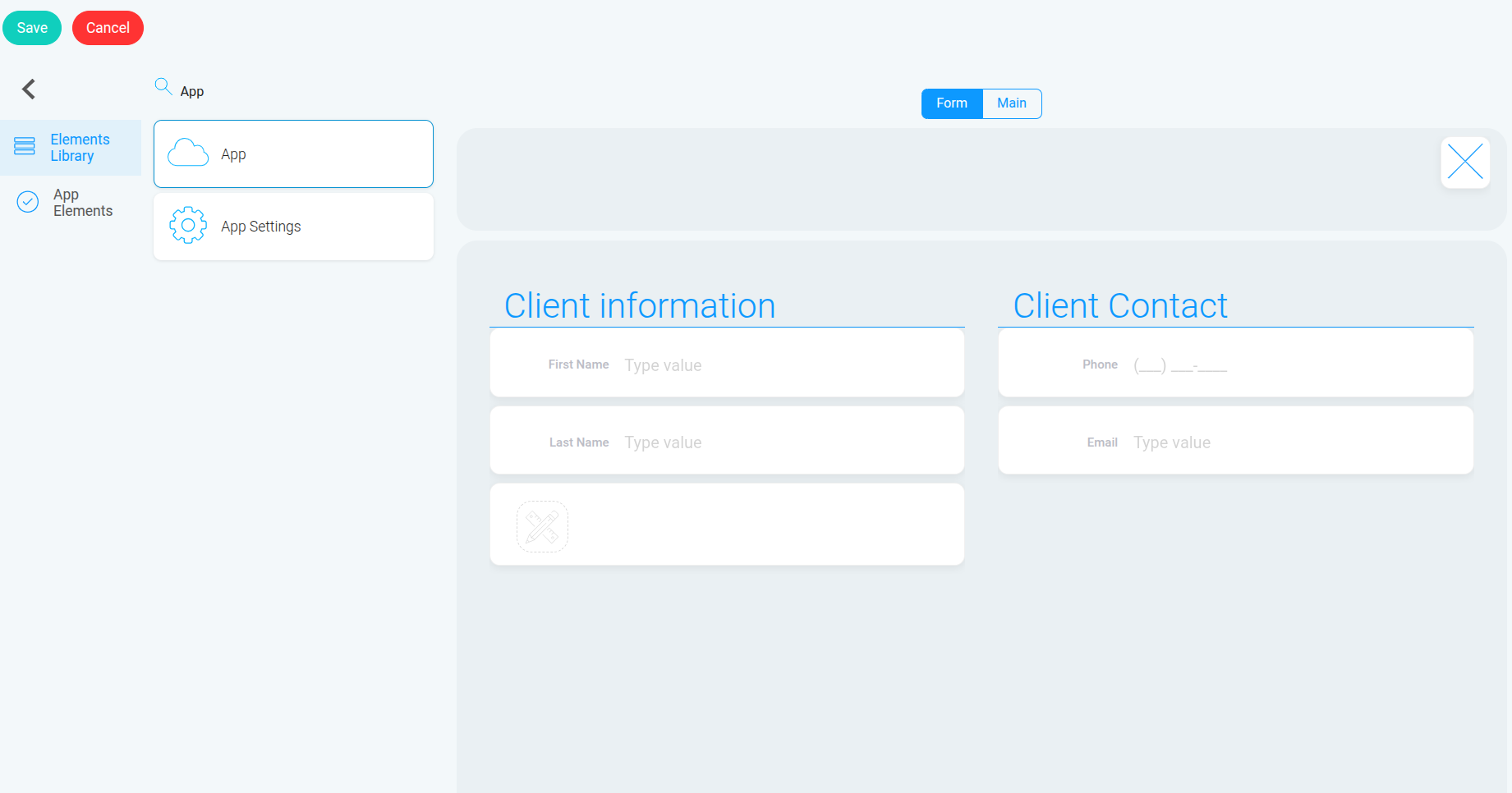
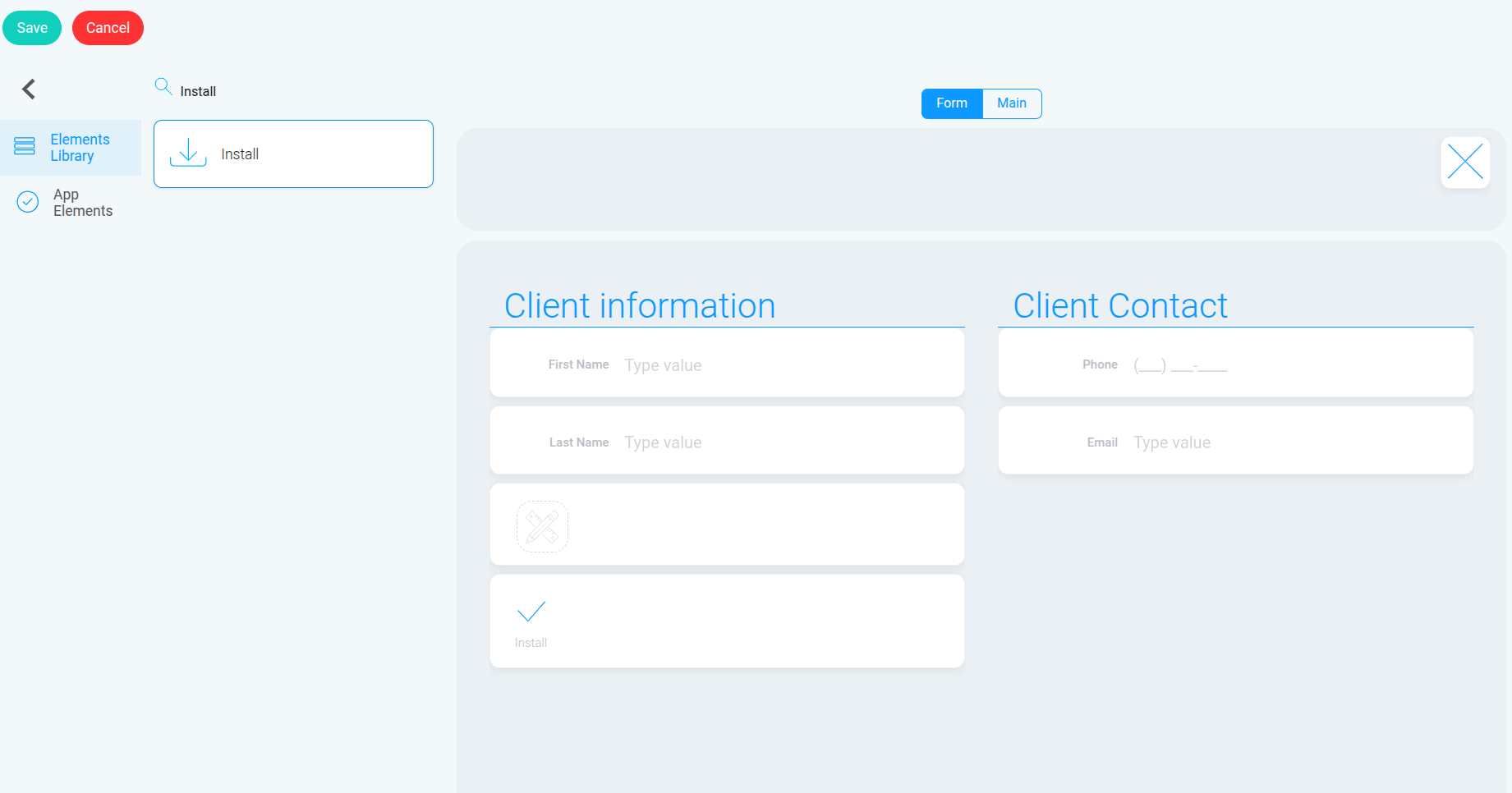
 In the list of available elements, find and add “App”, then add “Install”. Once you’re done, save the template by clicking “Save”.

 The App element lets you select the apps you want to copy. Install App retrieves their IDs from this field and uses them to start the copying process.
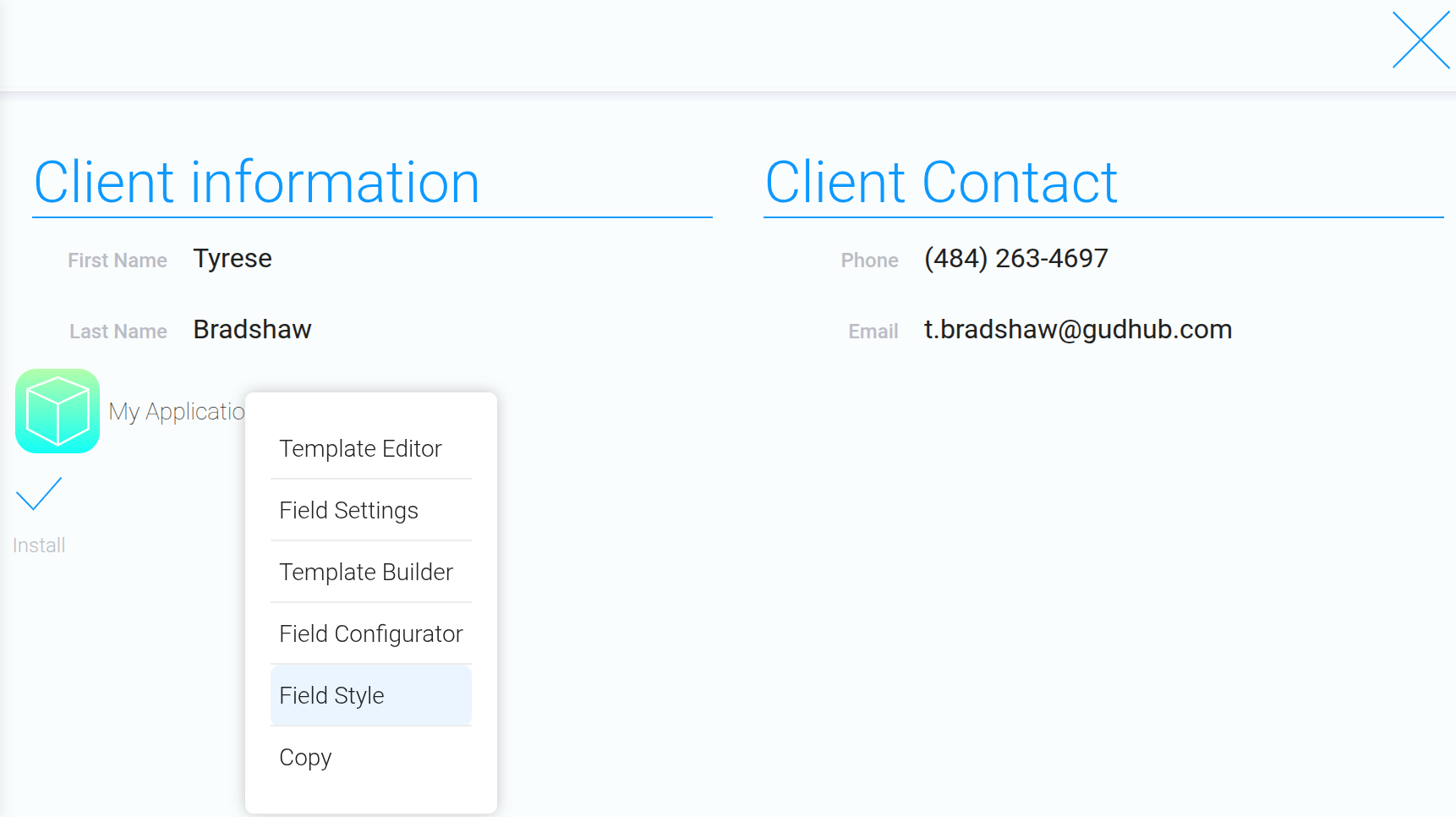
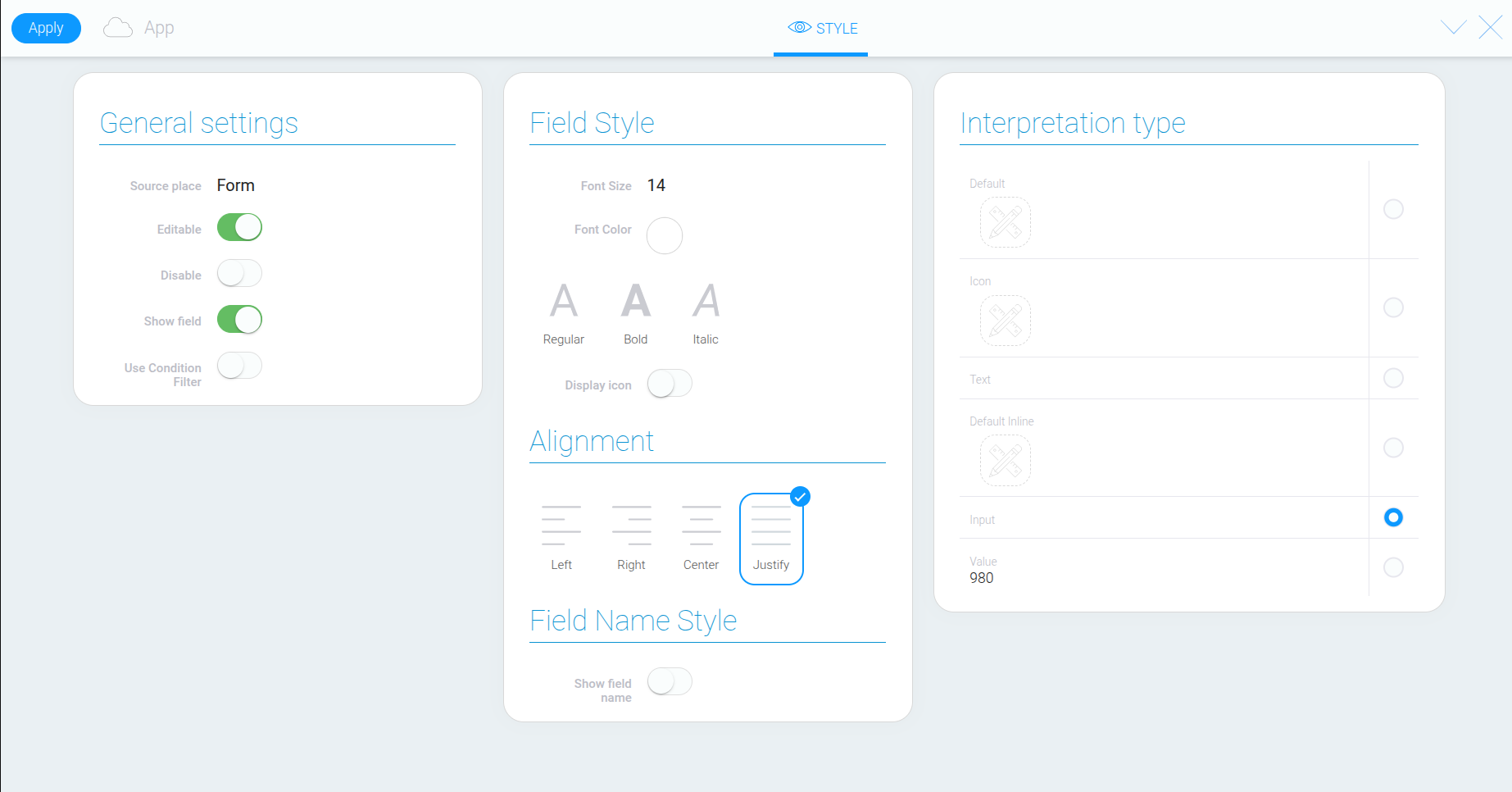
First, open “Field Style” for the App element you added.
 Enable “Editable” so the field’s value can be changed, and turn on the field name display. Under the display options, select “Input”.
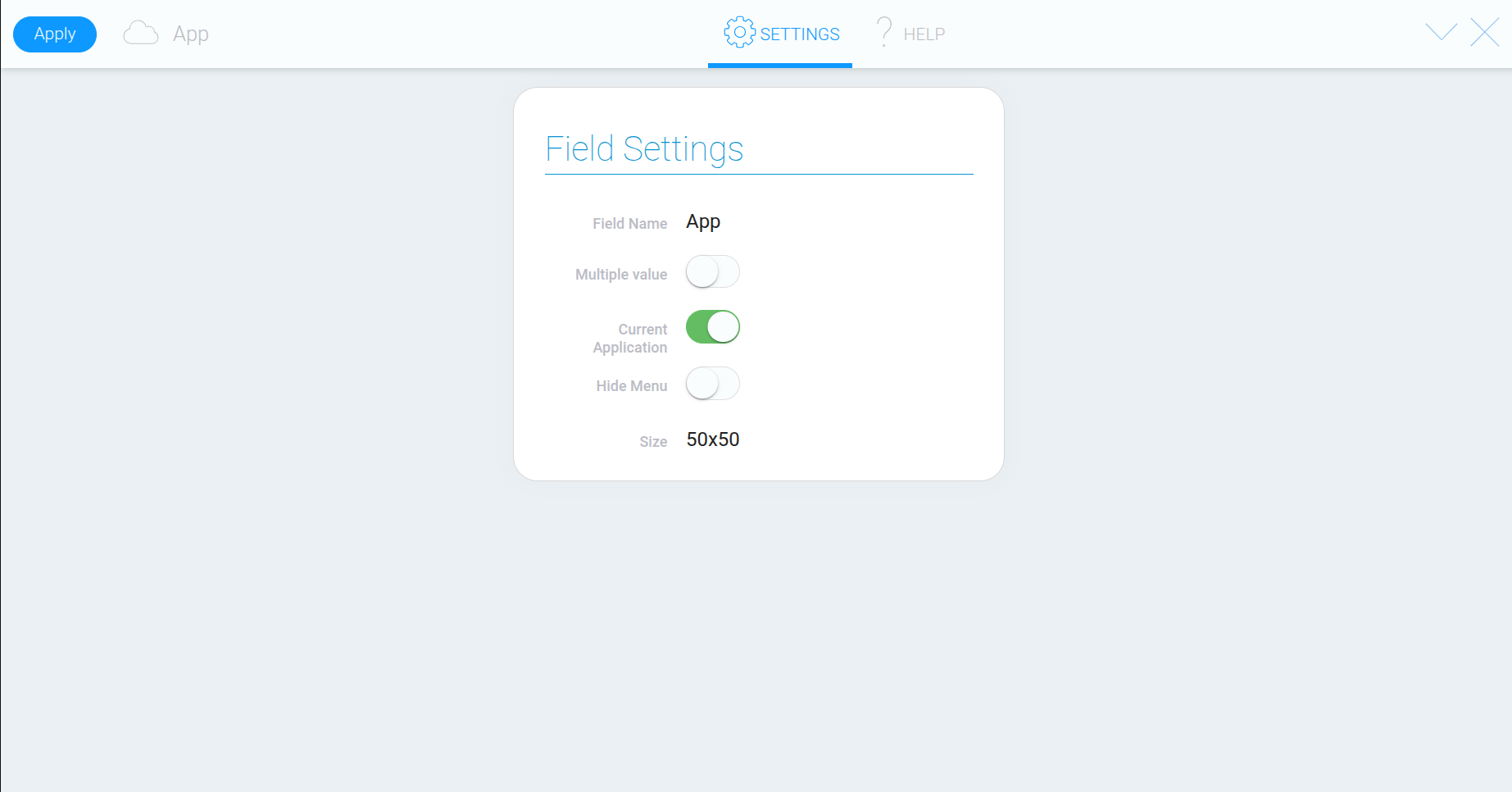
 Next, open “Edit Field” and disable “Current Application”. This allows you to select other apps instead of automatically using the current one.
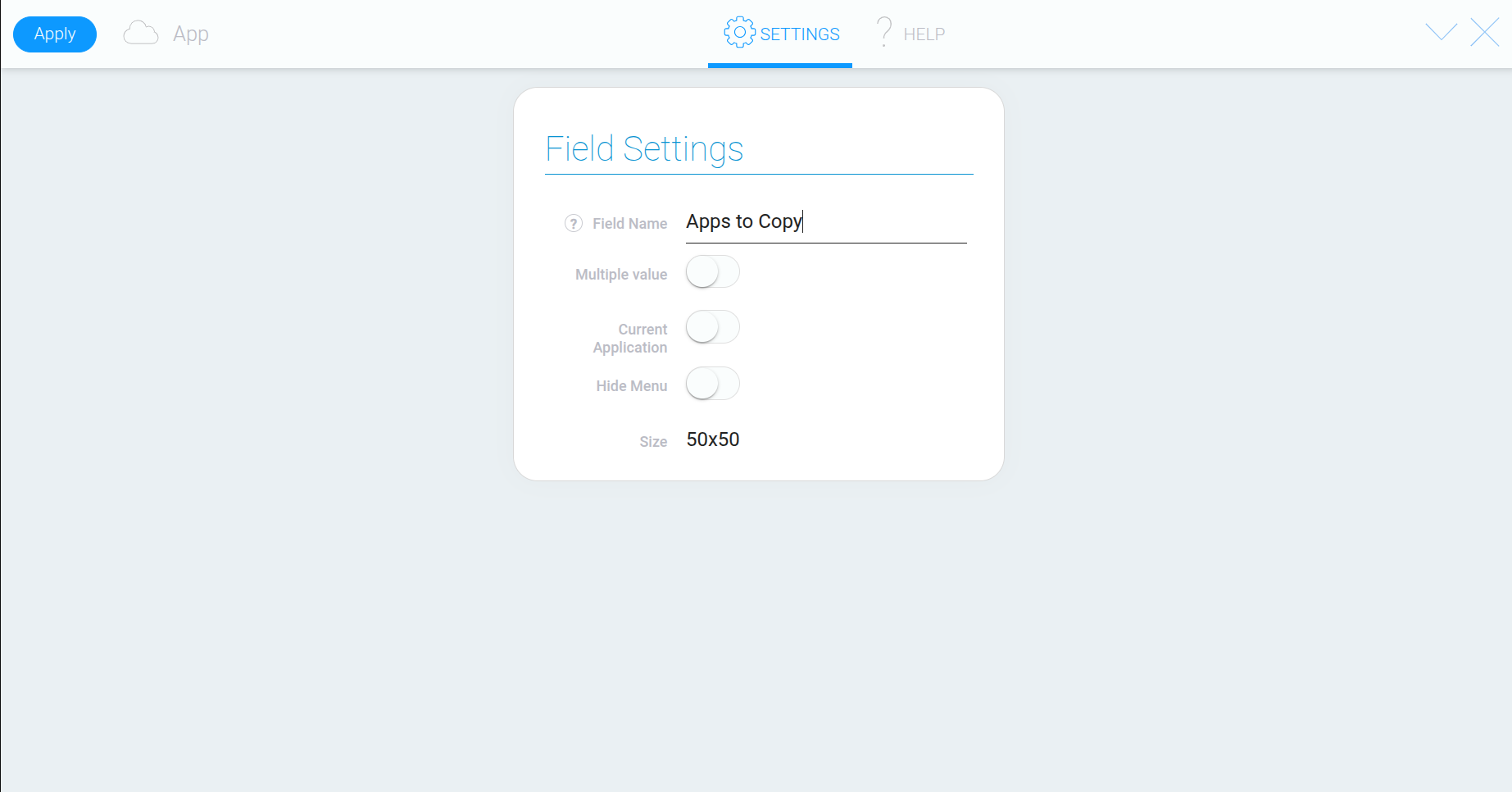
 For convenience, name the field “Apps to Copy”. This will make it easier to identify when configuring Install App.
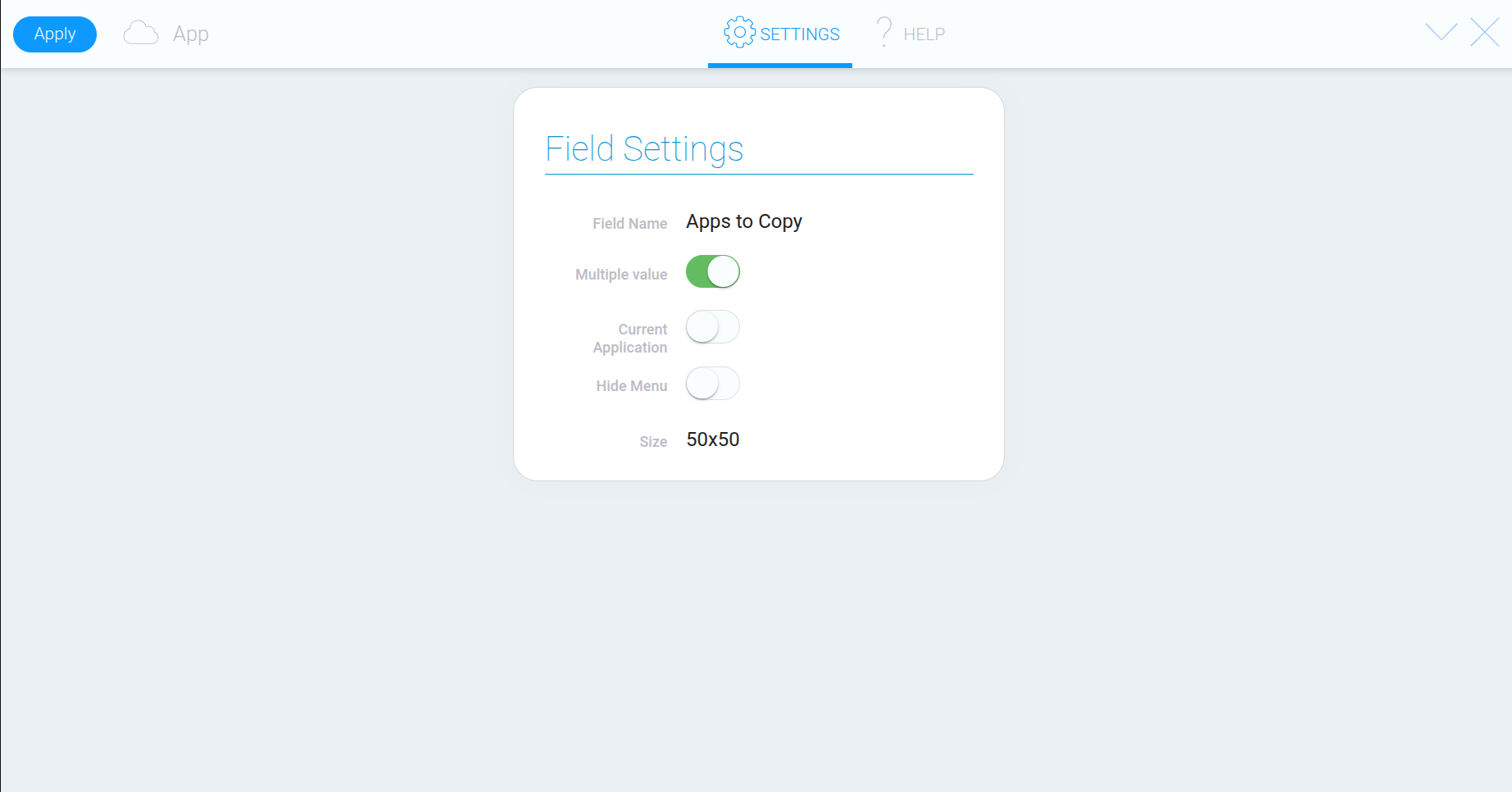
 Since we’re copying two linked apps, enable “Multiple Value”. This option lets you select multiple apps at once. If you only need to copy one app, you can leave it disabled.
 Click “Save” to apply your changes.
Step 3. Select the Apps to Copy
#
Return to the record and select the apps you want to copy in the configured App field.
 In our example, select both apps that are linked to each other. If your system contains more linked apps, select all the ones you want to include in the copy.
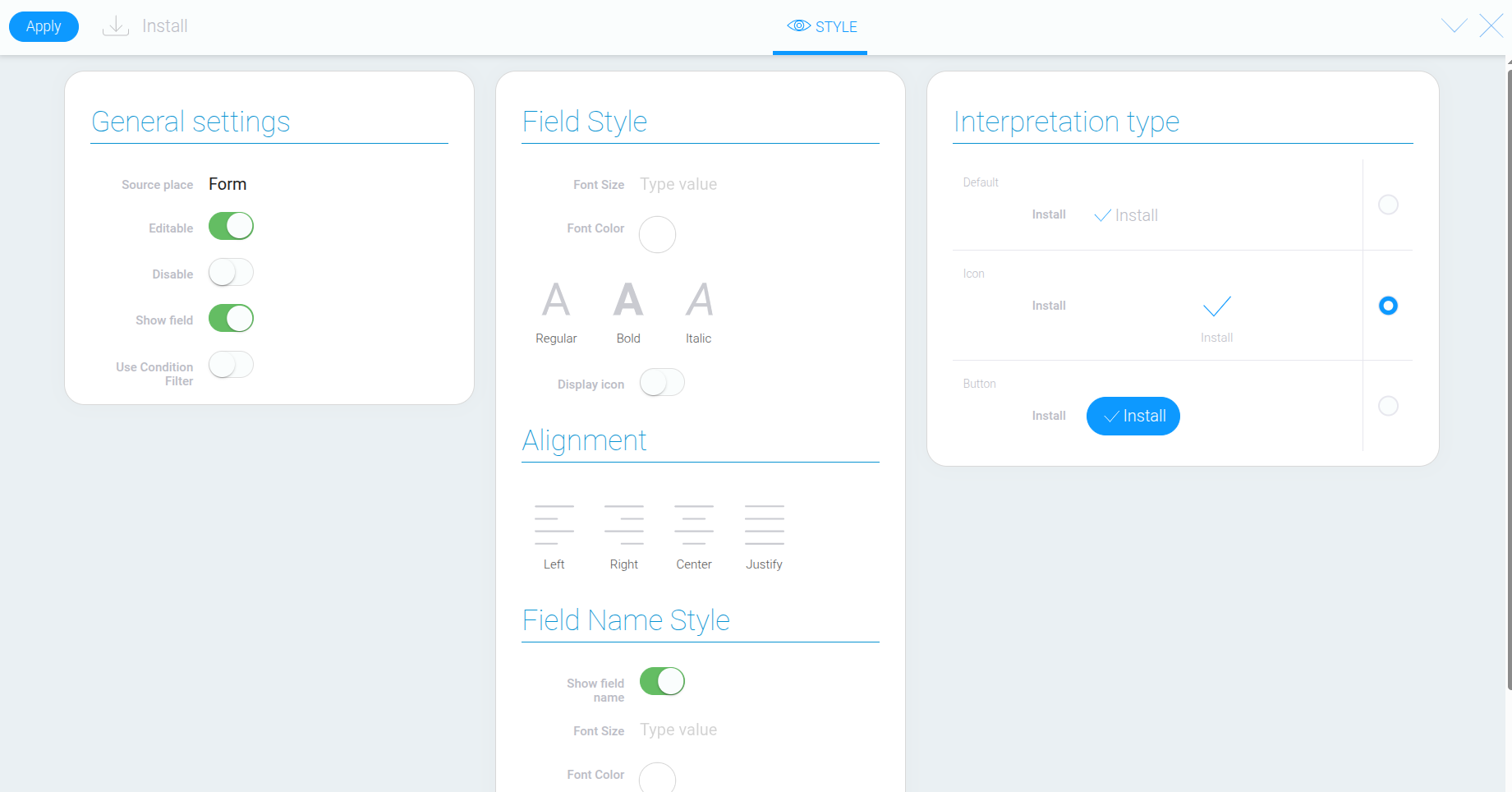
Open the settings for the Install App element. First, go to “Field Style”, enable “Show Field Name”, and save your changes.
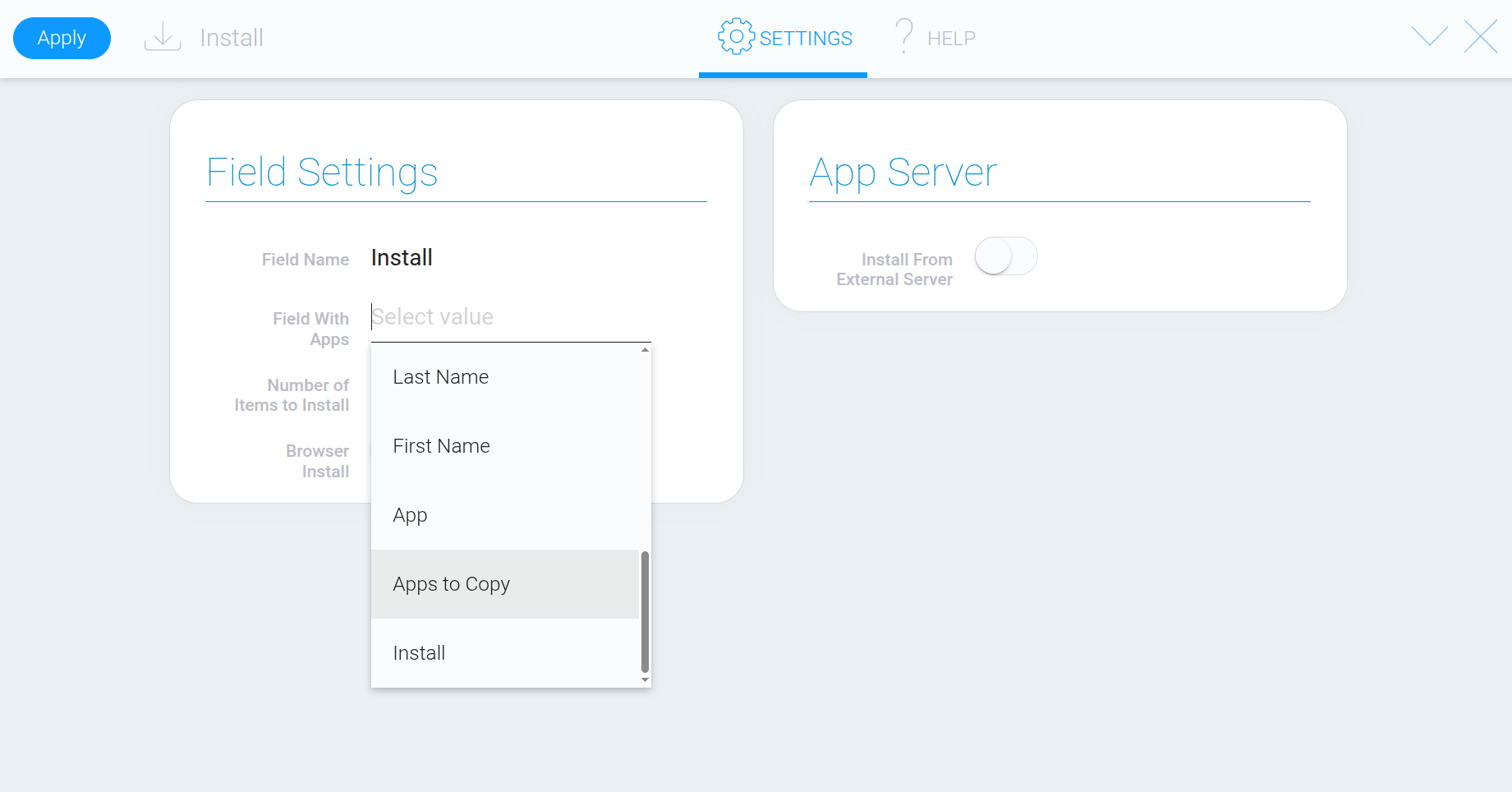
 Next, open “Field Settings”. Under “Field With Apps”, select the “Apps to Copy” field you configured earlier.
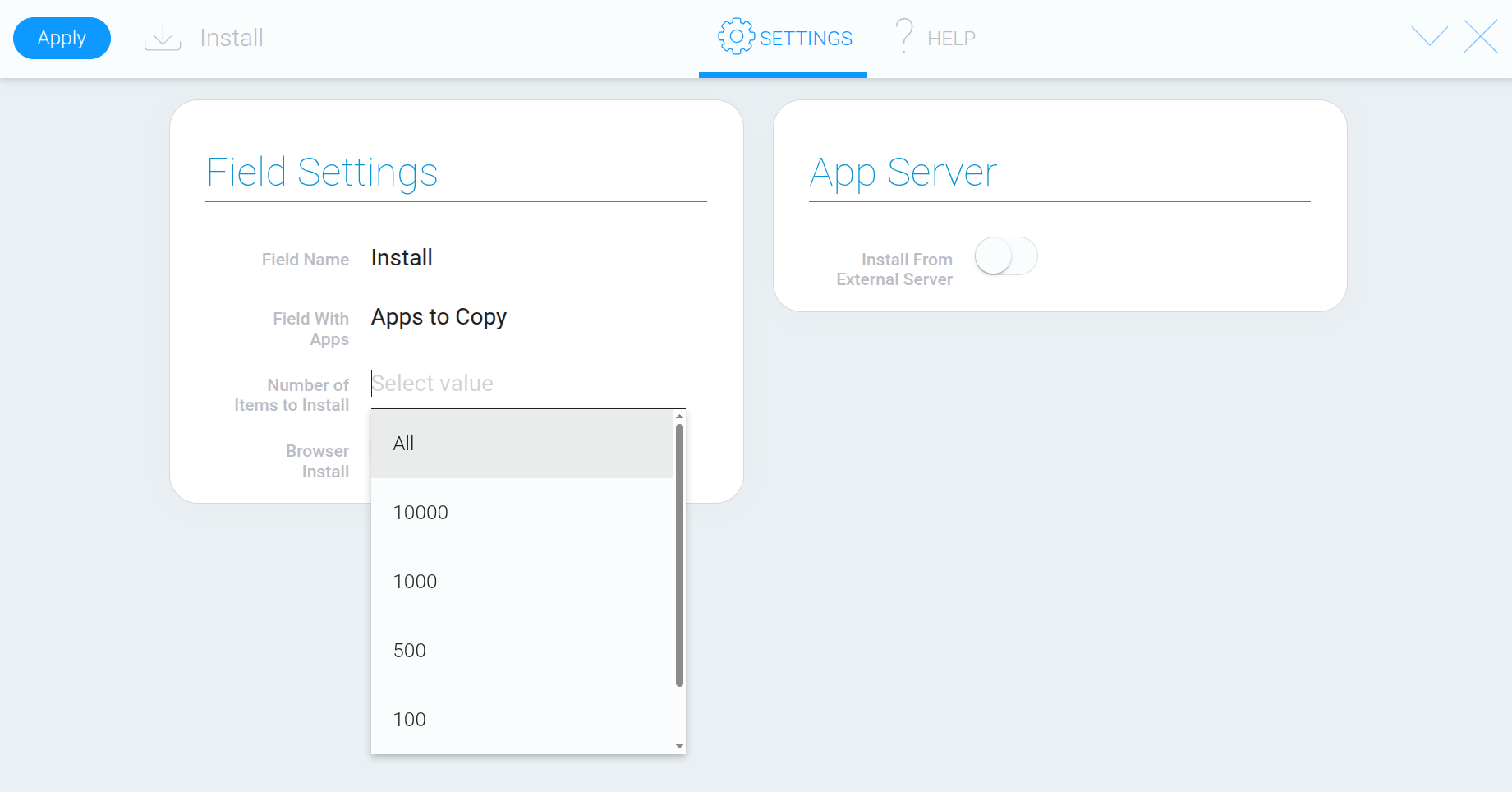
 Then, use “Number of Items to Install” to specify how many records should be copied along with the app. You can keep the default value of “1000” or select “All” to copy every record.
 The “Browser Install” option determines where the copying process takes place. When enabled, the process runs in your browser. In this case, do not close or refresh the page until the process is complete, as doing so will interrupt the copy.
When “Browser Install” is disabled, the process runs on the server. Closing or refreshing the page will not stop it.
Step 5. Start the Copying Process
#
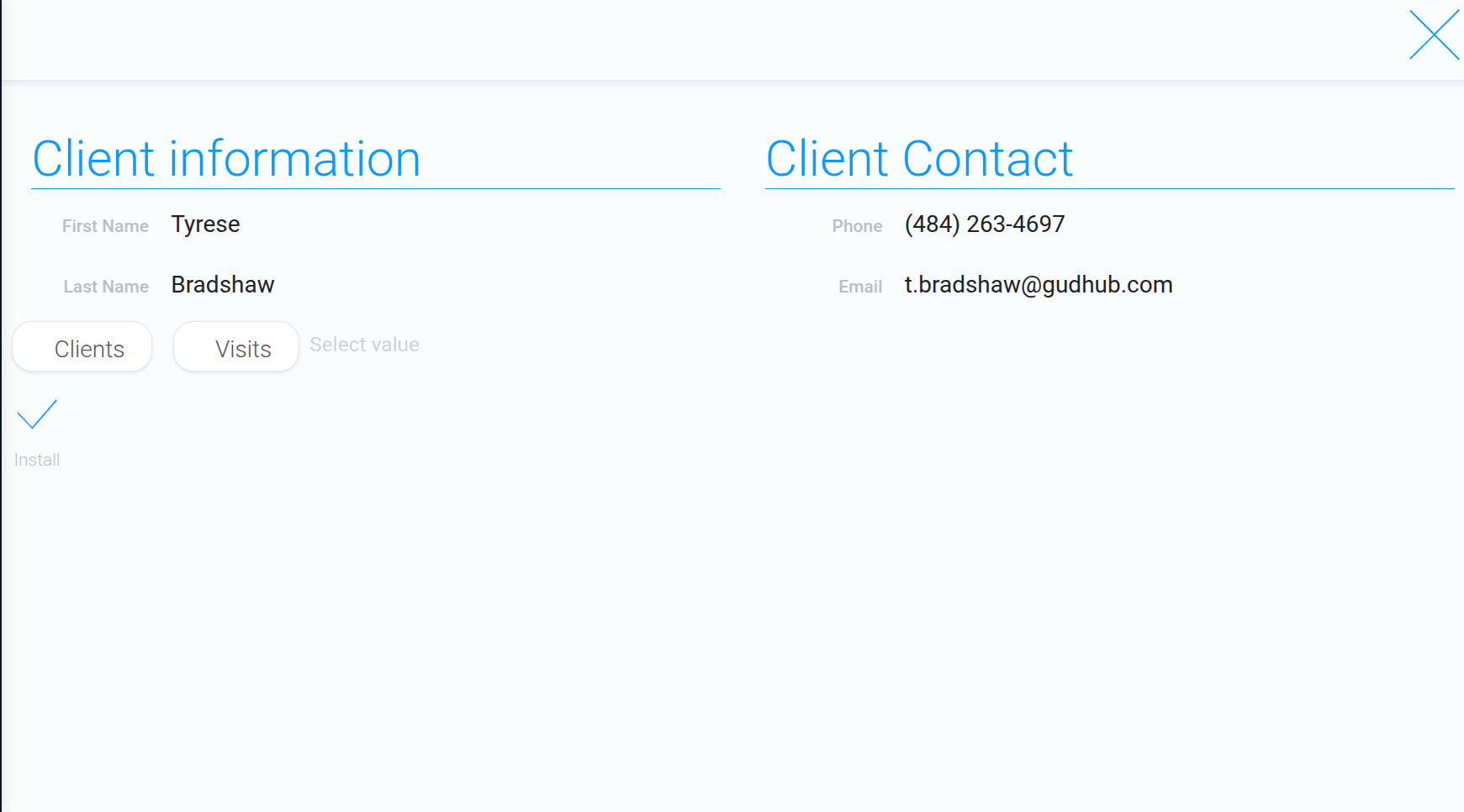
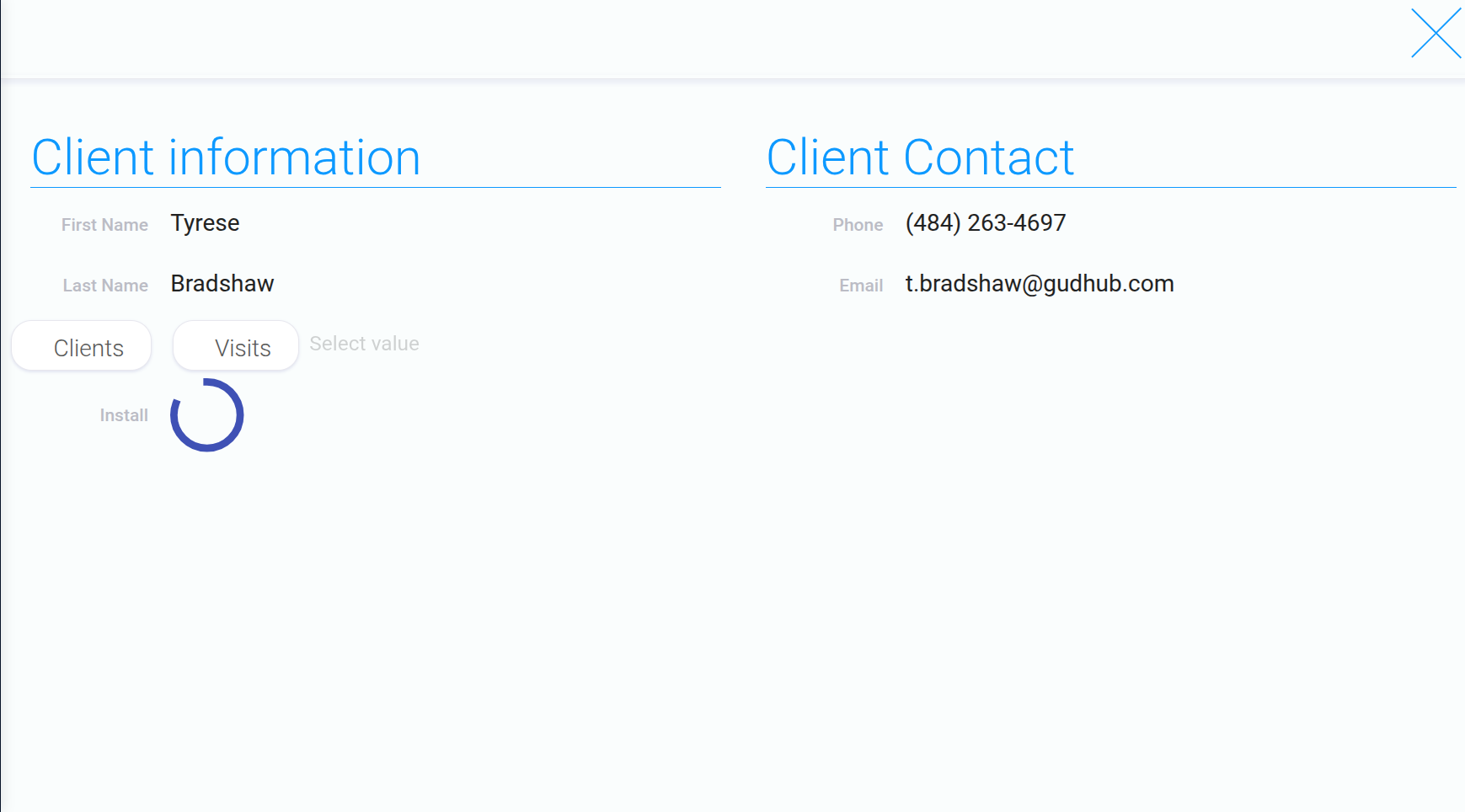
Check that you’ve selected the correct apps. In our example, we’re duplicating the linked “Clients” and “Visits” apps. Then click “Install”.
Wait for the circular progress indicator to finish, then return to the system’s home page.
 If everything has been configured correctly, copies of the selected apps will appear on the home page.
 With Install App, you can quickly duplicate individual apps or entire app systems while preserving their structure and connections. The key is to configure the App and Install App elements correctly and select all the apps whose connections you want to maintain. This allows you to reuse existing solutions in GudHub without having to configure them from scratch.