
Setting Up a Gemini API Key #
What Is a Gemini API Key #
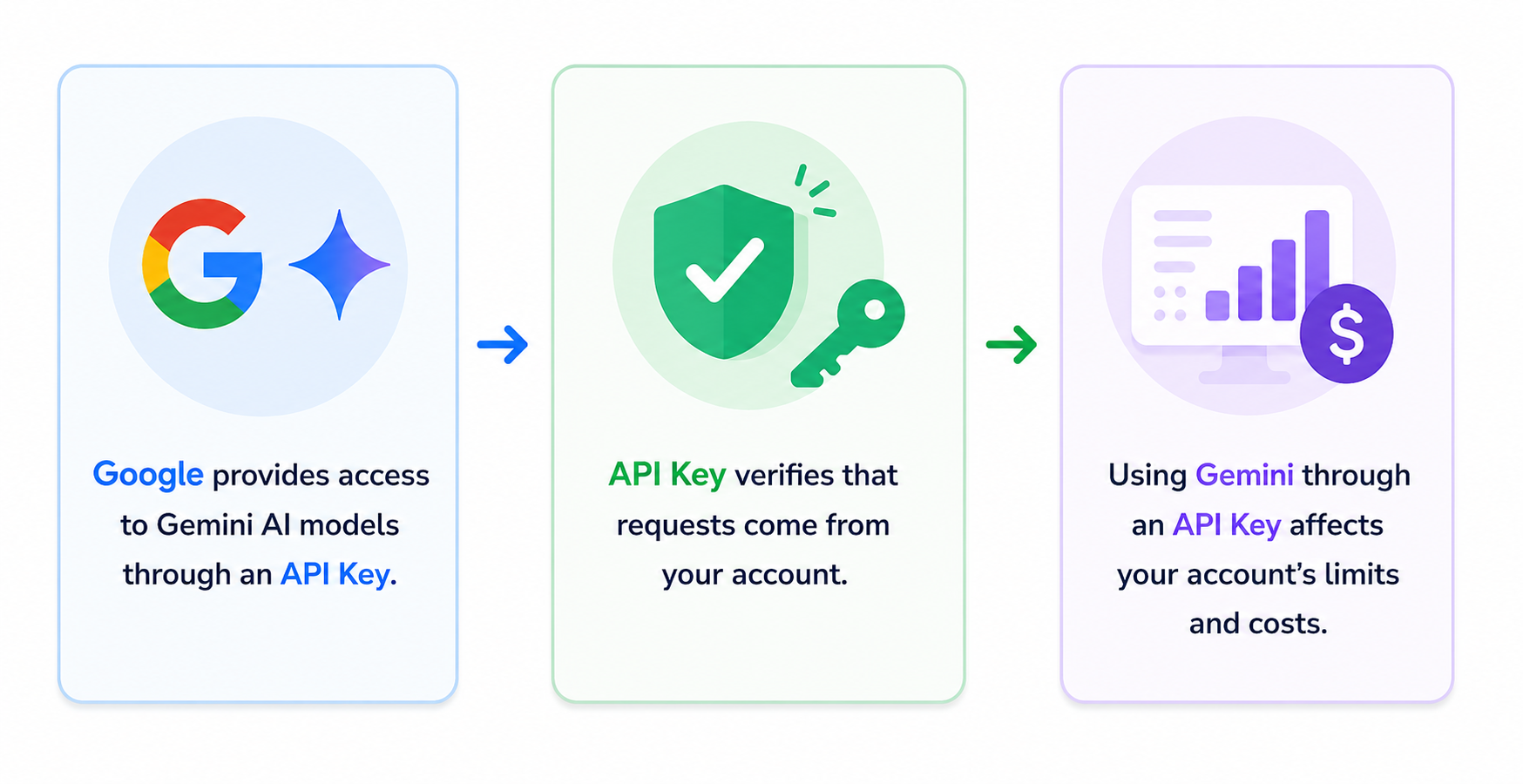
A Gemini API Key is a unique access credential that allows applications to interact with Google's Gemini AI models. When connected to a CRM system, it enables an AI assistant to send requests to Gemini and use artificial intelligence to automate tasks, generate responses, and process information.
What Is an API Key Used For #
A Gemini Key connects your CRM system to Google's Gemini AI models. It allows Google to authenticate incoming requests, identify the associated account, and grant access to Gemini's AI capabilities.
Once the API Key is connected, the AI assistant can automatically use Gemini to perform a wide range of tasks within your CRM, including generating responses, analyzing data, processing customer inquiries, and automating routine workflows.
How the AI Assistant Uses an API Key #
The AI assistant uses an API Key Gemini to access Google's Gemini AI models. Whenever a task within the CRM requires data analysis, request processing, or response generation, the system sends a request to Gemini on behalf of the Google account associated with the API Key.
To enable Gemini-powered features, the CRM owner must create an API Key and add it to the system settings. Once the key is connected, all AI-related requests are processed automatically, and the generated results are returned to the CRM for further use. The API Key remains securely stored in the system, so it does not need to be entered again during everyday use.
How to Get a Gemini API Key #
To connect the AI assistant to Gemini, you first need to generate a Gemini Key. The guide below walks you through the process of creating a key in Google AI Studio and preparing it for use within your CRM.
Step 1 #
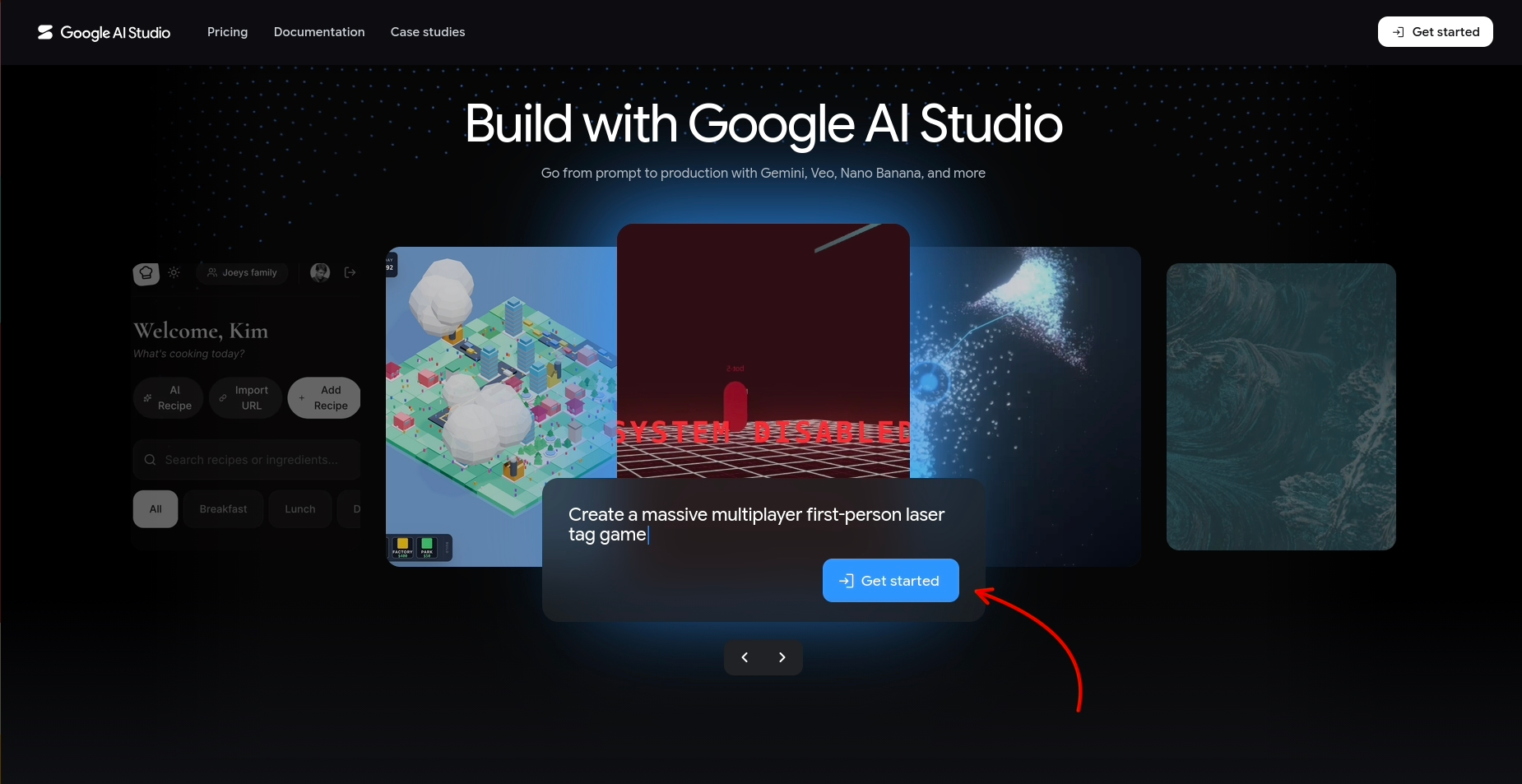
Sign in to Google AI Studio using your Google account.
Step 2 #
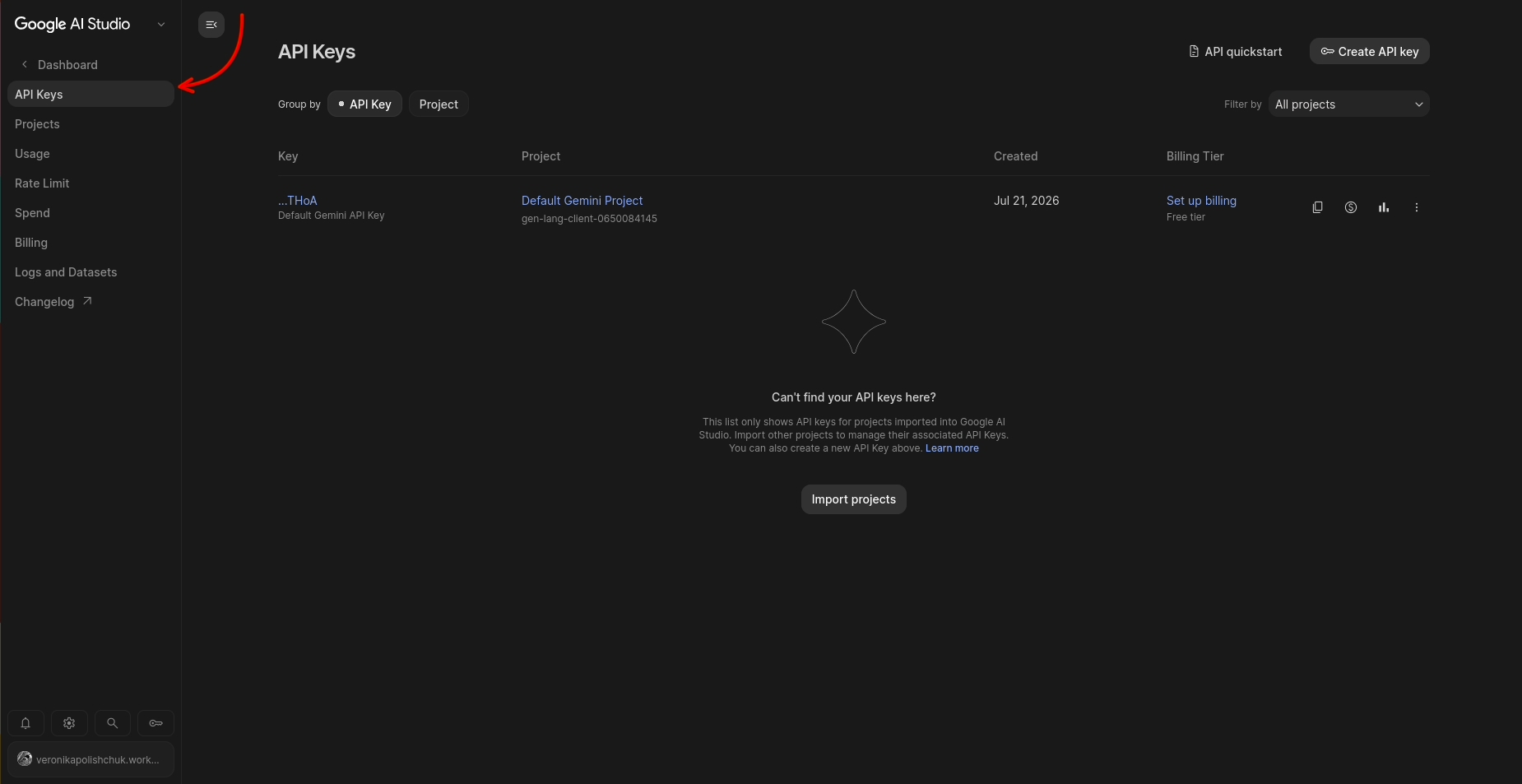
Click "Get API Key" and open the API Keys section.

Step 3 #
In the API Keys section, you can either use the automatically generated key or create your own.
To create a new key, click "Create API Key".
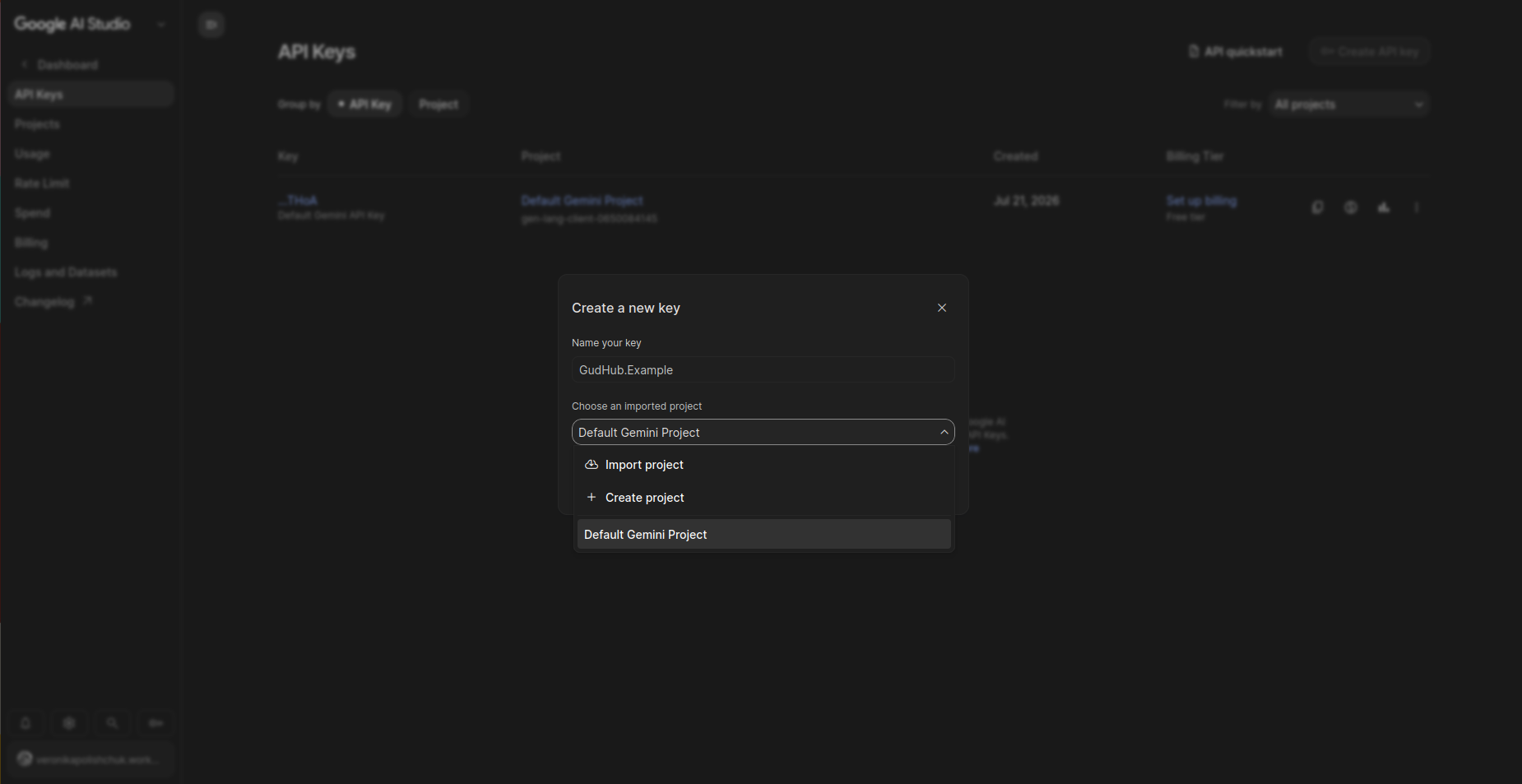
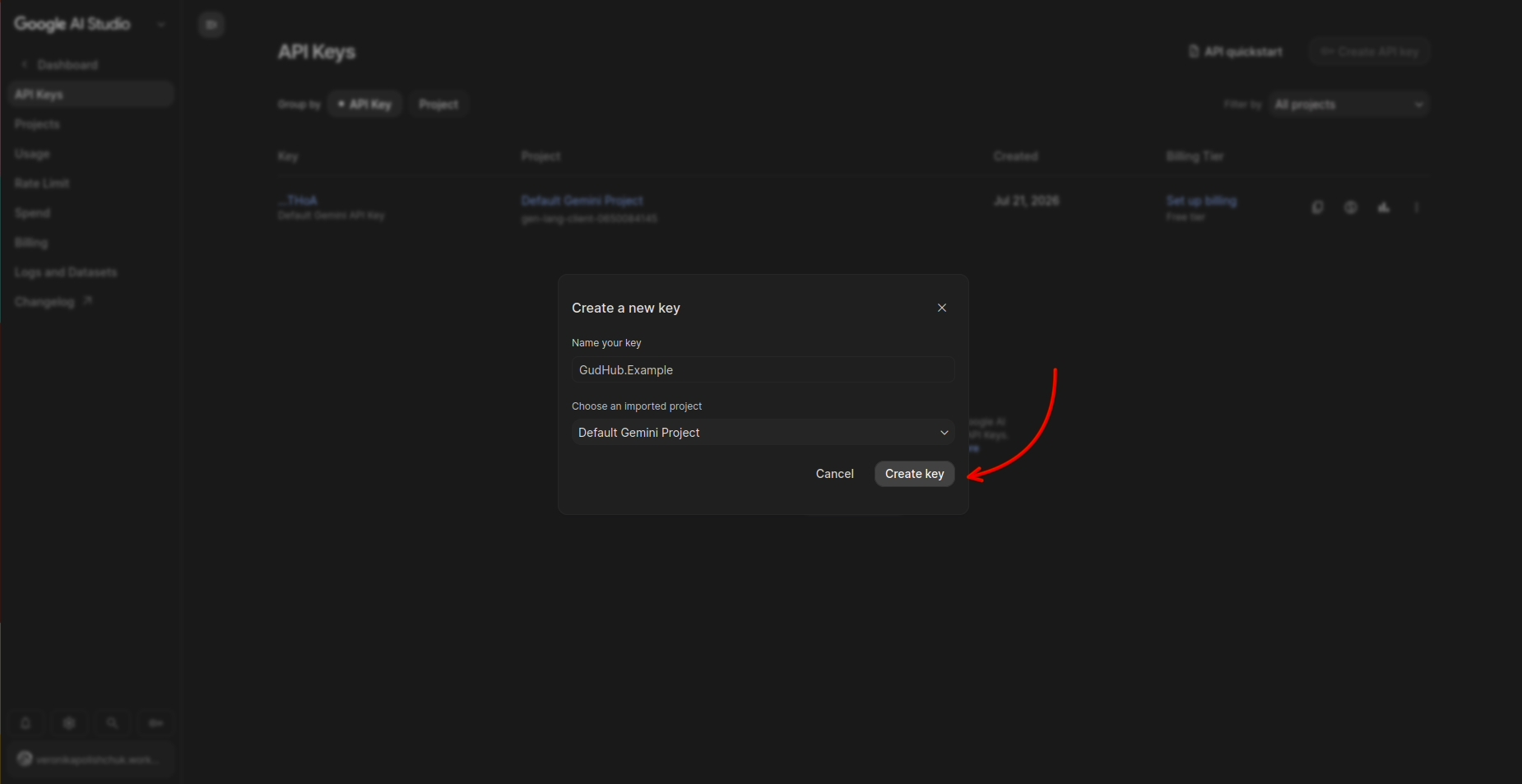
 Enter a name for the key and select a project.
A Project is where Google stores your API keys, usage statistics, configuration settings, and other related resources.
If you're not using separate Google Cloud projects, you can simply keep the default option, Default Gemini Project.
Step 4 #
Review the information you've entered and click "Create Key" to generate the API Key.
Step 5 #
Your Gemini Key has been created. Copy the key and paste it into the appropriate field in your CRM to activate the AI assistant.
 Once created, the key will be saved to your account and added to the list of available keys in the API Keys section.
 At this point, your Gemini API Key has been successfully created. Once added to your CRM, the system will use it to send requests to Gemini and access AI-powered features.
Before you start using the API Key, we recommend reviewing a few important details about how it works and how it should be managed.
Things to Know About API Key Gemini #
Gemini API Pricing and Limits #
Gemini API is available through both free and paid usage tiers. The available quotas and usage costs vary depending on the selected model and Google's current pricing structure.
Once the free usage limits are exceeded, continued API usage may incur charges based on Google's applicable rates.
API Key Security #
An API Key Gemini is a confidential credential that provides access to Google's Gemini AI services. All requests made using the key are processed on behalf of the Google account associated with it.
To protect your account, never share your API Key with unauthorized users, publish it publicly, or store it in unsecured locations. If the key is exposed, anyone who has access to it may be able to send requests using your account.
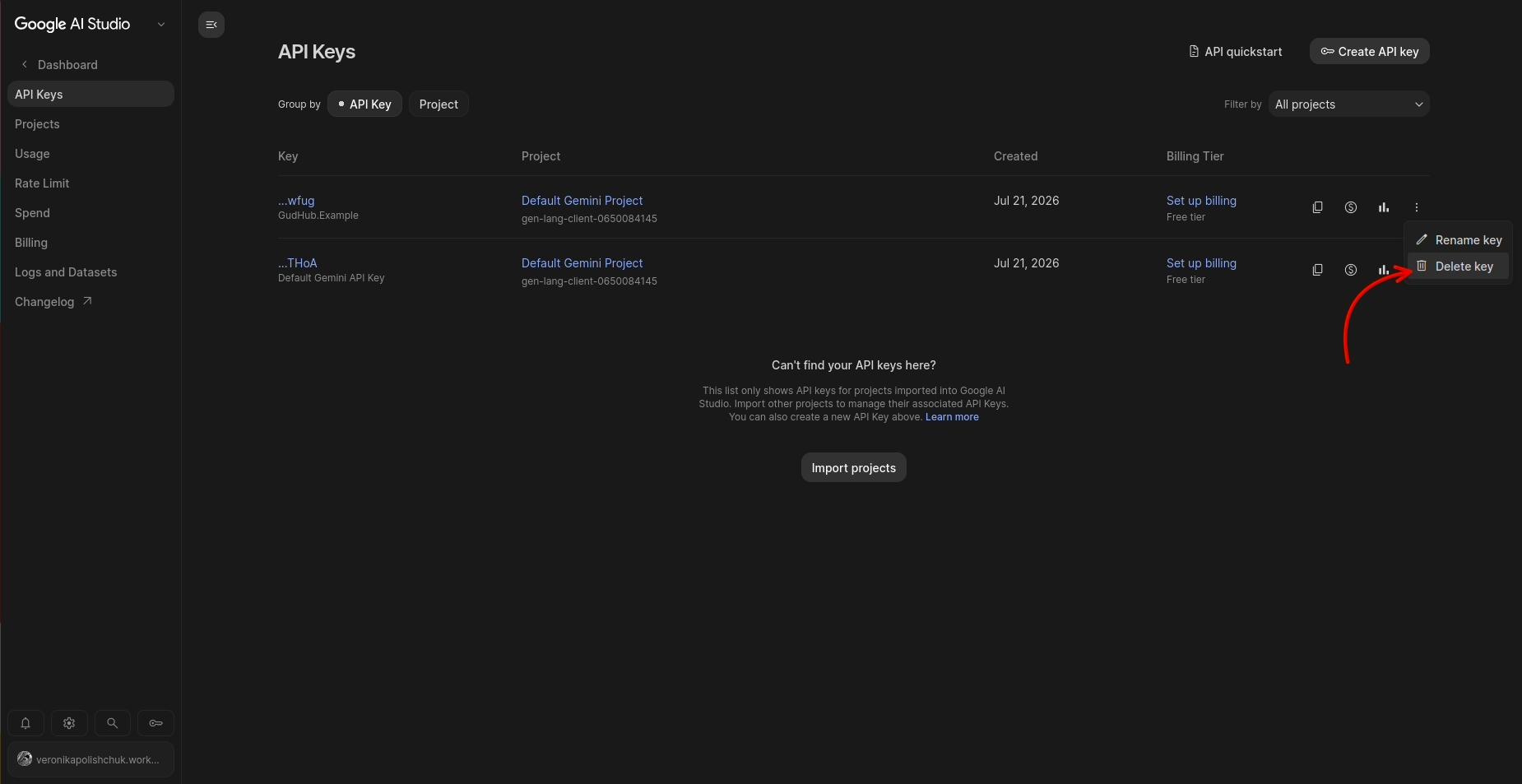
If you believe your API Key has been compromised, you can delete it from your account settings and generate a new one.
Storing and Using a Gemini API Key in Your CRM #
Once your API Key has been added to the CRM, it is securely stored within the system and automatically used whenever requests are sent to Gemini models. During normal use, the AI assistant can access Gemini without requiring the API Key to be entered again.
If you need to replace the key, simply remove the existing one from your CRM settings and add a new API Key. Once the changes are saved, the system will automatically start using the updated key for all future interactions with Gemini.