
Setting Up an Anthropic API Key #
What Is an Anthropic API Key #
An Anthropic API Key (also referred to as a Claude API Key) is a unique access key that allows an AI assistant in your CRM system to securely connect to Anthropic's Claude AI models. It enables the system to communicate with Anthropic services and perform AI-powered tasks.
What Is an Anthropic API Key Used For #
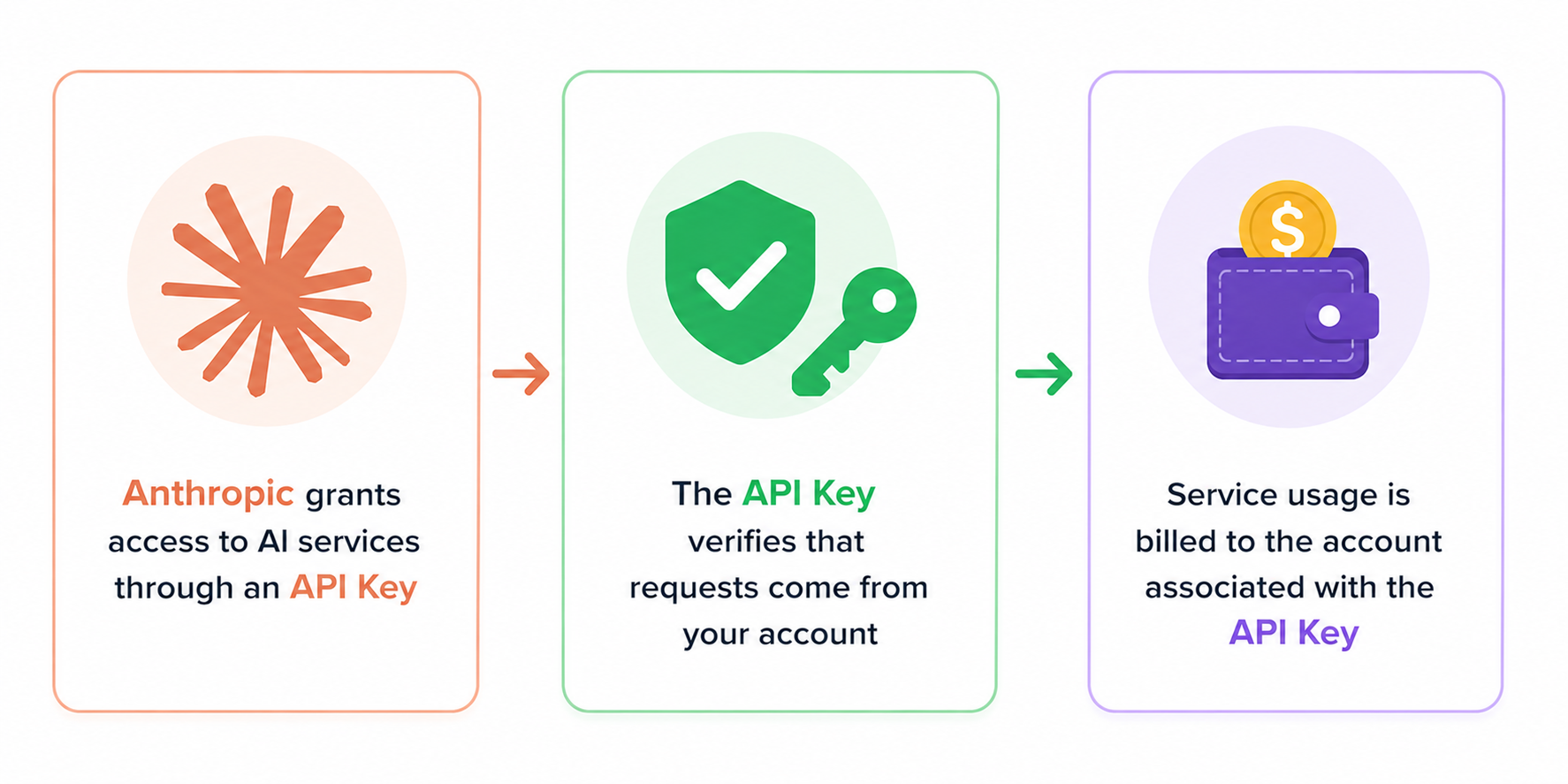
An Anthropic Key allows your CRM system to access Anthropic's AI services. It enables Anthropic to identify your account, authenticate requests, and provide access to Claude models.
Once the API Key is connected, your AI assistant can automatically use Anthropic's AI services to generate responses, analyze data, process customer inquiries, automate business workflows, and perform other AI-powered tasks.
How the AI Assistant Uses an API Key #
The AI assistant does not process AI requests itself. Instead, it relies on Anthropic's AI services to analyze information, handle requests, and generate responses.
To enable the AI assistant, the CRM owner must generate an API Key and add it to the CRM system. Once the key is saved, the assistant can automatically connect to Anthropic whenever an AI-powered task needs to be performed. The results are then returned to the CRM and used in daily operations without requiring the API Key to be entered again.
How to Get Claude API Key #
Before connecting the AI assistant, you need to create an API Key Claude. Follow the steps below to generate a key in Claude Console for use in your CRM.
Step 1 #
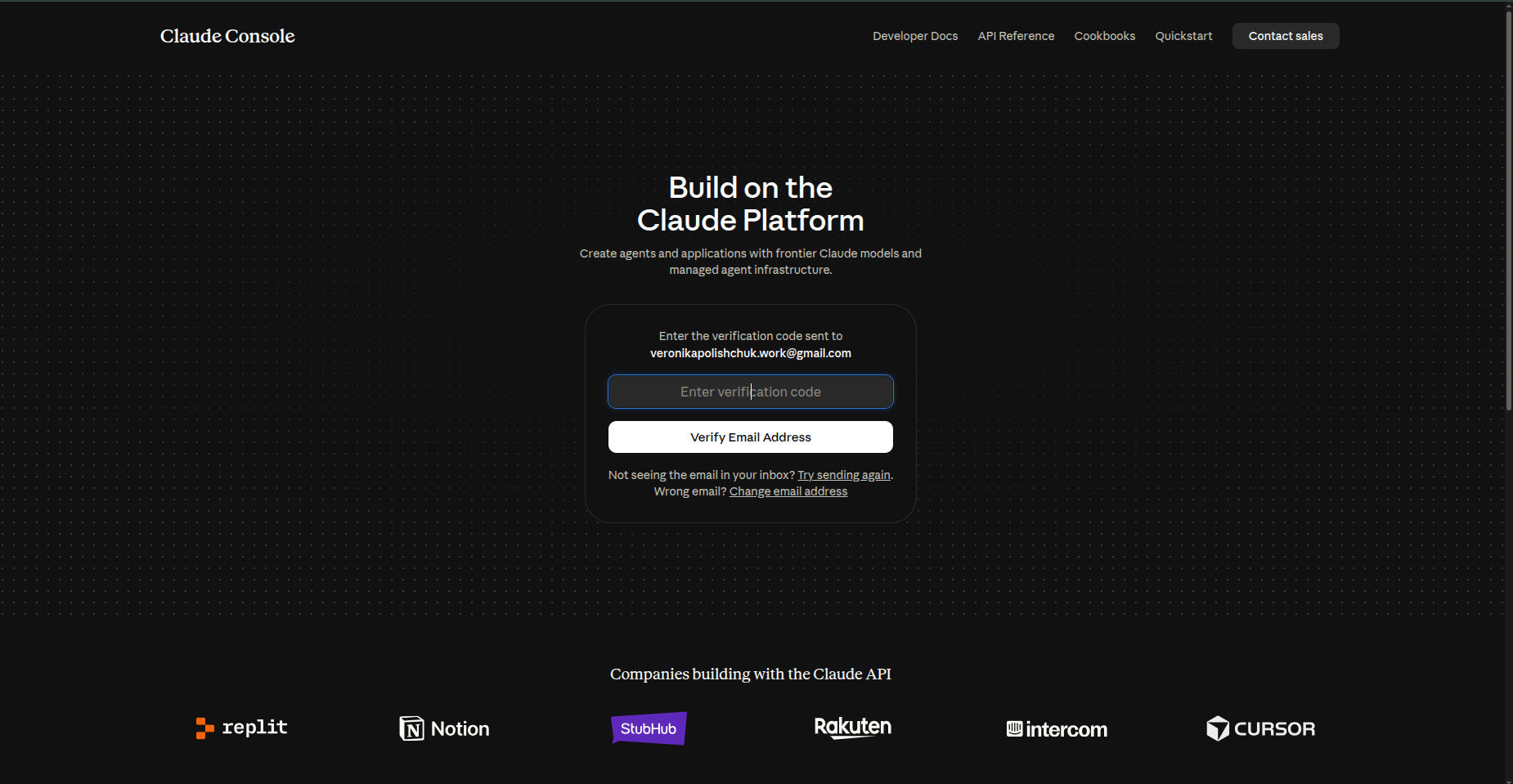
Sign in to the Claude Console using your email address.

Step 2 #
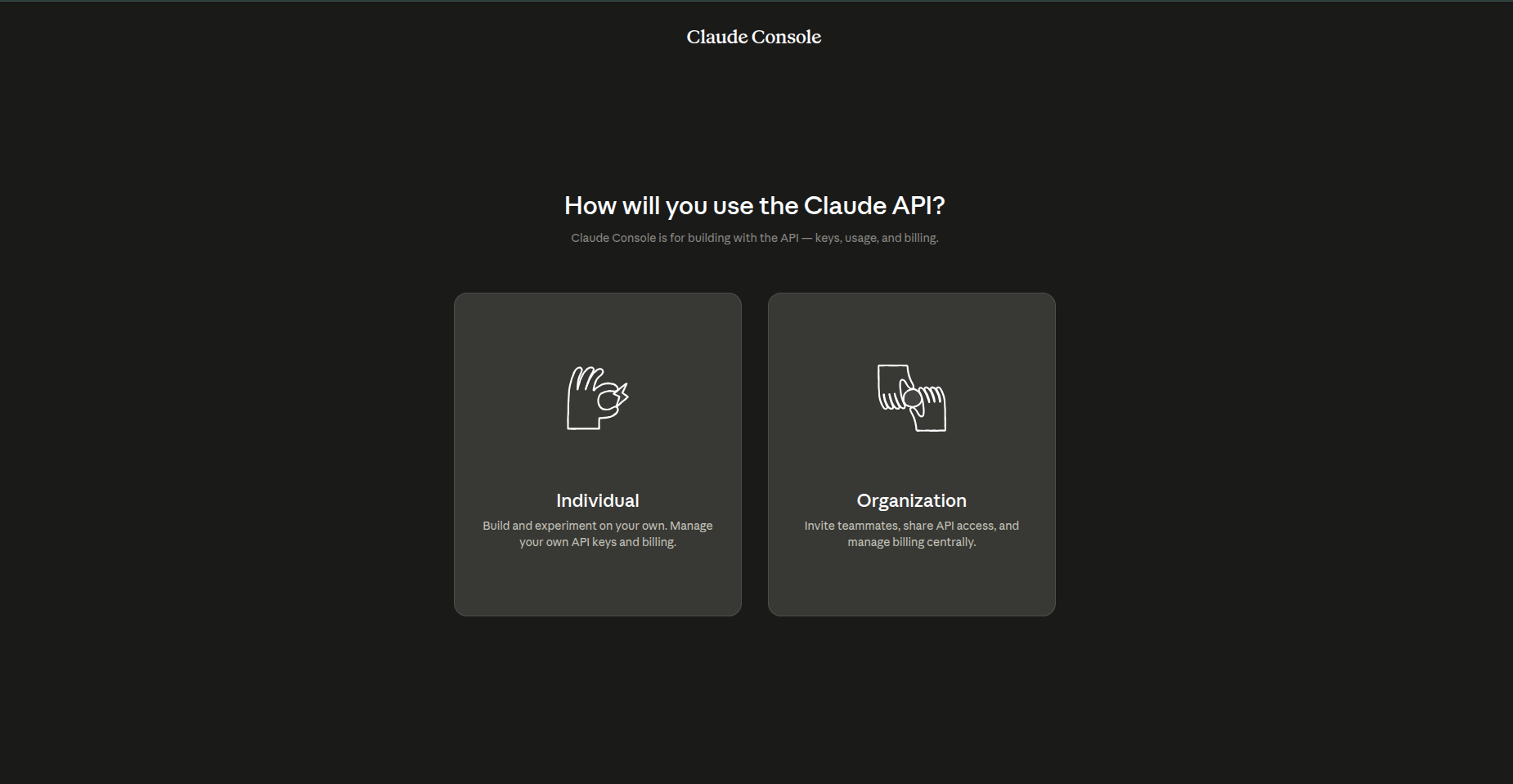
Create either an Individual Workspace or an Organization Workspace.
An Individual Workspace is intended for personal use by a single user.
An Organization Workspace is designed for teams and shared API management.
If you're creating an API Key for personal use or a small business, an Individual Workspace is usually the best choice.
Step 3 #
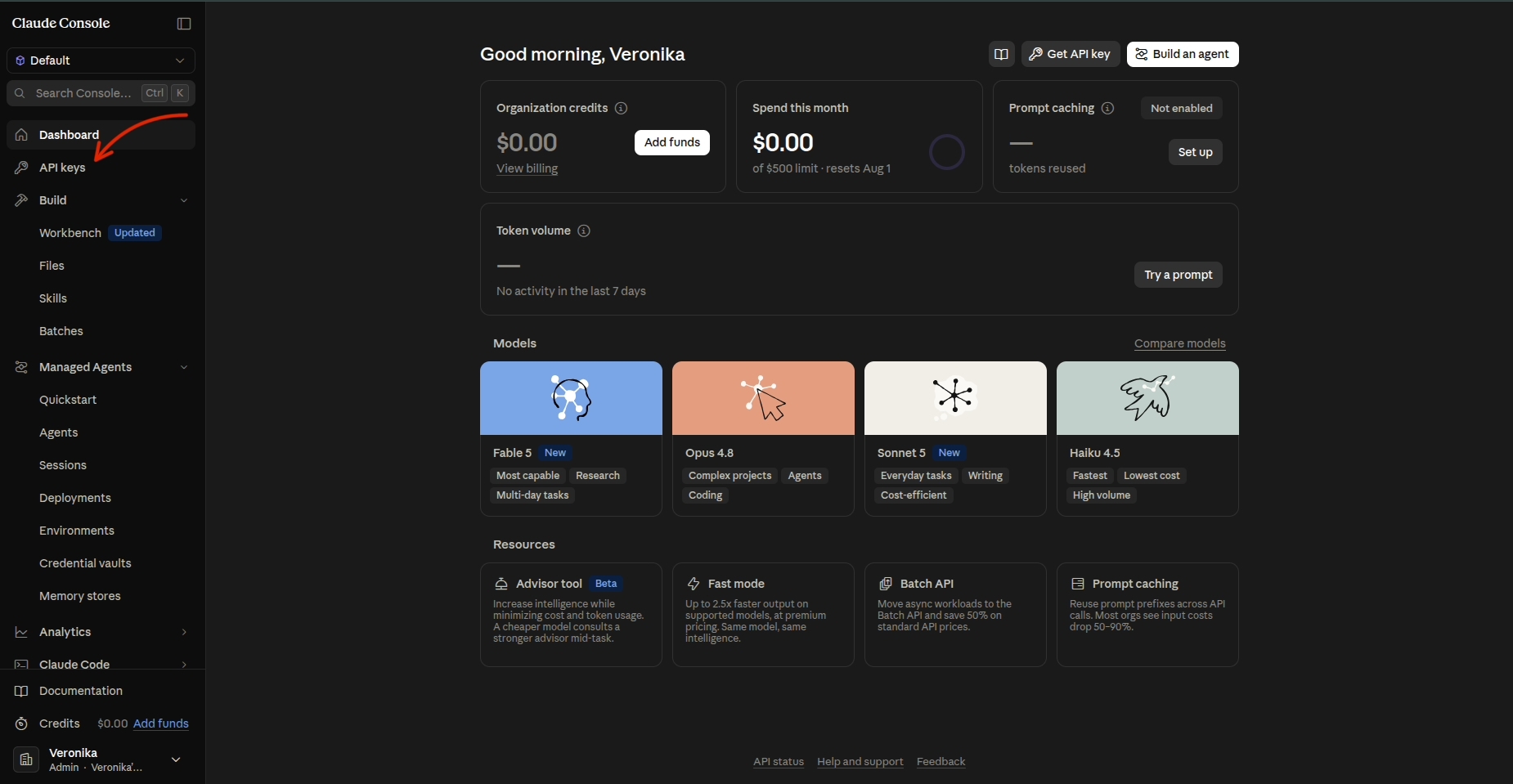
After creating your workspace, open the API Keys section.
Step 4 #
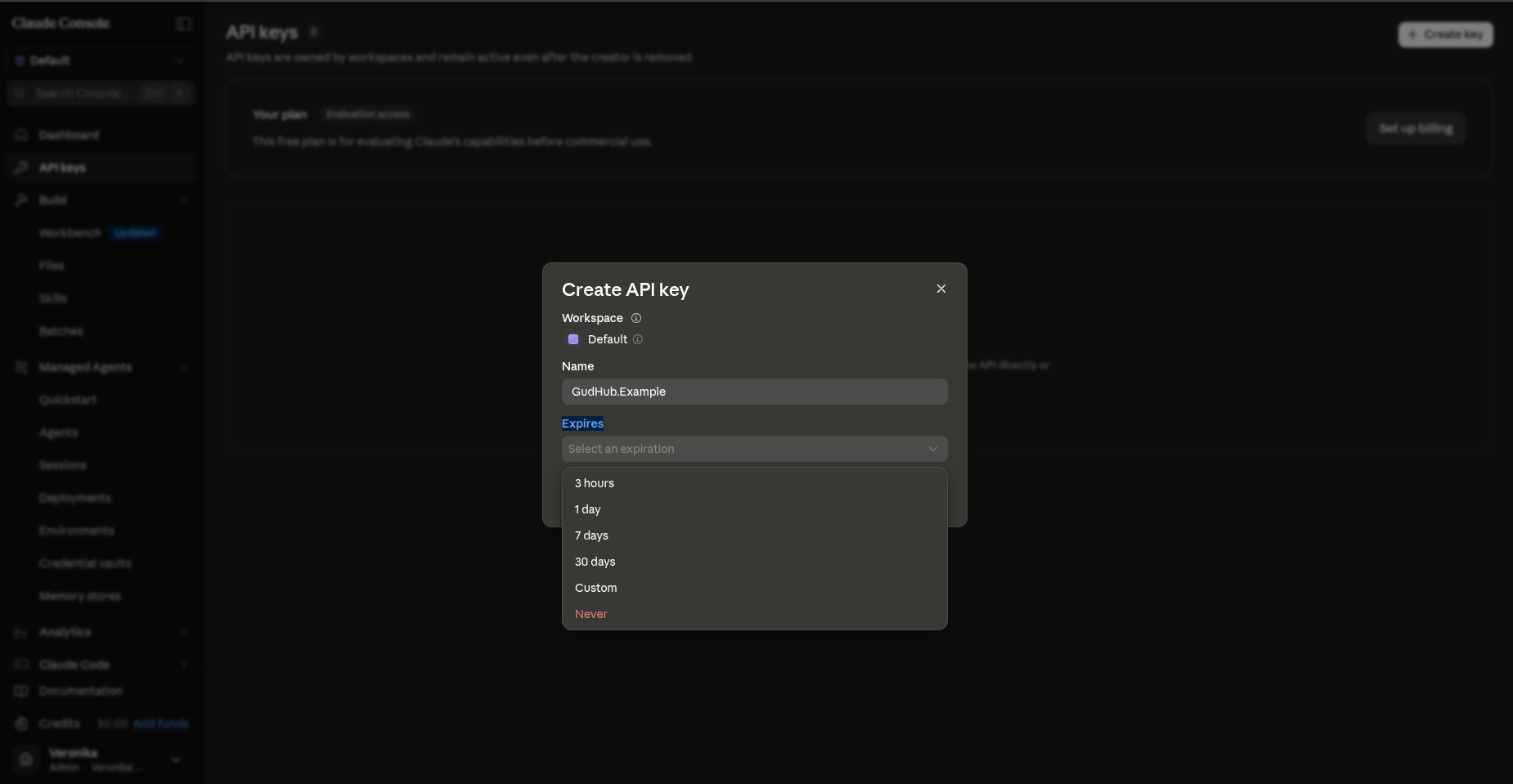
Click the “Create Key” button.
 Enter a name for your API Key and select an expiration period. The key name helps you identify it later, while the expiration period determines how long the key will remain active.
Step 5 #
Your API Key has now been generated. Copy the key and paste it into the appropriate field in your CRM to activate the AI assistant.
 Once created, the key will appear in the API Keys section of your workspace alongside any other API Keys.
 Important: For security reasons, the full API Key is displayed only once during creation. Make sure to copy and store it in a secure location immediately.
Your Anthropic Key is now ready to use. Once added to your CRM, it will be used to send requests to Claude services. Before using the API Key, we recommend reviewing a few important details about its usage.
Things to Know About Claude API Key #
Anthropic API Pricing #
A Claude subscription and Anthropic API usage are billed separately. Even if you have a Claude Pro subscription, requests made through the API are charged according to Anthropic's API pricing. The Anthropic API operates on a pay-as-you-go pricing model, which means you only pay for the resources you use. The more API requests are sent through your API Key, the higher the usage costs for the associated Anthropic account.
API Key Security #
Your API Key is a confidential credential that grants access to Anthropic services. All API requests made with the key are processed under your Anthropic account.
For this reason, do not share your API Key with unauthorized users, make it publicly available, or store it in unsecured locations. If someone gains access to your API Key, they can send API requests using your Anthropic account.
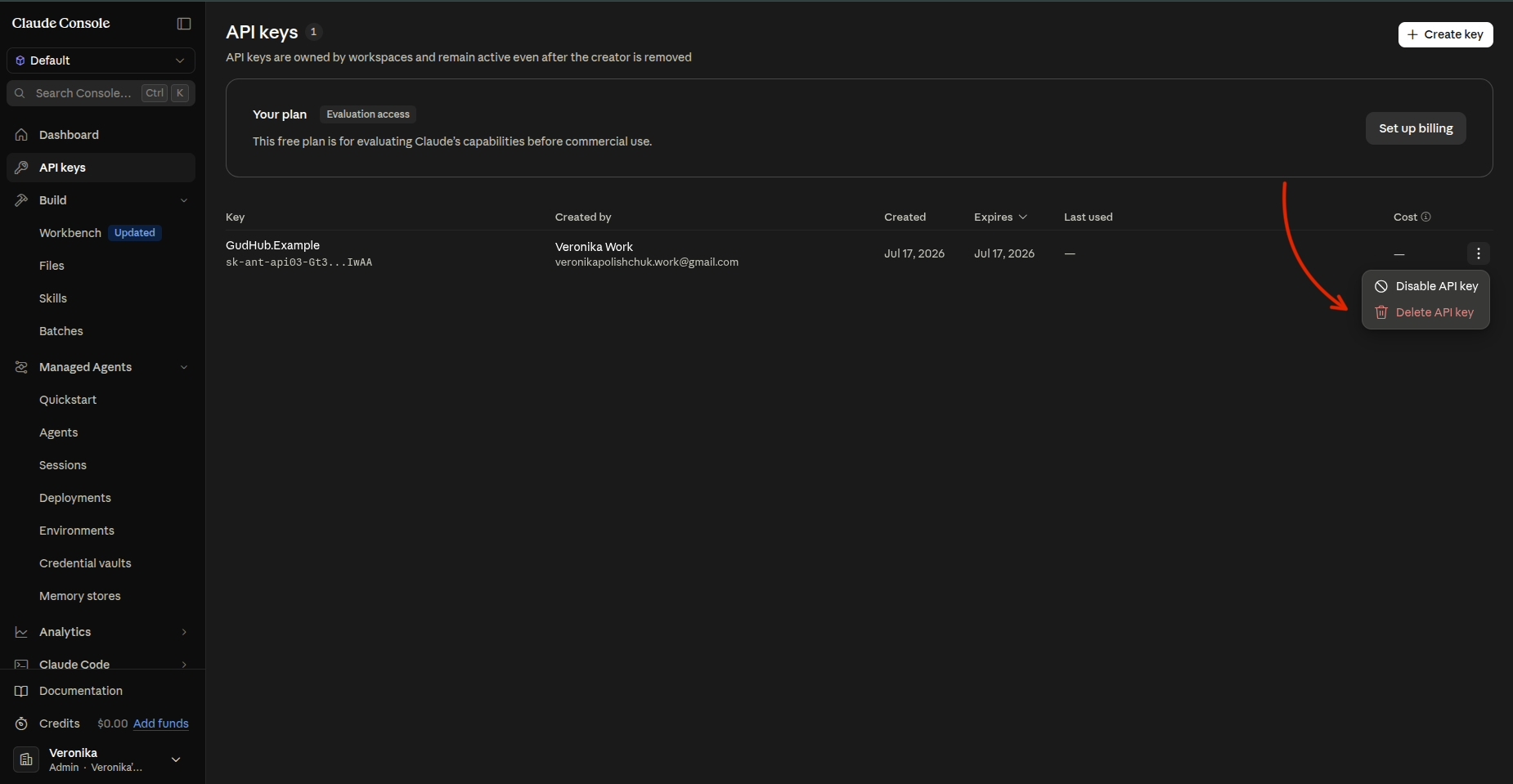
If your key has been compromised, simply delete it from your Anthropic account and generate a new one.
Storing and Using the Anthropic Key in GudHub CRM #
Once your API Key has been added to your CRM, it is stored in the system and automatically used whenever the AI assistant communicates with Anthropic's services. You won't need to enter the key again during normal use.
If you ever need to replace the key, simply remove the existing one from your CRM settings, add a new API Key, and save the changes. The system will immediately begin using the updated key for all future requests.