
Setting Up a Grok API Key #
What is a Grok API Key #
Grok APIKey is a unique access token that allows your CRM system to connect to Grok AI models by xAI. Once the key is added to the CRM, the AI Assistant can use Grok to analyze information, process customer requests, generate responses, and automate a wide range of business workflows.
What Is a Grok APIKey Used For #
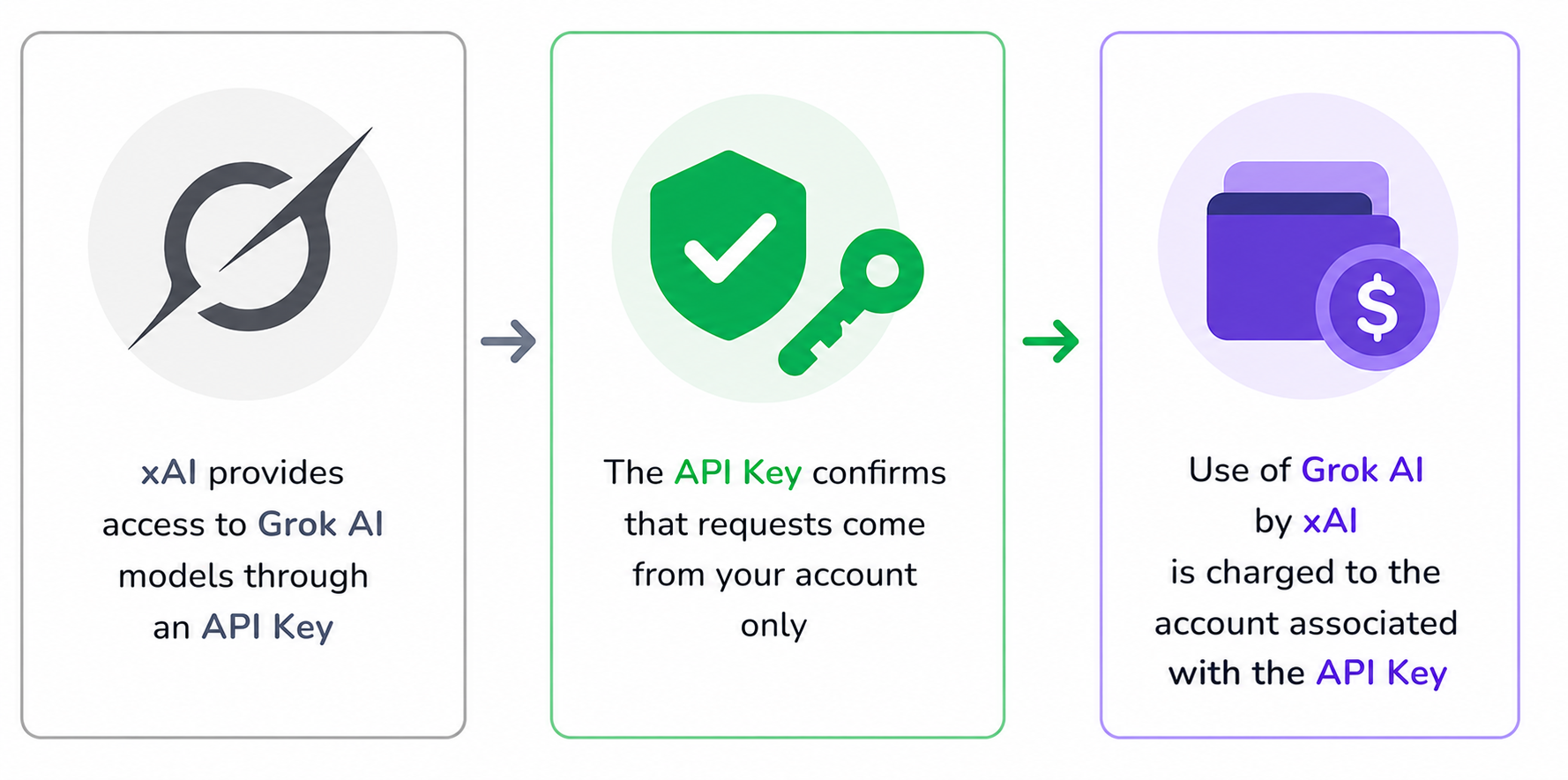
A Grok Key is used to connect your CRM system to Grok AI models developed by xAI. The key authenticates API requests and allows xAI to identify which account they belong to, granting access to the platform’s AI capabilities.
Once the API Key is connected, the AI Assistant can automatically use Grok within the CRM to perform tasks such as analyzing information, generating responses, processing customer requests, and supporting the automation of various business processes.
How the AI Assistant Uses an API Key #
The AI Assistant requires an API Key Grok to access Grok models. Whenever a task in the CRM requires AI-powered processing, the system automatically sends a request to Grok on behalf of the account associated with the API Key.
To enable the AI Assistant to use Grok, the CRM owner must generate an API Key and add it to the system settings. Once the key is connected, all requests to Grok models are handled automatically, and the generated results are returned to the CRM for use in daily workflows.
How to Get Grok API Key #
Before connecting the AI Assistant, you need to create a Grok API Key in the xAI Console. This key allows your CRM system to authenticate requests and access Grok AI models.
Follow the step-by-step guide below to generate an API Key and connect it to your CRM.
Step 1 #
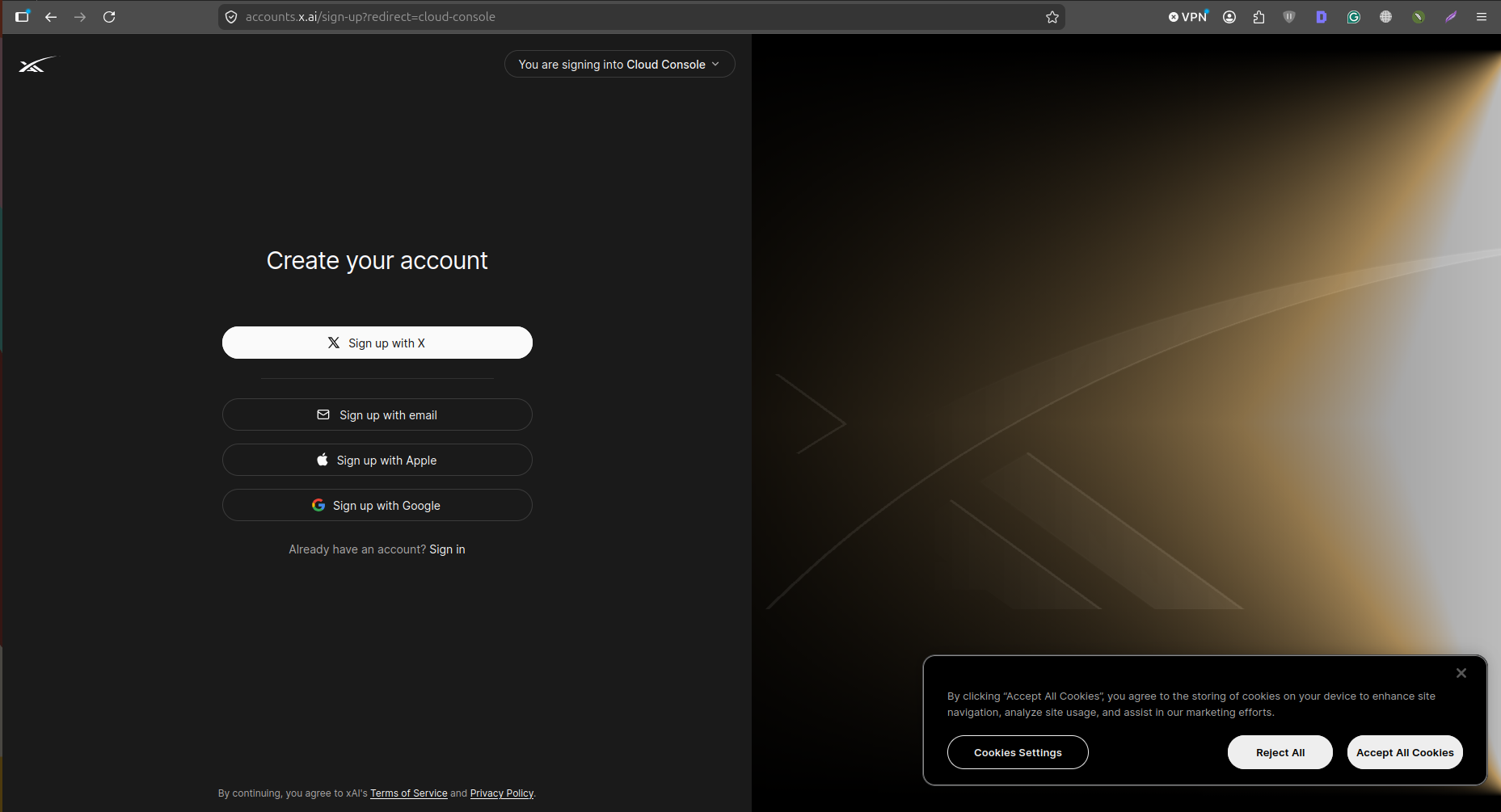
Sign in to the xAI Console using either your X (Twitter) account or an email address.

Step 2 #
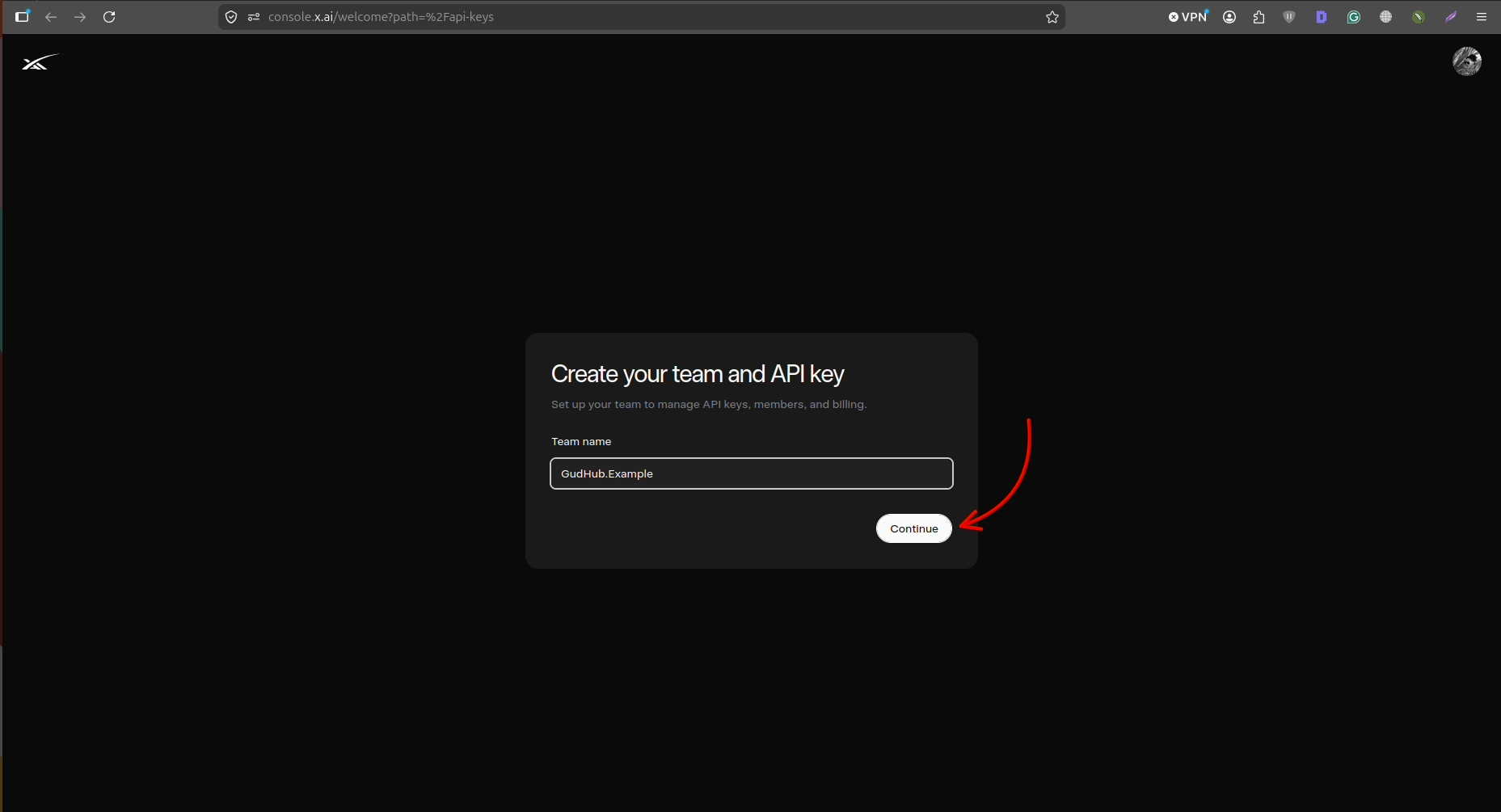
If this is your first time accessing the xAI Console, create a Team. Enter a team name and click “Continue”.
A Team is a workspace used to manage API Keys and account settings in the xAI Console. If you are creating a key for your own use, a single team is sufficient.
Step 3 #
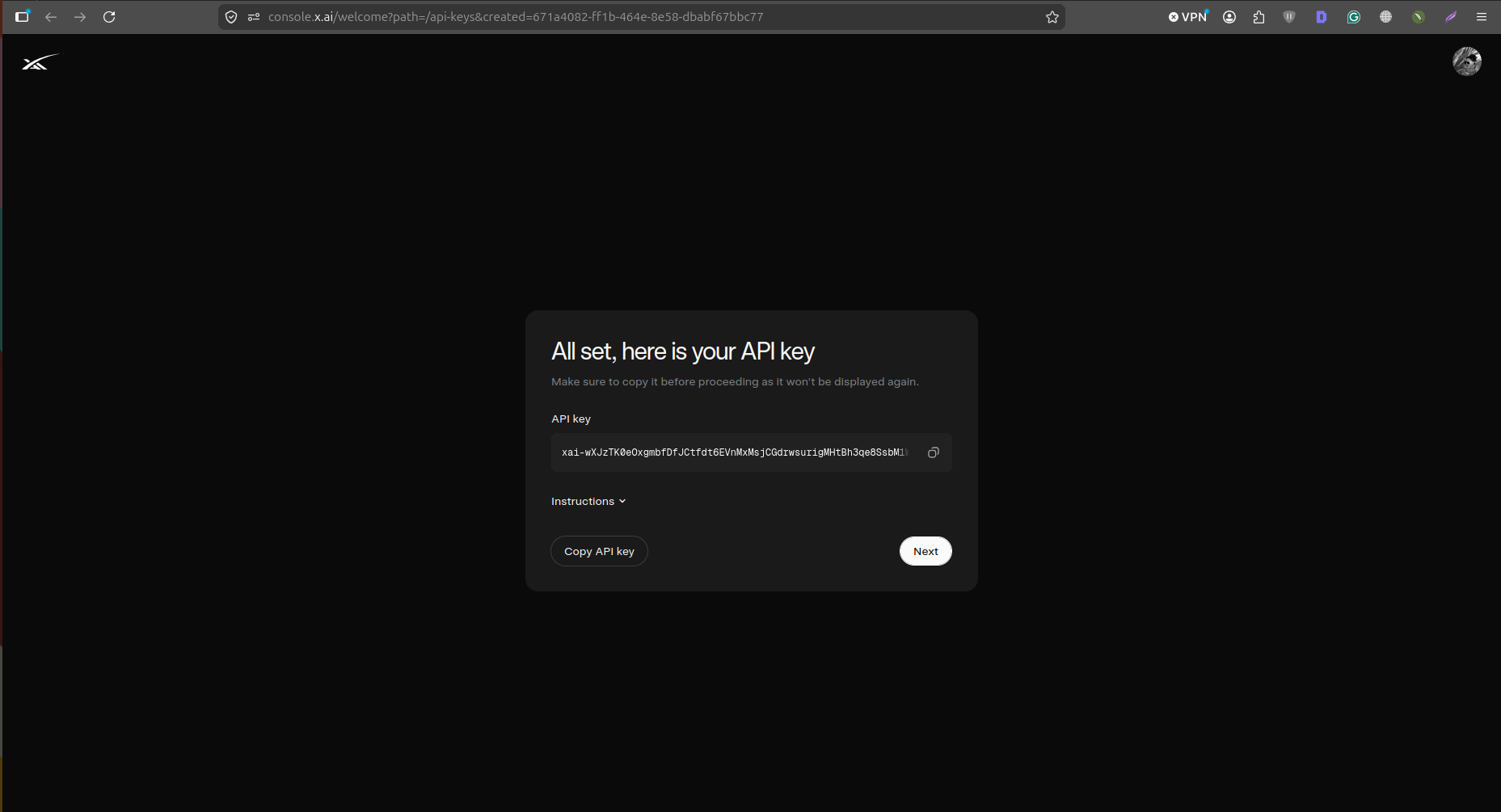
After the Team is created, the system will automatically generate an API Key.
Step 4 #
Copy the generated key by clicking “Copy API Key”.
 Then click “Next” to continue.
 Once created, the key will be stored in your account under the API Keys section.
 Important: For security reasons, the full API Key is displayed only once during creation. Make sure to copy and store it in a secure location immediately.
Grok Key setup is now complete. Once the key is added to your CRM, the AI Assistant will be able to use Grok models to process requests, analyze information, and perform other AI-powered tasks.
Before you start using the API Key, we recommend reviewing a few important details about how it works and how it should be managed.
Things to Know About API Key Grok #
APIKey Grok Pricing #
Grok API uses a pay-as-you-go pricing model, meaning costs are based on the selected AI model and the number of requests sent through the API.
All API-related charges are billed to the xAI account where the API Key was created. As API usage increases, the overall cost of using Grok services may also increase.
It is important to note that Grok subscriptions on X and Grok API access are billed separately. To use the API, billing must be configured independently through the xAI Console.
API Key Security #
A Grok API Key is a confidential credential that provides access to xAI services. All requests made using the key are executed under the account it is associated with.
You should never share your API Key with unauthorized users, publish it publicly, or store it in unsecured locations. If the key is exposed, anyone with access to it may be able to send API requests using your account.
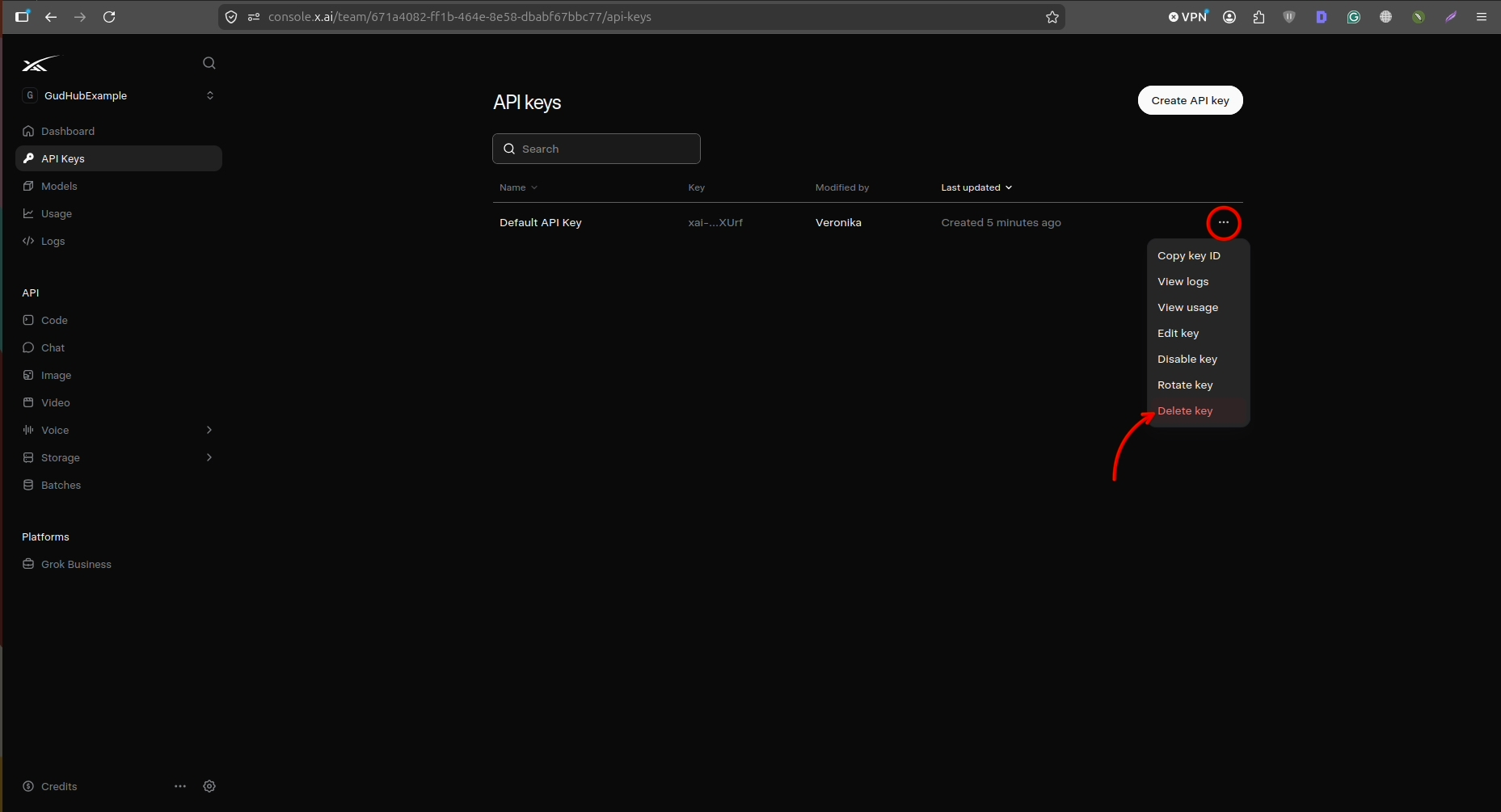
If you believe your API Key has been compromised, it is recommended to revoke or delete the key in your xAI Console account and generate a new one before continuing to use the service.
Access to Real-Time Information from X #
One of Grok’s distinguishing features is its integration with the X (formerly Twitter) ecosystem. This enables Grok models to use up-to-date information when generating responses and analyzing requests.
At the same time, the availability of specific data sources and features depends on the capabilities of the selected model and the current configuration of the xAI platform. As a result, access to certain features may change over time.
Storing and Using a Grok Key in Your CRM #
Once the API Key is added to your CRM settings, it is stored securely and used automatically whenever the AI Assistant needs to interact with Grok models. This allows AI-powered features to operate without requiring the key to be entered again.
If you need to replace the API Key, simply update it in your CRM settings. After the changes are saved, all future requests to xAI services will be processed using the new key.